Category Archives: R Tutorial

R Tutorial

R Decision Making

R Decision Making

There are case where we want a a block of code to be executed when some condition is satisfied. In R, we have rich set of Decision Making Statement that enable computer to decide which block of code to be execute based on some conditional choices. Decision making statement statements is also referred to as selection statements.

Decision making statement evaluates single or multiple test expressions which results is “TRUE” or “FALSE”. The outcome of the test expression/condition helps to determine which block of statement(s) to executed if the condition is “TRUE” or “FALSE” otherwise.

In R, we have following decision making statements –

R Decision Making Statements
Statement Description
if Statements Block of statement executed only when specified test expression is true.
if else Statements When we want to execute some block of code if a condition is true and another block of code if a condition is false, In such a case we use if….else statement.
if else if Statements When we want to add multiple condition checks in single if else statement then by using swift if else-if else statement we can easily add multiple conditions.In if else-if else statement we have a option to add alternative else if statements but we are limited to have only one if and else block in statement.
Switch Statement A switch statement evaluates an expression against multiple cases in order to identify the block of code to be executed.

R Operator Precedence

R Operator Precedence

Operator precedence defines the order in which given mathematical expression is evaluated. When an expression includes multiple operators then each of the single part of given expression is evaluated in a certain order following some rules defined as per operator precedence.Operator with higher precedence is evaluated first and operator with lowest precedence is evaluated at last.

R Operator Associativity

Operators with same precedence follows operator associativity defined for its operator group. In R, operators can either follow left-associative, right-associative or have no associativity. Operators with left-associative are evaluated from the left to right, operators with right-associative are evaluated from right to the left and operators with no associativity, does not follow any predefined order.

Following is R operator precedence table with their respective associativity –

Operator Precedence in R (Highest to Lowest)
Operator Description Associativity
^ Exponent Right to Left
-x, +x Unary minus, Unary plus Left to Right
%% Modulus Left to Right
*, / Multiplication, Division Left to Right
+, – Addition, Subtraction Left to Right
<, >, <=, >=, ==, != Comparisions Left to Right
! Logical NOT Left to Right
&, && Logical AND Left to Right
|, || Logical OR Left to Right
->, ->> Rightward assignment Left to Right
<-, <<- Leftward assignment Right to Left
= Leftward assignment Right to Left

R Operators

R Operators

An operator is a special symbol that is used to carry out some specific operation on its operand. In R Programming, we have rich set of built in operators to carry out different type of operations. There are operators for assignment, arithmetic operations, logical operations and comparison operations etc. In R, operators can be used with many types of variables or constants, but some of the operators are restricted to work on specific data types. Most operators are binary, meaning they take two operands, but a few are unary and only take one operand.

Type of operators in R Programming

R supports the following types of operators –

  • Arithmetic Operators
  • Assignment Operators
  • Relational Operators
  • Logical Operators

R Arithmetic Operators

Arithmetic Operators are used to perform arithmetic operations like addition, subtraction, multiplication, division, modulus, exponent, etc.

Let variable a holds 2 and variable b holds 5, then −

R Arithmetic operators
Operator Name Description Example
+ Addition Addition of given operands
a+b returns 7
- Subtraction Subtraction of second operand from first a-b returns -3
* Multiply Multiplication of given operands a*b returns 10
/ Division Returns Quotient after division
b/a returns 2.5
%/% Integer Division Returns Integer Quotient after division b%/%a returns 2
%% Modulus Returns Remainder after division b%%a returns 1
^ Exponent Raised to the exponent b^a returns 25

Example:-

R Assignment Operators

Assignment operators are used to assign value to a variable, you can assign a variable value or the result of an arithmetical expression.

R Assignment Operators
Operator Description
<-, <<-, = Leftwards assignment
->, ->> Rightwards assignment

here, <- and = are commonly used for assigning values, they can also be used interchangeably.

Example:-

R Relational Operators

Relational Operators are used evaluate a comparison between two operands. The result of a relational operation is a Boolean value that can only be true or false. Relational Operators are also referred as Comparison operators.

R Relational Operators
Operator Description
< Less than
> Greater than
<= Less than or equal to
>= Greater than or equal to
== Equal to
!= Not equal to

Example:-

R Logical Operators

Logical operators are used to combine expressions with conditional statements using logical (AND,OR,NOT) operators, which results in true or false.

R Logical Operators
Operator Description
! Logical NOT
& Element-wise logical AND
&& Logical AND
| Element-wise logical OR
|| Logical OR

Example:-

R Constants

R Constants

Constants refers to immutable values. Constants are basically literals whose values cannot be modified or changed during the execution of program. In R, constants can be of following types –

Numeric constants

It includes all the numeric data types including integer, double, complex. All the numeric constants followed by L are considered as integers and those followed by i are regarded as complex. The constants with 0x or 0X are considered as hexadecimal.

Example:-

Character constants

Character constants are defined with pair of single (‘ ‘) or double quotes (” “).

Example:-

R Variables

R Variables

Variables is an identifier used to refer memory location in computer memory that holds a value for that variable, this value can be changed during the execution of the program. When you create a variable in R, this means you are allocating some space in the memory for that variable. The size of memory block allocated and type of the value it holds is completely dependent upon the type of variable. In R, a variable can be used to hold a number, a string, an object, a statistical result, vector, dataset, a model prediction etc.

Rules for naming a variable –

Constant and variable names cannot contain whitespace characters, mathematical symbols, arrows, private-use (or invalid) Unicode code points, or line- and box-drawing characters.

  • Variable names can be a combination of letters, numbers, period (.) and underscore (_).
  • Keywords are not allowed to be used as a variable name.
  • Blank spaces are not allowed in variable name.
  • Variable names must start with a letter or a period, however if it starts with a period, it cannot be followed by a digit.

Recommendation :- Variable name must be readable and should be relative to its purpose.

Example:- Valid Variable names in R

Example:- Invalid Variable names in R

Declaring Variables In R

In R, variables can be created by assigning it value either using leftward (<-) or equal (=) operator.

Syntax:-

Example:-

Output:-

Listing Workspace Variables

In R, ls() function is used to print all the variables available in current workspace, we can also pass patterns to find the variable names.

Example:-

r_variable_ls_patterns

Deleting Variables

In R, rm() function is used to remove a variables from current workspace.

Syntax:-

Here, varName is replaced with variable name.

Example:-

r_delete_variable

R Keywords

R Keywords

In R, there are is a set of reserved words that you cannot use as an identifier. These words are known as “reserved words” or “Keywords”. Keywords are standard identifiers and their functions is predefined by the compiler. We cannot use keywords as variable names, class names, or method names, or as any other identifier. By typing help(reserved) or ?reserved on R terminal you can see the list of reserved words or keywords.

Following is a R Keyword Table –

R Keywords
if else repeat while function
for in next break TRUE
FALSE NULL Inf NaN NA
NA_integer_ NA_real_ NA_complex_ NA_character_

R Data Types

R Data Types

Variables are used to represent reserved memory locations that is used to store values, when we create a variable we are a suppose to allocate some memory space for that variable. A variables always have a specific type and that type cannot change. Every variable have data type associated to it, the data type for a variable defines –

  • The amount of memory space allocated for variables.
  • A data type specifies the possible values for variables.
  • The operations that can be performed on variables.

R comes with following built-in data types –

  • Numeric
  • Integer
  • Complex
  • Logical
  • Character

R Numeric:- A variable with numeric data type is used to hold decimal values, if a decimal value is assigned to any variable then it will be referred to as numeric type.

Example:-

In R, even if we assign an integer value to a variable, it will still saved as a numeric type.

Example:-

R Integer:- Integers are used to store whole numbers. In R, an integer variable can be created using as.integer function, and integer data type can be verified using is.integer function.

Example:-

Any numeric value passed to as.integer function is coerce into an integer value

Example:-

R Complex:- R supports additional types for representing complex numbers (numbers with imaginary parts), to represent their real and imaginary parts. A complex value in R can be defined with pure imaginary value i.

Example:- Complex number can be defined as following –

In R, as.complex function can also be used to coerce value to complex number.

R Logical:- The logical data type is used to represent the truth values, which can be either True or False. Logical are commonly created via comparison between variables.

Example:-

R Character:- A character variable is used to hold single or series of characters – letters, numbers, and special characters. It can be declared using double quotes “Hello World”.

Example:-

In R, as.character function can also be used to coerce value to character.

R Comments

R Comments

Comments are a set of statements that are ignored by the R interpreter. The use of comments makes it easy for humans to understand the source code. Usually comments gives you inside or explanation about the variable, method, class or any statement that exists in source code. The comment statements are ignored during the execution of the program.

Single-line Comments:-

A hash sign (#) is used to specify a single line comment, which extends up to the newline character.

Multi-line Comments:-

If you want to comment multiple lines then you can do it using hash sign (#) as follows –

R Hello World Program

Creating R Hello World Program

As usual we will start learning R programming by creating “Hello world!” program. The “Hello world!” program is a simplest program that will display some text on the screen. The “Hello world!” program is a simple yet complete program for beginners that illustrates the basic syntax of R programming language. The “Hello world!” program gives you a way to test systems and programming environment.

This tutorial will guide you through writing a basic “Hello World!” program in R. In R Programming, you can do this either by programming it directly in command prompt or you can simply write a program in a file and executing it.

R Command Prompt

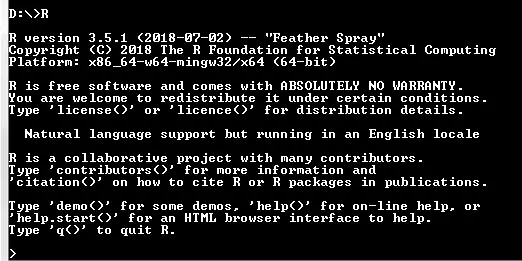
Let’s open command prompt and run the following command to start the R Command prompt.

Once you hit the enter, R interpreter will be launched with a prompt symbol as following –

Here, you can start writing your program. In R Command Prompt, you can print the “Hello World!” in following ways –

Example 1:-

Example 2:-

R Script File

Step 1:- Create a file called “hello_world.R” using a text editor program of your choice. The .R file extension is used to specify Rscript file.

Step 2:- Let’s open the “hello_world.R” file that we created, and put the following line of code in it and save it.

The print() is a function that tells the R interpreter to display or output the content inside the parentheses.

Step 3:- Now, open terminal or command prompt and switch to the folder where our “hello_world.R” file is saved. Run the program by typing the following command –

Once the program is executed it will print “Hello World!” as below –

Output:-

Note :- Before executing R Script in the command prompt, PATH has to be added to environment variables in advanced system properties.


R Installation

R Installation

Installing R In Windows

In order to setup R Programming development environment you need to have R installed, so if you don’t have it installed, check the following instruction to get R Language installed. If you’ve already have installed R Language in your system, you can skip this part.

Step 1:- Download the R Setup from the official R Language website, link given below –

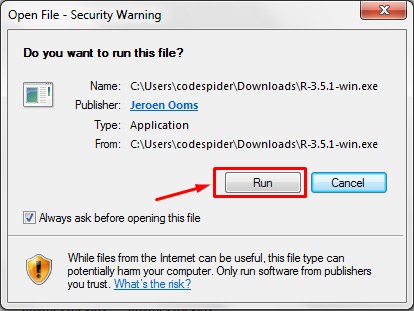
Step 2:- Run the installer (the .exe file you downloaded in the previous step.)

R_Installation_1

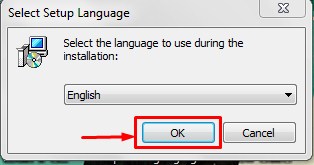
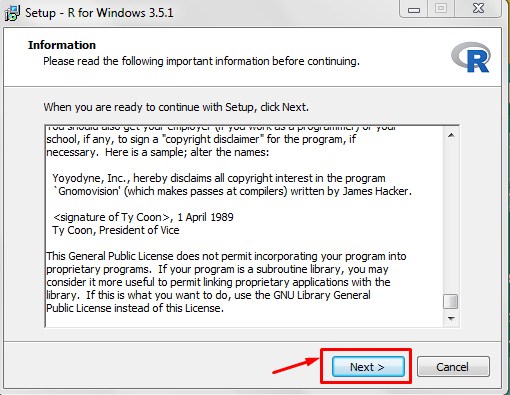
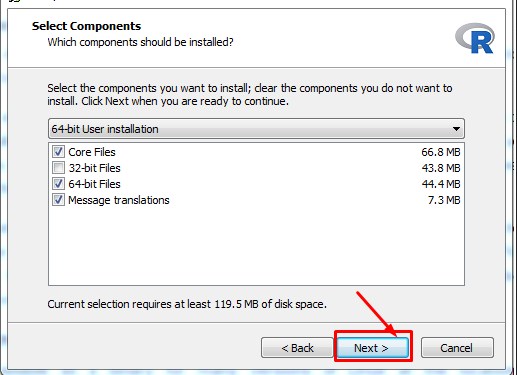
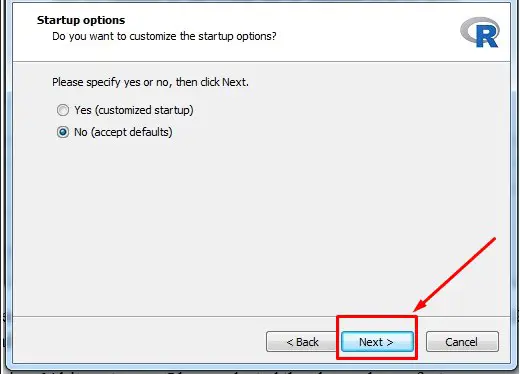
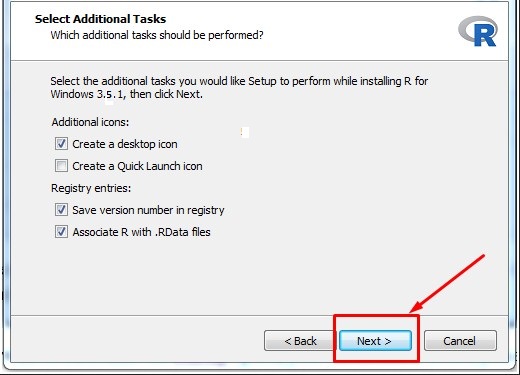
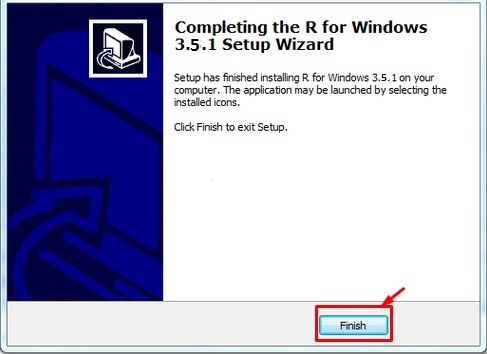
Step 3:- Follow the installation wizard to install R.

R_Installation_2

Screenshot_3

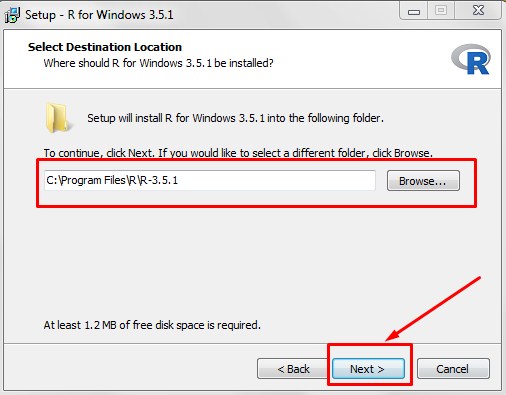
Step 4:- Select the Installation path and click next.

Screenshot_4

Screenshot_5 Screenshot_6

Screenshot_7 Screenshot_8

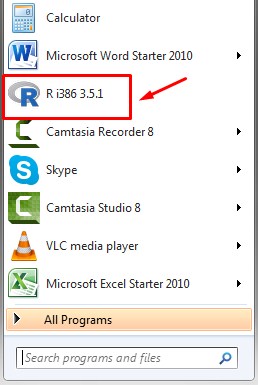
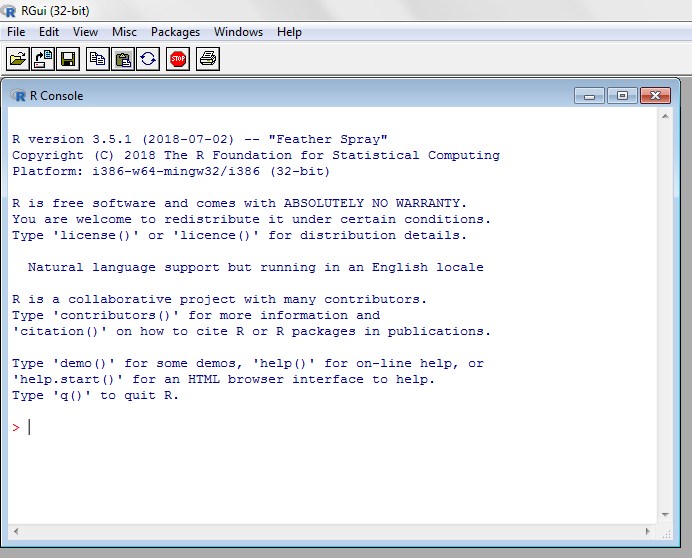
Step 5:- Now, you can open the R GUI from here

Screenshot_9

Screenshot_10

Step 6:- If you want to execute R Script from command prompt, “C:\Program Files\R\R-3.5.1\bin” has to be added to environment variables in advanced system properties.

Step 7:- Now, lets open the terminal and run the following command in order to verify the R installation.

Screenshot_11

Installing R on Linux

If you are a Linux user, then install R using following command –

Installing R on Ubuntu