Category Archives: java

Java Program Structure

Java Program Structure

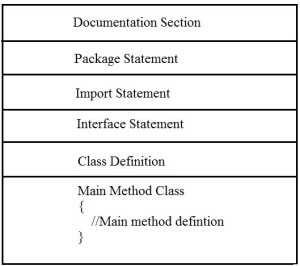
In Java, like any other programming language, we have a specification available for program structure, every java program consists of the following building blocks –
java-structure


Documentation Section:- Documentation section is generally meant to include a set of comments, that is used to provide information about the program written as the name of a program, the utility of the program, date of creation, date of last modification, author name, licensing or copyrights information and any other information that programmer wish to put for the references.

Example:

Package Statement:- This is the section used for package declaration, the package statement declares a package name and notifies the compiler that the classes defined here will belong to this package.

Example:-

Import Statements:- The import statements are used to import packages that contain all of the required classes, and interfaces. java.lang.*; the package is imported by default and this package is known as the default package.

Example:-

Interface Statement:- An Interface is like a class that usually contains a group of method declarations. It’s an optional section and can be used when we want to implement multiple inheritances within a program.

Class Definition:- The classes are used to map real-world entities into programming. The Classes are the key building block of any Java program. A java program may include several class definitions.

Main Method Class:- A java program may include multiple classes, but there can be only one class that will define the main method.

Main Method Definition:- This is the most vital part of each and every java program, it is mandatory for the java program to have a class with a primary method definition. There can be only one class that will define the primary method. The Java program execution starts with the main method. Java program can not be executed without the main method. The main method is responsible for the execution of all the user-defined statements, functions, and library functions. The main method is further structured into – variable declaration, function declaration, and user-defined executable statements.

Java Environment Setup

Java Environment Setup

Once the installation is done, you are required to set some of the following path variables in order to have the Java development environment configured properly.

Set Path Environment Variable

You are required to set the PATH environment variable in order to run any of the java executable (javac.exe, java.exe, javadoc.exe, and so on) from any directory.

Step 1:- Assuming that you have installed Java in the “C:\Program Files\Java\jdk1.8.0_91\bin” directory

java-installation-15

Step 2:- Right-click on “My Computer” and select “Properties”

java-installation-8

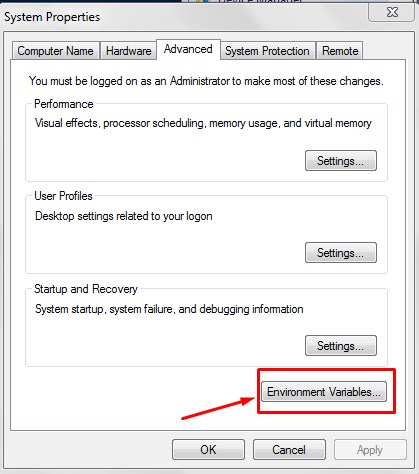
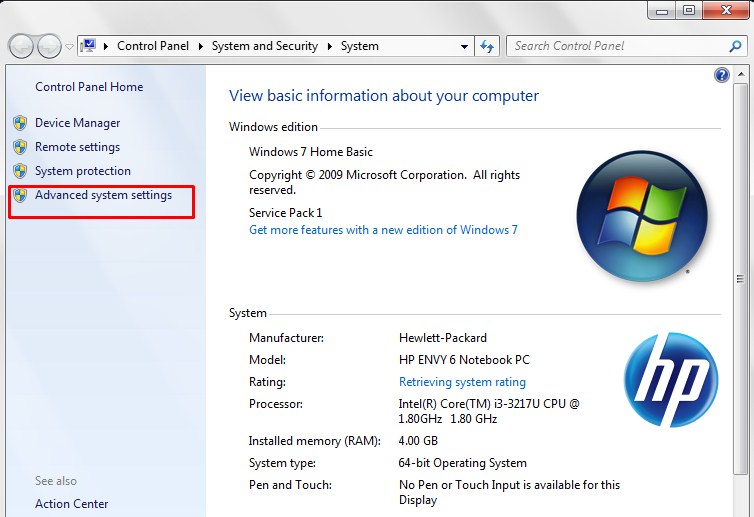
Step 3:- Click on the ‘Environment variables’ button under the ‘Advanced’ or “Advance system settings” tab.

java-installation-9

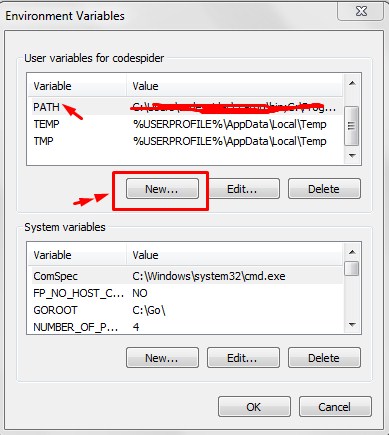
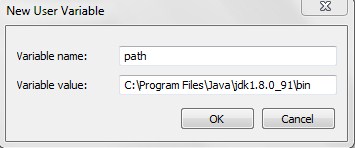
Step 4:- Now add or edit the ‘Path’ variable so that it also contains the java path as follows –

java-installation-10

java-installation-11

Set classpath Environment Variable

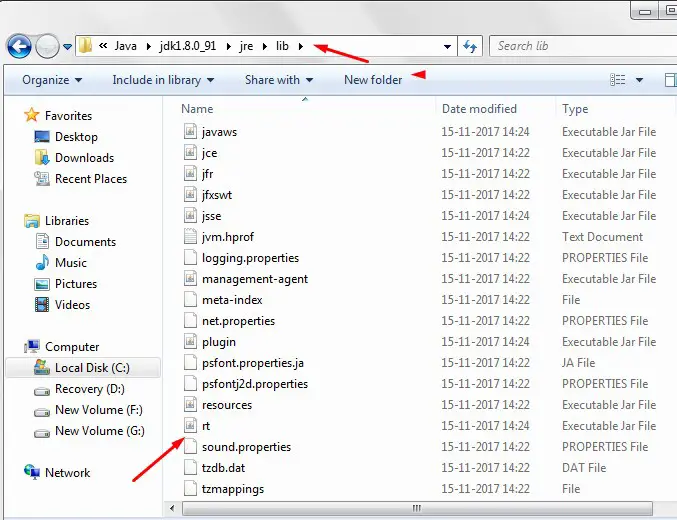
You are also required to set a classpath environment variable to specify the location for java class files in order to have the Java development environment configured properly. This variable actually specifies the location of the rt.jar file which is generally located at jdk\jre\lib.

Step 1:- Assuming that the rt.jar file is located in the “C:\Program Files\Java\jdk1.8.0_91\jre\lib” directory

java-installation-14

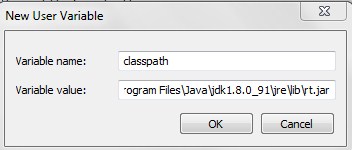
Step 2:- Let’s, open the environment variable window again and click on new to add a new path variable as “classpath” and put the complete path to C:\Program Files\Java\jdk1.8.0_91\jre\lib\rt.jar

java-installation-12

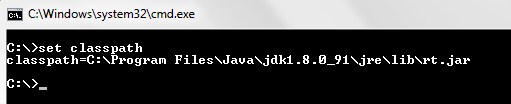
Step 3:- Now, let’s open the terminal and run the following command in order to verify the classpath variable setting.

java-installation-13


Java Installation

Installing Java In Windows

Get Simple Steps for Java Installation into Your Machine:

In order to set up a Java development environment you need to have Java installed, so if you don’t have it installed, check the following instruction to get Java installation. If you’ve already have installed Java Language in your system, you can skip this part.

Java is freely available on Oracle’s website, and you can download and install it for free.

Step 1:- Download the Java Development Kit (JDK) from the official Oracle website, link given+ below –

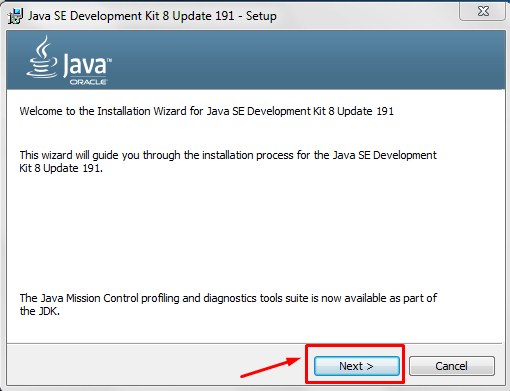
Step 2:- Run the installer (the .exe file you downloaded in the previous step.)

java-installation-1


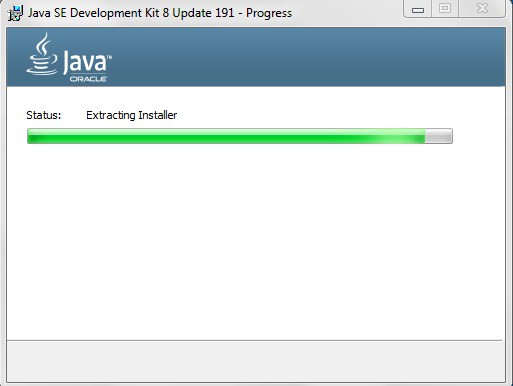
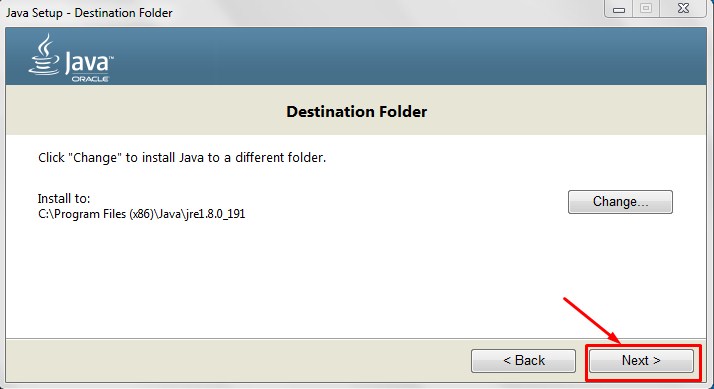
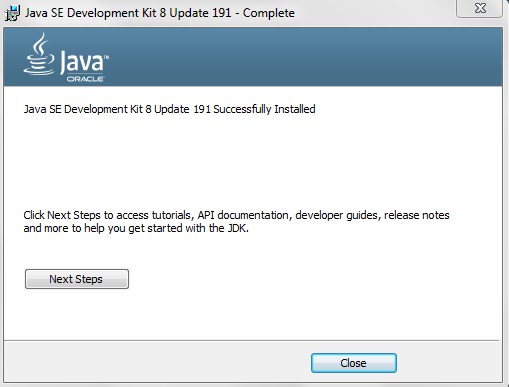
Step 3:- Follow the installation wizard to install Java.

java-installation-3

Step 4:- Select the installation path and click next.

java-installation-4

java-installation-6

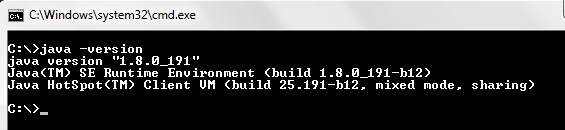
Step 5:- Now, lets open the terminal and run the following command in order to verify the Java installation.

java-installation-7

Set Path Environment Variable

Once the installation is done, you are required to set the PATH environment variable in order to run any of the java executable (javac.exe, java.exe, javadoc.exe, and so on) from any directory.

Step 1:- Assuming that you have installed Java in the “C:\Program Files\Java\jdk1.8.0_91\bin” directory

Step 2:- Right-click on “My Computer” and select “Properties”

Step 3:- Click on the ‘Environment variables’ button under the ‘Advanced’ tab.

Step 4:- Now add or edit the ‘Path’ variable so that it also contains the java path as follows

Java Runtime Environment (JRE)

Java Runtime Environment (JRE)

The Java Runtime Environment (JRE) is a set of software packages used to provide a runtime environment for Java applications. It is a superset of JVM, that combines the Java Virtual Machine (JVM), platform core classes, and supporting libraries, that are necessary for running Java applications. JRE is part of the Java Development Kit (JDK) but can be downloaded separately.

java-runtime-enviornment-jre

JRE consists of the following key components –

  • Java Virtual Machine (JVM), including Java HotSpot Client and Server Virtual Machines.
  • Deployment technologies, including deployment, Java Web Start, and Java Plug-in.
  • User interface toolkits, including Abstract Window Toolkit (AWT), Swing, Java 2D, Accessibility, Image I/O, Print Service, Sound, drag, and drop (DnD), and input methods.
  • Integration libraries, including Interface Definition Language (IDL), Java Database Connectivity (JDBC), Java Naming and Directory Interface (JNDI), Remote Method Invocation (RMI), Remote Method Invocation Over Internet Inter-Orb Protocol (RMI-IIOP), and scripting.
  • Other base libraries, including international support, input/output (I/O), extension mechanism, Beans, Java Management Extensions (JMX), Java Native Interface (JNI), Math, Networking, Override Mechanism, Security, Serialization, and Java for XML Processing (XML JAXP).
  • Lang and util base libraries, including lang and util, management, versioning, zip, instrument, reflection, Collections, Concurrency Utilities, Java Archive (JAR), Logging, Preferences API, Ref Objects, and Regular Expressions.


Java Development Kit (JDK)

Java Development Kit (JDK)

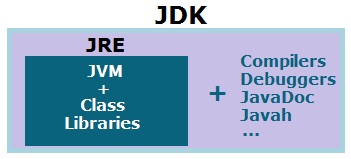
Java Development Kit (JDK) is a software development kit that contains tools needed to develop Java applications, and JRE to run the program. We can think of JDK as a set of JRE and Development Tools. When we download JDK, JRE is also downloaded, and we don’t need to download it separately.

java-development-kit-jdk

In addition to JRE, JDK also contains a number of development tools such as Java Archive (jar), Java Compiler (javac), Java Disassembler (Javap), Java Debugger (jdb), Java HeaderFile Generator (javah), Documentation (Javadoc) and many others.

Key Components of Java Development Kit

Java Archive (jar)

Java Compiler (javac)

Java Disassembler (javap)

Java Debugger (jdb)

Java Header File Generator (javah)

Java Documentation (javadoc)

Java Comments

Java Comments

Comments are a set of statements that are not executed by the compiler. The use of comments makes it easy for humans to understand the source code. Usually, comments give you an inside or explanation about the variable, method, class, or any statement that exists in the source code. The comment statements are ignored during the execution of the program.

Types of Java Comments

In Java, there are 3 types of comments.

  • Java Single Line Comment
  • Java Multi Line Comment
  • Java Documentation Comment

Java Single-line Comments

A ‘//’ (double forward slash) is used to specify a single line comment, which extends up to the newline character. This can be used to comments-out everything until a line break

Syntax:-

Example:-

Output:-

Java Multi-line Comments

If you want to comment on multiple lines then you can do it using /* and */, everything in between from /* to */ is ignored by the compiler-

Uses:-

  • Useful for commenting out a section of code
  • Cannot be nested within other multi-line comments

Syntax:-

Example:-

Output:-

Java Documentation Comment

This is a special type of comment mainly used to generate documentation or reference for a project/software package. This can also be used to create documentation API. To create documentation API, we have to use the Javadoc tool.

Uses:-

  • Similar to multi-line comments but used to document Java code (classes, methods, fields)
  • Extracted using Javadoc command-line utility

Available Tags:-

Tag Description Syntax
@author Used to specify the author of a class. @author name-text
{@code} Displays text in code font without interpreting the text as HTML markup or nested javadoc tags. {@code text}
{@docRoot} Used for a relative path to the generated document’s root directory from any generated page. {@docRoot}
@deprecated Used to add a comment indicating that this API should no longer be used. @deprecated deprecated text
@exception Adds a Throws subheading to the generated documentation, with the class name and description text. @exception class-name description
{@inheritDoc} It inherits a comment from the nearest inheritable class or implementable interface. Inherits a comment from the immediate superclass.
{@link} It is used to insert an in-line link with the visible text label which links to the documentation for the specified package, class, or member name of a referenced class. {@link package.class#member label}
{@linkplain} Identical to {@link}, except the link’s label is displayed in plain text than code font. {@linkplain package.class#member label}
@param Used to specify a parameter with the specified parameter name followed by the description. @param parameter-name description
@return Specify a “Returns” section with the description text. @return description
@see Specify a “See Also” heading with a link or text entry that points to a reference. @see reference
@serial Used in the doc comment for a default serializable field. @serial field-description | include | exclude
@serialData Documents the data written by the writeObject( ) or writeExternal( ) methods. @serialData data-description
@serialField Documents an ObjectStreamField component. @serialField field-name field-type field-description
@since Used to specify a “Since” heading to the generated documentation. @since release
@throws The @throws and @exception tags are synonyms. @throws class-name description
{@value} When {@value} is used in the doc comment of a static field, it displays the value of that constant. {@value package.class#field}
@version Used to specify a version @version version-text

Syntax:-

Example:-

Output:-

For the above program, documentation can be generated by using the tool ‘Javadoc’ as follows –

Java Variables & Primitive Data Types

Java Variables & Primitive Data Types

Java has eight primitive types of data: byte, short, int, long, char, float, double, and boolean.

These can be put in four groups:

Integers include byte, short, int, and long
Floating-point numbers include float and double
Characters include char, like letters and numbers.
Boolean include boolean representing true/false values.

Java Keywords and Identifiers

Let’s know more about java keywords and identifiers

Java Keywords

In Java Programming Language there are is a set of reserved words that you cannot use as an identifier. These words are known as “reserved” words or “Keywords”. Keywords are standard identifiers and their functions are predefined by the compiler.

We cannot use keywords as variable names, class names, method names, or any other identifier. Keywords in java are case sensitive, all characters being lower case.

abstract assert boolean break byte
case catch char class const
continue default do double else
enum extends final finally float
for goto if implements import
instanceof int interface long native
new package private protected public
return short static strictfp super
switch synchronized this throw throws
transient try void volatile while

Keywords goto and const are reserved but never used.

Java Identifiers

Like in any other programming language we must aware of the naming conventions in Java Programming Language before starting programming. An identifier is a name given to program elements such as class, variable, field, method, or constructor. In Java programming language an identifier is a sequence of alphabets or digits.

Following rules must be kept in mind while naming an identifier.

  • The first character must be an alphabet (uppercase or lowercase) or can be an underscore.
  • Subsequent characters may be letters, digits, dollar signs, or underscore characters
  • No two successive underscores are allowed.
  • Keywords should not be used as identifiers.
  • A variable name cannot contain spaces.

Java Valid identifier examples

Java Invalid identifier examples

Java naming conventions for identifiers

  • Use CamelCase for most identifiers (classes, interfaces, variables, and methods).
  • Use an initial capital letter for classes and interfaces and a lower case letter for variables and methods.
  • For named constants, use all capital letters separated by underscores.
  • Avoid using $ characters in identifiers.


First Java Program ( Hello World Program )

Writing Your First Java Program ( Java Hello World Program )

We break the process of programming in Java into three steps:

  • Create the program by typing it into a text editor program and saving it to a file named, say, HelloWorld.java.
  • Compile it by typing “javac HelloWorld.java” in the command prompt.
  • Run (or execute) it by typing “java HelloWorld” in the command prompt.

The first step creates the program; the second translates it into an intermediate binary code (called bytecode) and puts the result in a file named HelloWorld.class; the third step actually runs or executes the program.

Creating a Java program.

Copy the following code into your text editor and save it into a file named HelloWorld.java.


Compiling a Java program.

To compile HelloWorld.java type the text below in the command prompt. (Here % symbol is used to denote the command prompt, but it may appear different depending on your system.)

Executing a Java program.

After compiling your java program, you can run it. To run the HelloWorld program, type the following in the command prompt:

If all goes well, you should see the following response

Java Virtual Machine (JVM)

What Is Java Virtual Machine (JVM)

Acronym JVM stands for Java Virtual Machine. JVM is an abstract computing machine or virtual machine inside the computer, JVM provides a platform-independent execution environment for the java program that converts Java bytecode into machine language and executes it.

how-java-program-works

Many other programming languages including C and C++, compile source code directly into machine code that is designed to run on a specific microprocessor architecture or operating systems, such as Windows or UNIX, while a JVM is a computer within a computer that mimics a real Java processor, enabling Java bytecode to be executed as actions or operating system calls on any processor regardless of the operating system. For example, establishing a socket connection from a workstation to a remote machine involves an operating system call. Since different operating systems handle sockets in different ways, the JVM translates the programming code so that the two machines that may be on different platforms are able to connect.

The JVM performs four main tasks –

Loads code

Verifies code

Executes code

Provides run-time environment

Java Features

Why Java? – Features of java

Compiled and Interpreted – Usually a computer programming language can be either compiled or interpreted, but in the case of Java both the approaches are combined, thus it makes java a two-stage system. In the first stage, source code is transferred into the bytecode format by the java compiler and it is platform-neutral code. In the second stage, Java Interpreter generates the machine code that can be executed directly by the machine running the java program.

Platform Independent and Portable – Portability is the key feature of java, which made the java programming language more popular for programming Internet-based applications, this is possible because of their compiled and interpreted nature. As the java programs are compiled into a platform-independent format called bytecode, instead of native machine code (as in C and C++). Which is then interpreted (compiled into native code) at runtime. Java is a “Write Once, Run Everywhere” language.

Feature of Java:

Object-Oriented – Java is said to be a true object-oriented programming language, which means that you focus on the data in your application and methods that manipulate that data, rather than thinking of procedures. Java supports the all the features of object-oriented programming language such as Abstraction, Encapsulation, Inheritance, Polymorphism, Dynamic binding, etc, which facilitates code modularization, reusability, testability, and performance. Except for the primitive data types, almost everything in java is treated as an object, even though primitive data types can also be converted into objects by using the wrapper class. In Java, there is no coding outside of class definitions, including the main() function. Java comes with an extensive class library available in the core language packages that can be extended further.

Robust and Secure – Java is said to be a robust and secure programming language. java has built-in safeguards that enable the internet programmer to write reliable code. Java is strict about the compile-time and run-time checking of data. Java has advanced garbage collector type checking, exception handling, and memory management feature, that avoids overruns, leaked memory, illegal data access, and system crashing. Java has the secure execution of code across the network. To make Java secure many of the features of C and C++ were eliminated. Java does not use pointers that ensure the java programs cannot gain access to memory locations without proper authorization.

Distributed – In java we can create applications that can be distributed over the networks. Java applications can share the data and program. In java we can easily access and invoke remote objects over the internet, it enables collaborative working.RMI and EJB are used for creating distributed applications.

Simple and Familiar – Java is a small and simple programming language. Java uses many constructs of c and c++ which makes it familiar to the existing programmers. Many of the redundant and unreliable features of c and c++ are not part of the java programming language.Java support automatic memory management, exception handling, single inheritance, standardized documentation, and a very rich set of libraries (no need to reinvent the wheel).

Multithreaded and Interactive -One of the powerful aspects of the Java language is that it allows multiple threads of execution to run concurrently within the same program, which means the java program can perform multiple tasks simultaneously. A single Java program can have many different threads executing independently and continuously. Multiple Java applets can run on the browser at the same time sharing the CPU time, which makes the java programs more interactive.

High Performance – Since java programs are compiled into portable intermediate code known as bytecodes, rather than native machine-level instructions, so it will never be as fast as a compiled language as C or C++. However, java can achieve the performance of native applications using a just-in-Time compiler. Java supports multi-threading which in turn enhances the overall execution speed of java applications.

Dynamic and Extensible – Java programs are said to be dynamic in nature. In java linking of class libraries, methods, objects, and any other resource allocation is done dynamically when needed. Java programs support the native functions written in other programming languages such as c and c++. This facility allows the programmer to efficiently use and extend the functionality available in these languages. Linking of native methods is done dynamically in run time. Java has a very rich set of libraries which means no need to reinvent the wheel and what makes it extensible.