Category Archives: Laravel

Laravel Tutorials

Laravel 5.8 Simple Ajax CRUD Application

Laravel 5.8 Simple Ajax CRUD Application

In this tutorial, you will learn to create a simple ajax based CRUD (Create, Read, Update and Delete) application. In this step by step guide, we will be creating a simple blog application with post table and implement ajax based CRUD operations.

Install Laravel 5.8 Using Command

First of all we need to create a fresh laravel project, download and install Laravel 5.8 using the below command

Configure Database In .env file

Now, lets create a MySQL database and connect it with laravel application. After creating database we need to set database credential in application’s .env file.

.env

Generate Application Key

Open terminal and switch to the project directory and run the following command to generate application key and configure cache.

Set Default String Length

Locate the file “app/Providers/AppServiceProvider”, and add following line of code to the top of the file

and inside the boot method set a default string length as given below –

So this is how “app/Providers/AppServiceProvider” file looks like –

Create Database Table and Migration

Now, we have to define table schema for posts table. Open terminal and let’s run the following command to generate a migration file to create posts table in our database.

Once this command is executed you will find a migration file created under “database/migrations”. lets open migration file and put following code in it –

Run Migration

Now, run following command to migrate database schema.

After, the migration executed successfully the posts table will be created in database along with migrations, password_resets and users table.

Create Model

Next, we need to create a model called Post using below command.

Once, the above command is executed it will create a model file Post.php in app directory. Next, we have to assign fillable fields using fillable property inside Post.php file. Open app/Post.php file and put the following code in it –

app/Post.php

Create Controller Using Command

Next, we have to create a controller to handle Ajax CRUD Operations. Create a controller named AjaxPostController using command given below –

Once the above command executed, it will create a controller file AjaxPostController.php in app/Http/Controllers/ajaxcrud directory. Open the ajaxcrud/AjaxPostController.php file and put the following code in it.

app/Http/Controllers/dtable/AjaxPostController.php

Create Blade / View Files

In this step, we will create view/blade file to perform CRUD Operations. Lets create a blade file “index.blade.php” in “resources/views/ajaxcrud/” directory and put the following code in it respectively.

resources/views/ajaxcrud/index.blade.php

Create Resource Routes

After this, we need to add a resource route in “routes/web.php“. Lets open “routes/web.php” file and add following route.

routes/web.php

Start Development Server

Now we are ready to run our example so lets start the development server using following artisan command –

Now, open the following URL in browser to see the output –

http://localhost:8000/ajax-posts

Output:-
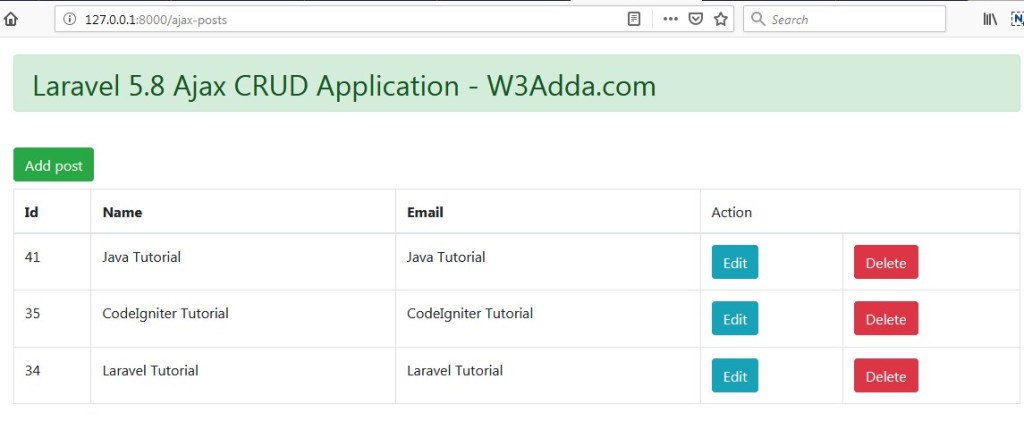
laravel-5-8-ajax-crud-application-2

Click “Add New Post” to submit new post.
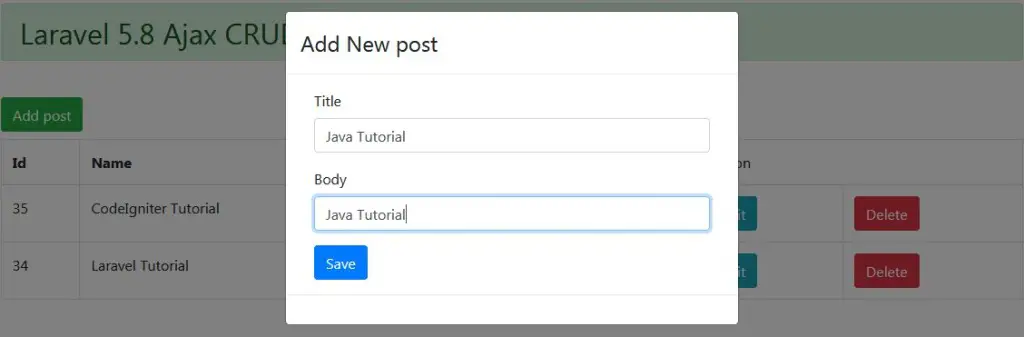
laravel-5-8-ajax-crud-application-1

Click “Edit” button to edit corresponding post.
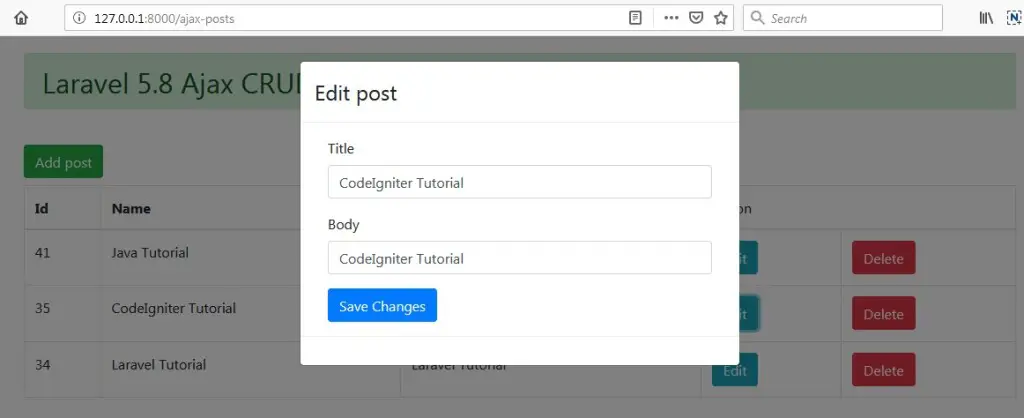
laravel-5-8-ajax-crud-application-3

Click “Delete” button to delete corresponding post.

Laravel 5.8 Ajax CRUD Using Datatables

Laravel 5.8 Ajax CRUD Using Datatables

In this tutorial, you will learn to implement ajax based CRUD (Create, Read, Update and Delete) operations using datatable js. In this tutorial, we will be using yajra datatable package for listing of records with pagination, sorting and filter (search) feature.

In this step by step guide, we will be creating a simple laravel 5.8 application to demonstrate you how to install yajra datatable package and implement ajax based CRUD operations with datatable js.

Install Laravel 5.8

First of all we need to create a fresh laravel project, download and install Laravel 5.8 using the below command

Configure Database In .env file

Now, lets create a MySQL database and connect it with laravel application. After creating database we need to set database credential in application’s .env file.

.env

Generate Application Key

Open terminal and switch to the project directory and run the following command to generate application key and configure cache.

Set Default String Length

Locate the file “app/Providers/AppServiceProvider”, and add following line of code to the top of the file

and inside the boot method set a default string length as given below –

So this is how “app/Providers/AppServiceProvider” file looks like –

Create Database Table

Now, we have to define table schema for posts table. Open terminal and let’s run the following command to generate a migration file to create posts table in our database.

Once this command is executed you will find a migration file created under “database/migrations”. lets open migration file and put following code in it –

Run Migration

Now, run following command to migrate database schema.

After, the migration executed successfully the posts table will be created in database along with migrations, password_resets and users table.

Create Model

Next, we need to create a model called Post using below command.

Once, the above command is executed it will create a model file Post.php in app directory. Next, we have to assign fillable fields using fillable property inside Post.php file. Open app/Post.php file and put the following code in it –

app/Post.php

Install Yajra Datatable Package

In this step, we will install Yajra Datatables Package via the composer dependency manager. Use the following command to install Yajra Datatables Package.

After Installing Yajra Datatables package, we need to add service provider and alias in config/app.php file as following.

config/app.php

Create Controller

Next, we have to create a controller to handle Ajax CRUD Operations. Create a controller named AjaxCrudController using command given below –

Once the above command executed, it will create a controller file AjaxCrudController.php in app/Http/Controllers/dtable directory. Open the dtable/AjaxCrudController.php file and put the following code in it.

app/Http/Controllers/dtable/AjaxCrudController.php

Create Blade / View Files

In this step, we will create view/blade file to perform CRUD Operations. Lets create a blade file “index.blade.php” in “resources/views/dtable/” directory and put the following code in it respectively.

resources/views/dtable/index.blade.php

Create Routes

After this, we need to add following routes in “routes/web.php” file along with a resource route. Lets open “routes/web.php” file and add following route.

routes/web.php

Now we are ready to run our example so lets start the development server using following artisan command –

Now, open the following URL in browser to see the output –

http://localhost:8000/dtable-posts

Output:-

laravel-5-8-ajax-crud-using-datatanles-3Click “Add New Post” to submit new post.

laravel-5-8-ajax-crud-using-datatanles-1Click “Edit” button to edit corresponding post.
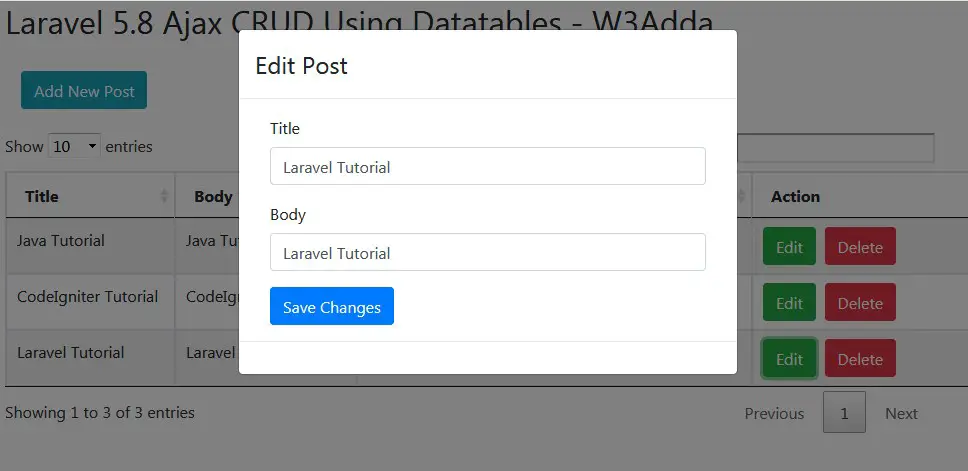
laravel-5-8-ajax-crud-using-datatanles-2

Click “Delete” button to delete corresponding post.

Laravel 5.8 Installation

Laravel 5.8 Installation

Download and install Laravel 5.8 using the below command. Make sure you have composer installed.

Now, lets switch to the project directory and start the development server using following artisan command –

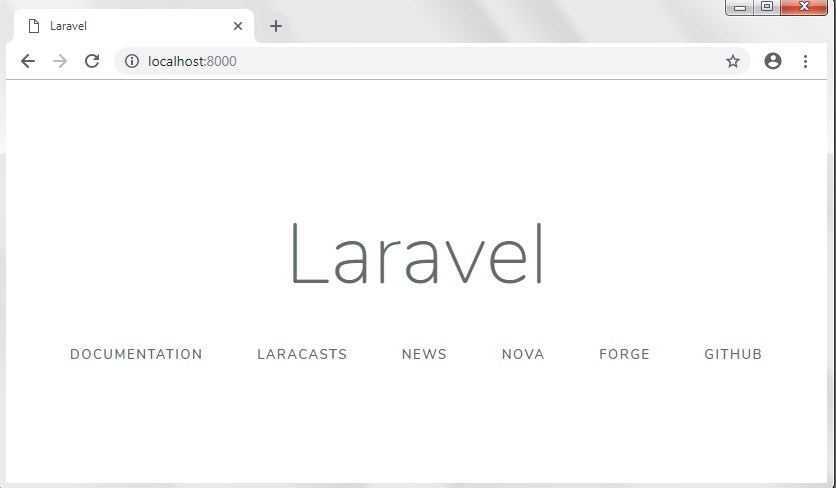
Now, open the following URL in browser to see the output –

http://localhost:8000/

Output:-

laravel-5-7-crud-tutorial-with-example-2

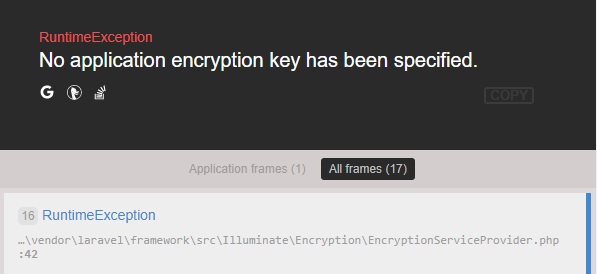
In case if you get RuntimeException No application encryption key has been specified error, please follow instruction given below to generate application key –

Generate Application Key

Open terminal and switch to the project directory and run the following command to generate application key and configure cache.

Connecting Laravel with MySQL Database

In order to connect your laravel application to a MySQL database. Lets create a MySQL database set database credential in application’s .env file.

.env

Migrations

Before we run “php artisan migrate” command, location the file “app/Providers/AppServiceProvider” file, and add following line of code in the top of the file

and inside the boot method set a default string length as given below –

So this is how your “app/Providers/AppServiceProvider” file looks like –

After installing laravel, some default migration files are created inside “database/migrations” directory. Now, lets run the “php artisan migrate” command for creating default create users table and password reset table.

Restart Development Server

Restart the development server using following artisan command –

Now, visit the following URL in browser to see the output –

http://localhost:8000/

Output:-

laravel-5-7-crud-tutorial-with-example-2

Stripe Payment Gateway Integration In Laravel 5.8

Stripe Payment Gateway Integration In Laravel 5.8

Stripe is one of the most popular payment gateway, that allows us to accept payment worldwide. Stripe is very simple, hassle free and easy to integrate payment gateway. Integrating stripe payment gateway with laravel is a breeze.

In this tutorial, you will learn to integrate stripe payment gateway in your laravel 5.8 project. Before starting with this tutorial you would require a stripe developer account, from there you will get the api key and secret key require for the integration. After the successful integration you will be able to collect payment via simple payment form which allow customer to provide card information like card number, expiry date and a CVC code. Follow this step by step tutorial to learn stripe payment gateway integration in laravel 5.8.

Install Laravel 5.8

First of all we need to create a fresh laravel project, download and install Laravel 5.8 using the below command

Make sure you have composer installed.

Create Stripe account and generate key and secret

Go to the official Stripe website and signup with basic details.

Set Stripe API Key and SECRET In .env file

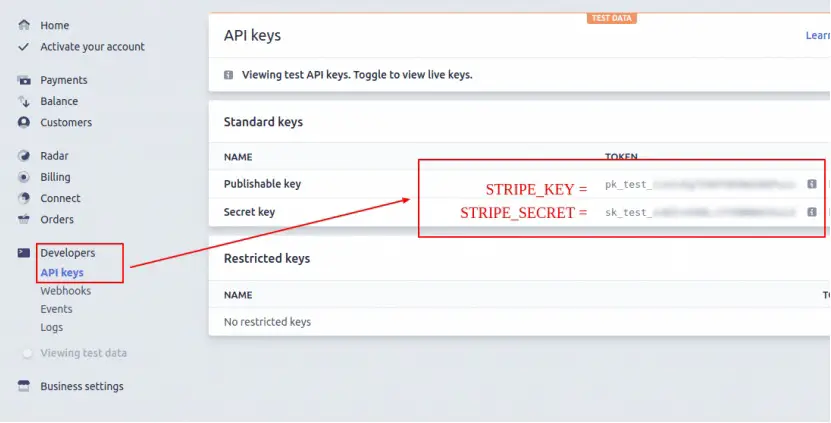
Now, we need to set stripe key and secret key in our project’s .env file. In stripe dashboard switch to the test mode as per screenshot, and get the stripe key and secret.

laravel-stripe-payment-gateway-integration-1

Now, open .env file located in project’s root folder and set the stripe key and secret as following –

.env file

Install stripe-php Package via composer

Now, we need to install stripe-php package in our project. Open your terminal and switch to project directory and use the following composer command to install stripe-php package.

Create Controller and Methods

Now, lets create a payment controller using following command

Once the above command executed, it will create a controller file PaymentController.php in app/Http/Controllers/ directory. Open the PaymentController.php file and put the following code in it.

Controllers/PaymentController.php

Create View/Blade File

In this step, we will create view/blade file to accept stripe payment. Lets create a “stripe.blade.php” file in “resources/views/stripe/” directory and put the following code in it.

resources/views/stripe/stripe.blade.php

Set Routes

After this, we need to add following two routes in “routes/web.php” to display stripe payment form and to post the form data. Lets open “routes/web.php” file and add following route.

routes/web.php

Now we are ready to run our example so lets start the development server using following artisan command –

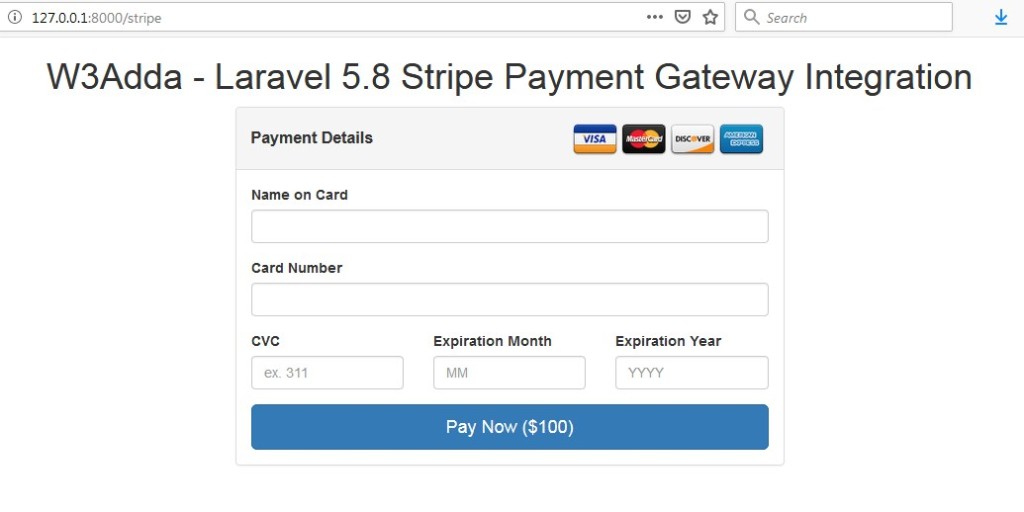
Now, open the following URL in browser to see the output –

http://localhost:8000/larablog/stripe

Output:-

laravel-stripe-payment-gateway-integration-4

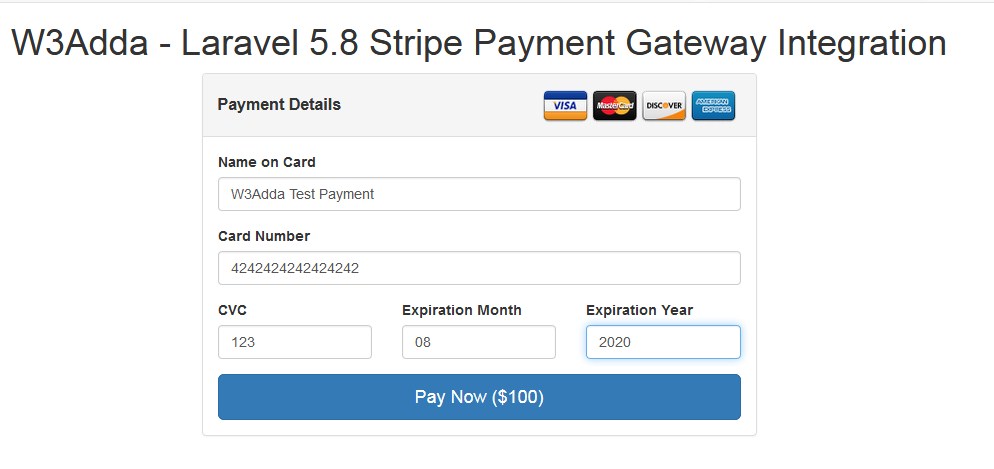
Use the following test card details to test the payment.

Test Credit Card Info :-

Card No :- 4242424242424242 / 4012888888881881
Month :- Any future month
Year :- Any future Year
CVV :- Any 3 digit Number

laravel-stripe-payment-gateway-integration-5
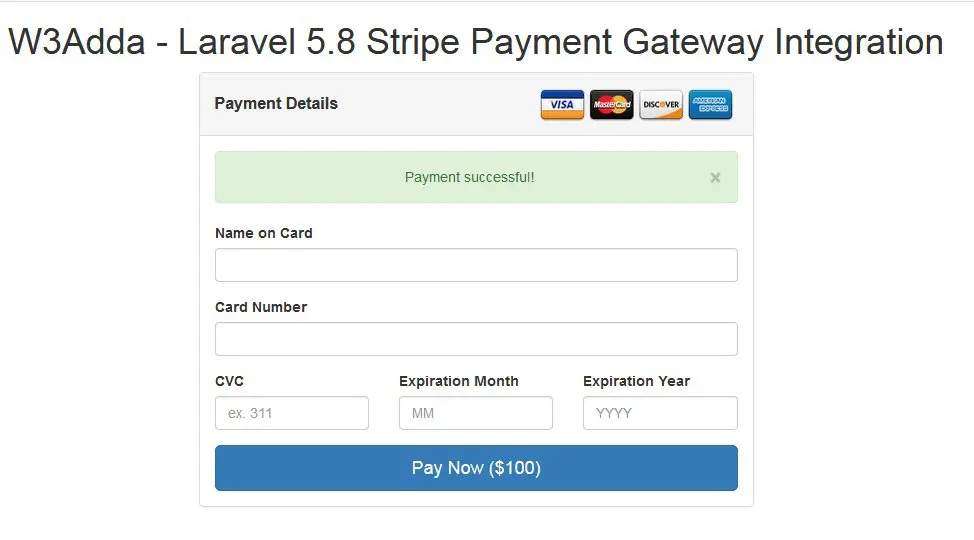
On successful payment, you will get the “Payment Successful” message as per the screenshot –

laravel-stripe-payment-gateway-integration-6

How To Fix No application encryption key has been specified error In Laravel

Fix No application encryption key has been specified error In Laravel

Sometime in laravel, when you created a fresh laravel project and trying to start development server you may encounter following error –

how to fix laravel RuntimeException No application encryption key has been specified

Fix:-

The easiest way to fix this error you need to set a key option in your config/app.php configuration file. You should use the following commands to generate this key and get the error fixed –

I hope this will fix the above error for you.

How to Fix Laravel Specified key was too long error

How to Fix Laravel Specified key was too long error

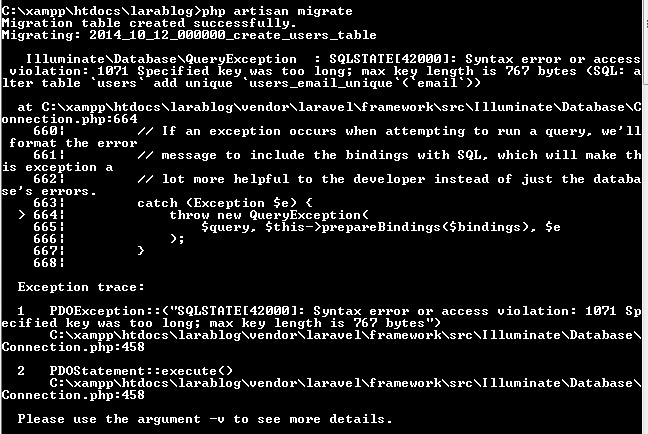
In Laravel, sometimes when we run the following command we get “Specified key was too long error” as shown in the below screenshot, in this tutorial I will show you how to fix the “Specified key was too long error” error.

laravel-crud-example-specified-key-too-long-error

Easiest way to fix error is to locate the file “app/Providers/AppServiceProvider”, and add following line of code to the top of the file

and inside the boot method set a default string length as given below –

So this is how my AppServiceProvider file looks like now –

Now delete tables created and run the following command again –

I hope this will fix “Specified key was too long error” error.

Laravel 5.8 CRUD Tutorial With Example | Step By Step Tutorial For Beginners

Laravel 5.8 CRUD Example

Install Laravel 5.8

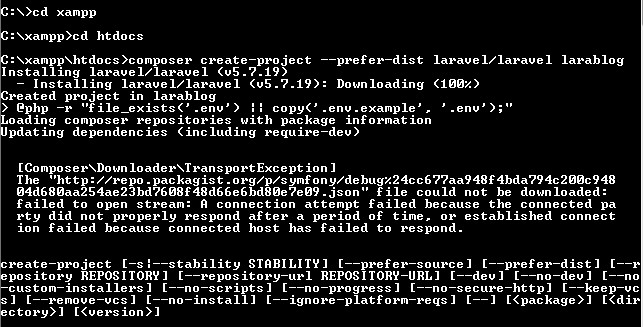
First of all we need to create a fresh laravel project, download and install Laravel 5.8 using the below command

Make sure you have composer installed.

laravel-5-7-crud-tutorial-with-example-1


Now, lets switch to the project directory and start the development server using following artisan command –

Now, open the following URL in browser to see the output –

http://localhost:8000/

Output:-

laravel-5-7-crud-tutorial-with-example-2

In case if you get RuntimeException No application encryption key has been specified error, please follow the link to get it fix and run the above command again.

Configure Database In .env file

Now, lets create a MySQL database and connect it with laravel application. After creating database we need to set database credential in application’s .env file.

Create Database Table

Now, we have to define table schema for posts table. Open terminal and use the following artisan command to generate <timestamp>create_posts_table.php migration.

laravel-5-7-crud-tutorial-with-example-3

Once this command is executed you will find a migration file created under “database/migrations”

laravel-5-7-crud-tutorial-with-example-4

lets open migration file and put following code in it –

Run Migration

Now, run following command to migrate database schema.

After, the migration executed successfully the posts table will be created in database along with migrations, password_resets and users table.

In case if you get Specified key was too long error , please follow the link to get it fix and run the above command again.

Create Resource Controller and Model

In this step, we will use the following command to create post resource controller and model together

Once the above command executed, it will create a resource controller file “PostController.php” in “app/Http/Controllers/” directory. Resource controller automatically creates a list of following methods together with their parameters –

Index()
Create()
Store()
Show()
Edit()
Update()
Destroy()

app/Http/Controllers/PostController.php

Above command also creates model file “Post.php” in app directory

app/Post.php

Next, we have to assign fillable fields using fillable property inside Post.php file. Update app/Post.php with following code –

Create Resource Route

After this, we need to add resource route for post controller. Lets open “routes/web.php” file and add following route.

routes/web.php

we can use the following artisan command to list all the routes –

Output:-

Create Blade Files

In this step, we will create application view files for the first create following two directories for blade files inside “resources/views/” directory –

  • layouts
  • posts

Next, create a main layout file “app.blade.php” in “resources/views/layouts/” directory and put the following code in it.

resources/views/layouts/app.blade.php

Now, we will create following blade files in “resources/views/posts” directory for CRUD (Create, Retrieve, Update, Delete) operations.

1) create.blade.php

2) edit.blade.php

3) index.blade.php

4) show.blade.php

Create Operation

In this step, first we will create a view file named create.blade.php inside “resources/views/posts” directory and put the following code inside it –

resources/views/posts/create.blade.php

Now open the PostController.php file, and modify the create function as following –

Once we have created the blade file for create operation and modified the create method in PostController.php, lets start the development server using following artisan command –

Now, open the following URL in browser to see the output –

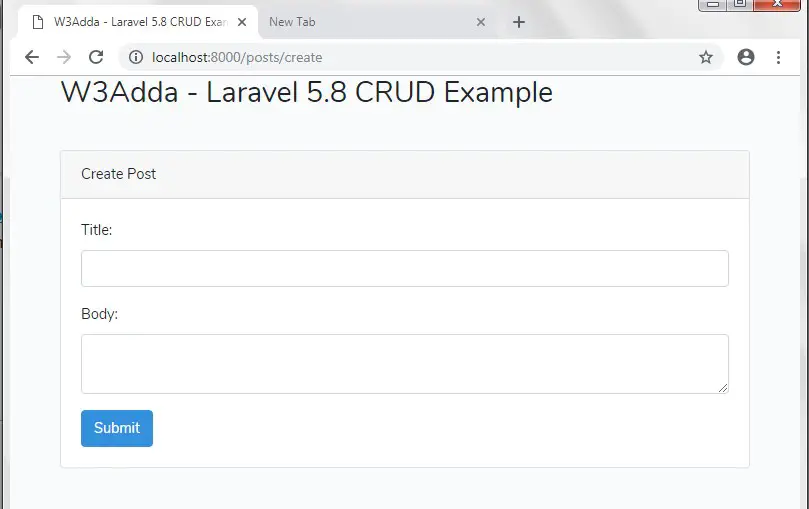
http://localhost:8000/posts/create

Output:-

laravel_5_8_crud_tutorial_with_example_1

Validate and Save Data

After this, we create a script to validate and save data in database upon form submission. Lets open the PostController.php file, and modify the store function as following –

Restart the development server using following artisan command –

Now, visit the following URL in browser to create a post –

http://localhost:8000/posts/create

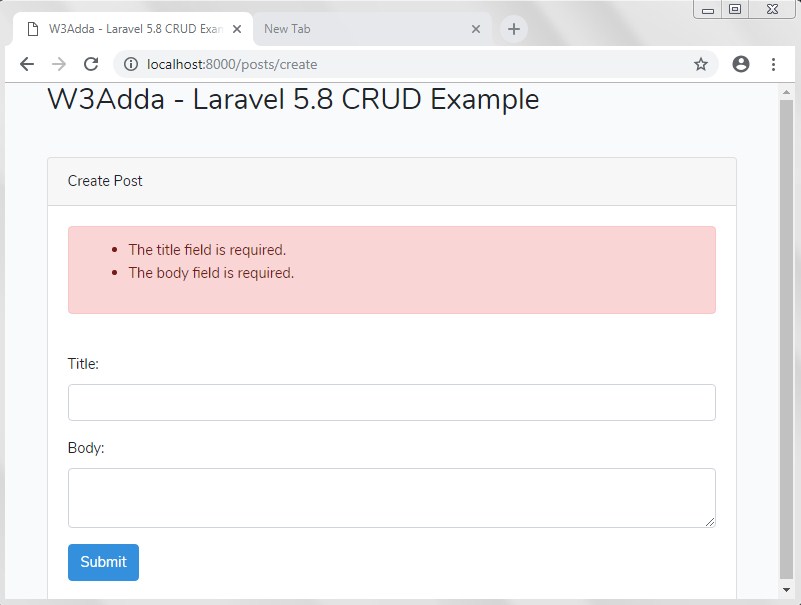
Here, now if you press the submit button the without filling up the required data(title or body), the store method validates the form data and you will be not able to save data to database and notified with following errors –

laravel_5_8_crud_tutorial_with_example_2

And, if after filling up the post title and body you press the submit button the form data will be submitted to the store method in PostController.php. The store method validates the form data and insert into the post table –

laravel-5-7-crud-tutorial-with-example-7

Upon the successful submission we will redirected to the index method –

http://localhost:8000/posts/

Retrieve Data

In this step, we will create a two view file named index.blade.php and show.blade.php inside “resources/views/posts” directory two list all the posts created and to view them individually. Lets create the blade files and put the following code inside it –

resources/views/posts/index.blade.php

resources/views/posts/show.blade.php

Now open the PostController.php file, and modify the index and show function with following code –

index method:-

show method:-

Restart the development server again, now you will be able to list all the posts and to view them individually.

Update Data

In the previous step, we already have a “Edit” button linked to edit action for each of the post respectively.In this step, we will create a view file named edit.blade.php inside “resources/views/posts” directory and put the following code inside it –

resources/views/posts/edit.blade.php

Now open the PostController.php file, and modify the edit and update function with following code –

edit() Method:-

update() method:-

The edit() renders the edit view for respective post with prefilled post data, upon the form submission the form data will be submitted to the update() method in PostController.php. The update() method validates the form data and update the post data, after the successful update operation we will redirected to the index method.

Delete Operation

For deleting the post, we already have a “Delete” action button linked to delete action for each of the post respectively.In this step there is no need to create a view file, we just have to open the PostController.php file, and modify the destroy() function with following code –

Now, when we click to the “Delete” action button, the respective post will be deleted.

Finally, the PostController.php file looks like this –

app/Http/Controllers/PostController.php

Now we have a working Laravel 5.8 CRUD Application ready, restart the development server using following artisan command –

and visit the following URL in browser to see the complete Laravel 5.7 CRUD Application in action –

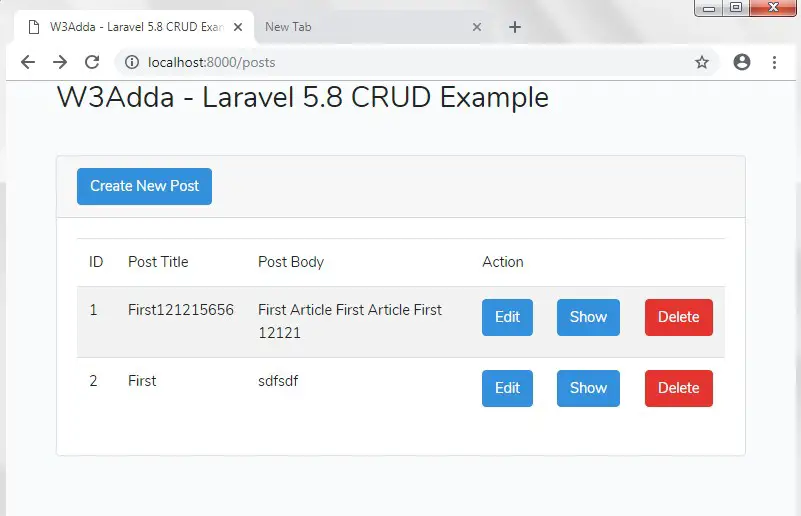
http://localhost:8000/posts/

laravel_5_8_crud_tutorial_with_example_3

Laravel 5.7 CRUD Example | Step By Step Tutorial For Beginners

Laravel 5.7 CRUD Example

Install Laravel 5.7

First of all we need to create a fresh laravel project, download and install Laravel 5.7 using the below command

Make sure you have composer installed.

laravel-5-7-crud-tutorial-with-example-1


Now, lets switch to the project directory and start the development server using following artisan command –

Now, open the following URL in browser to see the output –

http://localhost:8000/posts/create

Output:-

laravel-5-7-crud-tutorial-with-example-2

In case if you get RuntimeException No application encryption key has been specified error, please follow the link to get it fix and run the above command again.

Configure Database In .env file

Now, lets create a MySQL database and connect it with laravel application. After creating database we need to set database credential in application’s .env file.

Create Database Table

Now, we have to define table schema for posts table. Open terminal and use the following artisan command to generate <timestamp>create_posts_table.php migration.

laravel-5-7-crud-tutorial-with-example-3

Once this command is executed you will find a migration file created under “database/migrations”

laravel-5-7-crud-tutorial-with-example-4

lets open migration file and put following code in it –

Run Migration

Now, run following command to migrate database schema.

After, the migration executed successfully the posts table will be created in database along with migrations, password_resets and users table.

In case if you get Specified key was too long error , please follow the link to get it fix and run the above command again.

Create Resource Controller and Model

In this step, we will use the following command to create post resource controller and model together

Once the above command executed, it will create a resource controller file “PostController.php” in “app/Http/Controllers/” directory. Resource controller automatically creates a list of following methods together with their parameters –

Index()
Create()
Store()
Show()
Edit()
Update()
Destroy()

app/Http/Controllers/PostController.php

Above command also creates model file “Post.php” in app directory

app/Post.php

Next, we have to assign fillable fields using fillable property inside Post.php file. Update app/Post.php with following code –

Create Resource Route

After this, we need to add resource route for post controller. Lets open “routes/web.php” file and add following route.

routes/web.php

we can use the following artisan command to list all the routes –

Output:-

Create Blade Files

In this step, we will create application view files for the first create following two directories for blade files inside “resources/views/” directory –

  • layouts
  • posts

Next, create a main layout file “app.blade.php” in “resources/views/layouts/” directory and put the following code in it.

resources/views/layouts/app.blade.php

Now, we will create following blade files in “resources/views/posts” directory for CRUD (Create, Retrieve, Update, Delete) operations.

1) create.blade.php

2) edit.blade.php

3) index.blade.php

4) show.blade.php

Create Operation

In this step, first we will create a view file named create.blade.php inside “resources/views/posts” directory and put the following code inside it –

resources/views/posts/create.blade.php

Now open the PostController.php file, and modify the create function as following –

Once we have created the blade file for create operation and modified the create method in PostController.php, lets start the development server using following artisan command –

Now, open the following URL in browser to see the output –

http://localhost:8000/posts/create

Output:-

laravel-5.7-crud-tutorial-with-example-5

Validate and Save Data

After this, we create a script to validate and save data in database upon form submission. Lets open the PostController.php file, and modify the store function as following –

Restart the development server using following artisan command –

Now, visit the following URL in browser to create a post –

http://localhost:8000/posts/create

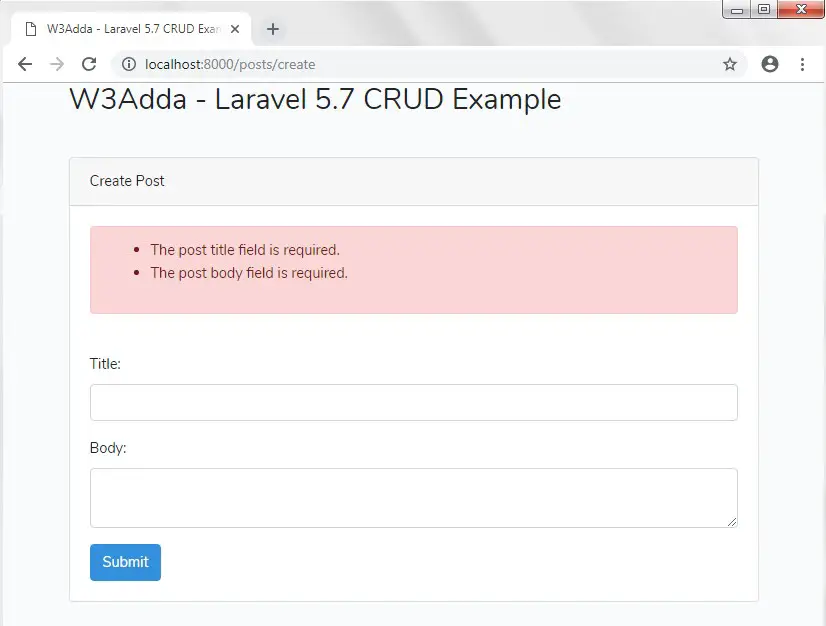
Here, now if you press the submit button the without filling up the required data(title or body), the store method validates the form data and you will be not able to save data to database and notified with following errors –

laravel-5-7-crud-tutorial-with-example-6

And, if after filling up the post title and body you press the submit button the form data will be submitted to the store method in PostController.php. The store method validates the form data and insert into the post table –

laravel-5-7-crud-tutorial-with-example-7

Upon the successful submission we will redirected to the index method –

http://localhost:8000/posts/

Retrieve Data

In this step, we will create a two view file named index.blade.php and show.blade.php inside “resources/views/posts” directory two list all the posts created and to view them individually. Lets create the blade files and put the following code inside it –

resources/views/posts/index.blade.php

resources/views/posts/show.blade.php

Now open the PostController.php file, and modify the index and show function with following code –

index method:-

show method:-

Restart the development server again, now you will be able to list all the posts and to view them individually.

Update Data

In the previous step, we already have a “Edit” button linked to edit action for each of the post respectively.In this step, we will create a view file named edit.blade.php inside “resources/views/posts” directory and put the following code inside it –

resources/views/posts/edit.blade.php

Now open the PostController.php file, and modify the edit and update function with following code –

edit() Method:-

update() method:-

The edit() renders the edit view for respective post with prefilled post data, upon the form submission the form data will be submitted to the update() method in PostController.php. The update() method validates the form data and update the post data, after the successful update operation we will redirected to the index method.

Delete Operation

For deleting the post, we already have a “Delete” action button linked to delete action for each of the post respectively.In this step there is no need to create a view file, we just have to open the PostController.php file, and modify the destroy() function with following code –

Now, when we click to the “Delete” action button, the respective post will be deleted.

Finally, the PostController.php file looks like this –

app/Http/Controllers/PostController.php

Now we have a working Laravel 5.7 CRUD Application ready, restart the development server using following artisan command –

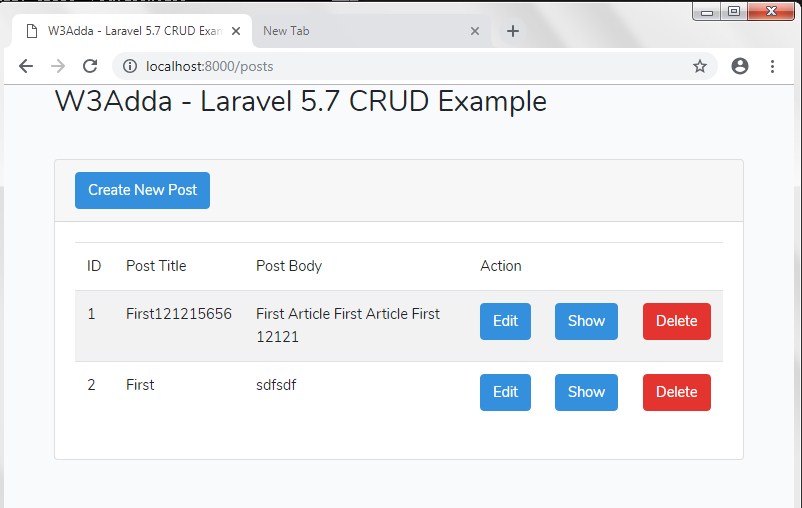
and visit the following URL in browser to see the complete Laravel 5.7 CRUD Application in action –

http://localhost:8000/posts/

laravel_crud_tutorial_with_example_read_operation