Category Archives: Laravel

Laravel Tutorials

Laravel 5.8 Google ReCAPTCHA Integration

Laravel 5.8 Google ReCAPTCHA Integration

Google ReCaptcha is a one of the most popular captcha system that defends your site from bots to spam and abuse. The Google ReCaptcha is an open service that assures a computer user is a human. In order to integrate the reCaptcha, you must sign up for the Google API key & secret for your website.

In this tutorial, we will integrate google recaptcha in laravel 5.8 application. I’ll guide you through step by step how to integrate google recaptcha in a laravel 5.8 application. We will be using ‘anhskohbo/no-captcha’ package for google recaptcha integration in laravel 5.8 application. In this tutorial, we will be creating a simple form with some basic fields along with the google recaptcha.

Contents

  • Install Laravel 5.8
  • Setup Database Credentials
  • Install Google Captcha Package
  • Set Google Site Key and Secret Key
  • Define Route
  • Create Controller
  • Create Blade View (form)
  • Start Development Server
  • Conclusion

Install Laravel 5.8

First of all we need to create a fresh laravel project, download and install Laravel 5.8 using the below command

Make sure you have composer installed.

Setup Database Credentials

Now, lets create a MySQL database and connect it with laravel application. After creating database we need to set database credential in application’s .env file.

Install Google Captcha Package

We will be using ‘anhskohbo/no-captcha’ package for google recaptcha integration in laravel 5.8 application. In this step we will be installing “anhskohbo/no-captcha” via following composer command, lets open your terminal and switch to the project directory and enter the following command –

After Installing ‘anhskohbo/no-captcha’ package, we need to add service provider and alias in config/app.php file as following.

config/app.php

Set Google Site Key and Secret Key

Now, we need to set Google Site Key and Secret Key in .env file. Let’s start by getting Google key & secret required to make ReCaptcha authorize with the Google servers. Visit the following link to register your site –

Here, you need to provide label to identify the site. Now choose the type of reCAPTCHA as reCAPTCHA V2. Now you need to add the list of domains, this captcha would work on.
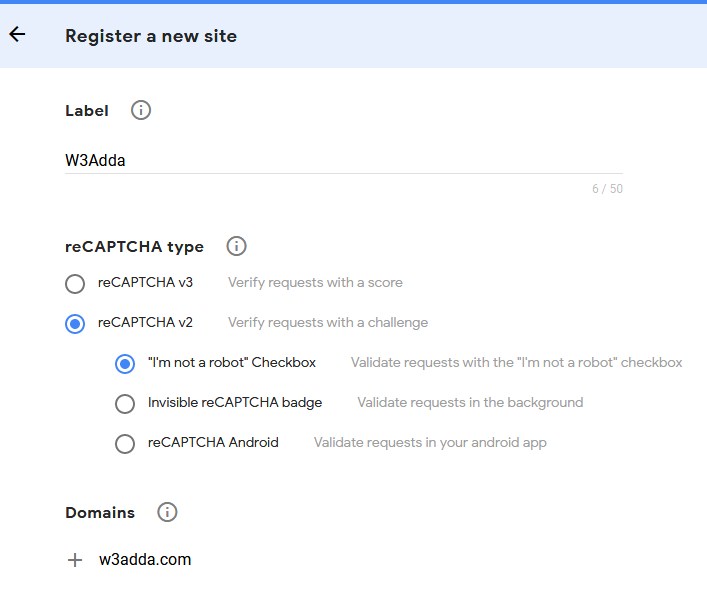
laravel_5_8_google_recaptcha_integration_2

Now accept the Terms of service and click Register. Now, you will be presented with your key and secret, add these to your application’s .env file.

Let’s open .env file and add this crendential as following –

.env

Create Controller

Now, lets create Recaptcha Controller using following command

Once the above command executed, it will create a controller file RecaptchaController.php in app/Http/Controllers/ directory. Open the RecaptchaController.php file and put the following code in it.

Controllers/RecaptchaController.php

Create View/Blade File

In this step, we will create view/blade file to render a register form with recaptcha field. Lets create a “create.blade.php” file in “resources/views/recaptcha/” directory and put the following code in it.

resources/views/recaptcha/create.blade.php

Set Routes

After this, we need to add following two routes in “routes/web.php” to display register form and to post the form data. Lets open “routes/web.php” file and add following route.

routes/web.php

Now we are ready to run our example so lets start the development server using following artisan command –

Now, open the following URL in browser to see the output –

http://localhost:8000/larablog/recaptchacreate

Output:-
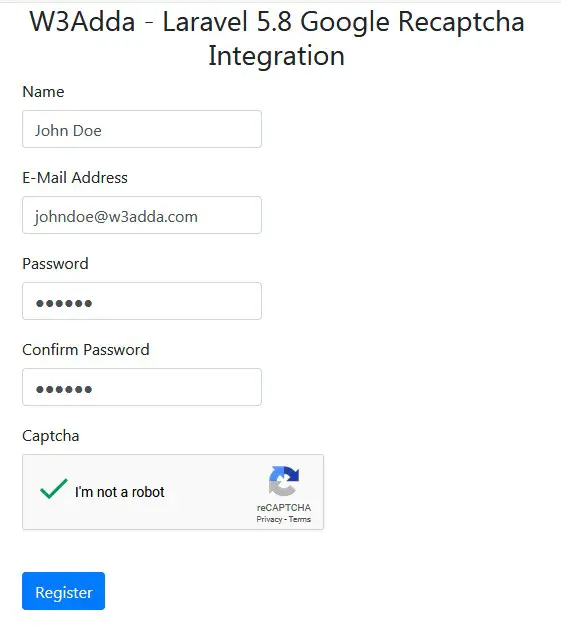
laravel_5_8_google_recaptcha_integration_3

Laravel 5.8 New Email Verification

Laravel 5.8 Email Verification

Laravel 5.8 provides built-in email verification system for newly registered user. Using this, newly registered user will get an email with an account activation link. This activation link is used for account verification. When activation link is clicked, this will make user account verified and active for the application. Once user account is activated then it will be allowed to access protected routes; which can be accessible only by verified accounts.

In this step by step tutorial, we’ll show you how to setup email verification system for newly registered user in laravel 5.8.

Install Laravel 5.8

First of all we need to create a fresh laravel project, download and install Laravel 5.8 using the below command

Make sure you have composer installed. Now, lets switch to the project directory and start the development server using following artisan command –

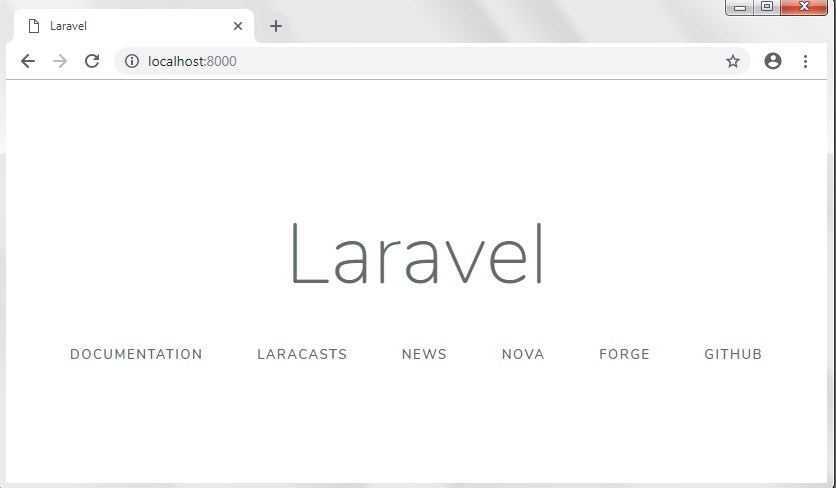
Now, open the following URL in browser to see the output –

http://localhost:8000/

Output:-
laravel-5-7-crud-tutorial-with-example-2

Configure Database In .env file

Now, lets create a MySQL database and connect it with laravel application. After creating database we need to set database credential in application’s .env file.

Now, use the below command to create default laravel tables automatically.

Email Configuration

Since, we will be sending an email with an account activation link. To send email, we need to add email configuration or smtp details in .env file.

Authentication Scaffolding

Now, use the below command to generate authentication scaffolding –

This command will generate required Controller files, views and add routes in our web.php routes file that are required for the authentication. If you open your route file (resources/routes/web.php) you will have a resource route added in it like below –

Email Verification Setup

To implement email verification we need to implement the MustVerifyEmail Contracts in our User model. Lets open the App/User.php file and add the “Implements MustVerifyEmail” to the class declaration as given below –

Add Route

Last thing we need to do is add the verify middleware to the auth routes.

The “verified” middleware is used to protect routes from unverified users.

We can add the “verified” middleware to the route itself as given below –

Example:-

or we can also use it in controllers as following –

Example:-

Add Middleware In Controller

In this example we will be adding Middleware in controller’s constructor to protect access. Lets open app/controllers/HomeController.php and put $this->middleware([‘auth’, ‘verified’]); inside of constructor.

app/controllers/HomeController.php

This will block unverified users to access laravel 5.8 dashboard, and only allow when users have verified their email. Now when you register a new user, it will send a verification email to that user and redirect to verify view (same will happen when a old user tries to access home route).

Start Development Server

Start the development server using following artisan command –

Test Laravel 5.8 Email Verification

At this stage, we are ready to test the user registration and login system with email verification system.

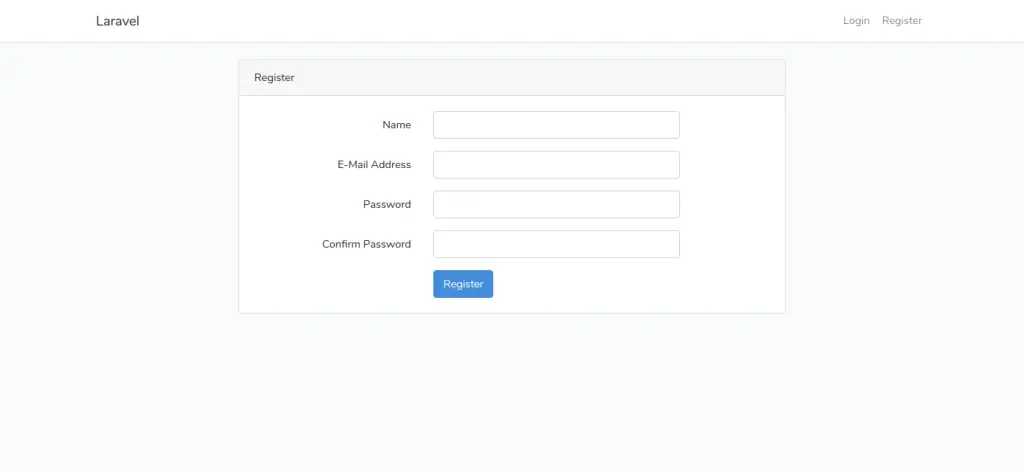
Now, you should able to see your registration page at

http://localhost:8000/register

laravel-5-8-email-verification-example-2

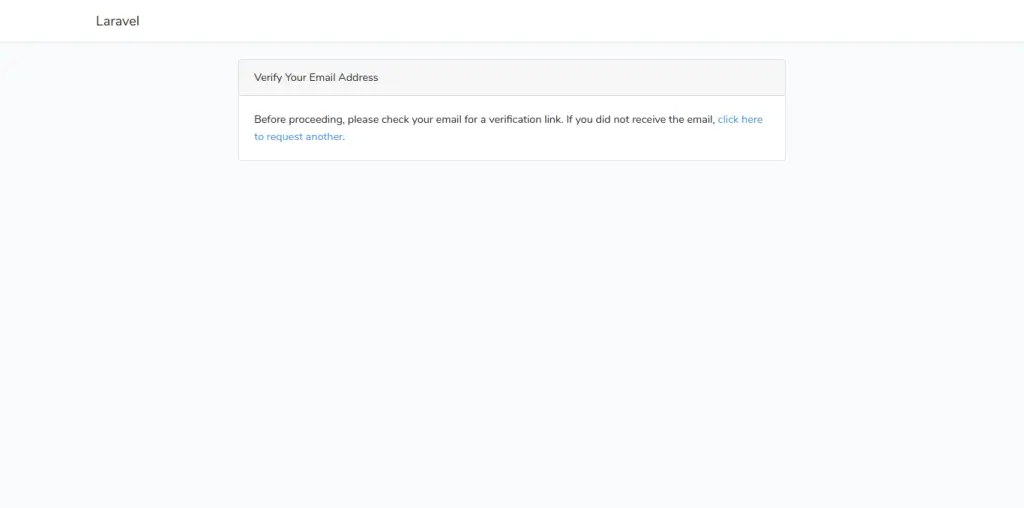
When you fill the form and submit it; you will get an alert for email verification in your account as follows –

laravel-5-8-email-verification-example-3-1

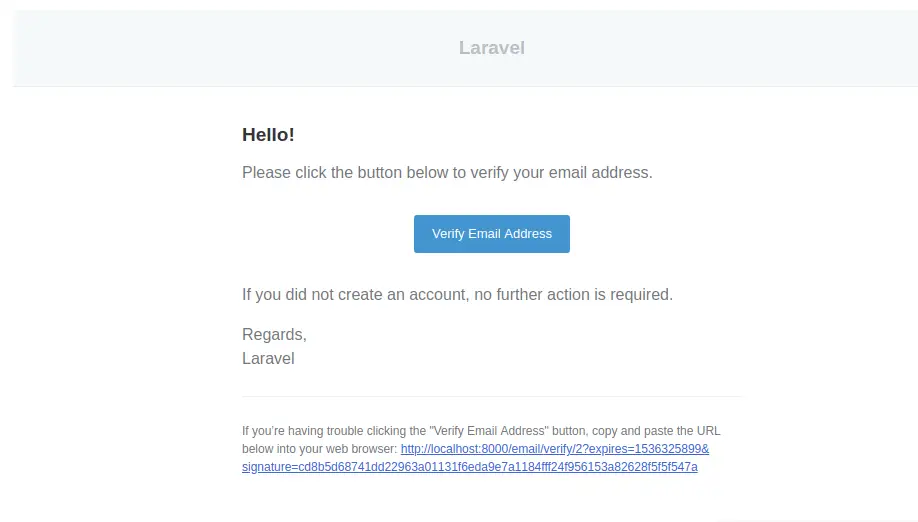
You will also get an account verification link in your email account as follows –

laravel-5-8-email-verification-example-4

Go ahead and verify your account, on successful verification you will be allowed to access protected application routes.

laravel-5-8-email-verification-example-5

Laravel 6 Import Export Excel CSV File to Database

Laravel 6 Import Export Excel CSV File to Database

In this tutorial, I’ll show you how to import and export excel/csv file into and from database in laravel 6 using maatwebsite version 3 package with example. I’ll guide you through step by step with example of importing and exporting a csv or excel file using maatwebsite/excel version 3 composer package.

When we are developing laravel applications, there may situations where we require to import or export large amount of data into and from the application database. Importing and exporting data through excel or csv files seems a good solution here.

In laravel, maatwebsite/excel composer package made it easy to import or export excel or csv files. The maatwebsite/excel is a composer package used to import and export excel or csv files. The maatwebsite/excel provide number of features for excel or csv file import and exort in laravel.

Create Laravel 5.8 Application

First of all we need to create a fresh laravel project, download and install Laravel 5.8 using the below command

Configure Database In .env file

Now, lets create a MySQL database and connect it with laravel application. After creating database we need to set database credential in application’s .env file.

.env

Create Model and Migration

Now, we have to define table schema for contact table. Open terminal and let’s run the following command to generate a Contact model along with a migration file to create contact table in our database.

Once this command is executed you will find a migration file created under “database/migrations”. Lets open migration file created and put following code in it –

Run Laravel Migration

Now, run following command to migrate database schema.

After, the migration executed successfully the contact table will be created in database along with a model file Contact.php in app directory.

app/Contact.php

Install Maatwebsite Package

In this step, we will install Maatwebsite Package via the composer dependency manager. Use the following command to install Maatwebsite Package.

Configure Maatwebsite Package

After Installing Maatwebsite package, we need to add service provider and alias in config/app.php file as following.

config/app.php

Now, use following command to publish Maatwesite Package configuration file:

This will create Maatwesite Package configuration file named “config/excel.php”.

Create Import Class

Now we will create a import class for Contact model to use in our ImportExportExcelController. Use the following command to create import class.

After, the above command executed successfully it will create ImportContacts.php file in Imports directory.

Imports/ImportContacts.php

Create Export Class

Now we will create a export class for Contact model to use in our ImportExportExcelController. Use the following command to create import class.

After, the above command executed successfully it will create ExportContacts.php file in Exports directory.

Exports/ExportContacts.php

Create Import Excel Controller

Next, we have to create a controller to display a form to upload excel file records. Lets Create a controller named ImportExportExcelController using command given below –

Once the above command executed, it will create a controller file ImportExportExcelController.php in app/Http/Controllers/ImportExportExcel directory.

Open the ImportExportExcel/ImportExportExcelController.php file and put the following code in it.

app/Http/Controllers/ImportExportExcel/ImportExportExcelController.php

Here In the controller, we have following methods –

index() :- It displays File Upload Form and Contact data.

import() :- To Upload excel file and Save records in database .

export() :- To export and download excel file for records in database .

Create Blade / View Files

In this step, we will create view/blade file to upload excel file. Lets create a blade file “index.blade.php” in “resources/views/import_export_excel/” directory and put the following code in it respectively.

resources/views/import_export_excel/index.blade.php

Create Import Export Excel Routes

After this, we need to add following routes in “routes/web.php” file along with a resource route. Lets open “routes/web.php” file and add following route.

routes/web.php

Now we are ready to run our example so lets start the development server using following artisan command –

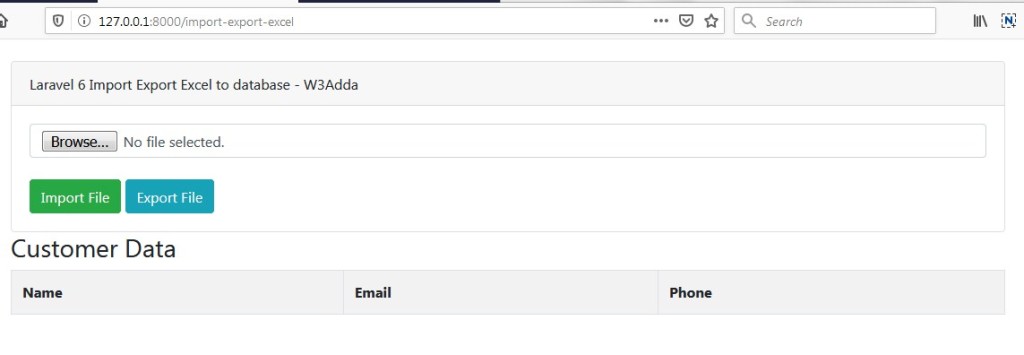
Now, open the following URL in browser to see the output –

http://127.0.0.1:8000/import-export-excel

Output:-
laravel-6-import-export-excel-file-in-database-1

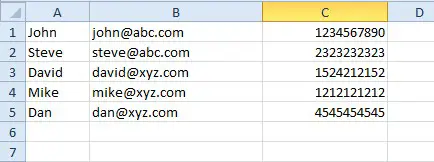
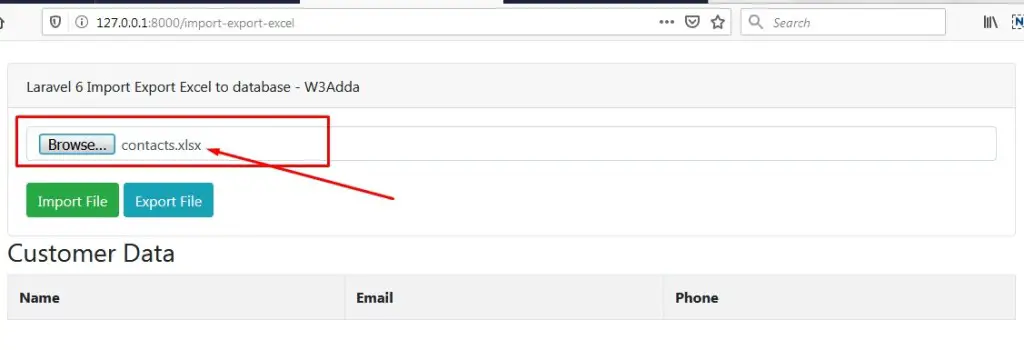
Select excel file to upload, before uploading you must have created an excel file as following:

laravel-6-import-excel-csv-file-in-database-1

laravel-6-import-export-excel-file-in-database-2

Now, import file.

After Upload Screen Output:-
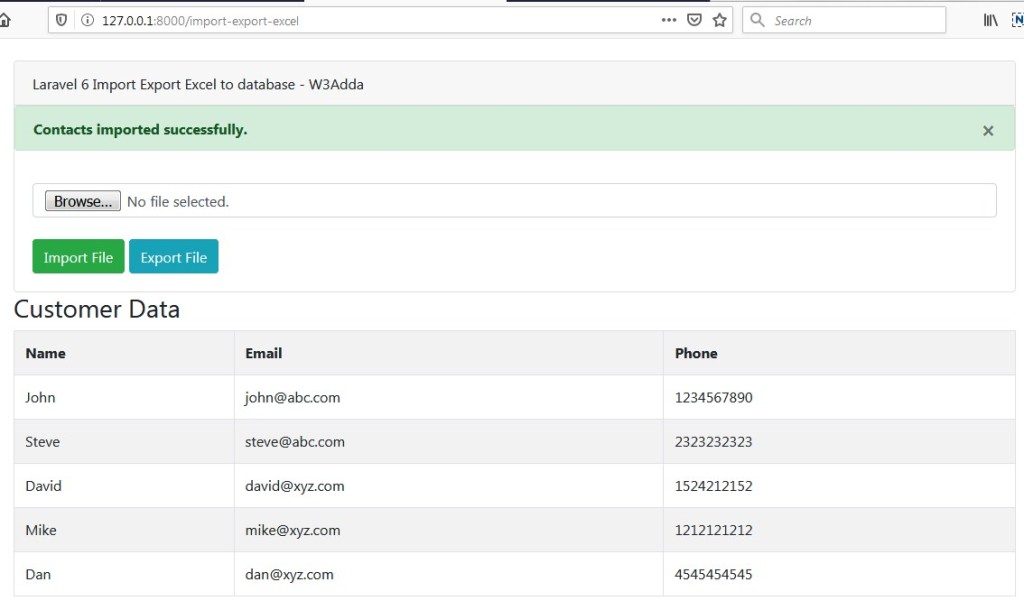
laravel-6-import-export-excel-file-in-database-3

Now, click “Export File” to export data into csv file.

laravel-6-import-export-excel-file-in-database-4

I hope you like this laravel 6 Import Export Excel CSV File to Database tutorial.

Laravel 5.8 Import Excel CSV File to Database Using Maatwebsite

Laravel 5.8 Import Excel CSV File to Database

In this tutorial, I’ll show you how to import Excel spreadsheet or csv file into database in laravel 5.8 using maatwebsite version 3 package with example. I’ll guide you through step by step with example of importing a csv or excel file using maatwebsite/excel version 3 composer package.

When we are working with some large applications, there may situations where we require to import large amount of data into the application database. Importing data through excel or csv files seems a good solution here. In laravel, maatwebsite/excel composer package made it easy to import or export excel or csv files.

Maatwebsite version 3 package:-

The maatwebsite/excel is a composer package used to import and export excel or csv files. This package made it easy to import and export data using database model. We will be using maatwebsite/excel version 3, there are many new changes in version 3. It will work with laravel version like 5.8, 5.7 .

Before starting with example I assume that you already have fresh laravel 5.8 installation ready, if you have it installed then you can skip this step.

Create Laravel 5.8 Application

First of all we need to create a fresh laravel project, download and install Laravel 5.8 using the below command

Configure Database In .env file

Now, lets create a MySQL database and connect it with laravel application. After creating database we need to set database credential in application’s .env file.

.env

Create Model and Migration

Now, we have to define table schema for contact table. Open terminal and let’s run the following command to generate a Contact model along with a migration file to create contact table in our database.

Once this command is executed you will find a migration file created under “database/migrations”. Lets open migration file created and put following code in it –

Run Laravel Migration

Now, run following command to migrate database schema.

After, the migration executed successfully the contact table will be created in database along with a model file Contact.php in app directory.

app/Contact.php

Install Maatwebsite Package

In this step, we will install Maatwebsite Package via the composer dependency manager. Use the following command to install Maatwebsite Package.

Configure Maatwebsite Package

After Installing Maatwebsite package, we need to add service provider and alias in config/app.php file as following.

config/app.php

Now, use following command to publish Maatwesite Package configuration file:

This will create Maatwesite Package configuration file named “config/excel.php”.

Create Import Class

Now we will create a import class for Contact model to use in our ImportExcelController. Use the following command to create import class.

After, the above command executed successfully it will create ImportContacts.php file in Imports directory.

Imports/ImportContacts.php

Create Import Excel Controller

Next, we have to create a controller to display a form to upload excel file records. Lets Create a controller named ImportExcelController using command given below –

Once the above command executed, it will create a controller file ImportExcelController.php in app/Http/Controllers/ImportExcel directory. Open the ImportExcel/ImportExcelController.php file and put the following code in it.

app/Http/Controllers/ImportExcel/ImportExcelController.php

Here In the controller, we have following methods –

index() :- It displays File Upload Form.

import() :- To Upload excel file and Save records in database .

Create Blade / View Files

In this step, we will create view/blade file to upload excel file. Lets create a blade file “index.blade.php” in “resources/views/import_excel/” directory and put the following code in it respectively.

resources/views/import_excel/index.blade.php

Create Import Excel Routes

After this, we need to add following routes in “routes/web.php” file along with a resource route. Lets open “routes/web.php” file and add following route.

routes/web.php

Now we are ready to run our example so lets start the development server using following artisan command –

Now, open the following URL in browser to see the output –

http://127.0.0.1:8000/import-excel

Output:-

laravel-5-8-import-excel-1

Select excel file to upload, before uploading you must have created an excel file as following:

laravel-6-import-excel-csv-file-in-database-1

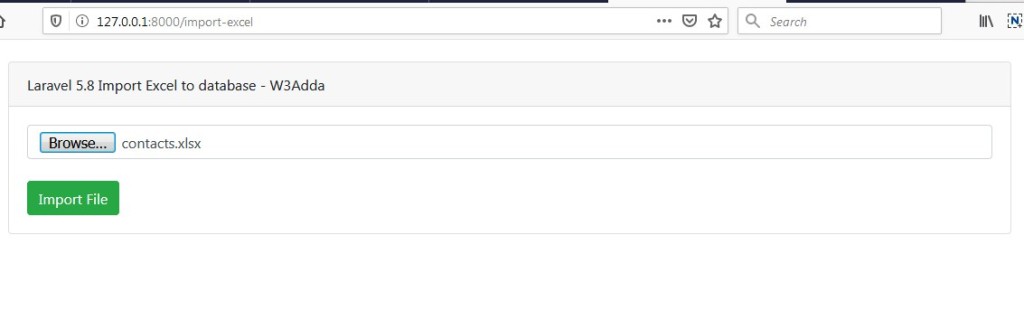
laravel-5-8-import-excel-2

Now, import file.

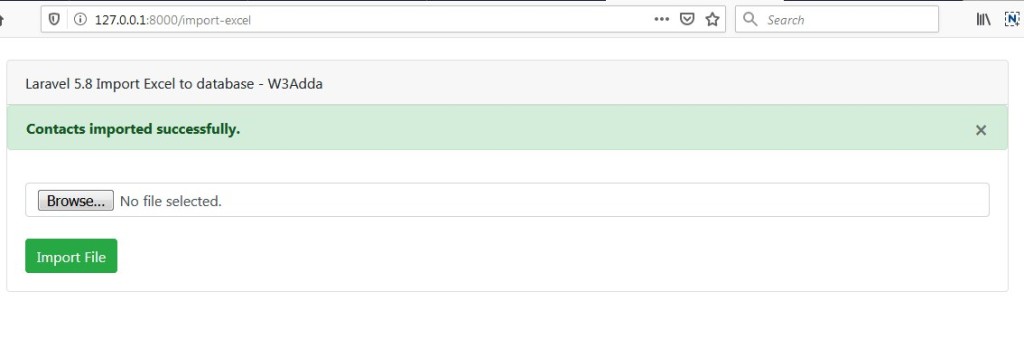
After Upload Screen Output:-

laravel-5-8-import-excel-3

Laravel 6 Import Excel CSV File to Database Using Maatwebsite

Laravel 6 Import Excel CSV File to Database

In this tutorial, I’ll show you how to import Excel spreadsheet or csv file into database in laravel 6 using maatwebsite version 3 package with example. I’ll guide you through step by step with example of importing a csv or excel file using maatwebsite/excel version 3 composer package.

When we are working with some large applications, there may situations where we require to import large amount of data into the application database. Importing data through excel or csv files seems a good solution here. In laravel, maatwebsite/excel composer package made it easy to import or export excel or csv files.

Maatwebsite version 3 package:-

The maatwebsite/excel is a composer package used to import and export excel or csv files. This package made it easy to import and export data using database model. We will be using maatwebsite/excel version 3, there are many new changes in version 3. It will work with laravel version like 5.8, 5.7 .

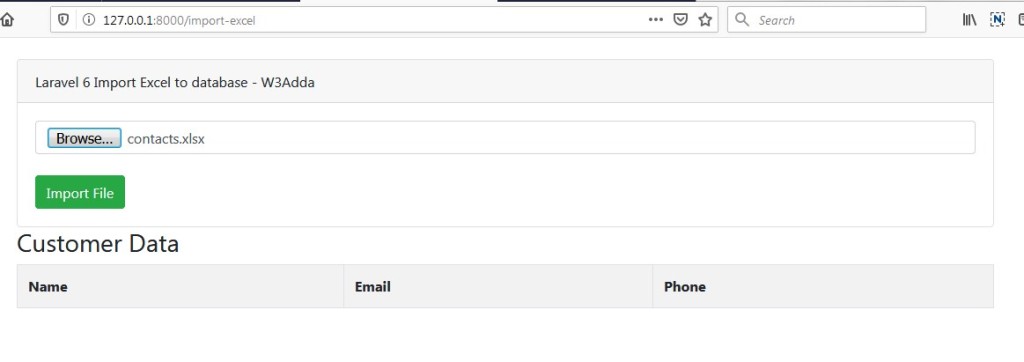
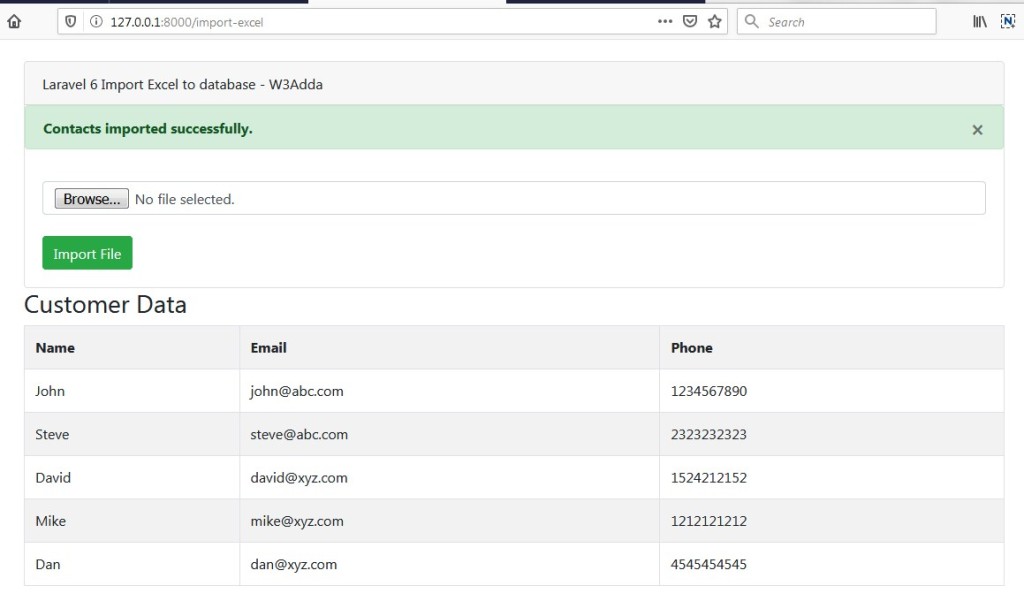
In this laravel import excel example, we will display a form to upload csv file and to display uploaded customer data. When the excel file is imported into database we will display imported data into the screen along with the success message.

Before starting with example I assume that you already have fresh laravel 6 installation ready, if you have it installed then you can skip this step.

Create Laravel 6 Application

First of all we need to create a fresh laravel project, download and install Laravel 6 using the below command

Configure Database In .env file

Now, lets create a MySQL database and connect it with laravel application. After creating database we need to set database credential in application’s .env file.

.env

Create Model and Migration

Now, we have to define table schema for contact table. Open terminal and let’s run the following command to generate a Contact model along with a migration file to create contact table in our database.

Once this command is executed you will find a migration file created under “database/migrations”. Lets open migration file created and put following code in it –

Run Laravel Migration

Now, run following command to migrate database schema.

After, the migration executed successfully the contact table will be created in database along with a model file Contact.php in app directory.

app/Contact.php

Install Maatwebsite Package

In this step, we will install Maatwebsite Package via the composer dependency manager. Use the following command to install Maatwebsite Package.

Configure Maatwebsite Package

After Installing Maatwebsite package, we need to add service provider and alias in config/app.php file as following.

config/app.php

Now, use following command to publish Maatwesite Package configuration file:

This will create Maatwesite Package configuration file named “config/excel.php”.

Create Import Class

Now we will create a import class for Contact model to use in our ImportExcelController. Use the following command to create import class.

After, the above command executed successfully it will create ImportContacts.php file in Imports directory.

Imports/ImportContacts.php

Create Import Excel Controller

Next, we have to create a controller to display a form to upload excel file records. Lets Create a controller named ImportExcelController using command given below –

Once the above command executed, it will create a controller file ImportExcelController.php in app/Http/Controllers/ImportExcel directory. Open the ImportExcel/ImportExcelController.php file and put the following code in it.

app/Http/Controllers/ImportExcel/ImportExcelController.php

Here In the controller, we have following methods –

index() :- It displays File Upload Form.

import() :- To Upload excel file and Save records in database .

Create Blade / View Files

In this step, we will create view/blade file to upload excel file. Lets create a blade file “index.blade.php” in “resources/views/import_excel/” directory and put the following code in it respectively.

resources/views/import_excel/index.blade.php

Create Import Excel Routes

After this, we need to add following routes in “routes/web.php” file along with a resource route. Lets open “routes/web.php” file and add following route.

routes/web.php

Now we are ready to run our example so lets start the development server using following artisan command –

Now, open the following URL in browser to see the output –

http://127.0.0.1:8000/import-excel

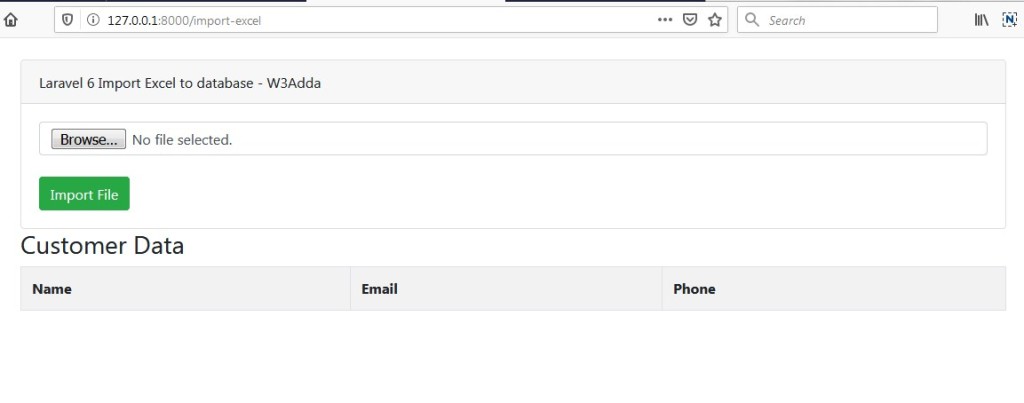
Output:-

laravel-6-import-excel-csv-file-in-database-11


Select excel file to upload, before uploading you must have created an excel file as following:

laravel-6-import-excel-csv-file-in-database-1

laravel-6-import-excel-csv-file-in-database-12

Now, import file.

After Upload Screen Output:-

laravel-6-import-excel-csv-file-in-database-13


Laravel 5.8 Dropzone Multiple Image Upload with Remove Link

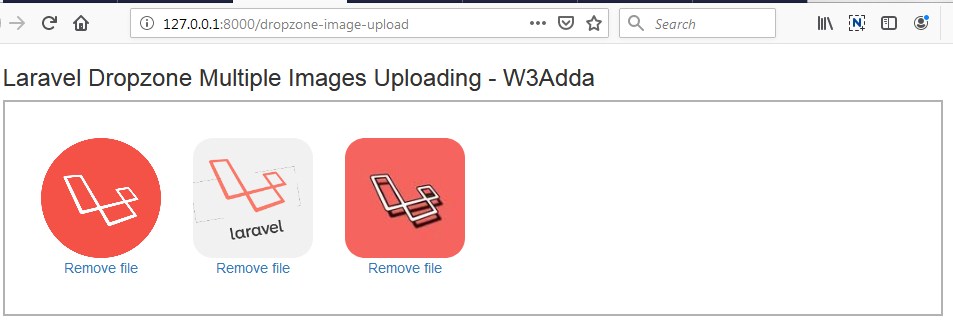
In this Laravel 5.8 Dropzone Multiple Image Upload with Remove Link example, I will show you how to upload files with drag and drop interface using dropzone.js in your Laravel 5 applications. Dropzone is an open source light weight JavaScript library that provides drag and drop features to upload images with preview images. In this example before uploading the image we will display preview of the image along with a remove image link and then save it into directory. In order to use dropzone plugin we need to include the Dropzone javascript and CSS files in your laravel blade file. This tutorial we learn to :-

  • Uploading multiple images with dropzone
  • Saving images with unique file names to database
  • Removing images directly from dropzone preview box

Install Laravel 5.8

First of all we need to create a fresh laravel project, download and install Laravel 5.8 using the below command

Configure Database In .env file

Now, lets create a MySQL database and connect it with laravel application. After creating database we need to set database credential in application’s .env file.

.env

Generate Migration

Now, we have to define table schema for photos table. Open terminal and let’s run the following command to generate a migration file to create photos table in our database.

Once this command is executed you will find a migration file created under “database/migrations”. lets open migration file and put following code in it –

Run Migration

Now, run following command to migrate database schema.

After, the migration executed successfully the photos table will be created in database along with migrations, password_resets and users table.

Create Model

Next, we need to create a model called Photo using below command.

Once, the above command is executed it will create a model file Photo.php in app directory.

Create Controller

Now, create a controller to upload image. Create a controller named ImageUploadController using command given below –

Once the above command executed, it will create a controller file ImageUploadController.php in app/Http/Controllers/dropzone_image_upload/ directory. Open the ImageUploadController.php file and put the following code in it.

app/Http/Controllers/dropzone_image_upload/ImageUploadController.php

Here In the controller, we have following methods –

index() :- It displays Drozone Multiple Image Upload Form

store() :- To Upload using Dropzone and Save Multiple Image in database.

destroy() :- To delete files from directory and database.

Note:- Before uploading any file make sure you have created following two directory in the public folder called profile_images.

Create Blade / View Files

In this step, we will create view/blade file to display Image Upload Form using Dropzone. Lets create a blade file “index.blade.php” in “resources/views/dropzone_image_upload/” directory.

Include Dropzone Javascript and CSS files

In order to use dropzone plugin we need to include following Dropzone javascript and CSS files in your laravel blade file.

Dropzone CSS :-

In this file we will be adding dropzone.min.css along with the our bootstrap.min.css as following –

Dropzone Javascript :-

Here we will add dropzone.js file along with the jquery.js as following –

Configure Dropzone Plugin with Remove Image Link

Next, we will provide initial configurations for Dropzone plugin.We setup follwoing dropzone options –

maxFilesize:- Maximum Image size that can be uploaded.

renameFile:- It is used to rename the file before uploading.

acceptedFiles:- File types or extension that can be uploaded.

addRemoveLinks:- It is set to true to display Remove button to remove uploaded file.

removedfile:- It is a callback function invoked when image is removed from dropzone.

Now, our blade file will look something like this.

resources/views/dropzone_image_upload/index.blade.php

Create Routes

After this, we need to add following dropzone image upload routes in “routes/web.php” file along with a resource route. Lets open “routes/web.php” file and add following route.

routes/web.php

Now we are ready to run our example so lets start the development server using following artisan command –

Now, open the following URL in browser to see the output –

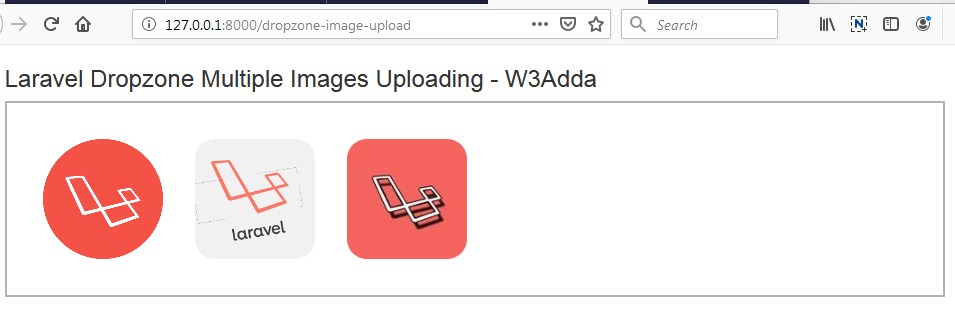
http://localhost:8000/dropzone-image-upload

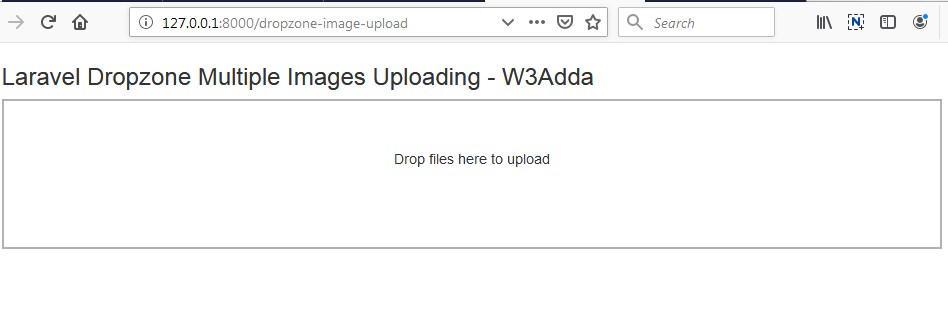
Output:-

laravel-5-8-dropzone-multiple-image-upload-1

After Image Upload Screen Output:-

Select and Drop Multiple Image files to upload using dropzone.

laravel-5-8-dropzone-multiple-image-upload-3

Laravel 5.8 Dropzone Multiple Image Uploading

Laravel 5.8 Dropzone Multiple Image Uploading

In this Laravel 5.8 Dropzone Multiple Image Upload with preview example, I will show you how to upload files with drag and drop interface using dropzone.js in your Laravel 5 applications. Dropzone is an open source light weight JavaScript library that provides drag and drop features to upload images with preview images. In this example before uploading the image we will display preview of the image and then save it into directory. In order to use dropzone plugin we need to include the Dropzone javascript and CSS files in your laravel blade file. This tutorial we learn to :-

  • Uploading multiple images with dropzone
  • Saving images with unique file names to database

Install Laravel 5.8

First of all we need to create a fresh laravel project, download and install Laravel 5.8 using the below command

Configure Database In .env file

Now, lets create a MySQL database and connect it with laravel application. After creating database we need to set database credential in application’s .env file.

.env

Generate Migration

Now, we have to define table schema for photos table. Open terminal and let’s run the following command to generate a migration file to create photos table in our database.

Once this command is executed you will find a migration file created under “database/migrations”. lets open migration file and put following code in it –

Run Migration

Now, run following command to migrate database schema.

After, the migration executed successfully the photos table will be created in database along with migrations, password_resets and users table.

Create Model

Next, we need to create a model called Photo using below command.

Once, the above command is executed it will create a model file Photo.php in app directory.

Create Controller

Now, create a controller to upload image. Create a controller named ImageUploadController using command given below –

Once the above command executed, it will create a controller file ImageUploadController.php in app/Http/Controllers/dropzone_image_upload/ directory. Open the ImageUploadController.php file and put the following code in it.

app/Http/Controllers/dropzone_image_upload/ImageUploadController.php

Here In the controller, we have following methods –

index() :- It displays Drozone Multiple Image Upload Form

store() :- To Upload using Dropzone and Save Multiple Image in database.

Note:- Before uploading any file make sure you have created following two directory in the public folder called profile_images.

Create Blade / View Files

In this step, we will create view/blade file to display Image Upload Form. Lets create a blade file “index.blade.php” in “resources/views/dropzone_image_upload/” directory and put the following code in it respectively.

Include Dropzone Javascript and CSS files

In order to use dropzone plugin we need to include following Dropzone javascript and CSS files in your laravel blade file.

Dropzone CSS :-

In this file we will be adding dropzone.min.css along with the our bootstrap.min.css as following –

Dropzone Javascript :-

Here we will add dropzone.js file along with the jquery.js as following –

Configure Dropzone Plugin with Remove Image Link

Next, we will provide initial configurations for Dropzone plugin.We setup follwoing dropzone options –

maxFilesize:- Maximum Image size that can be uploaded.

renameFile:- It is used to rename the file before uploading.

acceptedFiles:- File types or extension that can be uploaded.

Now, our blade file will look something like this.

resources/views/dropzone_image_upload/index.blade.php

Create Routes

After this, we need to add following dropzone image upload routes in “routes/web.php” file along with a resource route. Lets open “routes/web.php” file and add following route.

routes/web.php

Now we are ready to run our example so lets start the development server using following artisan command –

Now, open the following URL in browser to see the output –

http://localhost:8000/dropzone-image-upload

Output:-

laravel-5-8-dropzone-multiple-image-upload-1

After Image Upload Screen Output:-

Select and Drop Multiple Image files to upload using dropzone.

laravel-5-8-dropzone-multiple-image-upload-2

Laravel 5.8 Multiple Image Upload with Preview

Laravel 5.8 Multiple Image Upload with Preview

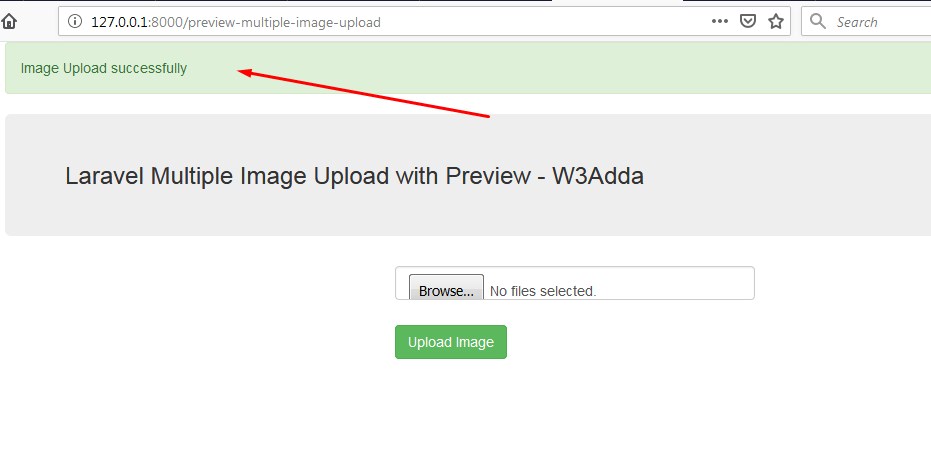
In this Laravel 5.8 Multiple Image Upload with Preview example, we will learn how to upload image along with preview before upload in laravel 5.8. In this laravel 5.8 multiple image upload example, I’ll show you how to validate upload image into folder and then save it into database. In this tutorial before saving image into database we will show preview of the images and then save it into directory. Before uploading the image we will display preview of the image. After successfully image upload into the database and folder we will display success message on the screen.

Install Laravel 5.8

First of all we need to create a fresh laravel project, download and install Laravel 5.8 using the below command

Configure Database In .env file

Now, lets create a MySQL database and connect it with laravel application. After creating database we need to set database credential in application’s .env file.

.env

Generate Migration

Now, we have to define table schema for photos table. Open terminal and let’s run the following command to generate a migration file to create photos table in our database.

Once this command is executed you will find a migration file created under “database/migrations”. lets open migration file and put following code in it –

Run Migration

Now, run following command to migrate database schema.

After, the migration executed successfully the photos table will be created in database along with migrations, password_resets and users table.

Create Model

Next, we need to create a model called Photo using below command.

Once, the above command is executed it will create a model file Photo.php in app directory.

Create Controller

Now, lets create a controller for multiple image uploading. Create a controller named ImageUploadController using command given below –

Once the above command executed, it will create a controller file ImageUploadController.php in app/Http/Controllers/multiple_image_upload/ directory. Open the ImageUploadController.php file and put the following code in it.

app/Http/Controllers/multiple_image_upload/ImageUploadController.php

Here In the controller, we have following methods –

index() :- It displays Image Upload Form along with Uploaded Image

store() :- To Upload and Save Multiple Image in database .

Note:- Before uploading any file make sure you have created following two directory in the public folder called profile_images.

Create Blade / View Files

In this step, we will create view/blade file to display Image Upload Form. Lets create a blade file “index.blade.php” in “resources/views/multiple_image_upload/” directory and put the following code in it respectively.

resources/views/multiple_image_upload/index.blade.php

Create Routes

After this, we need to add following routes in “routes/web.php” file along with a resource route. Lets open “routes/web.php” file and add following route.

routes/web.php

Now we are ready to run our example so lets start the development server using following artisan command –

Now, open the following URL in browser to see the output –

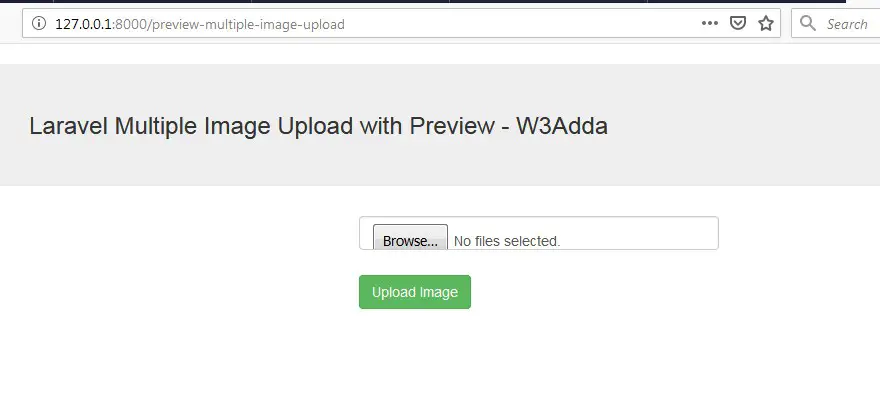
http://localhost:8000/preview-multiple-image-upload

Output:-

laravel-5-8-multiple-image-upload-with-preview-1

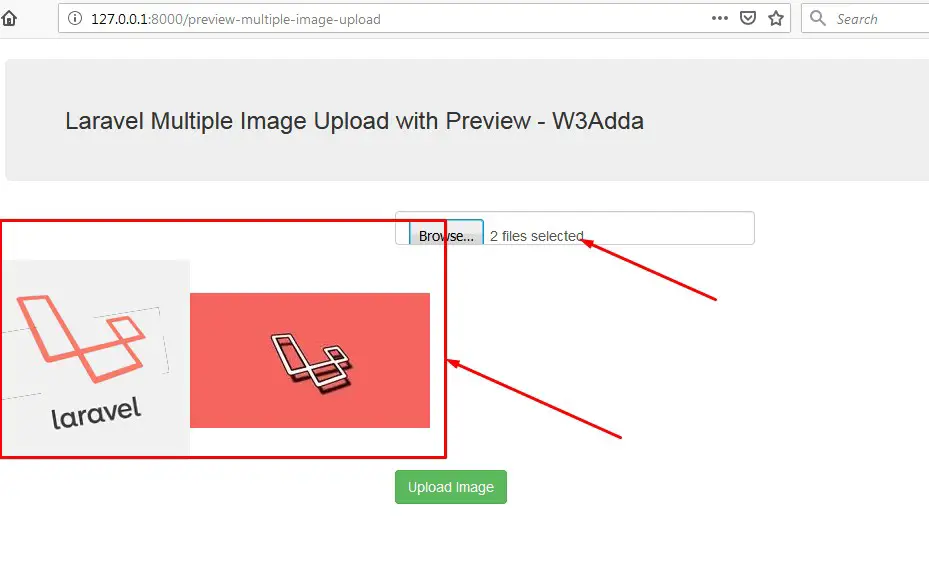
After Image Upload Screen Output:-

Select Multiple Image files to upload.

laravel-5-8-multiple-image-upload-with-preview-2
Now, upload image.

laravel-5-8-multiple-image-upload-with-preview-3

Laravel 5.8 Multiple Image Upload with jQuery Add More Button

Laravel 5.8 Multiple Image Upload with jQuery Add More Button

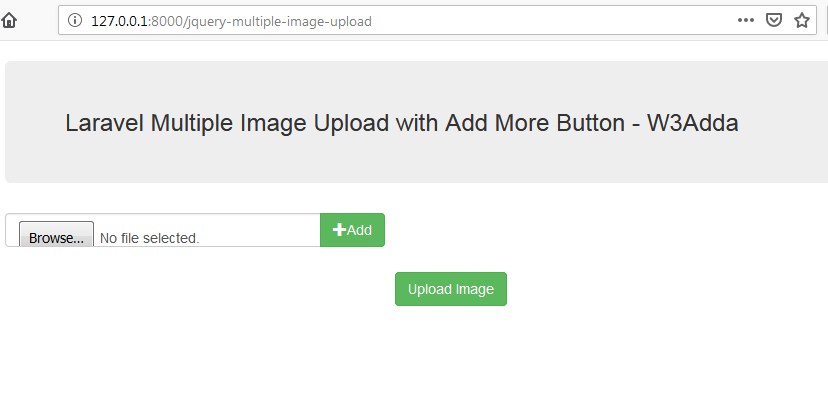
In this Laravel 5.8 Multiple Image Upload with jquery add more button example, we will learn how to upload multiple image using jquery add more button. In this laravel 5.8 multiple image upload example, I’ll show you how to validate and upload multiple image into folder and then save it into database. In this tutorial, we will use jquery to populate multiple image or file upload field. Before saving multiple image into database we will validate image and then save it into directory. After successfully uploading multiple images into the folder and saving it in database we will display success message on the screen.

Install Laravel 5.8

First of all we need to create a fresh laravel project, download and install Laravel 5.8 using the below command

Configure Database In .env file

Now, lets create a MySQL database and connect it with laravel application. After creating database we need to set database credential in application’s .env file.

.env

Generate Migration

Now, we have to define table schema for photos table. Open terminal and let’s run the following command to generate a migration file to create photos table in our database.

Once this command is executed you will find a migration file created under “database/migrations”. lets open migration file and put following code in it –

Run Migration

Now, run following command to migrate database schema.

After, the migration executed successfully the photos table will be created in database along with migrations, password_resets and users table.

Create Model

Next, we need to create a model called Photo using below command.

Once, the above command is executed it will create a model file Photo.php in app directory.

Create Controller

Now, lets create a controller for multiple image uploading. Create a controller named ImageUploadController using command given below –

Once the above command executed, it will create a controller file ImageUploadController.php in app/Http/Controllers/jquery_multiple_image_upload/ directory. Open the ImageUploadController.php file and put the following code in it.

app/Http/Controllers/jquery_multiple_image_upload/ImageUploadController.php

Here In the controller, we have following methods –

index() :- It displays Image Upload Form along with jQuery Add More Button.

store() :- To Upload and Save Multiple Image in database .

Note:- Before uploading any file make sure you have created following two directory in the public folder called profile_images.

Create Blade / View Files

In this step, we will create view/blade file to display Image Upload Form. Lets create a blade file “index.blade.php” in “resources/views/jquery_multiple_image_upload/” directory and put the following code in it respectively.

resources/views/jquery_multiple_image_upload/index.blade.php

jQuery Add More Button To File Upload Field Dynamically

Now, we will append a “Add” button to clone and append multiple file upload field to the form. Below is final view file code –

resources/views/jquery_multiple_image_upload/index.blade.php

Create Routes

After this, we need to add following routes in “routes/web.php” file along with a resource route. Lets open “routes/web.php” file and add following route.

routes/web.php

Now we are ready to run our example so lets start the development server using following artisan command –

Now, open the following URL in browser to see the output –

http://localhost:8000/jquery-multiple-image-upload

Output:-

laravel-5-8-multiple-image-upload-add-more-button-1

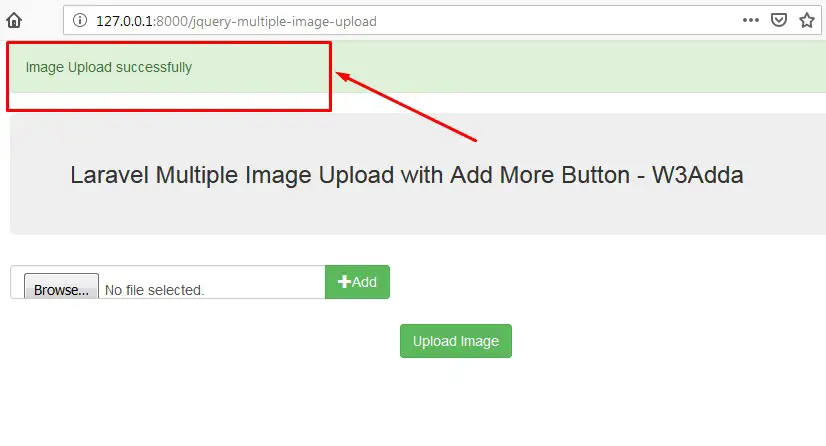
After Image Upload Screen Output:-

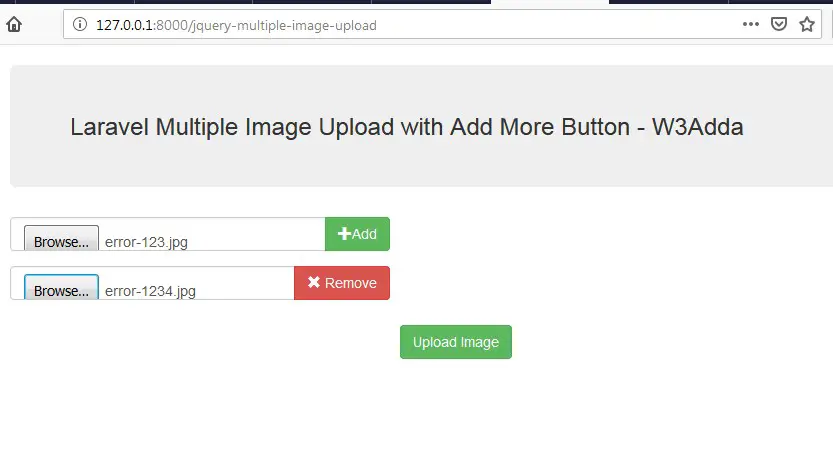
Click “Add” button to add Multiple Image files to upload control.

laravel-5-8-multiple-image-upload-add-more-button-2
Now, upload image.

laravel-5-8-multiple-image-upload-add-more-button-3

Laravel 5.8 Multiple Image Upload Tutorial with Example

Laravel 5.8 Multiple Image Upload Tutorial with Example

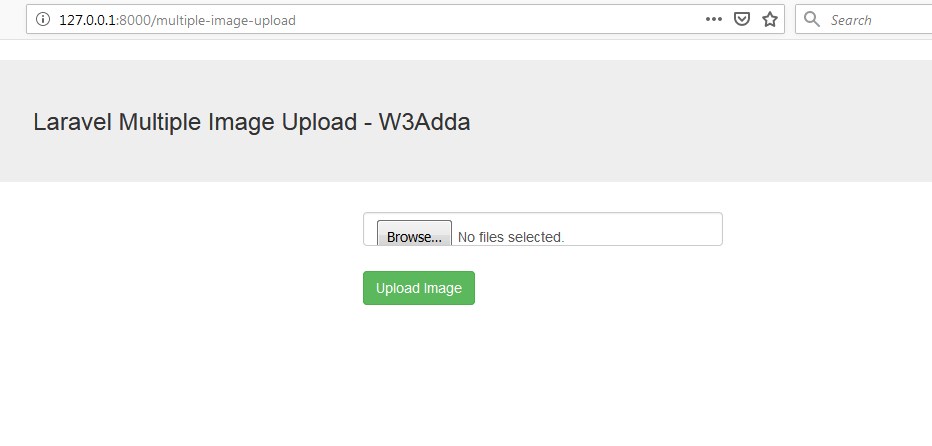
In this Laravel 5.8 Multiple Image Upload example, we will learn how to upload multiple image along with validation in laravel 5.8. In this laravel 5.8 multiple image upload example, I’ll show you how to validate and upload multiple image into folder and then save it into database. In this tutorial before saving multiple image into database we will validate image and then save it into directory. Before uploading the image we will validate the image. After successfully uploading multiple images into the folder and saving it in database we will display success message on the screen.

Install Laravel 5.8

First of all we need to create a fresh laravel project, download and install Laravel 5.8 using the below command

Configure Database In .env file

Now, lets create a MySQL database and connect it with laravel application. After creating database we need to set database credential in application’s .env file.

.env

Generate Migration

Now, we have to define table schema for photos table. Open terminal and let’s run the following command to generate a migration file to create photos table in our database.

Once this command is executed you will find a migration file created under “database/migrations”. lets open migration file and put following code in it –

Run Migration

Now, run following command to migrate database schema.

After, the migration executed successfully the photos table will be created in database along with migrations, password_resets and users table.

Create Model

Next, we need to create a model called Photo using below command.

Once, the above command is executed it will create a model file Photo.php in app directory.

Create Controller

Now, lets create a controller for multiple image uploading. Create a controller named ImageUploadController using command given below –

Once the above command executed, it will create a controller file ImageUploadController.php in app/Http/Controllers/multiple_image_upload/ directory. Open the ImageUploadController.php file and put the following code in it.

app/Http/Controllers/multiple_image_upload/ImageUploadController.php

Here In the controller, we have following methods –

index() :- It displays Image Upload Form along with Uploaded Image

store() :- To Upload and Save Multiple Image in database .

Note:- Before uploading any file make sure you have created following two directory in the public folder called profile_images.

Create Blade / View Files

In this step, we will create view/blade file to display Image Upload Form. Lets create a blade file “index.blade.php” in “resources/views/multiple_image_upload/” directory and put the following code in it respectively.

resources/views/multiple_image_upload/index.blade.php

Create Routes

After this, we need to add following routes in “routes/web.php” file along with a resource route. Lets open “routes/web.php” file and add following route.

routes/web.php

Now we are ready to run our example so lets start the development server using following artisan command –

Now, open the following URL in browser to see the output –

http://localhost:8000/multiple-image-upload

Output:-

laravel-5-8-multiple-image-upload-1

After Image Upload Screen Output:-

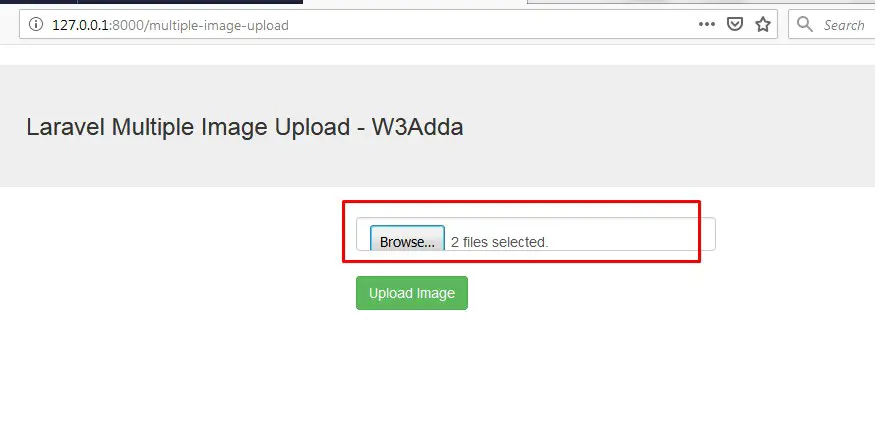
Select Multiple Image files to upload.

laravel-5-8-multiple-image-upload-2
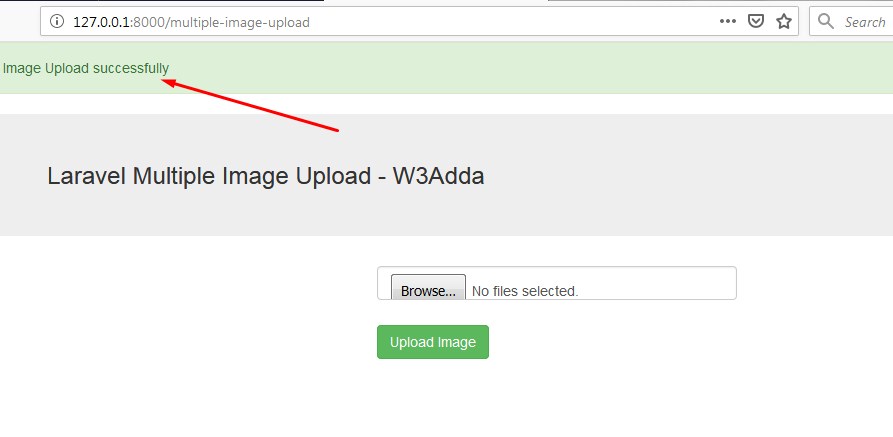
Now, upload image.

laravel-5-8-multiple-image-upload-3

Laravel 6 Image Upload With Preview

Laravel 6 Image Upload With Preview

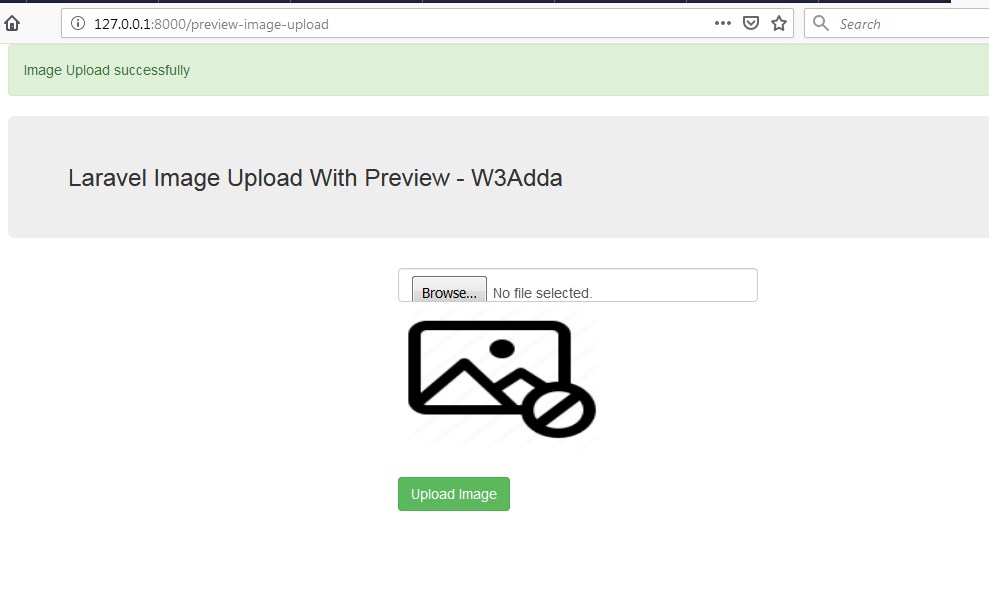
In this Laravel 6 Image Upload with Preview example, we will learn how to upload image along with preview before upload in laravel 6. In this laravel 6 simple image upload example, I’ll show you how to validate upload image into folder and then save it into database. In this tutorial before saving image into database we will show preview of the image and then save it into directory. Before uploading the image we will display preview of the image. After successfully image upload into the database and folder we will display success message on the screen.

Install Laravel 6

First of all we need to create a fresh laravel project, download and install Laravel 6 using the below command

Configure Database In .env file

Now, lets create a MySQL database and connect it with laravel application. After creating database we need to set database credential in application’s .env file.

.env

Generate Migration

Now, we have to define table schema for photos table. Open terminal and let’s run the following command to generate a migration file to create photos table in our database.

Once this command is executed you will find a migration file created under “database/migrations”. lets open migration file and put following code in it –

Run Migration

Now, run following command to migrate database schema.

After, the migration executed successfully the photos table will be created in database along with migrations, password_resets and users table.

Create Model

Next, we need to create a model called Photo using below command.

Once, the above command is executed it will create a model file Photo.php in app directory.

Create Controller

Now, lets create a controller for simple image uploading. Create a controller named ImageUploadController using command given below –

Once the above command executed, it will create a controller file ImageUploadController.php in app/Http/Controllers/simple_image_upload/ directory. Open the ImageUploadController.php file and put the following code in it.

app/Http/Controllers/simple_image_upload/ImageUploadController.php

Here In the controller, we have following methods –

index() :- It displays Image Upload Form along with Preview Image before uploading

store() :- To Upload and Save Image in database.

Note:- Before uploading any file make sure you have created following two directory in the public folder called profile_images.

Create Blade / View Files

In this step, we will create view/blade file to generate and display Image Upload Form. Lets create a blade file “index.blade.php” in “resources/views/simple_image_upload/” directory and put the following code in it respectively.

resources/views/simple_image_upload/index.blade.php

Create Routes

After this, we need to add following routes in “routes/web.php” file along with a resource route. Lets open “routes/web.php” file and add following route.

routes/web.php

Now we are ready to run our example so lets start the development server using following artisan command –

Now, open the following URL in browser to see the output –

http://localhost:8000/preview-image-upload

Output:-

laravel-6-image-upload-with-preview-1

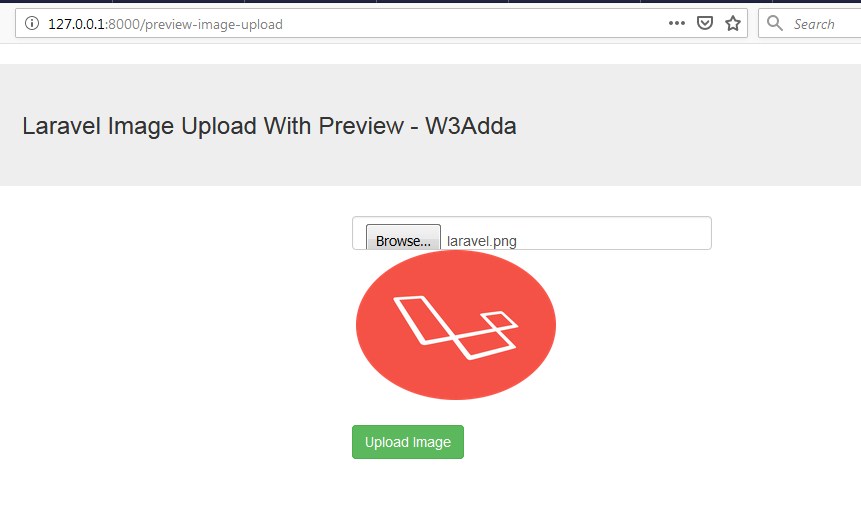
After Image Upload Screen Output:-

laravel-6-image-upload-with-preview-2

Laravel 6 Image Uploading using Ajax Tutorial with Example

Laravel 6 Image Uploading using Ajax Tutorial with Example

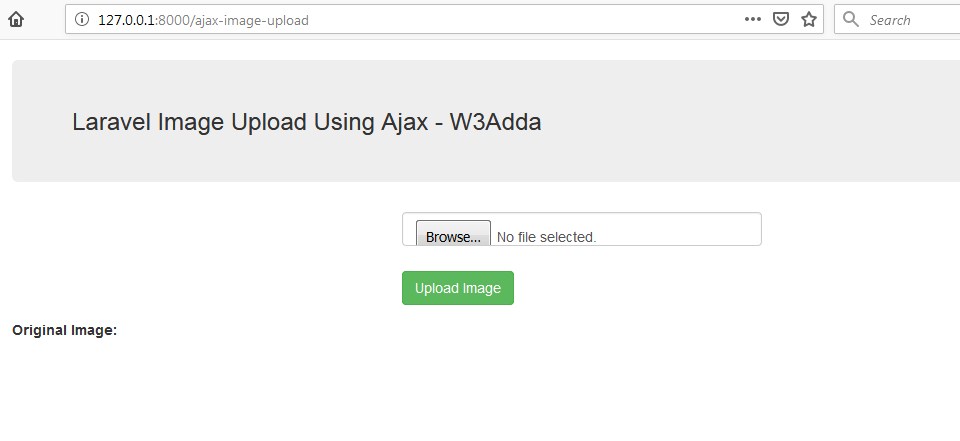
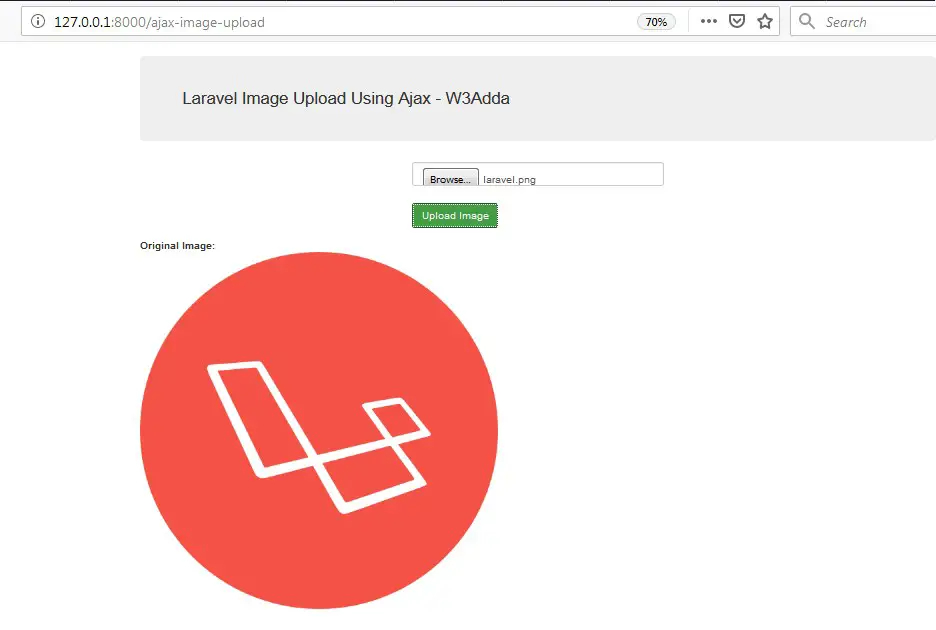
In this Laravel 6 Image Upload using Ajax example, we will learn how to upload and save image in laravel 6 using ajax. In this laravel ajax image upload example, I’ll show you how to validate upload image into folder and then save it into database using ajax. In this tutorial before saving image into database we will validate image and then save it into directory using. Before uploading the image we will perform server side validation. After successfully image upload into the database and folder we will display uploaded image on the screen.

Install Laravel 6

First of all we need to create a fresh laravel project, download and install Laravel 6 using the below command

Configure Database In .env file

Now, lets create a MySQL database and connect it with laravel application. After creating database we need to set database credential in application’s .env file.

.env

Generate Migration

Now, we have to define table schema for photos table. Open terminal and let’s run the following command to generate a migration file to create photos table in our database.

Once this command is executed you will find a migration file created under “database/migrations”. lets open migration file and put following code in it –

Run Migration

Now, run following command to migrate database schema.

After, the migration executed successfully the photos table will be created in database along with migrations, password_resets and users table.

Create Model

Next, we need to create a model called Photo using below command.

Once, the above command is executed it will create a model file Photo.php in app directory.

Create Controller

Now, lets create a controller for simple image uploading. Create a controller named ImageUploadController using command given below –

Once the above command executed, it will create a controller file ImageUploadController.php in app/Http/Controllers/ajax_image_upload/ directory. Open the ImageUploadController.php file and put the following code in it.

app/Http/Controllers/ajax_image_upload/ImageUploadController.php

Here In the controller, we have following methods –

index() :- It displays Image Upload Form along with Uploaded Image

store() :- To Upload and Save Image in database.

Note:- Before uploading any file make sure you have created following two directory in the public folder called profile_images.

Create Blade / View Files

In this step, we will create view/blade file to generate and display Image Upload Form. Lets create a blade file “index.blade.php” in “resources/views/ajax_image_upload/” directory and put the following code in it respectively.

resources/views/ajax_image_upload/index.blade.php

Create Routes

After this, we need to add following routes in “routes/web.php” file along with a resource route. Lets open “routes/web.php” file and add following route.

routes/web.php

Now we are ready to run our example so lets start the development server using following artisan command –

Now, open the following URL in browser to see the output –

http://localhost:8000/ajax-image-upload

Output:-

laravel-image-uploading-using-ajax-1

After Image Upload Screen Output:-

laravel-image-uploading-using-ajax-2