Category Archives: Laravel

Laravel Tutorials

How to Clear Cache in Laravel 8 with artisan commands

In this tutorial, I’ll show you how to clear cache in laravel 8. We will learn to clear laravel cache of different types example: view cache, application cache, route cache, config cache etc. I’ll show you various laravel artisan commands to clear laravel 8 cache of different types. You will also learn to clear cache on shared hosting without artisan commands.

In Laravel, while developing a laravel application it is very often that changes we made are not reflecting. This is usually happens because of the laravel cache. Laravel provides various caching systems for developing fast loading laravel applications.

In this laravel clear cache example, we will learn to clear cache from command line (CLI), we will see how to clear cache from blade (views), routes,config etc using the command line and artisan command.

Laravel 8 Clear Cache Artisan Commands

Here, we will discuss about various artisans commands used to clear different laravel cache in laravel applications.

How to clear laravel App Cache

To clear laravel application cache use the php artisan cache:clear artisan command as given below :

How to clear laravel route Cache

To clear route cache in laravel use the php artisan route:clear artisan command as given below :

How to clear laravel config cache

To clear config cache in laravel use the php artisan config:cache artisan command as given below :

How to clear laravel View Cache

To clear compiled view files cache in laravel use the php artisan view:clear artisan command as given below :

Laravel Reoptimized Class

Use the following laravel command to Reoptimized Class In laravel :

Clear Cache On Shared Host Without Artisan Commands

In shared hosting servers typically we don’t have SSH access to the server. In that case, to clear laravel 8 cache we have define routes in our application’s routes/web.php file that invoke the various laravel clear cache commands. This way we can clear Laravel cache by accessing specific routes in the browser.

How to Clear Route Cache from Browser

How to Clear Config Cache from Browser

How to Clear Application Cache from Browser

How to Clear View Cache from Browser

Laravel 5.8 Multiple Authentication Using Middleware

Laravel 5.8 Multiple Authentication Using Middleware

In this Laravel multi (auth) authentication tutorial we will learn how to create separate admin panel or login using middleware. Laravel multi (auth) authentication system allows to create multiple users login in single application.

While developing a laravel application there comes situations where we want create separate user login or separate user/admin panel for users having different privileges or access rights in same application. In laravel this can be achieved in following ways –

1. Laravel multi (auth) authentication using middleware

2. Laravel multi (auth) authentication Using Guards

In one of my previous article we have created separate admin login using laravel multi (auth) authentication using Guards. In this article we will creating separate admin login using laravel multi (auth) authentication system with middleware.

Install Laravel 5.8

First of all we need to create a fresh laravel project, download and install Laravel 5.8 using the below command

Configure Database In .env file

Now, lets create a MySQL database and connect it with laravel application. After creating database we need to set database credential in application’s .env file.

Generate Application Key

Open terminal and switch to the project directory and run the following command to generate application key and configure cache.

Set Default String Length

Locate the file “app/Providers/AppServiceProvider”, and add following line of code to the top of the file

and inside the boot method set a default string length as given below –

So this is how “app/Providers/AppServiceProvider” file looks like –

Migrations and User Model

After installing laravel, you will see the some migration files created inside database/migrations directory for creating default create users table and password reset table. Open app/database/create_users_table.php migration file and add/update the following field for admin.

After you added a column “is_admin” to user table run the migration using following command.

After this, go to app/User.php and add is_admin to fillable attribute in the User Model.

Authentication Scaffolding

Laravel comes with in-built basic authentication system, use the below command to generate default authentication scaffolding –

This command will generate required Controller files, views and add routes in our web.php routes file that are required for basic authentication system.

Create Admin Middleware

Now, we will create a middleware that authenticate users. This middleware will help to make sure who can access the admin area or who can access the normal user area. Use the following command to generate a middleware for Admin.

Next, open app/Http/ Middleware/Admin.php file, and here in handle() method implement the logic to authenticate users like below.

Now, we need to register admin route in $routeMiddleware property in the app/Http/Kernel.php file. Lets open app/Http/Kernel.php file and update the $routeMiddleware property like below –

Set Admin Protected Route

Next, create the route for admin. Open the routes/web.php file and add the following code in it.

routes/web.php

Create Controller Methods

Open the app/Http/Controllers/HomeController.php controller file and create two separate methods to handle admin and normal users.

app/Http/Controllers/HomeController.php

Create Blade/View

Now we will have two separate view files, first is for home page and second is for after login admin page. Open the resources/views/home.blade.php file and update the following code.

resources/views/home.blade.php

Here, if(auth()->user()->is_admin == 1) is used to check user is a normal user or an admin user, it will navigate to the admin area. Otherwise, it will redirect to users area.

Now, create a view file called admin.blade.php in the root of the views folder, and add the following code to it.

resources/views/admin.blade.php

Start Development Server

Start the development server using following artisan command –

In order to test laravel multi auth system first register a user through laravel register and then change the is_admin=1; and try to login again.

User Home 1 :-

laravel-multi-auth-2

After Login Admin Page :-

laravel-multi-auth-1

User Home 2 :-

laravel-multi-auth-3

How to Ban, Suspend or Block User Account in Laravel

How to Ban, Suspend or Block User Account in Laravel

In this laravel ban / suspend user account tutorial, I’ll show you how to ban, block or suspend a user account using laravel middleware.

Sometimes in laravel application we may identify user account with some suspicious activity, policy violation, spamming or any other misuse of the application. In such situation we may want to ban, block or suspend a user account for some time, after that ban is revoked. when a blocked user account’s ban is revoked it can use the application same as before the account is suspended or banned

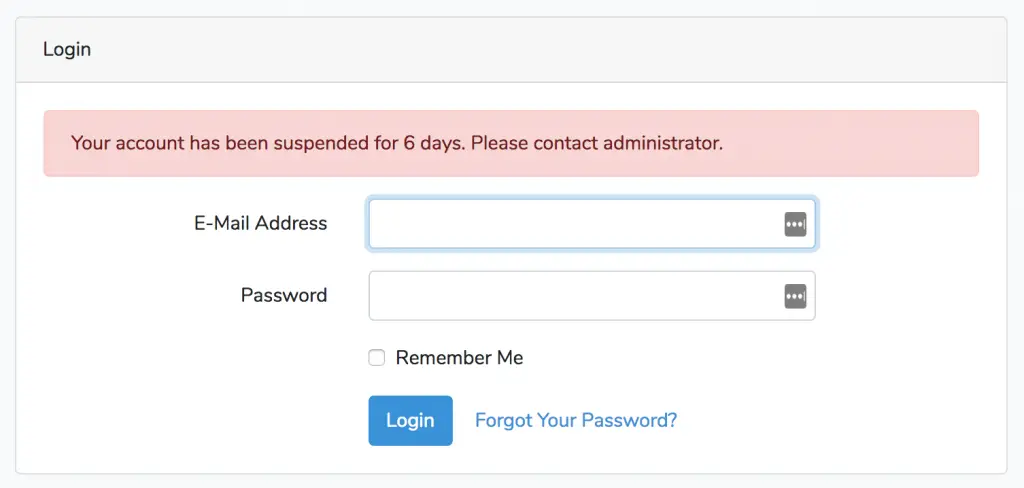
In this tutorial, you will learn to ban, block or suspend a user account using laravel middleware. In this example, we will create a laravel middleware to check if the user is banned. In this example we will add a database field named blocked_until in users table then we will check user is suspend/banned or not using the blocked_until field. If an user is found banned or blocked we log them out and redirect back to login page with an error message.

Before starting with tutorial, we are assuming that you already have a fresh installation of a Laravel 5.8. If you have not installed it follow Laravel Installation Step.

Install Laravel 5.8

First of all we need to create a fresh laravel project, download and install Laravel 5.8 using the below command

Configure Database In .env file

Now, lets create a MySQL database and connect it with laravel application. After creating database we need to set database credential in application’s .env file.

Now, use the below command to create default laravel tables automatically.

Authentication Scaffolding

Now, use the below command to generate laravel default authentication scaffolding –

This command will generate required Controller files, views and add routes in our web.php routes file that are required for the authentication.

Add New column Using Migration

Now, lets a add a timestamp field named blocked_until that allows you check if user is banned or not. If its null then user is not banned, otherwise we know the date, until when user is banned. Use the following artisan command to generate laravel migration that adds blocked_until field to users table.

Once this command is executed you will find a migration file created under “database/migrations”. lets open migration file and modify up method with following code –

We also need to add that field to $fillable array in app/User.php model. We will put it into $dates array to.

app/User.php

Create Laravel Middleware CheckBlocked

Lets create a laravel middleware to check if the user is banned/suspended/blocked. If a blocked user will try to login we log them out and redirect back to login form with an error message. Create a laravel middleware using below command.

Once this command is executed you will find a middleware file created under “app/Http/Middleware/”. Open middleware file and implement logic of to check banned/blocked/suspended users. In that time, we will log them out and redirect to login screen with message.

app/http/middleware/CheckBlocked.php

Register Laravel Middleware

Open app/Http/Kernel.php file and register CheckBlocked middleware here, like below –

Add Error Message

Finally, we need to add a error message in login.blade.php. let’s open app/resources/views/auth/login.blade.php file and add error message on above of login form body, like below –

Now we are ready to run our example so lets start the development server using following artisan command –

Now, open the following URL in browser and try to login with blocked or suspended user account to see the output –

http://localhost:8000/login

Output:-

laravel-ban-user-account-1

Laravel 5.8 Passport Authentication | Create REST API with Passport authentication

Laravel 5.8 Create REST API with Passport Authentication

In one of my previous articles, we have learn How to Create REST API With JWT Authentication In Laravel using Laravel JWT package for REST authentication API. In this article, we will learn to create fully functional restful API with Passport Authentication in Laravel. In this tutorial, we will be creating fully functional CRUD APIs for Blog Posts along with Passport Authentication In laravel.

What is Passport Authentication?

Laravel comes with default login authentication, but when we want to create APIs we have to use tokens instead of sessions for authenticating users, as APIs does not support session variables. After login via API, user must be assigned a token and sent back to the user which is further used for authenticating API requests. Authentication token is used to securely transmit data between third-parties. Laravel provides Passport authentication which makes it easy creating REST APIs in laravel.

Install Laravel 5.8

First of all we need to create a fresh laravel project, download and install Laravel 5.8 using the below command

Install Laravel Passport Package

In this step, we need to install Laravel Passport package via the composer dependency manager. Use the following command to install passport package.

After Installing ‘laravel/passport’ package, we need to add Passport service provider in config/app.php file as following.

config/app.php

Run Migration and Install Laravel Passport

After successfully installing ‘laravel/passport’ package, we require to create default passport tables in our database. so let’s run the following command to migrate Laravel Passport tables to your database.

Now, it is mandatory to install passport using the command below. This command will generate encryption keys required to generate secret access tokens.

Laravel Passport Configuration

Now, we need to make following changes in our model, service provider and auth config file to complete passport configuration. Open App/User.php model file and add ‘Laravel\Passport\HasApiTokens’ trait in it.

app/User.php

Next Register passport routes in App/Providers/AuthServiceProvider.php, open App/Providers/AuthServiceProvider.php and add Passport::routes method in the boot method of your AuthServiceProvider. It will generate necessary routes. This is how the app/Providers/AuthServiceProvider.php will look like after changes.

Now open config/auth.php file and set api driver to passport instead of session.

config/auth.php

Create API Routes

Let’s create API routes. Open routes/api.php file create api routes as below –

Create Authentication Controller

Now, create a Authentication Controller name PassportController. Use the below command to create controller.

Once the above command executed, it will create a resource controller file “AuthController.php” in “app/Http/Controllers/” directory. Go to “PassportController.php” and put the following code in it.

Building the Post CRUD API

Next, we will be creating a simple blog application with post table and implement CRUD (Create, Read, Update and Delete) APIs. To create the blog posts APIs we have to define table schema for posts table. Open terminal and use the following artisan command to generate <timestamp>create_posts_table.php migration.

Once this command is executed you will find a migration file created under “database/migrations”. Lets open migration file and put following code in it –

Create Model

In this step, we will use the following command to create post model –

Once, the above command executed it will create a model file Post.php in app directory. Next, we have to assign fillable fields using fillable property inside Post.php file. Open app/Post.php file and put the following code in it –

app/Post.php

Now, run following command to migrate database schema.

After, the migration executed successfully the posts table will be created in database.

Now, we have to add a relationship in the User model to retrieve the related posts. In app/User.php add the following method.

Create Controller

In this step, we will use the following command to create post controller.

Once the above command executed, it will create a controller file “PostController.php” in “app/Http/Controllers/” directory. Open the PostController.php file and put the following code in it.

app/Http/Controllers/PostController.php

Create Resource Route

After this, we need to add resource route for post controller. Lets open “routes/api.php” file and add following route in it.

our final route file looks as following –

routes/api.php

Start Application Server

Lets start the development server using following artisan command –

Testing the REST API

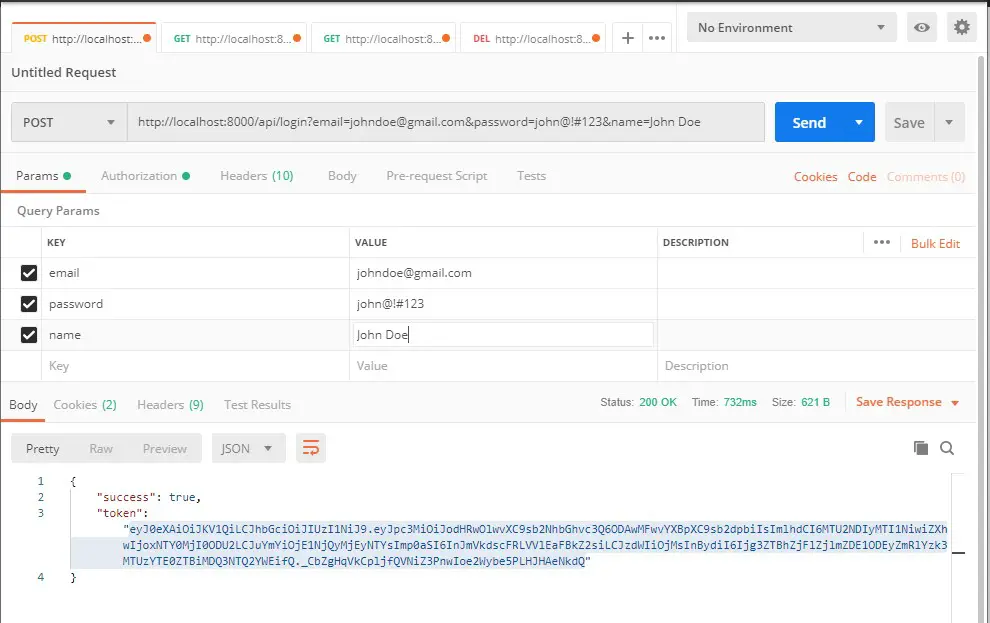
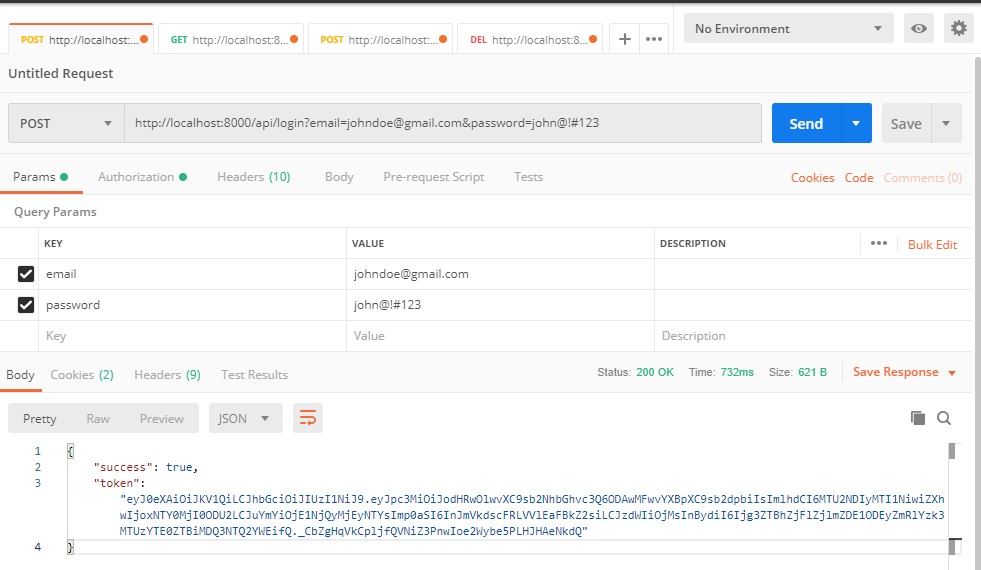
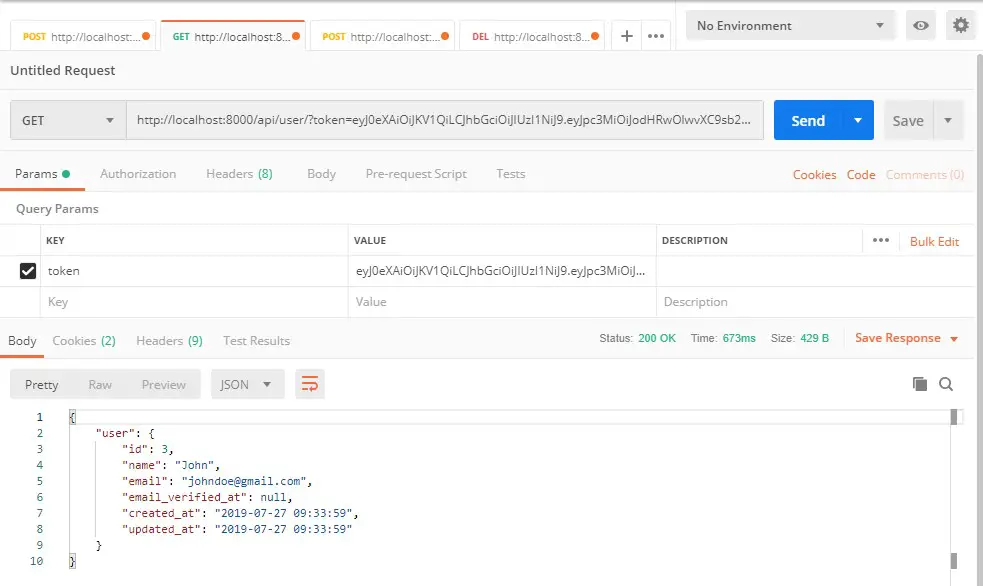
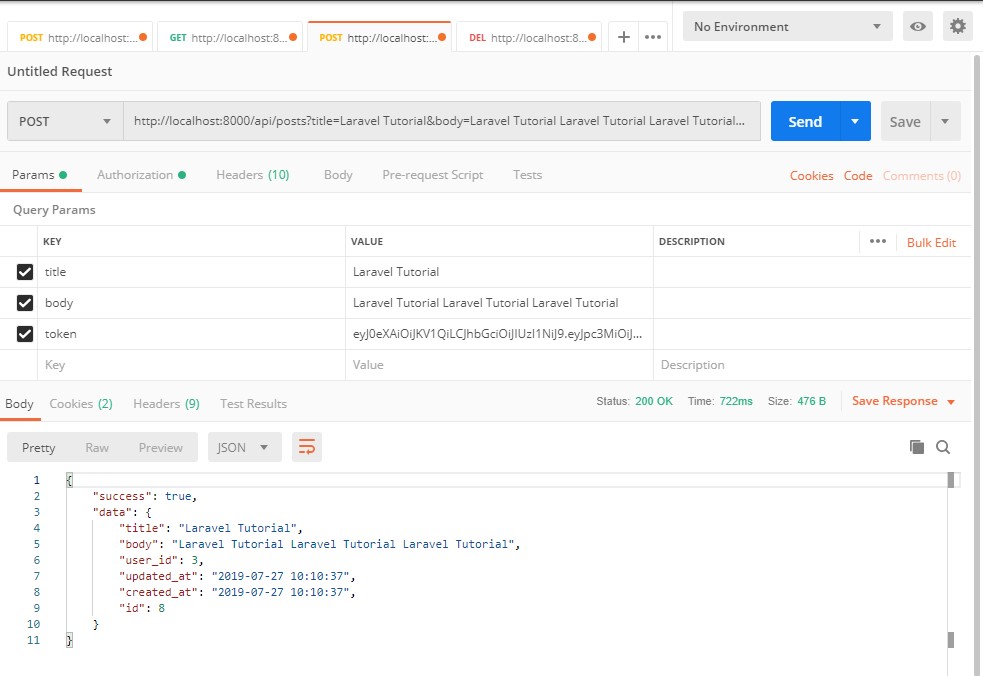
Our Authentication API is ready to test. I will use Postman to test the API.

Register Api :-
Verb: POST
URL :http://localhost:8000/api/register
register

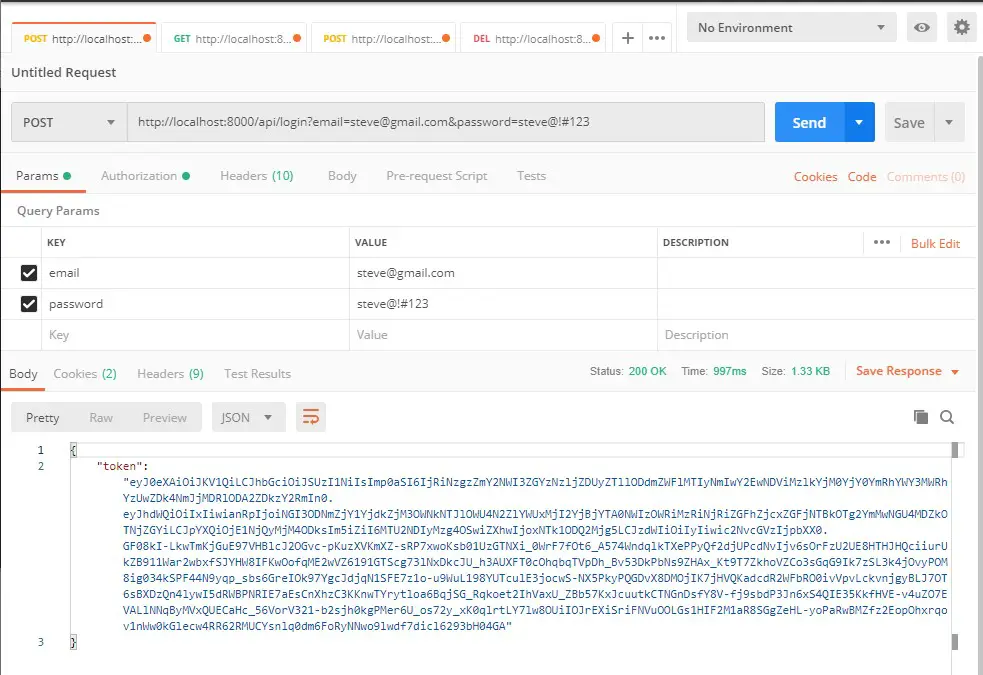
Login Api :-
Verb: POST
URL :http://localhost:8000/api/login
login

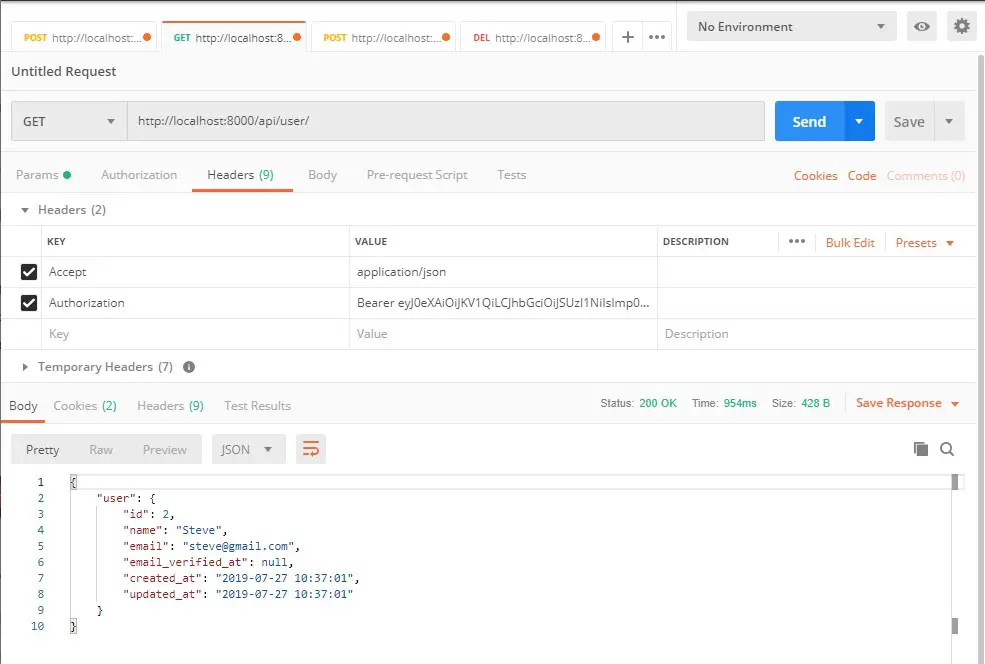
User Api :-
Verb: GET
URL: http://localhost:8000/api/user
userinfo

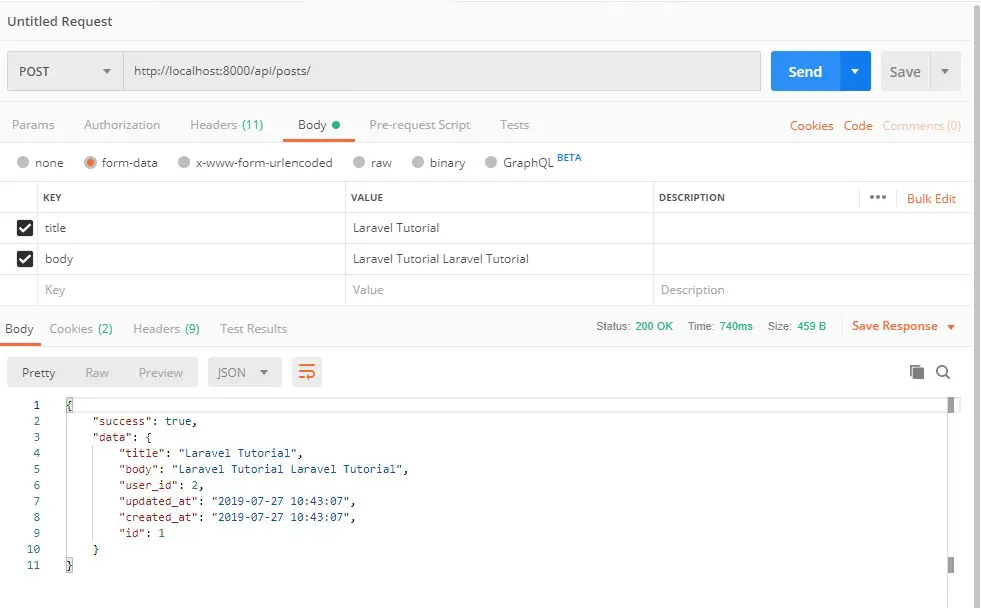
Add Post Api :-
Verb: POST
URL: http://localhost:8000/api/posts
add_post

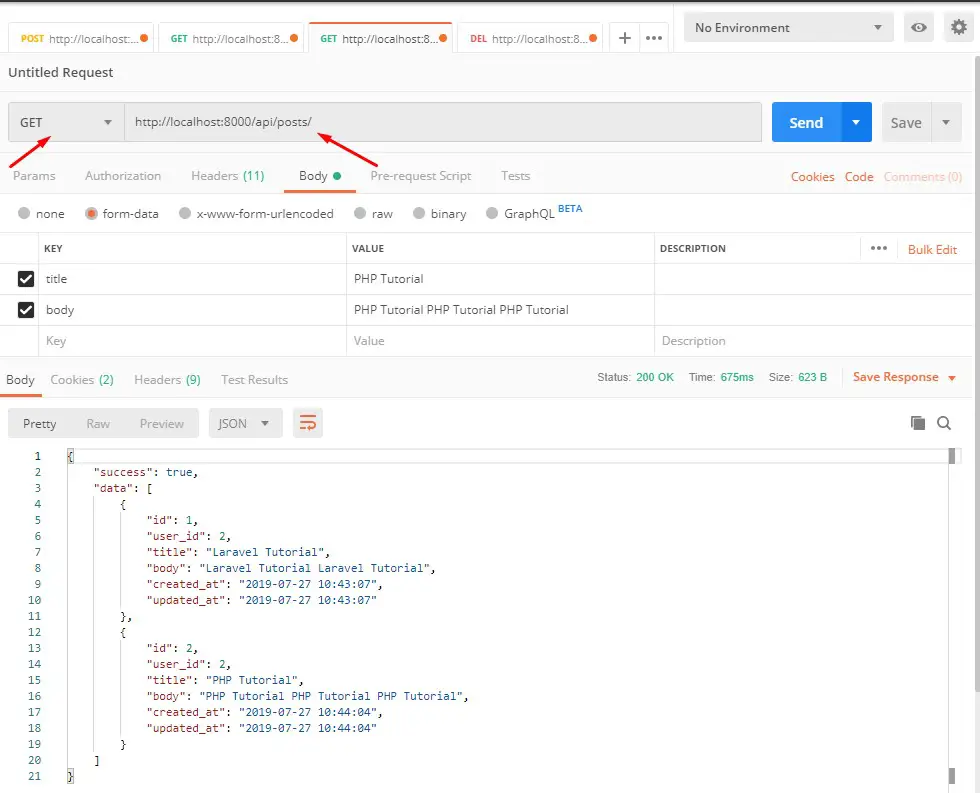
List User Post Api :-
Verb: GET
URL: http://localhost:8000/api/posts
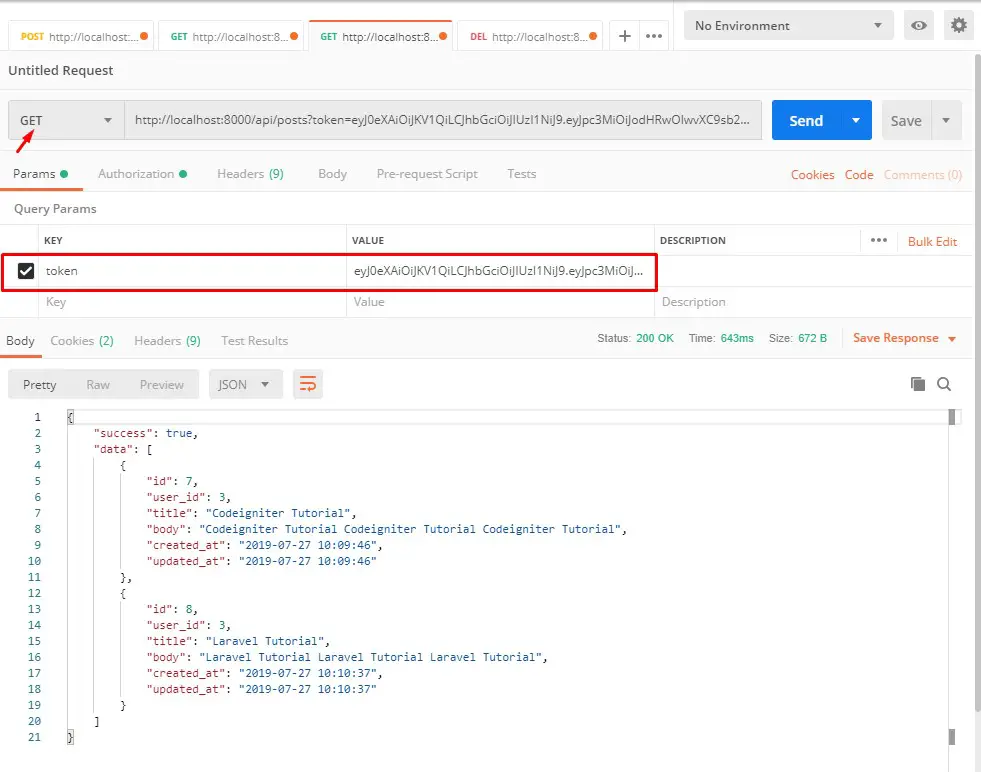
user_posts

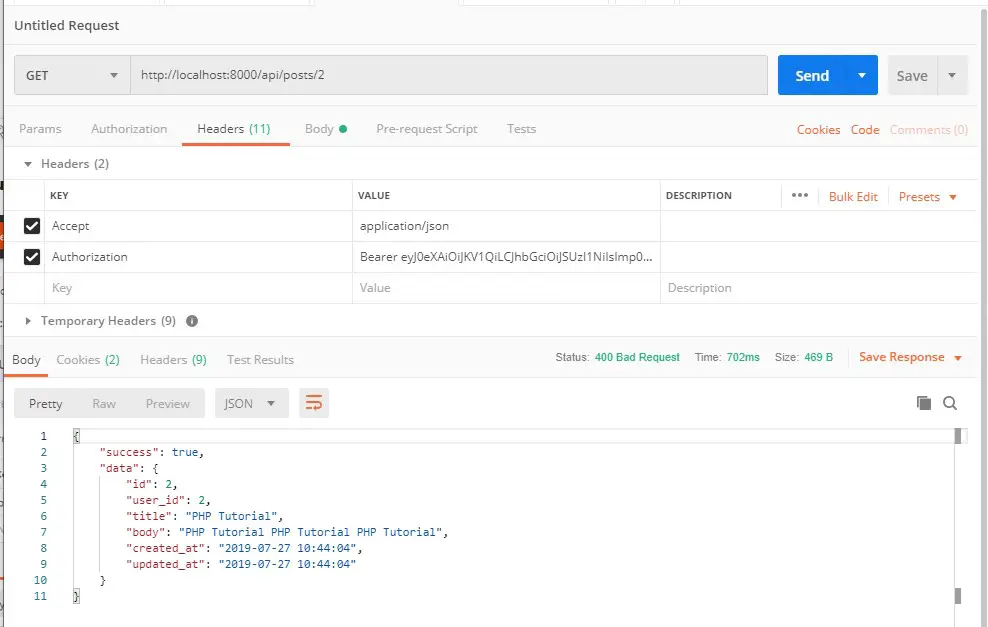
Single Post Api :-
Verb: GET
URL: http://localhost:8000/api/posts/{ID}
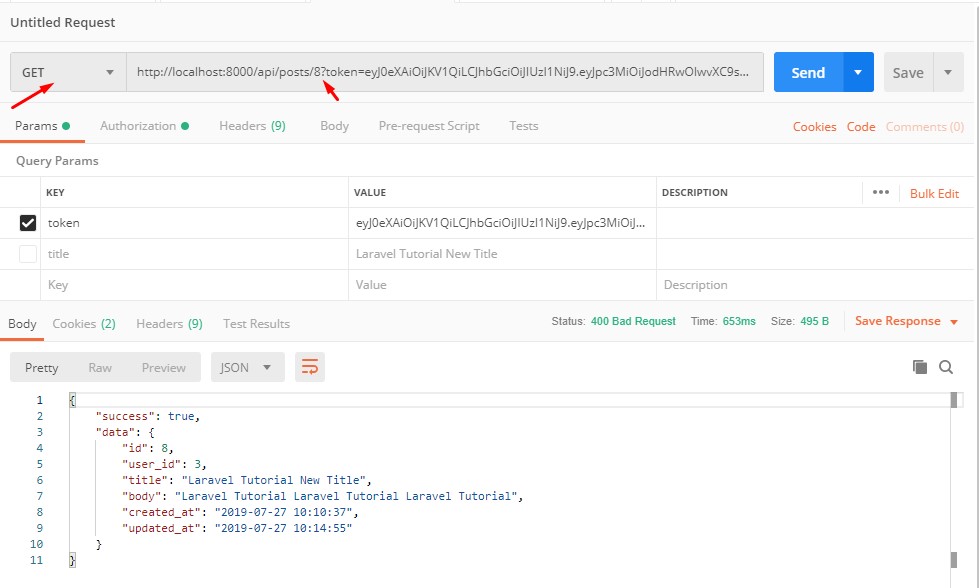
get_single_post

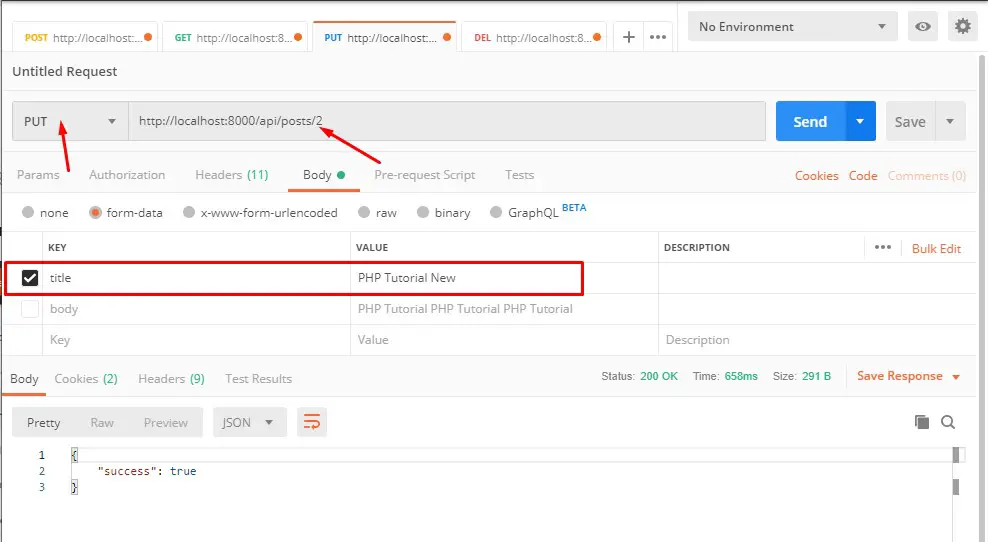
Update Post Api :-
Verb: PUT
URL: http://localhost:8000/api/posts/{ID}
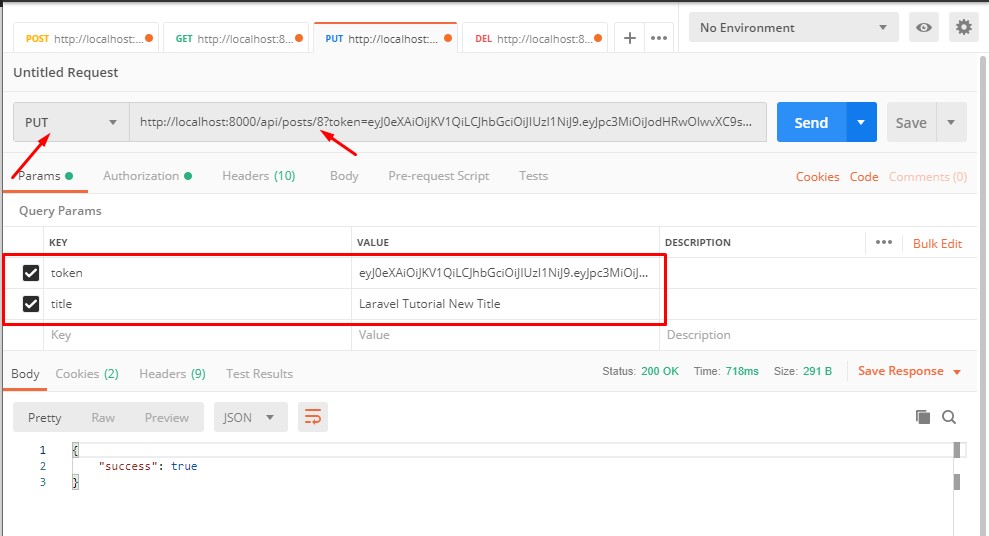
update_single_post

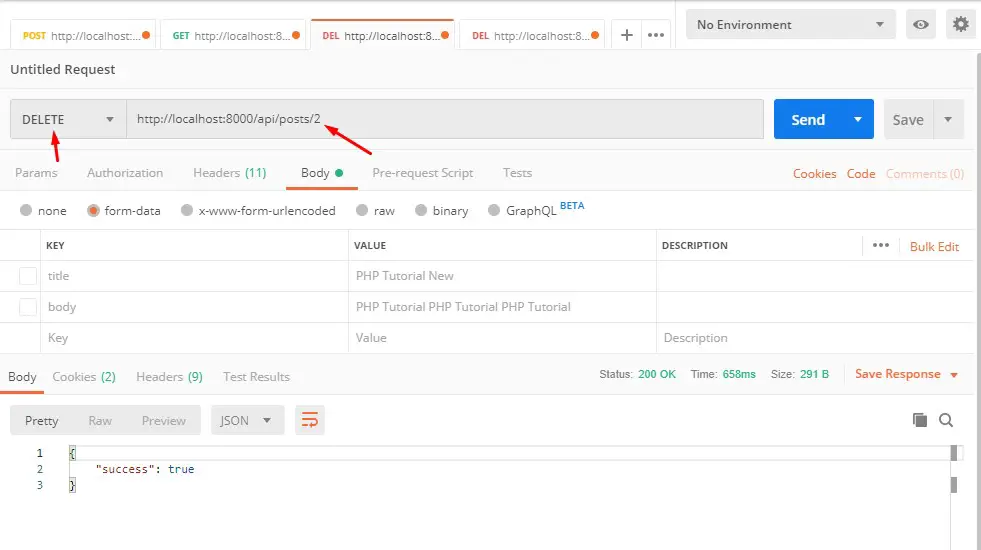
Delete Post Api :-
Verb: DELETE
URL: http://localhost:8000/api/posts/{ID}
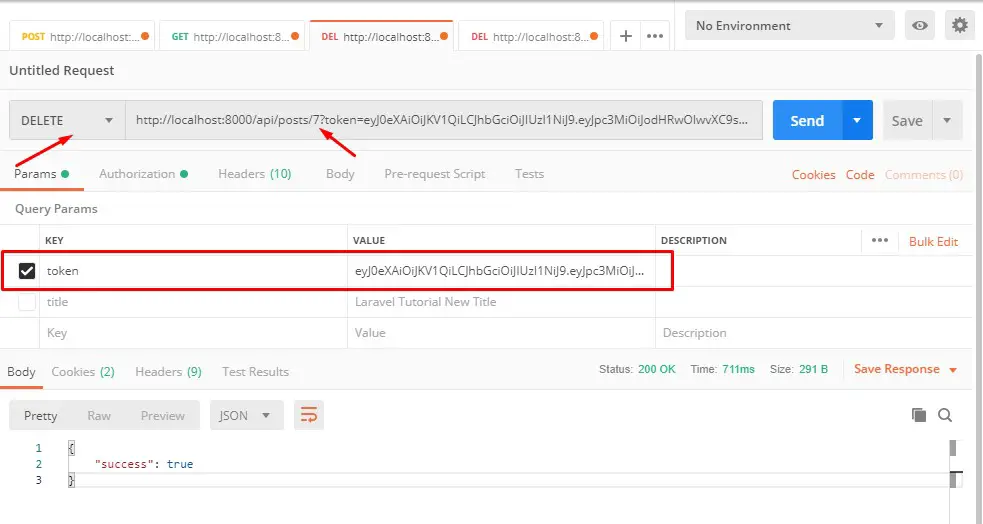
delete_single_post

Laravel jwt Authentication API | Laravel 5.8 Create REST API with jwt Authentication

Laravel 5.8 Create REST API with jwt Authentication

In one of my previous articles, we have learn How to Create REST API With Passport Authentication In Laravel using Laravel passport for REST API authentication. In this article, we will learn to create fully functional restful API with JWT Authentication in Laravel. In this tutorial, we will be creating fully functional CRUD APIs for Blog Posts along with JWT Authentication.

What is JWT?

JWT stands for JSON Web Tokens. JSON Web Token (JWT) is an authentication token which is used to securely transmit data between third-parties as a JSON object. The JSON Web token usually remains valid for 3600s or one hour. Nowdays API’s are mostly developed with JWT authentication.

Install Laravel 5.8

First of all we need to create a fresh laravel project, download and install Laravel 5.8 using the below command

Install JWT Auth Package Using Composer

In this step, we will install tymon jwt auth package via the composer dependency manager. Use the following command to install laravel jet authentication package.

If you are using Laravel version 5.5 or above, run the following command to install jwt package.

If you are using the laravel version 5.4 or less, run the following command to install jwt package.

After Installing tymon/jwt-auth package, we need to add service provider and alias in config/app.php file as following.

config/app.php

For versions less than 5.5, you are also required to set service provider and alias in config/app.php file.

If you are using Laravel version 5.5 or above, laravel does it automatically using Package Auto-Discovery.

Publishing Configuration File

Publish the configuration file using the following command for versions 5.5 or above

If you are using previous versions of laravel, run the following command to publish the configuration

Above command will generate a config/jwt.php configuration file.

config/jwt.php

Generate JWT Key

Run the following command for laravel 5.5 or above to generate the secret key used to sign the tokens.

For versions below 5.5

Registering Middleware

Register auth.jwt middleware in app/Http/Kernel.php

app/Http/Kernel.php

Update User Model

In this step we will require to implement JWTSubject interface in User model. It is mandatory to implement the Tymon\JWTAuth\Contracts\JWTSubject interface on the User model. This interface requires implementing two methods getJWTIdentifier and getJWTCustomClaims. Let’s update app/User.php model file with the following lines of code.

app/User.php

Create Authentication API Routes

In this step, We will setup authentication routes to register a new user, login with their user credentials and get the authenticated user details by using JWT token. So add the following route in routes/api.php

routes/api.php

Create Authentication Controller

Now, create a Authentication Controller name AuthController. Use the below command to create controller.

Once the above command executed, it will create a resource controller file “AuthController.php” in “app/Http/Controllers/” directory. Go to “AuthController.php” and put the following code in it.

Building the Post CRUD API

Next, we will be creating a simple blog application with post table and implement CRUD (Create, Read, Update and Delete) APIs. To create the blog posts APIs we have to define table schema for posts table. Open terminal and use the following artisan command to generate <timestamp>create_posts_table.php migration.

Once this command is executed you will find a migration file created under “database/migrations”. Lets open migration file and put following code in it –

Now, run following command to migrate database schema.

After, the migration executed successfully the posts table will be created in database.

Create Model

In this step, we will use the following command to create post model –

Once, the above command executed it will create a model file Post.php in app directory. Next, we have to assign fillable fields using fillable property inside Post.php file. Open app/Post.php file and put the following code in it –

app/Post.php

Now, we have to add a relationship in the User model to retrieve the related posts. In app/User.php add the following method.

Create Controller

In this step, we will use the following command to create post controller.

Once the above command executed, it will create a controller file “PostController.php” in “app/Http/Controllers/” directory. Open the PostController.php file and put the following code in it.

app/Http/Controllers/PostController.php

Create Resource Route

After this, we need to add resource route for post controller. Lets open “routes/api.php” file and add following route in it.

our final route file looks as following –

routes/api.php

Start Application Server

Lets start the development server using following artisan command –

Testing the REST API

Our Authentication API is ready to test. I will use Postman to test the API.

Register Api :-
Verb: POST
URL :http://localhost:8000/api/register

register

Login Api :-
Verb: POST
URL :http://localhost:8000/api/login

login

User Api :-
Verb: GET
URL: http://localhost:8000/api/user

userinfo

Add Post Api :-
Verb: POST
URL: http://localhost:8000/api/posts

add_post

List Post Api :-
Verb: GET
URL: http://localhost:8000/api/posts

user_posts

Single Post Api :-
Verb: GET
URL: http://localhost:8000/api/posts/{ID}

user_single_post

Update Post Api :-
Verb: PUT
URL: http://localhost:8000/api/posts/{ID}

user_post_update

Delete Post Api :-
Verb: DELETE
URL: http://localhost:8000/api/posts/{ID}

user_post_delete

Laravel 5.8 Jquery UI Autocomplete Search Example

Laravel 5.8 Jquery UI Autocomplete Search Example

In this article, I will show you how to create a dynamic database driven ajax jquery autocomplete in Laravel. In this tutorial we will create a dynamic search dropdown autocomplete which will fetch options from database table using jquery autocomplete.

The jquery autocomplete plugin is used to create dynamic autocomplete input with several options. In this example you will learn how to implement jquery autocomplete in laravel.

Before starting with example I assume that you already have fresh laravel 5.8 installation ready, if you have not installed it yet you can follow laravel 5 installation instruction here.

Install Laravel 5.8

First of all we need to create a fresh laravel project, download and install Laravel 5.8 using the below command

Configure Database In .env file

Now, lets create a MySQL database and connect it with laravel application. After creating database we need to set database credential in application’s .env file.

.env

Create Model and Migration

Now, we have to define table schema for contact table. Open terminal and let’s run the following command to generate a Contact model along with a migration file to create contact table in our database.

Once this command is executed you will find a migration file created under “database/migrations”. Lets open migration file created and put following code in it –

Run Laravel Migration

Now, run following command to migrate database schema.

After, the migration executed successfully the contact table will be created in database.

Create AutoComplete Controller

Next, we have to create a controller for AutoComplete suggestion. Create a controller named AutoCompleteController using command given below –

Once the above command executed, it will create a controller file AutoCompleteController.php in app/Http/Controllers directory. Open the AutoCompleteController.php file and put the following code in it.

app/Http/Controllers/AutoCompleteController.php

Create Blade / View Files

In this step, we will create view/blade file to perform autocomplete Search Using jQuery UI Autocomplete. Lets create a blade file “search.blade.php” in “resources/views/jqueryAutocomplete/” directory and put the following code in it respectively.

resources/views/jqueryAutocomplete/search.blade.php

Create Routes

After this, we need to add following routes in “routes/web.php” file. Lets open “routes/web.php” file and add following route.

routes/web.php

Now we are ready to run our example so lets start the development server using following artisan command –

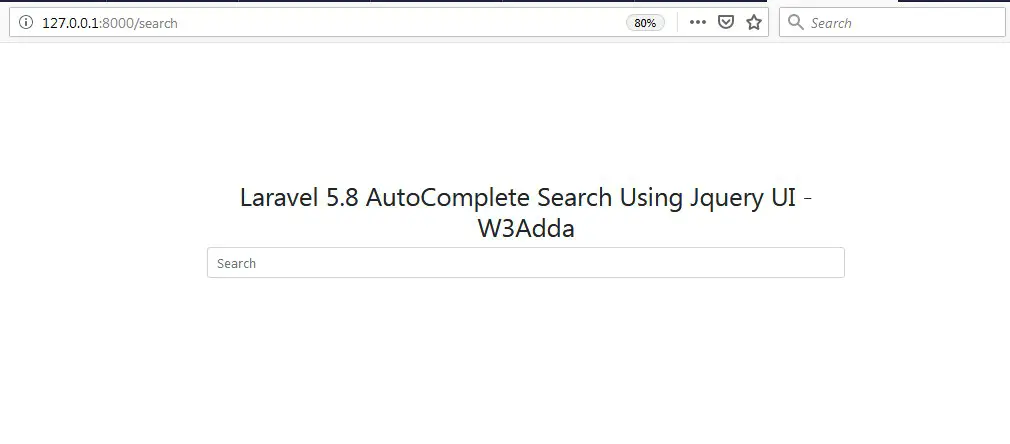
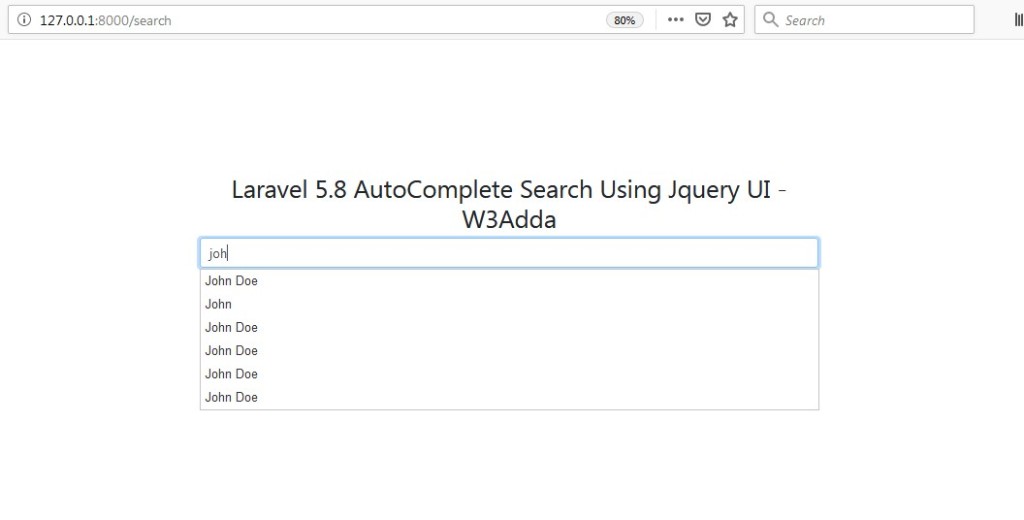
Now, open the following URL in browser to see the output –

http://localhost:8000/search

Output 1:-

laravel-jquery-ui-autocomplete-search-1

Output 2:-

laravel-jquery-ui-autocomplete-search-2

Laravel 5.8 Autocomplete Search Using Typeahead JS

Laravel 5.8 Autocomplete Search Using Typeahead JS

In this article, I will show you how to create a dynamic database driven ajax jquery autocomplete using typeahead js in Laravel. In this tutorial we will create a dynamic search dropdown autocomplete which will fetch options from database table using bootstrap typeahead js.

The Typeahead JS is a jquery plugin, it is used to create dynamic autocomplete input with several options. In this example you will learn how to implement typeahead autocomplete in laravel.

Before starting with example I assume that you already have fresh laravel 5.8 installation ready, if you have not installed it yet you can follow laravel 5 installation instruction here.

Install Laravel 5.8

First of all we need to create a fresh laravel project, download and install Laravel 5.8 using the below command

Configure Database In .env file

Now, lets create a MySQL database and connect it with laravel application. After creating database we need to set database credential in application’s .env file.

.env

Create Model and Migration

Now, we have to define table schema for contact table. Open terminal and let’s run the following command to generate a Contact model along with a migration file to create contact table in our database.

Once this command is executed you will find a migration file created under “database/migrations”. Lets open migration file created and put following code in it –

Run Laravel Migration

Now, run following command to migrate database schema.

After, the migration executed successfully the contact table will be created in database.

Create AutoComplete Controller

Next, we have to create a controller for AutoComplete suggestion. Create a controller named AutoCompleteController using command given below –

Once the above command executed, it will create a controller file AutoCompleteController.php in app/Http/Controllers directory. Open the AutoCompleteController.php file and put the following code in it.

app/Http/Controllers/AutoCompleteController.php

Create Blade / View Files

In this step, we will create view/blade file to perform autocomplete Search Using Typeahead JS. Lets create a blade file “search.blade.php” in “resources/views/TypeaheadAutocomplete/” directory and put the following code in it respectively.

resources/views/TypeaheadAutocomplete/search.blade.php

Create Routes

After this, we need to add following routes in “routes/web.php” file. Lets open “routes/web.php” file and add following route.

routes/web.php

Now we are ready to run our example so lets start the development server using following artisan command –

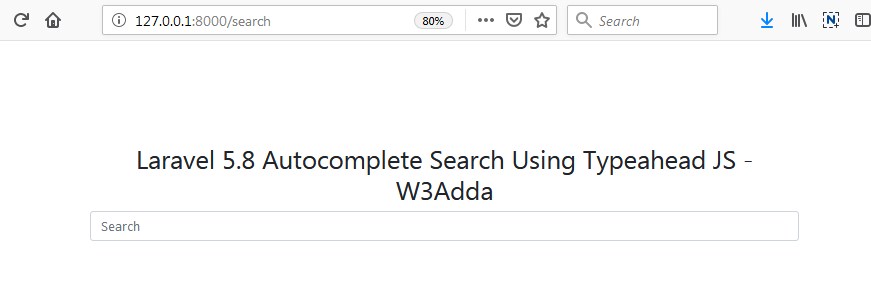
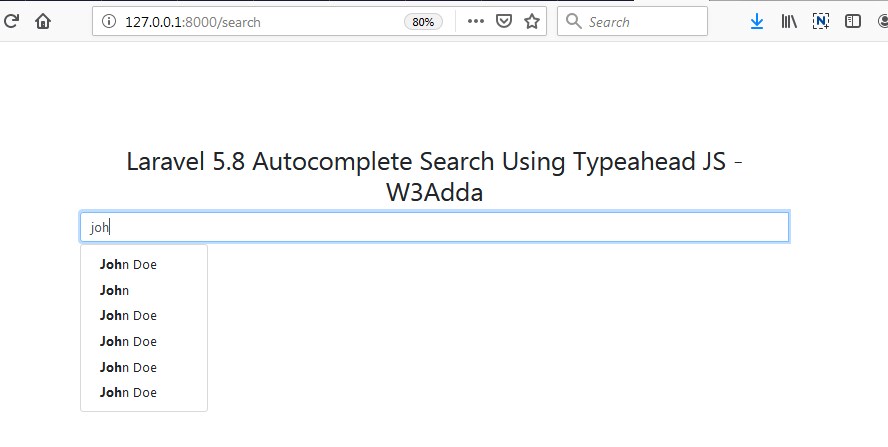
Now, open the following URL in browser to see the output –

http://localhost:8000/search

Output 1:-

laravel-5-autocomplete-search-using-typeahead-js-1

Output 2:-

laravel-5-autocomplete-search-using-typeahead-js-2


Create REST API With Passport Authentication In Laravel 5.8

Laravel 5.8 Create REST API With Passport Authentication

In this tutorial, i will show you how to create rest api in laravel 5.8 application with passport authentication. In this tutorial we will be using passport for api authentication. we will create register and login api with simple retrieve user details.

Laravel comes with default login authentication, but when we want to create APIs we have to use tokens instead of sessions for authenticating users, as APIs does not support session variables. After login via API, user must be assigned a token and sent back to the user which is further used for authenticating API requests. Laravel provides Passport authentication which makes it easy creating REST APIs in laravel.

Install Laravel 5.8

First of all we need to create a fresh laravel project, download and install Laravel 5.8 using the below command

Configure Database In .env file

Now, lets create a MySQL database and connect it with laravel application. After creating database we need to set database credential in application’s .env file.

Install Passport Package

In this step, we need to install Laravel Passport package via the composer dependency manager. Use the following command to install passport package.

After Installing ‘laravel/passport’ package, we need to add service provider in config/app.php file as following.

config/app.php

Run Migration and Install Laravel Passport

After successfully installing ‘laravel/passport’ package, we require to create default passport tables in our database. so let’s run the following command to migrate Laravel Passport tables to your database.

Now, it is mandatory to install passport using the command below. This command will generate encryption keys required to generate secret access tokens.

Laravel Passport Configuration

Now, we need to make following changes in our model, service provider and auth config file to complete passport configuration. Open App/User.php model file and add ‘Laravel\Passport\HasApiTokens’ trait in it.

Next Register passport routes in App/Providers/AuthServiceProvider.php, open App/Providers/AuthServiceProvider.php and put “Passport::routes()” inside the boot method like below.

Now open config/auth.php file and set api driver to passport instead of session.

Create API Routes

Let’s create API routes. Open routes/api.php file create api routes as below –

Create Authentication Controller

Now, create a Authentication Controller name AuthController. Use the below command to create controller.

Once the above command executed, it will create a resource controller file “AuthController.php” in “app/Http/Controllers/Api” directory. Go to “AuthController.php” and put the following code in it.

Start Application Server

Lets start the development server using following artisan command –

Testing the REST API

Our Authentication API is ready to test. I will use Postman to test the API.

Register Api :-
Verb: POST
URL :http://localhost:8000/Api/v1/register

Login Api :-
Verb: GET
URL :http://localhost:8000/Api/v1/login

getUser Api :-
Verb: GET
URL: http://localhost:8000/Api/v1/getUser

When testing getUser API it requires user to be authenticated, you need to specify headers. Make sure in getUser api we will use following headers as listed bellow.

Basically, you have to specify access token as a Bearer token in the Authorization header. The access token is what you received after login and registration.

Laravel 5 Intervention Image Upload and Resize Example

Laravel 5 Intervention Image Upload and Resize Example

In this Laravel Intervention Image Upload example, we will learn how to upload and resize image using Intervention Image Packag. In this tutorial I have used Intervention Image Package to upload and resize the image and then save image into the database. This laravel image upload example is works with laravel version 5.7 & 5.8 .

Intervention Image Package :- Intervention Image Package is an open source laravel composer package used to upload and resize images. Intervention Image package allows you to easily upload and resize image. Intervention Image package make image uploading and resizing much easier. The advantage of using intervention/image package is that it maintain the image quality. It means you can easily upload and resize images without losing its quality. Laravel image intervention is compatible with laravel version 5.7 & 5.8 .

In this laravel image upload example, I’ll show you how to upload image into folder and then save it into database. In this tutorial before saving image into database we will resize the image and create it’s thumbnail image and then save it into thumbnail directory using the image intervention package.

Install Laravel 5.8

First of all we need to create a fresh laravel project, download and install Laravel 5.8 using the below command

Configure Database In .env file

Now, lets create a MySQL database and connect it with laravel application. After creating database we need to set database credential in application’s .env file.

.env

Install Image Intervention Package

In this step, we will install Image intervention Package via the composer dependency manager. Use the following command to install image intervention Package.

Register Package

After Installing Image intervention package, we need to add service provider and alias in config/app.php file as following.

config/app.php

Generate Migration

Now, we have to define table schema for photos table. Open terminal and let’s run the following command to generate a migration file to create photos table in our database.

Once this command is executed you will find a migration file created under “database/migrations”. lets open migration file and put following code in it –

Run Migration

Now, run following command to migrate database schema.

After, the migration executed successfully the photos table will be created in database along with migrations, password_resets and users table.

Create Model

Next, we need to create a model called Photo using below command.

Once, the above command is executed it will create a model file Photo.php in app directory.

Create Controller

Next, we have to create a controller for image uploading and resizing. Create a controller named ImageController using command given below –

Once the above command executed, it will create a controller file ImageController.php in app/Http/Controllers directory. Open the ImageController.php file and put the following code in it.

app/Http/Controllers/ImageController.php

Here In the controller, we have following methods –

index() :- It displays Image Upload Form along with Uploaded Image

resizeStore() :- To Upload and Resize Image with Intervention Package.

Note:- Before uploading any file make sure you have created following two directory in the public folder called profile_images and /profile_images/thumbnail.

Create Blade / View Files

In this step, we will create view/blade file to generate and display Image Upload Form. Lets create a blade file “index.blade.php” in “resources/views/ImageIntervention/” directory and put the following code in it respectively.

resources/views/ImageIntervention/index.blade.php

Create Routes

After this, we need to add following routes in “routes/web.php” file along with a resource route. Lets open “routes/web.php” file and add following route.

routes/web.php

Now we are ready to run our example so lets start the development server using following artisan command –

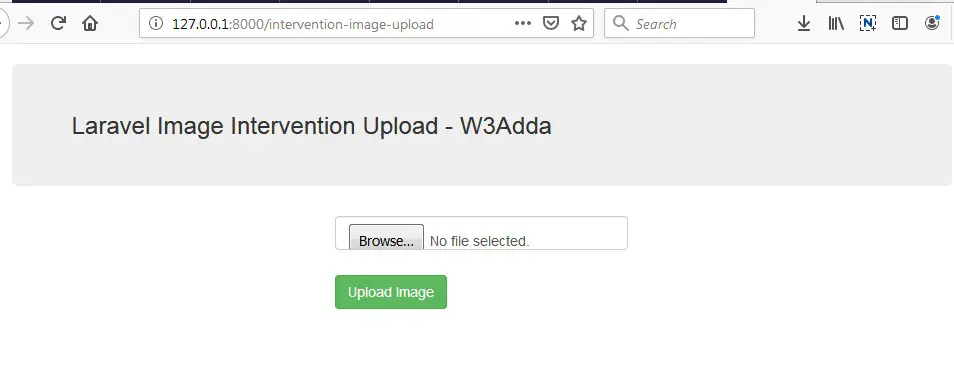
Now, open the following URL in browser to see the output –

http://localhost:8000/intervention-image-upload

Output:-

laravel-5-intervention-image-upload-1

After Image Upload Screen Output:-

laravel-5-intervention-image-upload-2


Laravel 5.7 Google ReCAPTCHA Integration

Laravel 5.7 Google ReCAPTCHA Integration

Google ReCaptcha is a one of the most popular captcha system that defends your site from bots to spam and abuse. The Google ReCaptcha is an open service that assures a computer user is a human. In order to integrate the reCaptcha, you must sign up for the Google API key & secret for your website.

In this tutorial, we will integrate google recaptcha in laravel 5.7application. I’ll guide you through step by step how to integrate google recaptcha in a laravel 5.7 application. We will be using ‘anhskohbo/no-captcha’ package for google recaptcha integration in laravel 5.7 application. In this tutorial, we will be creating a simple form with some basic fields along with the google recaptcha.

Contents

  • Install Laravel 5.7
  • Setup Database Credentials
  • Install Google Captcha Package
  • Set Google Site Key and Secret Key
  • Define Route
  • Create Controller
  • Create Blade View (form)
  • Start Development Server
  • Conclusion

Install Laravel 5.7

First of all we need to create a fresh laravel project, download and install Laravel 5.7 using the below command

Make sure you have composer installed.

Setup Database Credentials

Now, lets create a MySQL database and connect it with laravel application. After creating database we need to set database credential in application’s .env file.

Install Google Captcha Package

We will be using ‘anhskohbo/no-captcha’ package for google recaptcha integration in laravel 5.7 application. In this step we will be installing “anhskohbo/no-captcha” via following composer command, lets open your terminal and switch to the project directory and enter the following command –

After Installing ‘anhskohbo/no-captcha’ package, we need to add service provider and alias in config/app.php file as following.

config/app.php

Set Google Site Key and Secret Key

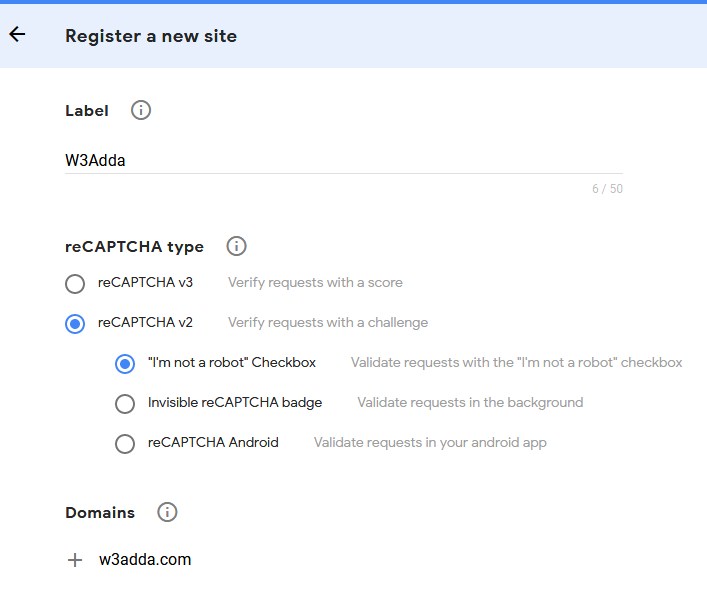
Now, we need to set Google Site Key and Secret Key in .env file. Let’s start by getting Google key & secret required to make ReCaptcha authorize with the Google servers. Visit the following link to register your site –

Here, you need to provide label to identify the site. Now choose the type of reCAPTCHA as reCAPTCHA V2. Now you need to add the list of domains, this captcha would work on.

laravel_5_8_google_recaptcha_integration_2

Now accept the Terms of service and click Register. Now, you will be presented with your key and secret, add these to your application’s .env file.

Let’s open .env file and add this crendential as following –

.env

Create Controller

Now, lets create Recaptcha Controller using following command

Once the above command executed, it will create a controller file RecaptchaController.php in app/Http/Controllers/ directory. Open the RecaptchaController.php file and put the following code in it.

Controllers/RecaptchaController.php

Create View/Blade File

In this step, we will create view/blade file to render a register form with recaptcha field. Lets create a “create.blade.php” file in “resources/views/recaptcha/” directory and put the following code in it.

resources/views/recaptcha/create.blade.php

Set Routes

After this, we need to add following two routes in “routes/web.php” to display register form and to post the form data. Lets open “routes/web.php” file and add following route.

routes/web.php

Now we are ready to run our example so lets start the development server using following artisan command –

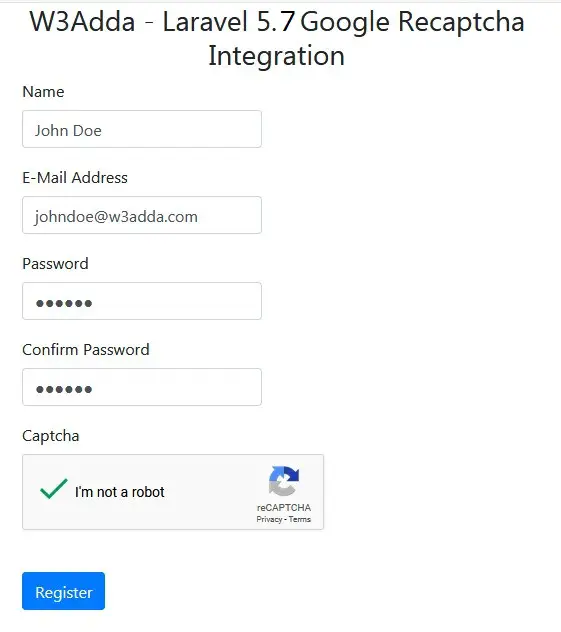
Now, open the following URL in browser to see the output –

http://localhost:8000/larablog/recaptchacreate

Output:-

laravel_5_7_google_recaptcha_integration_3

Laravel 5.8 Facebook Login with Socialite

Laravel 5.8 Facebook Login with Socialite

As we all know that users are not much interested in filling up long registration form to register with any application. Allowing users to login with their social media accounts is quick and powerful way to get registered/verified users for your laravel application. Allowing users to login with their social media accounts makes registration/login process much easier, it also encourages more users to register for your application. In this step by step tutorial, you will learn to integrate Facebook login with your laravel application.

Install Laravel 5.8

First of all we need to create a fresh laravel project, download and install Laravel 5.8 using the below command

Configure Database In .env file

Now, lets create a MySQL database and connect it with laravel application. After creating database we need to set database credential in application’s .env file.

Generate Application Key

Open terminal and switch to the project directory and run the following command to generate application key and configure cache.

Set Default String Length

Locate the file “app/Providers/AppServiceProvider”, and add following line of code to the top of the file

and inside the boot method set a default string length as given below –

So this is how “app/Providers/AppServiceProvider” file looks like –

Install Socialite Package via Composer

After Installing ‘socialite’ package, we need to add service provider and alias in config/app.php file as following.

config/app.php

Crate Facebook Login App

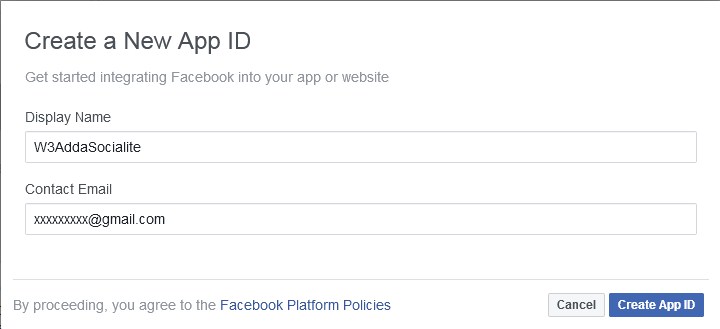
Go to Facebook’s developers site https://developers.facebook.com/ and log in with your Facebook account. There in Facebook developers Dashboard you have option to Create App. Lets create a Facebook Login App simply providing App Name and Contact Email.

laravel-5-8-facebook-login

Set Redirect URL

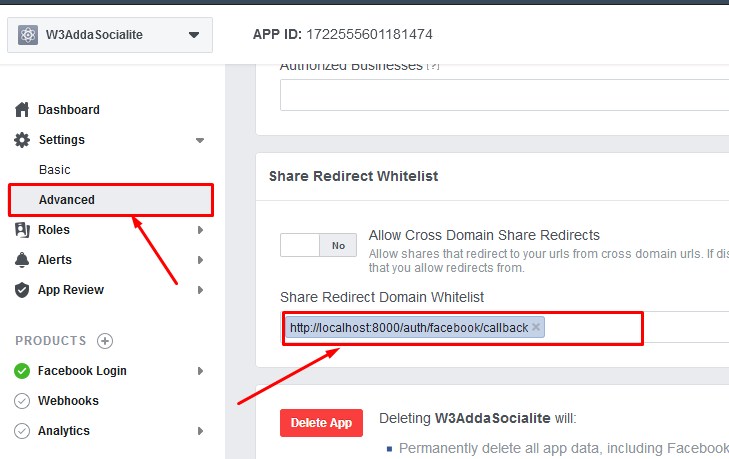
After creating the facebook app, go to setting->advanced and set redirect url like below –

laravel-5-8-socialite-facebook-login-set-redirect-url-1

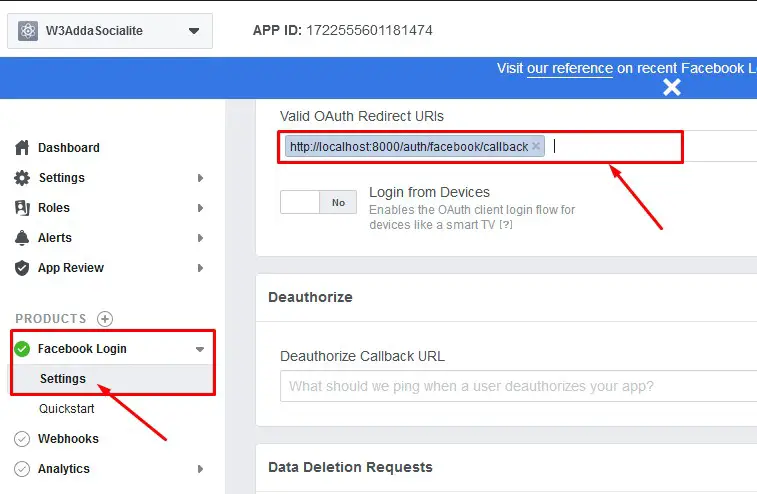
Then, go to Facebook Login -> Settings and scroll down to “Valid OAuth Redirect URL” and set your callback URL like below –

laravel-5-8-socialite-facebook-login-set-redirect-url-2

Get Facebook App Id and Secret Key

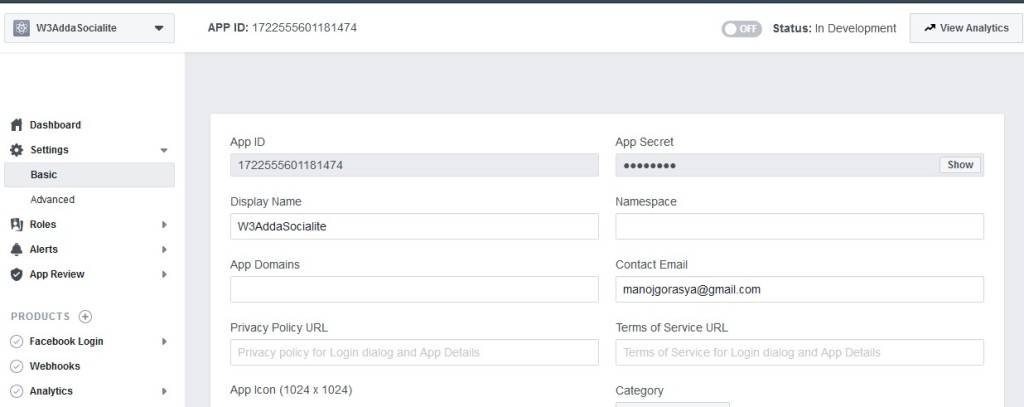
laravel-facebook-login-set-redirect-url-3

After creating app, go to Settings -> Basic and get your newly created App ID and App Secret.

Configure Laravel Socialite

Open your application .env files and set FB_CLIENT_ID, FB_CLIENT_SECRET and FB_CALLBACK_URL like below –

.env

Here, Your App Secret becomes client_secret, and App ID becomes your client_id. Now, open config/service.php file and set client id and client secret with call back url like below –

config/service.php

Migrations and User Model

After installing laravel, you will see the some migration files created inside database/migrations directory for creating default create users table and password reset table. Open app/database/create_users_table.php migration file and add provider and provider_id columns to user table and also set the email and password field to nullable like below –

app/database/xxxx_xx_xx_xxxxxx_create_users_table.php

After you added columns provider and provider_id to user table set the email and password field to nullable, run the migration using following command.

After this, go to app/User.php and add provider and provider_id to fillable attribute in the User Model.

Authentication Scaffolding

Laravel comes with in-built basic authentication system, use the below command to generate default authentication scaffolding –

This command will generate required Controller files, views and add routes in our web.php routes file that are required for basic authentication system.

Now, open app/routes/web.php file and add following two routes for redirecting the user to the OAuth provider and to handle the callback from provider.

app/routes/web.php

Create Authentication Controllers

Next, we have to create a controller to handle facebook login. Create a controller named SocialController using command given below –

When controller is created successfully go to app/controllers/SocialController.php and put the below code.

app/controllers/SocialController.php

In this controller, we have following two methods –

redirect() :- to redirect the user to Facebook

callback() :- to handle callback from Facebook

No, open resources/views/auth/login.blade.php file and add the following code below the closing tag for <div class=”form-group”>. This will append a facebook login button just below the default login form.

resources/views/auth/login.blade.php

Restart Development Server

Restart the development server using following artisan command –

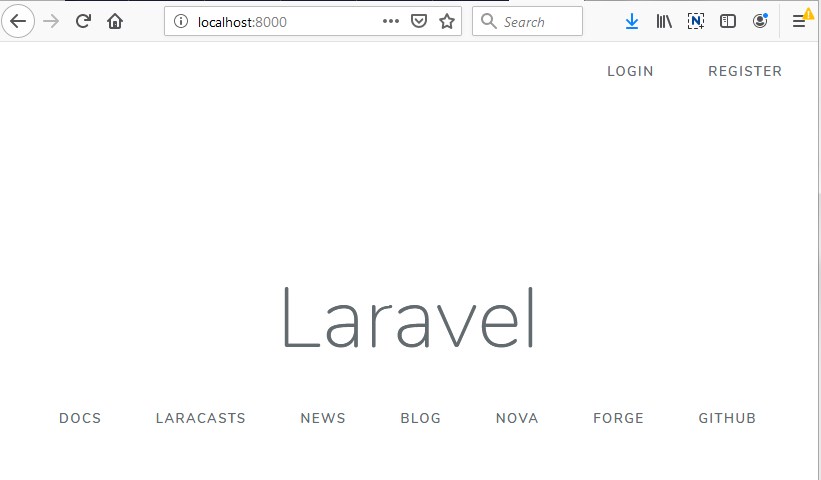
Now, visit the following URL in browser to see the output –

http://localhost:8000/

Output:-

laravel-5-8-socialite-facebook-loginTest Laravel 5.8 Facebook Login

Now, visit the login page to test the facebook login –

http://localhost:8000/login

laravel-5-8-socialite-facebook-login-page

When you click “Facebook” button, you will be redirected/requested to login with facebook. After you successfully login you will be registered and logged in to your application and you will be redirected to user dashboard.

Laravel 5.8 User Registration And Login System

Laravel 5.8 User Registration And Login System

Laravel comes with an built-in authentication system, that includes out of the box user registration, login, logout, forgot password and remember me functionality. It saves us a lot of time building a custom login and registration system starting from scratch. In this step by step tutorial, we will guide you through building user registration and login using laravel’s built-in authentication package.

Before starting with tutorial, we are assuming that you already have a fresh installation of a Laravel 5.8. If you have not installed it follow Laravel Installation Step.

Install Laravel 5.8

First of all we need to create a fresh laravel project, download and install Laravel 5.8 using the below command

Make sure you have composer installed. Now, lets switch to the project directory and start the development server using following artisan command –

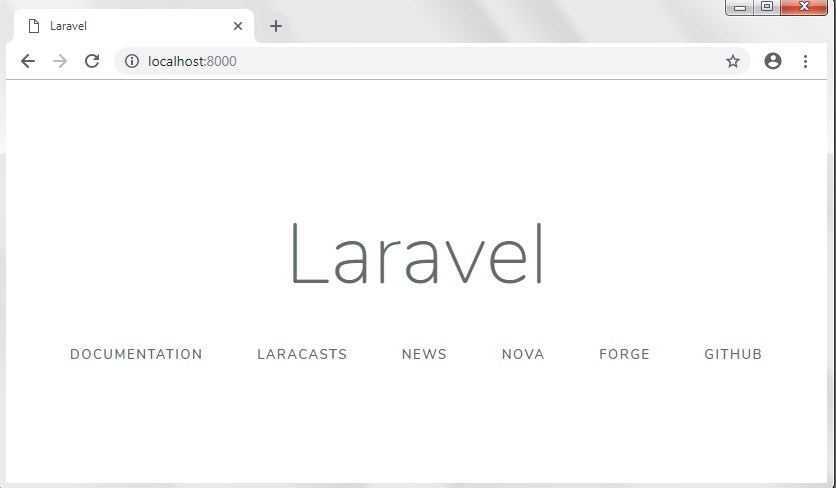
Now, open the following URL in browser to see the output –

http://localhost:8000/

Output:-

laravel-5-7-crud-tutorial-with-example-2

Configure Database In .env file

Now, lets create a MySQL database and connect it with laravel application. After creating database we need to set database credential in application’s .env file.

Generate Laravel Application Key

Now, use the following command in terminal to generate laravel application key.

Create Database Migration

Before you run migration, open app/providers/AppServiceProvider.php file and put following two line of code in boot method as following –

Now, use the below command to create required user authentication tables and model automatically.

Authentication Scaffolding

Now, use the below command to generate authentication scaffolding –

This command will generate required Controller files, views and add routes in our web.php routes file that are required for the authentication. If you open your route file (resources/routes/web.php) you can see the authentication route added as following –

The Auth::rutes() is a set of common authentication, registration and password reset routes.

Restart Development Server

Restart the development server using following artisan command –

Test Laravel 5.8 User Authentication

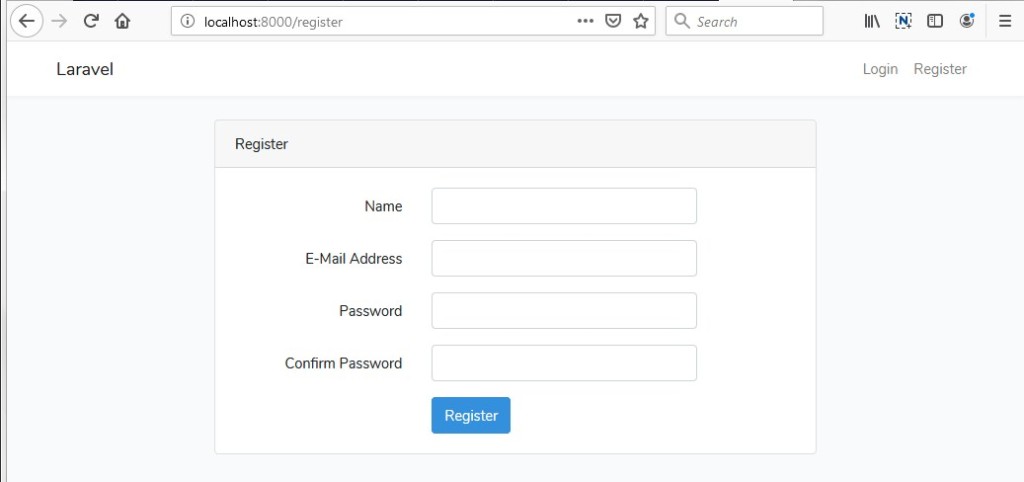
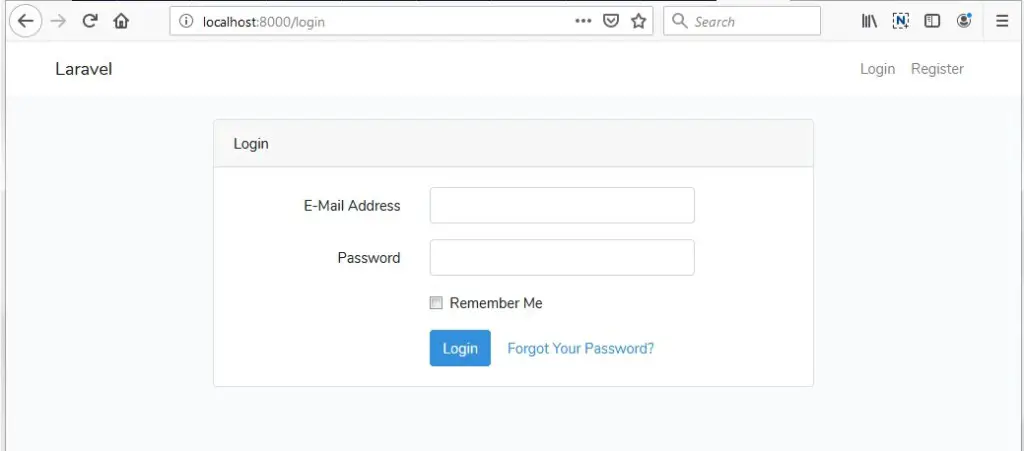
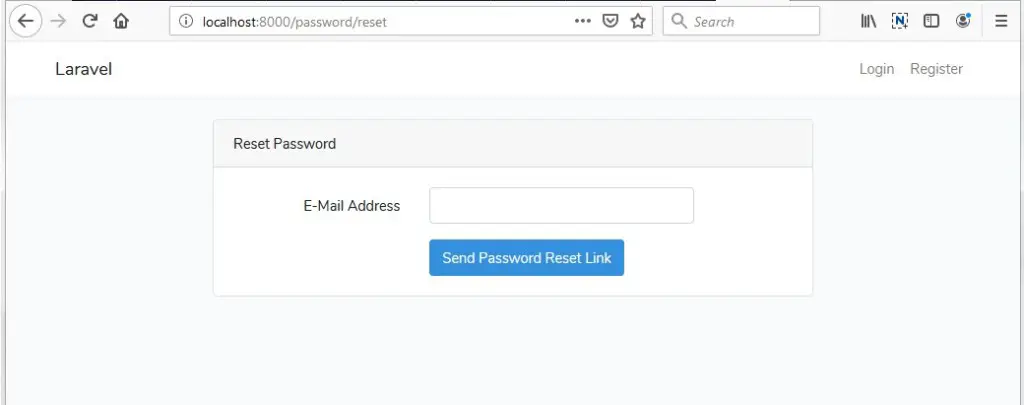
Now, you can see following authentication pages –

http://localhost:8000/register

laravel_user_registration_login_authentication_register

http://localhost:8000/login

laravel_user_registration_login_authentication_login

http://localhost:8000/password/reset

laravel_user_registration_login_authentication_forgot_password