Category Archives: Laravel

Laravel Tutorials

Dynamic Dependent Dropdown In Laravel 8 Using jQuery Ajax

In this Dynamic Dependent Dropdown In Laravel 8 Using jQuery Ajax tutorial I’ll show you how to implement dependent categories and subcategories dropdown in laravel using jQuery ajax. In this tutorial you will learn to create categories and subcategories dropdown using jquery ajax in laravel. In this article I will share example to create Dynamic Dependent Dropdown Using jQuery Ajax In Laravel 8. We will be creating an example of categories and subcategories dropdown using jquery ajax in laravel.

Dynamic Dependent Dropdown In Laravel 8 Using jQuery Ajax

In this step by step tutorial I will demonstrate you creating a Dynamic Dependent Dropdown using jquery ajax in laravel. Please follow the instruction given below:

  • Step 1 – Install Laravel 8 App
  • Step 2 – Connecting App to Database
  • Step 3 – Create Model and Migration
  • Step 4 – Add Routes
  • Step 5 – Create Controllers By Artisan
  • Step 6 – Create Blade Views
  • Step 7 – Run Development Server
  • Step 8 – Test This App

Step 1 – Install Laravel 8 App

First of all we need to create a fresh laravel project, download and install Laravel 8 using the below command

Step 2 – Connecting App to Database

Now, lets create a MySQL database and connect it with laravel application. After creating database we need to set database credential in application’s .env file.

Step 3 – Create Modal and Migration

Now, in this step we will create model and migration file. Please run the following command:

Now go to database/migrations/ and open create_categorys_table.php file. Then put  the following code into this file:

Now, run the migration to create database table using following artisan command:

Now, open Category.php model file and put the following code into it:

Step 4 – Add Routes

After this, we need to define routes in “routes/web.php” file. Lets open “routes/web.php” file and add the following routes in it.

routes/web.php

Step 5 – Create Controllers by Artisan

Now, lets create a controller named CategoryController using command given below –

Go to app/http/controller and open CategoryController.php.Then put the following code into your controller file:

Step 6 – Create Blade Views

In this step we will create ablade view file. Go to resources/views folder and create the blade view as following.

category.blade.php

Step 7 – Run Development Server

Now we are ready to run our example so lets start the development server using following artisan command –

Now, open the following URL in browser to see the output –

Laravel 8 Crop Image Before Upload using Cropper JS

In this Laravel 8 Crop Image Before Upload using Cropper JS tutorial, I’ll show you how to crop image before upload using cropper js in laravel 8. In this tutorial you will learn to crop image before upload in laravel 8 using jquery copper js. In this article I’ll demonstrate to crop and upload image in laravel using jquery copper js. In this example will store cropped image in the folder and later save it into database.

In this step by step guide we will be using cropper js to crop the image before uploading using bootstrap model. In this example We will be using crop the image will be in bootstrap model. Then we will also use the bootstrap model in which the preview of the image will also be shown.

Crop Image Before Upload using Cropper JS

In this article I’ll demonstrate to crop and upload image in laravel using jquery copper js. Please follow the instruction given below:

    • Step 1 – Install Laravel 8 App
    • Step 2 – Connecting Database to App
    • Step 3 – Create Migration & Model
    • Step 4 – Add Route
    • Step 5 – Create Controller By Artisan
    • Step 6 – Create Blade View
    • Step 7 – Make Upload Directory
    • Step 8 – Start Development Server

Step 1 – Install Laravel 8 App

First of all we need to create a fresh laravel project, download and install Laravel 8 using the below command

Step 2 – Connecting Database to App

Now, lets create a MySQL database and connect it with laravel application. After creating database we need to set database credential in application’s .env file.

Step 3 – Migration & Model

Now, in this step we will create model and migration file. Please run the following command:

The above command will create a model name Picture and also create one migration file for the Pictures table. Now, go to database/migrations folder and open create_pictures_table.php file. And put the following code into it:

Now, run the migration to create database table using following artisan command:

Step 4 – Add Routes

After this, we need to define routes in “routes/web.php” file. Lets open “routes/web.php” file and add the following routes in it.

routes/web.php

Step 5 – Create Controller By Artisan.

Now, lets create a controller named CropImageController using command given below –

Once the above command executed, it will create a controller file CropImageController.php in app/Http/Controllers/ directory. Open the CropImageController.php file and put the following code in it.

app/Http/Controllers/CropImageController.php

Step 6 – Create Blade view

In this step,we will create a blade view file named crop-image-upload.blade.php file. Go to resources/views folder and create a file name crop-image-upload.blade.php. Then put the following code into the crop-image-upload.blade.php file:

Note that, you need to include the below following javascript cropper js library into your crop-image-upload.blade.php file:

Then, include the following script code into your crop-image-upload.blade.php file:

Here, the full source code of crop-image-upload.blade.php file with all javascript libraries, script code and css code:

Step 7 – Make Upload Directory

In this step, navigate to your laravel project root directory and open public directory. Inside public directory, create upload directory.

Step 8 – Start Development Server

Now we are ready to run our example so lets start the development server using following artisan command –

Now, open the following URL in browser to see the output –

Laravel 8 Guzzle HTTP GET & POST Example

In this Laravel 8 Guzzle HTTP Client Requests Example tutorial I’ll show you how to create GET or POST request using Guzzle HTTP Client Requests in laravel 8. In this tutorial you will learn to use Guzzle HTTP Client to create GET and POST request in laravel. In this article I will share example to use Guzzle HTTP Client for making GET and POST requests in Laravel 8.

The guzzle http client is used to call external or internal APIs in your laravel application. The guzzle http client makes it easy to call external APIs in laravel 8 with get and post request.

Laravel 8 Guzzle HTTP GET & POST Example

In this step by step guzzle http GET and POST request laravel 8 tutorialI will demonstrate you how to use http guzzle http client package for calling external or internal apis in your laravel 8. Please follow the instruction given below:

  • Step 1: Install Laravel 8 App
  • Step 2: Database Configuration
  • Step 3: Install guzzlehttp/guzzle Package
  • Step 4: Make Routes
  • Step 5: Create Controllers By Artisan
  • Step 6: Run Development Server.

Step 1: Install Laravel 8 App

First of all we need to create a fresh laravel project, download and install Laravel 8 using the below command

Step 2: Database Configuration

Now, lets create a MySQL database and connect it with laravel application. After creating database we need to set database credential in application’s .env file.

Step 3: Install guzzlehttp/guzzle Package

In this step, we will install guzzlehttp/guzzle Package via the composer dependency manager. Use the following command to install guzzlehttp/guzzle Package.

Step 4: Make Routes

After this, we need to define routes in “routes/web.php” file. Lets open “routes/web.php” file and add the following routes in it.

routes/web.php

Step 5: Create Controllers by Artisan

Now, lets create a controller named PostGuzzleController using command given below –

The above command will create PostGuzzleController. Now, go to app/http/controller and open PostGuzzleController.php.Then update the following methods into your controller file:

Step 6: Run Development Server

Now we are ready to run our example so lets start the development server using following artisan command –

Now, open the following URL in browser to see the output –

Laravel 8 Cron Job Task Scheduling Tutorial

In this Laravel 8 Cron Job Scheduling tutorial I will show you how to schedule or create cron job in laravel. In this tutorial you will learn to create or schedule cron job in laravel. In this tutorial we will learn about laravel cron job scheduling, laravel run cron job manually, set cron job in cpanel, laravel run cron job manually, laravel scheduler every second, how to run cron job in laravel. In this article I will share various example to schedule cron job in laravel 8.

Laravel 8 Cron Job Task Scheduling Tutorial

In this step by step tutorial I will demonstrate you with example how to schedule cron job in laravel 8 application. Please follow the instruction given below:

    • Step 1: Create Cron Job Command Class
    • Step 2: Implement Logic In Cronjob Class
    • Step 3: Register Cron job Command
    • Step 4: Run Scheduler Command For Test
    • Step 5: Laravel Set CronJob Live Server

Step 1: Create Cron Job Command Class

Open terminal and switch to the project directory. Then run the following command to create LogCron job class:

Step 2: Implement Logic In Cronjob Class

In this step we will implement the cronjob logic in class as following:

Step 3: Register Cron job Command

Now we need to register command in kernel.php file with task scheduling. Open app/Console/Kernel.php/ and schedule the task.

In Kernel.php file you can schedule the task to be done when it will be the command execute(run).

You can see the following scheduler methods:

Step 4: Run Scheduler Command For Test

Step 5: Laravel Set CronJob on live server

Laravel 8 Firebase Phone Number OTP Auth Example

In this Laravel 8 Firebase Phone Number OTP Auth Example tutorial I will show you how to validate phone number using Firebase Phone Number OTP Auth In laravel. In this tutorial you will learn to implement firebase otp authentication for mobile or phone number verification in laravel 8. In this article I will share example to add mobile number OTP verification using firebase in laravel.

Laravel 8 Firebase Phone Number OTP Auth Example

In this step by step tutorial I will demonstrate you with example to add mobile number OTP verification using firebase in laravel. Please follow the instruction given below:

  • Step 1 – Download Laravel 8 Application
  • Step 2 – Connecting App to Database
  • Step 3 – Create View
  • Step 4 – Create Route
  • Step 5 – Create Controller By Artisan Command
  • Step 6 – Run Development Server

Before you start with this tutorial you need to visit Firebase Console and create a project. then you have to create web app on that project with phone number auth enabled in authentication tab.

Step 1 – Download Laravel 8 Application

First of all we need to create a fresh laravel project, download and install Laravel 8 using the below command

Step 2 – Connecting App to Database

Now, lets create a MySQL database and connect it with laravel application. After creating database we need to set database credential in application’s .env file.

Step 3 – Create View

In this step we will create blade view file. Go to resources/views directory and create one blade view file index.blade.php. And then add the following code into it:

Step 4 – Create Routes

After this, we need to define routes in “routes/web.php” file. Lets open “routes/web.php” file and add the following routes in it.

routes/web.php

Step 5 – Create Controller By Artisan Command

Now, lets create a controller named FirebaseController using command given below –

Now, go to app/http/controllers and open FirebaseController.php file. And put the following code into it:

Step 6 – Run Development Server

Now we are ready to run our example so lets start the development server using following artisan command –

Now, open the following URL in browser to see the output –

Laravel 8 Dependent Country State City Dropdown with AJAX

In this Dynamic Dependent Dropdown In Laravel 8 Using jQuery Ajax tutorial I’ll show you how to implement dependent country, state and city dropdown in laravel using jQuery ajax. In this tutorial you will learn to create country, state and city dropdown using jquery ajax in laravel. In this article I will share example to create Dynamic Dependent Dropdown Using jQuery Ajax In Laravel 8. We will be creating an example of country, state and city dropdown using jquery ajax in laravel.

Laravel 8 Dependent Country State City Dropdown with AJAX

In this step by step tutorial I will demonstrate you creating a Dynamic Dependent Dropdown using jquery ajax in laravel. Please follow the instruction given below:

  • Step 1 – Install Laravel 8 App
  • Step 2 – Connecting App to Database
  • Step 3 – Create Country State City Migration and Model File
  • Step 4 – Add Routes For Country State City
  • Step 5 – Create Controller For Fetch Country State City
  • Step 6 – Create Blade File
    • For Show Dependent Country State City in Dropdown
    • Implement Ajax Code for fetch State and City in Dropdown
  • Step 7 – Run Development Server
  • Step 8 – Test This App

Step 1 – Install Laravel 8 App

First of all we need to create a fresh laravel project, download and install Laravel 8 using the below command

Step 2 – Connecting App to Database

Now, lets create a MySQL database and connect it with laravel application. After creating database we need to set database credential in application’s .env file.

Step 3 – Create Country State City Migration and Model File

Now, in this step we will create model and migration file. Please run the following command:

Now, go to database/migrations directory and open create_country_state_city_tables.php. Then update the following code into create_country_state_city_tables.php file, as follow:

Now, run the migration to create database table using following artisan command:

Step 4 – Add Routes For Country State City

After this, we need to define routes in “routes/web.php” file. Lets open “routes/web.php” file and add the following routes in it.

routes/web.php

Step 5 – Create Controller For Fetch Country State City

Now, lets create a controller named CountryStateCityController using command given below –

Now, go to app/http/controllers and open CountryStateCityController.php file. And update the following code into your CountryStateCityController.php file, as follow:

Step 6 – Create Blade File For Show Dependent Country State City in Dropdown

In this step we will create ablade view file. Go to resources/views folder and create the blade view as following.

country-state-city.blade.php


Don’t forget to add country state city script code into your country-state-city.blade.php file, after the closing of body tag:

Step 7 – Run Development Server

Now we are ready to run our example so lets start the development server using following artisan command –

Now, open the following URL in browser to see the output –

Laravel 8 File Image Upload to AWS S3 Cloud Bucket

In this Laravel 8 File Image Upload to AWS S3 Cloud Bucket tutorial I will show you how to Upload Files on Amazon s3 bucket using Laravel Filesystem. In this tutorial you will learn to Upload Files on Amazon s3 bucket in laravel. In this article I will share example to upload files or images on amazon s3 bucket cloud storage. You will also learn to integrate amazon s3 bucket in laravel for image or file upload. As well as I will also guide you through process to use amazon s3 bucket cloud storage in laravel application to upload and store files or images.

Laravel 8 File Image Upload to AWS S3 Cloud Bucket

In this step by step tutorial I will demonstrate you with example to upload files or images on amazon s3 bucket cloud storage. Please follow the instruction given below:

  • Step 1 – Install Laravel App
  • Step 2 – Setup amazon s3 bucket
  • Step 3 – Setup amazon s3 Cloud Storage Credentials
  • Step 4 – Install s3 package
  • Step 5 – Create File Upload Route
  • Step 6 – Create File Upload Controller
  • Step 7 – Create a View File
  • Step 8 – Start Development Server

Step 1 – Install Laravel App

First of all we need to create a fresh laravel project, download and install Laravel 8 using the below command

Step 2 – Setup amazon s3 bucket

First of all you need to sign up for AWS services follow this link to signup.  After successfully signing up you can create your bucket.

Step 3 – Setup amazon s3 Cloud Storage Credentials

After signing up you are required to create your bucket using amazon s3 cloud storage services. After creating amazon s3 bucket so you need to put the API Key and Secret Key in .env file.

Step 4 – Install s3 package

In this step, we will install s3 Package via the composer dependency manager. Use the following command to install s3 Package.

Step 5 – Create File Upload Route

After this, we need to define routes in “routes/web.php” file. Lets open “routes/web.php” file and add the following routes in it.

routes/web.php

Step 6 – Create File Upload Controller

Now, lets create a controller named ImageController using command given below –

Once the above command executed, it will create a controller file ImageController.php in app/Http/Controllers/ directory. Open the ImageController.php file and put the following code in it.

app/Http/Controllers/ImageController.php

Step 7 – Create Blade view

Now we will create blade view file. Go to app/resources/views and create a file image.blade.php

image.blade.php

Step 8 – Start Development Server

Now we are ready to run our example so lets start the development server using following artisan command –

Now, open the following URL in browser to see the output –

How to Send Email in Laravel 8 with Mailable and Mailtrap

How to Send Email in Laravel 8 with Mailable and Mailtrap

In this tutorial we will learn how to send email in laravel 8 using mailable and mailtrap. We will use Laravel 8 builtin mailable markdown class to send emails. In order to send email using mailtrap we will implement laravel 8 builtin mailable markdown class. In this post I’ll show you how to integrate mailtrap to send email in laravel 8 application.

Laravel 8 provides builtin mailable markdown class to send emails. In Laravel 8 you can use mailtrap, smtp, Mailgun, Postmark, Amazon SES, and sendmail for sending emails. You are required to configure driver details on the .env file.

In this step by step tutorial you will understand how to send emails in Laravel 8 with the help of Mailtrap. We will explain to you how to use Laravel 8 builtin mailable markdown class to send emails using Mailtrap.

Install Laravel 8

First of all we need to create a fresh laravel project, download and install Laravel 8 using the below command

Make sure you have composer installed.

Setup Laravel 8 Database Credentials

Now, lets create a MySQL database and connect it with laravel application. After creating database we need to set database credential in application’s .env file.

Setting Up Mailtrap Mail Configuration

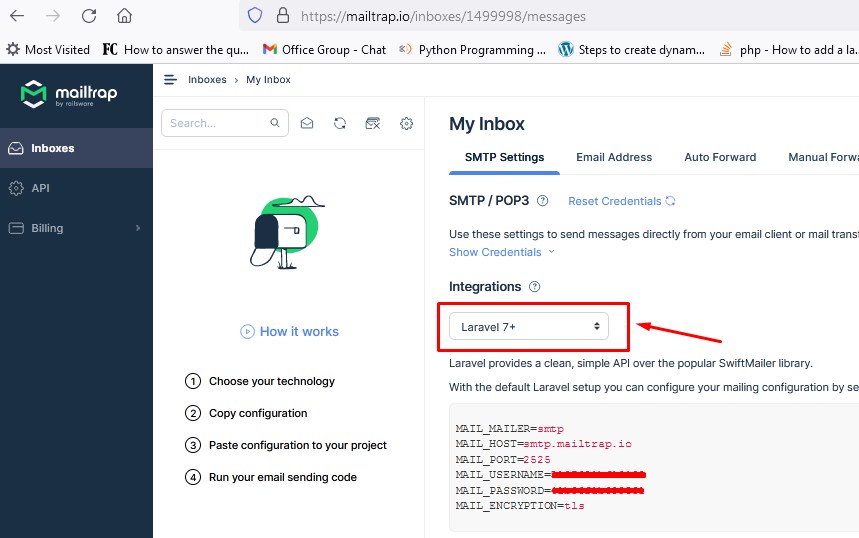
Before you start sending emails using mailtrap from your laravel 8 application, you are you need a mailtrap configuration to configure SMTP settings in your laravel project. Here is how you can get the required credentials from mailtrap.

  • Create an account using GitHub or Email at mailtrap.io
  • Login to your mailtrap account
  • Create inbox project
  • Click on the settings icon
  • Go to the SMTP/POP3 tab
  • Select Laravel from the Integrations dropdown
  • Copy the Laravel mailer details

How to Send Email in Laravel 8 with Mailable and Mailtrap

Now, open .env file within your application’s root directory and set up mailtrap configuration as following:

Create Laravel Markdown Mailable Class

The mailable class in Laravel used for sending emails. Now, lets create a new laravel mailable class using following artisan command:

Once the above command executed, it will create a new laravel mailable class DemoEmail.php in app/Mail/ directory. Open the DemoEmail.php file and put the following code in it.

Create Controller to Send and Email

Now, we will create a controller that will handle the logic to send email. Let’s create DemoEmailController Controller using following command:

Once the above command executed, it will create a controller file DemoEmailController.php in app/Http/Controllers/ directory. Open the DemoEmailController.php file and put the following code in it.

Controllers/DemoEmailController.php

In the DemoEmailController.php we have included DemoEmail Mailable class along with the Mail Facade and Http Response service. Later we have created controller method to send demo email from our laravel 8 application.

Create Route to Send Mail

After this, we need to add following route in “routes/web.php” to send email. Lets open “routes/web.php” file and add following route.

routes/web.php

Create Email Template

In this step, we will create view/blade file to setup email template. Open resources/views/Email/demoEmail.blade.php file, put the following code.

resources/views/Email/demoEmail.blade.php

Start Development Server

Now we are ready to run our example so lets start the development server using following artisan command:

Send Email in Laravel

Now, open the following URL in browser to send email:

Output:-

How to Send Email in Laravel 8 using Mailtrap

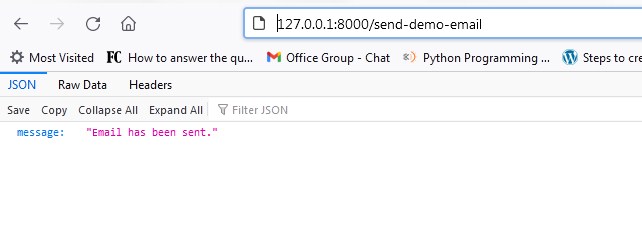
When you visit the link, you will receive the example email in your inbox.

Laravel 8 Generate QR Code Example

Laravel 8 Generate QR Code Example

In this tutorial, we will learn to generate QR Code in laravel 8.  In this step by step tutorial I’ll show you how to generate qr codes with any text, size, color, background color, format like png, eps, svg. In this laravel 8 qr code example, we will be using simple-qrcode package to generate QR codes.The simple-qrcode package is used to generate qr code in your laravel application.

The simple-qrcode package has many options for creating qr codes. You can also create qr code for geo, phone number, text message using simple qrcode package. The simple-qrcode package is very easy to install and use.

Generate QR Code In Laravel 8 Tutorial

In this step by step tutorial we generate qr codes using simple-qrcode package.

  • Install Laravel 8
  • Setup Database Credentials
  • Install simple-qrcode package
  • Define Route
  • Create Blade View
  • Start Development Server
  • Conclusion

Install Laravel 8

First of all we need to create a fresh laravel project, download and install Laravel 8 using the below command

Install Laravel 8 Simple qrcode Package

In this step, we will install simple-qrcode Package via the composer dependency manager. Use the following command to install simple-qrcode Package.

Register Package

After Installing simple-qrcode package, we need to add service provider and alias in config/app.php file as following.

config/app.php

How to use simple-qrcode Package In Laravel 8

Qr code with specified string can be generated as follows –

Syntax:-

Simple QR Code

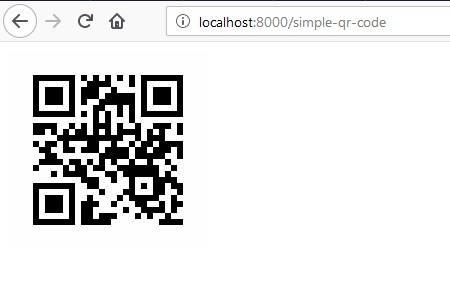
Simple Qr code with specified string can be generated using generate() method. Add a simple-qr-code route to your routes/web.php file to return simple QR code as follows –

Here, size() function is used to specify the size of the QR Code. Visit (http://localhost:8000/simple-qr-code) to see the QR code. Scan the QR code and you will see the text. You can also display the QR code in Blade file as follows –

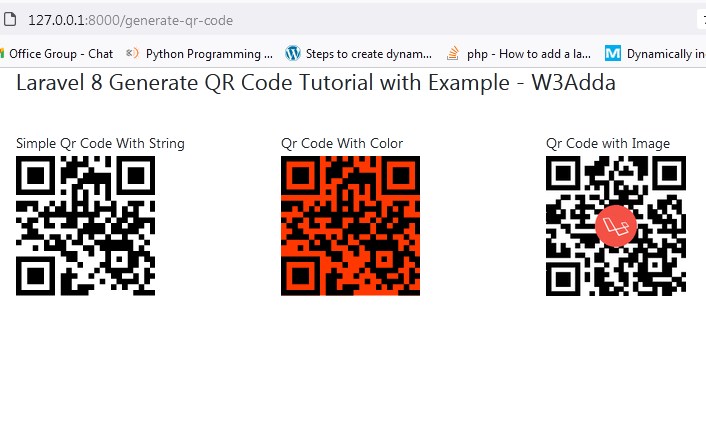
QR Code with Color

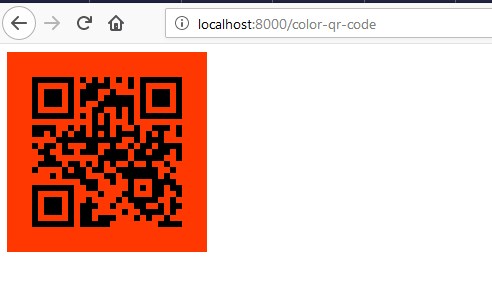
You can also set color for QR code pattern and the background using color(R, G, B) and backgroundColor(R, G, B) methods.

Add a color-qr-code route to your routes/web.php file to return colored QR code as follows –

Visit (http://localhost:8000/color-qr-code) to see the colored QR code. Or you can simply display the colored QR code in Blade file as follows –

QR Code with Image

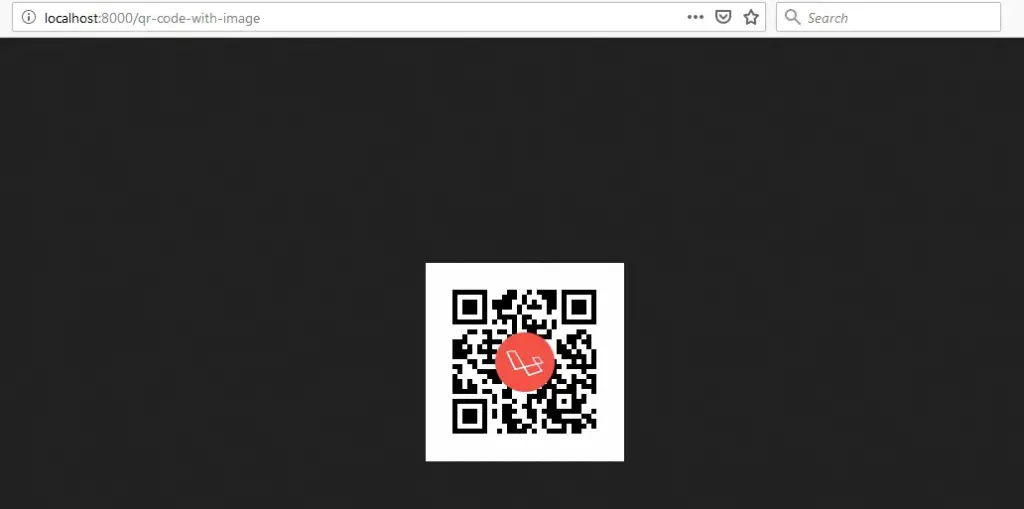
You can also place an image in QR code using the merge(“file_name.png”) method, this method only accept png files and you also need to format the response back to png.

Add a qr-code-with-image route to your routes/web.php file to return QR code with image as follows –

Visit (http://localhost:8000/qr-code-with-image) to see the QR code with Image merged. Or you can simply display the QR code with Image in Blade file using <img> tag as follows –

Email QR code

You can encode QR codes that automatically fill-in email address, subject and body of the email.

Syntax:-

Example:-

QR Code Phone Number

You can encode QR codes such that it automatically open up the phone dialer and dial the phone number.

Syntax:-

Example:-

QR Code Text Message

You can encode QR codes such that it automatically open up the phone messenger and fill-in phone number or the message body.

Syntax:-

Example:-

QR Code Geo co-ordinates

You can encode QR codes such that it automatically open up map application with the specified location.

Syntax:-

Example:-

Create Blade / View Files

In this step, we will create view/blade file to generate and display QR Codes. Lets create a blade file “index.blade.php” in “resources/views/qrcode/” directory and put the following code in it respectively.

resources/views/qrcode/index.blade.php

Create Routes

After this, we need to add following routes in “routes/web.php” file along with a resource route. Lets open “routes/web.php” file and add following route.

routes/web.php

Now we are ready to run our example so lets start the development server using following artisan command –

Now, open the following URL in browser to see the output –

Output:-

Laravel 8 Generate QR Code Example

Laravel 8 Generate Simple QR Code

Below is an example of generating simple qr code in laravel 8 using simple qr code package. We have added following route in the web.php file to generate simple qr code in laravel.

Now, visit the following url in browser to view the simple qr code generated laravel.

Output:-

How to Generate QR Code In Laravel 8

Laravel 8 Generate QR Code With Background Color

Below is an example of generating qr code with background color in laravel 8 using simple qr code package. We have added following route in the web.php file to generate qr code with background color.

Now, visit the following url in browser to view the qr code with background color in laravel.

Output:-

Laravel 8 Generate QR Code with background color

Laravel 8 Generate QR Code With Image

Below is an example of generating qr code with image in laravel 8 using simple qr code package. We have added following route in the web.php file to generate qr code with image.

Now, visit the following url in browser to view the qr code with image generated in laravel.

Output:-

laravel-8-generate-qr-code-with-image

In this tutorial we have learned how to generate qr code in laravel 8. I have also shown you how to implement a laravel 8 qr code example.

How to Generate Barcode In Laravel 8

How to Generate Barcode In Laravel 8

In this tutorial, we will learn how to generate barcode in laravel 8 application. I’ll guide you through step by step for generation of barcode in a laravel 8 application. We will be using ‘picqer/php-barcode-generator’ package for generating barcode in laravel 8. In this tutorial, we will guide you step by step to generate bar code in your laravel 8.

Step By Step Laravel 8 Barcode Generation Tutorial

Contents:-

  • Install Laravel 8
  • Setup Database Credentials
  • Install picqer/php-barcode-generator Package
  • Define Route
  • Create Blade View
  • Start Development Server
  • Conclusion

Install Laravel 8

First of all we need to create a fresh laravel project, download and install Laravel 8 using the below command

Make sure you have composer installed.

Setup Database Credentials

Now, lets create a MySQL database and connect it with laravel application. After creating database we need to set database credential in application’s .env file.

Install picqer/php-barcode-generator Package

We will be using “picqer/php-barcode-generator” Package” for generating barcode in laravel 8 application. In this step we will be installing “picqer/php-barcode-generator” via following composer command, lets open your terminal and switch to the project directory and enter the following command –

Set Routes

After this, we need to add following two routes in “routes/web.php” to display barcode. Lets open “routes/web.php” file and add following route.

routes/web.php

Create View/Blade File

In this step, we will create view/blade file to display barcode. Lets create a “barcode.blade.php” file in “resources/views/barcode/” directory and put the following code in it.

resources/views/barcode/barcode.blade.php

Start Development Server

Now we are ready to run our example so lets start the development server using following artisan command –

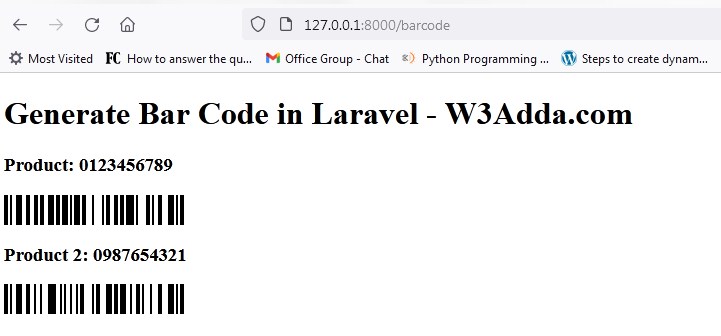
Now, open the following URL in browser to see the output –

http://localhost:8000/barcode

Output:-

How to Generate Barcode In Laravel 8

How To Integrate Google Recaptcha V3 In Laravel 8

How To Integrate Google Recaptcha V3 In Laravel 8

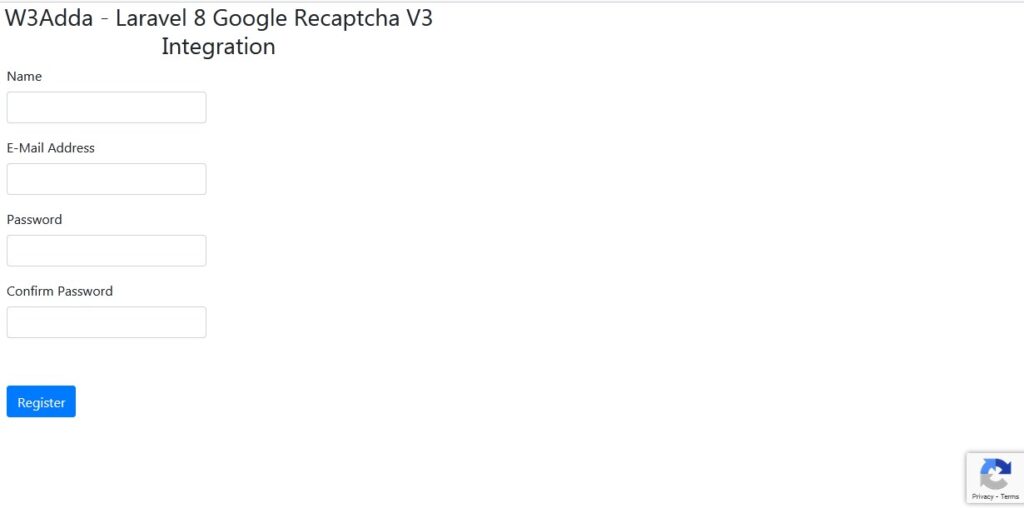
In this tutorial, we will learn how to integrate google recaptcha v3 in laravel 8 application. I’ll guide you through step by step for integration of google recaptcha v3 in a laravel 8 application. We will be using ‘josiasmontag/laravel-recaptchav3’ package for laravel 8 google recaptcha v3 integration in laravel 8 application. In this tutorial, we will be creating a simple form with some basic fields along with the google recaptcha v3.

Laravel 8 Google Recaptcha V3 Integration

Google ReCaptcha is a one of the most popular captcha system that defends your site from bots to spam and abuse. The Google ReCaptcha is an open service that assures a computer user is a human. In order to integrate the reCaptcha, you must sign up for the Google API key & secret for your website.

Laravel 8 Google Recaptcha V3 Step by Step Example

  • Install Laravel 8
  • Setup Database Credentials
  • Install Laravel Google Recaptcha V3 Package
  • Set Google Site Key and Secret Key
  • Define Route
  • Create Controller
  • Create Blade View
  • Start Development Server
  • Conclusion

Install Laravel 8

First of all we need to create a fresh laravel project, download and install Laravel 8 using the below command

Make sure you have composer installed.

Setup Database Credentials

Now, lets create a MySQL database and connect it with laravel application. After creating database we need to set database credential in application’s .env file.

Install Laravel Google Recaptcha V3 Package

We will be using ‘josiasmontag/laravel-recaptchav3’ package for google recaptcha v3 integration in laravel 8 application. In this step we will be installing “josiasmontag/laravel-recaptchav3” via following composer command, lets open your terminal and switch to the project directory and enter the following command –

After successfully installing package, we need to publish config file with bellow command:

Set Google Site Key and Secret Key

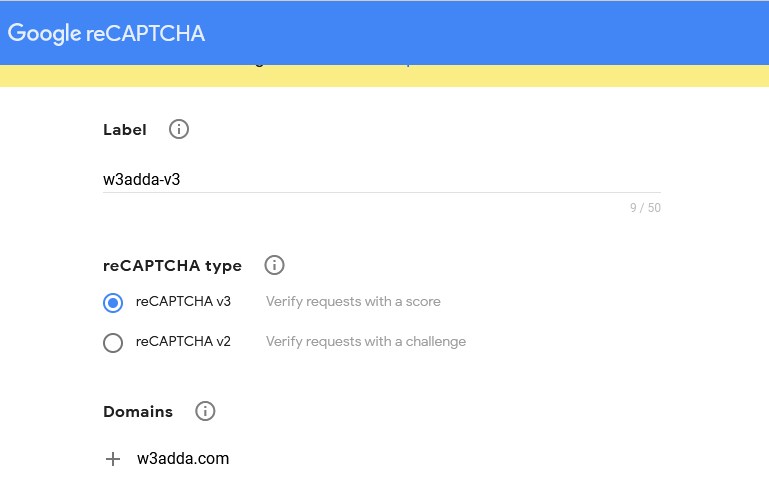
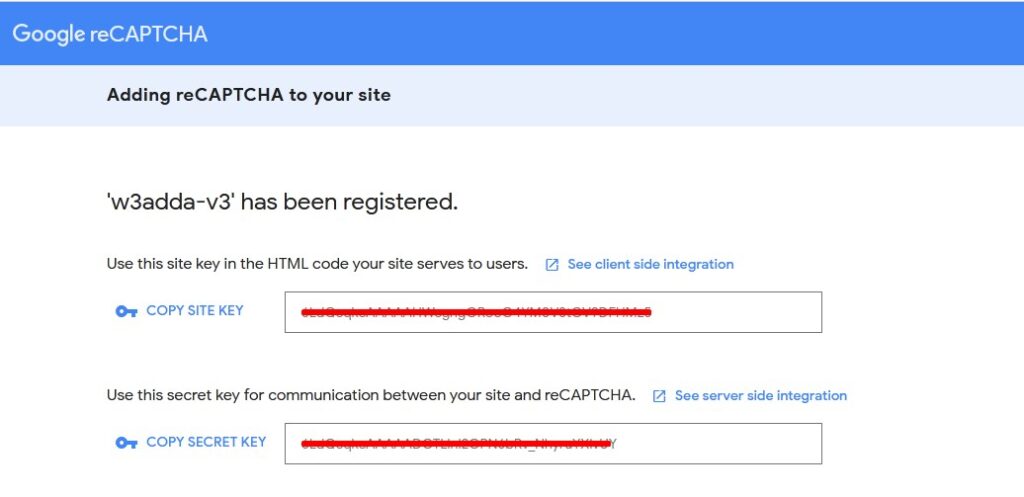
Now, we need to set Google Site Key and Secret Key in .env file. Let’s start by getting Google key & secret required to make ReCaptcha authorize with the Google servers. Visit the following link to register your site –

Here, you need to provide label to identify the site. Now choose the type of reCAPTCHA as reCAPTCHA V3. Now you need to add the list of domains, this captcha would work on.

How To Integrate Google Recaptcha V3 In Laravel 8

How To Integrate Google Recaptcha V3 In Laravel 8 One

Let’s open .env file and add this credential as following –

.env

Create Controller

Now, lets create Recaptcha Controller using following command

Once the above command executed, it will create a controller file RecaptchaController.php in app/Http/Controllers/ directory. Open the RecaptchaController.php file and put the following code in it.

Controllers/RecaptchaController.php

Create View/Blade File

In this step, we will create view/blade file to render a register form with recaptcha field. Lets create a “index.blade.php” file in “resources/views/recaptcha/” directory and put the following code in it.

resources/views/recaptcha/index.blade.php

Set Routes

After this, we need to add following two routes in “routes/web.php” to display register form and to post the form data. Lets open “routes/web.php” file and add following route.

routes/web.php

Start Development Server

Now we are ready to run our example so lets start the development server using following artisan command –

Now, open the following URL in browser to see the output –

http://localhost:8000/recaptchacreate

Output:-

Laravel 8 Google Recaptcha V3 Integration

Laravel 8 Vue JS File Upload Tutorial With Example

In this Laravel 8 Vue JS File Upload Tutorial With Example, we will learn how to upload a file in Laravel 8 Vue JS application with example. I’ll guide you through step by step how to upload files with Vue js using Axios post request In Laravel 8 Vue JS application. In this tutorial, we will be creating a simple form to send form data (files, images, input fields etc) with Vue js using Axios to send POST request in laravel.

Laravel 8 Vue JS File Upload Tutorial With Example

In this step by step tutorial I will demonstrate you how to upload a file in Laravel 8 Vue JS application. Please follow the instruction given below:

  • Step 1: Install Laravel 8
  • Step 2: Setup Database Credentials
  • Step 3: Create Model And Migration
  • Step 4: NPM Configuration
  • Step 5: Add Routes
  • Step 6: Create Controller By Command
  • Step 7: Create Vue Component
  • Step 8: Register Vue App
  • Step 9: Run Development Server

Step 1: Install Laravel 8

First of all we need to create a fresh laravel project, download and install Laravel 8 using the below command

Make sure you have composer installed.

Step 2: Setup Database Credentials

Now, lets create a MySQL database and connect it with laravel 8 application. After creating database we need to set database credential in application’s .env file.

Step 3: Create Model And Migration

Now, we have to define table schema for photo table. Open terminal and let’s run the following command to generate a Photo model along with a migration file to create photo table in our database.

Once this command is executed you will find a migration file created under “database/migrations”. Lets open migration file created and put following code in it –

Next, migrate the table using the below command:

After, the migration executed successfully the photo table will be created in database.

Step 4: NPM Configuration

Now, you need to setup Vue Js In Laravel 8 and install Vue Js dependencies using NPM. So execute the following command on command prompt.

Use below command to Install all Vue Js dependencies:

Step 5: Add Routes

Now, we need to define routes in “routes/web.php” file. Lets open “routes/web.php” file and add the following routes in it.

routes/web.php

Step 6: Create Laravel Controller Using Artisan Command

Next, we have to create a controller to handle file upload operation. Lets Create a controller named FileUploadController using command given below –

Once the above command executed, it will create a controller file FileUploadController.php in app/Http/Controllers directory. Open the FileUploadController.php file and put the following code in it.

app/Http/Controllers/FileUploadController.php

Step 7: Create Vue Component In Laravel Application

Now we will create a Vue Component, go to resources/assets/js/components folder and create a filed called FileUpload.vue. Put the following code into your FileUpload.vue components file:

Now open resources/assets/js/app.js and include the FileUpload.vue component in it.

resources/assets/js/app.js

Step 8: Register Vue App

Now, we will create a blade view file to define Vue app. Go to resources/views folder and make a file named upload.blade.php. Then put the following code into upload.blade.php as following:

Step 9: Start Development Server

Now we are ready to run our example so lets start the development server using following artisan command –