Category Archives: Kotlin Android Tutorial

kotlin android tutorial

Kotlin TabLayout Example

Kotlin TabLayout Example

In Last Article we have briefly discussed about TabLayout and ViewPager. Now Let’s get understand this by below Example. Follow all the steps for creation of TabLayout with ViewPager with Kotlin.

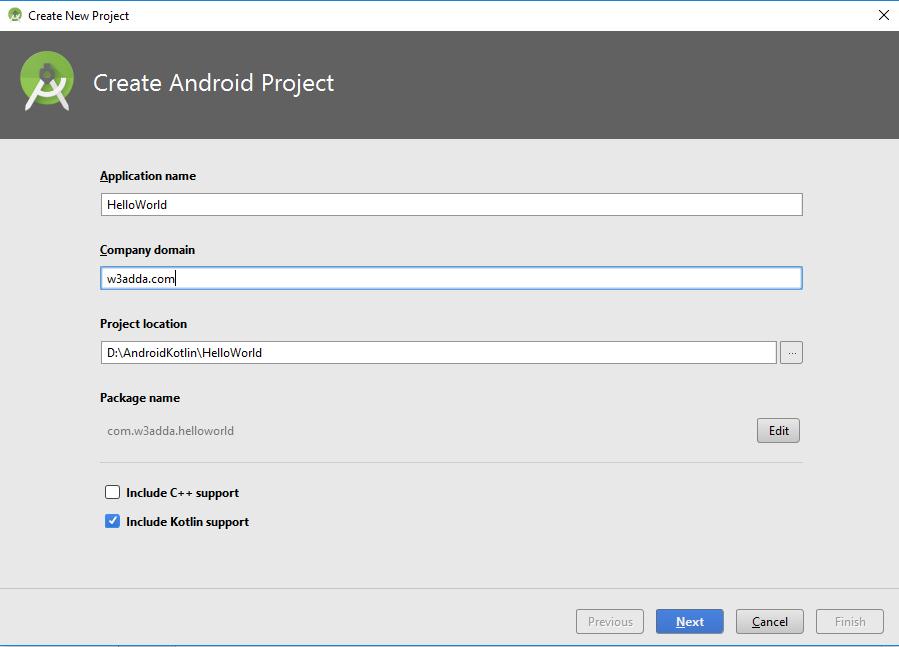
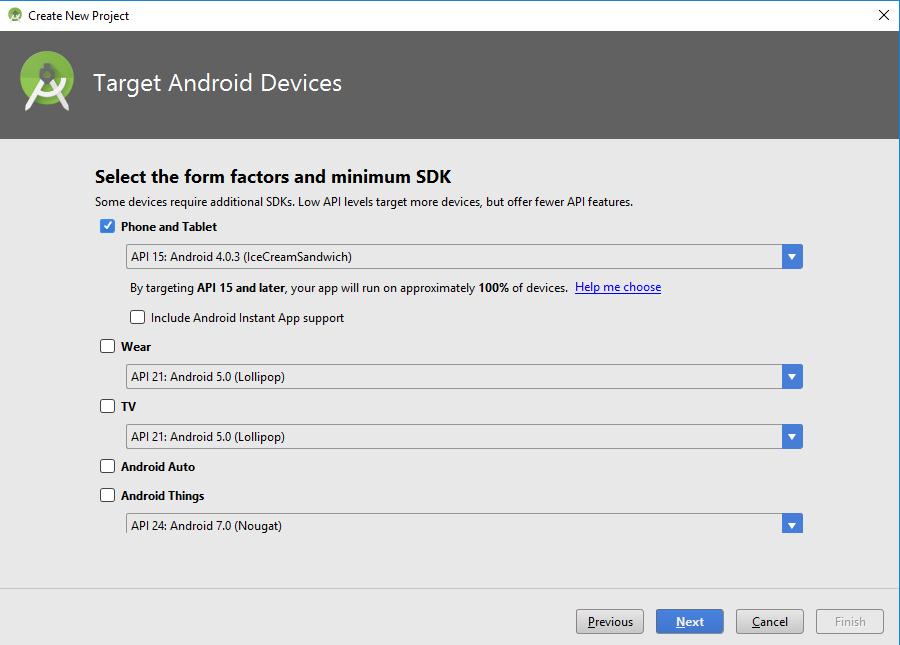
1st Step: Create Project: Create New Project on click of “File=>New=>New Project”, You will get Screen like below image. Please fill all details and do not forget to check on “Include Kotlin support” after that click on “Next” And Select Your Minimum and Maximum API Level then again Click on “Next”.
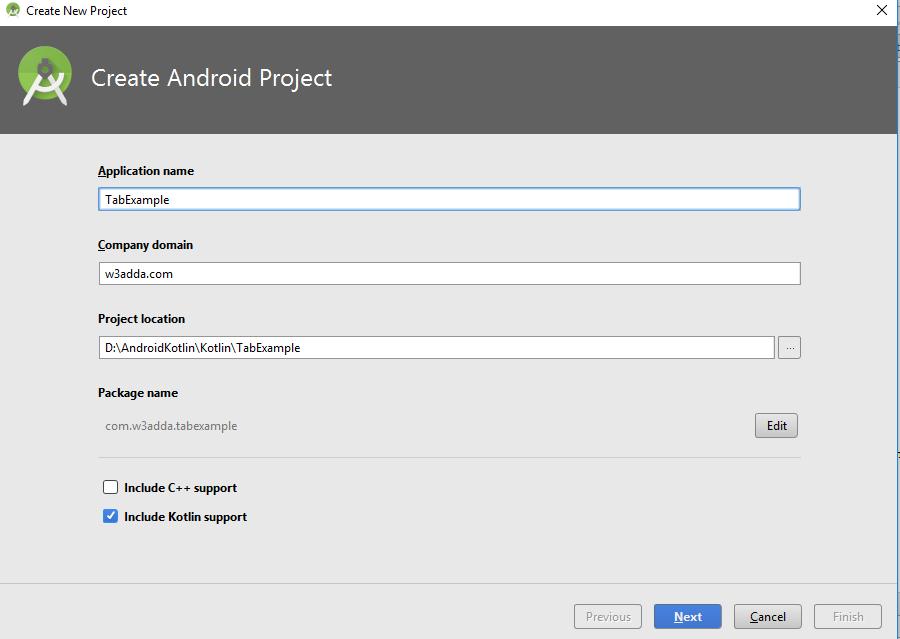
1

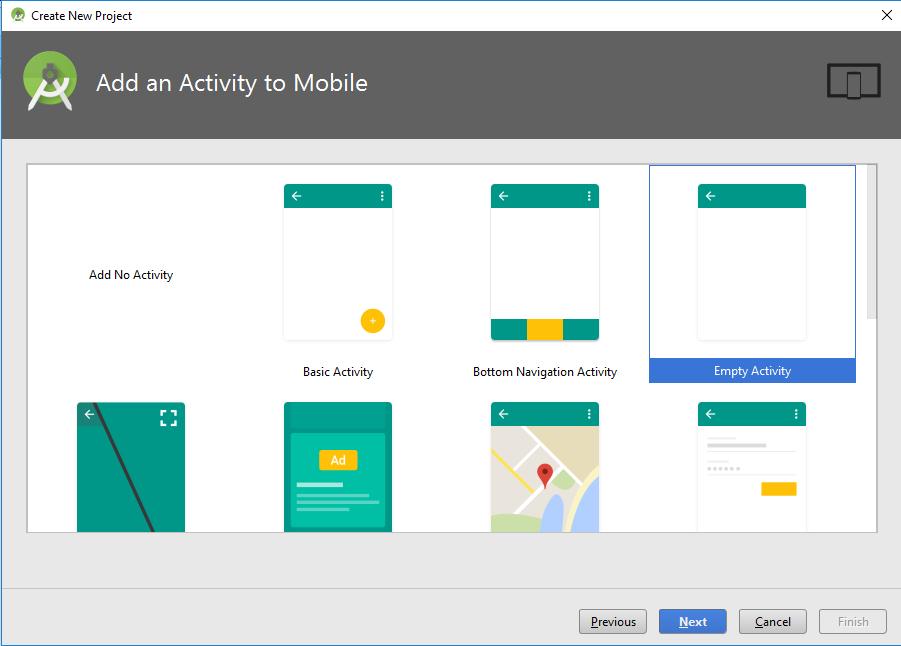
# After selection of API Level a new Screen will appear like below image, from here you can select your activity type.
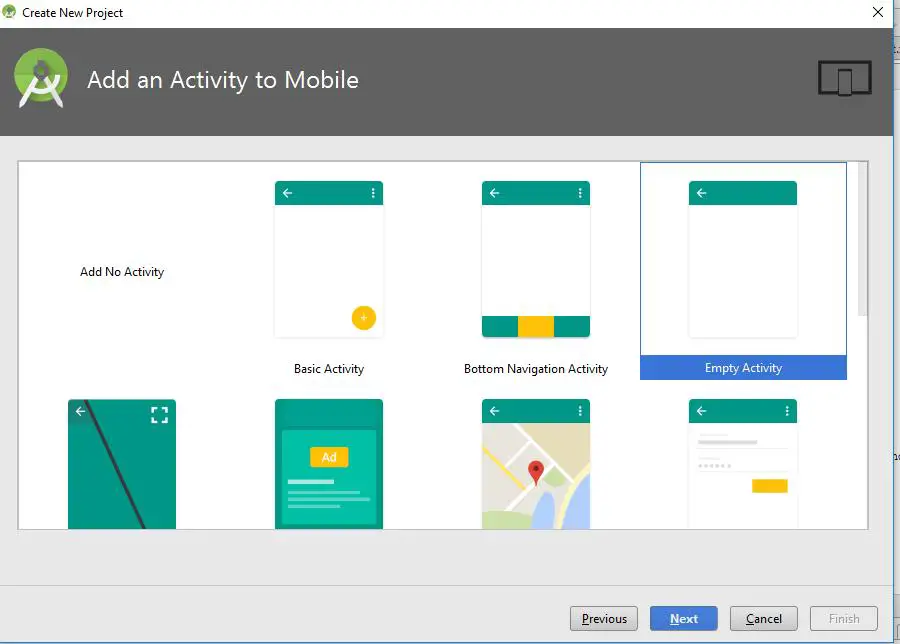
2

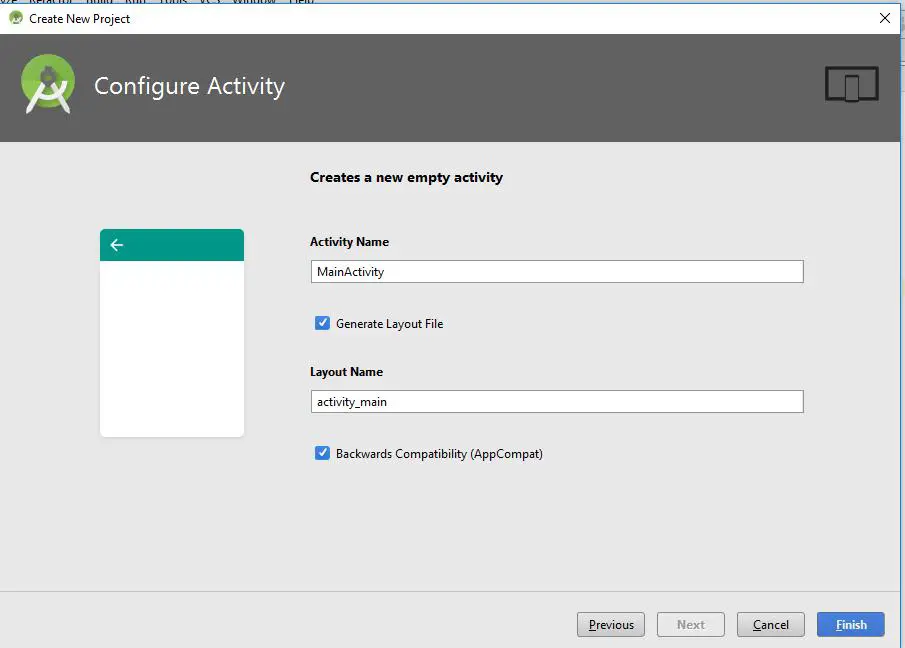
#Simply click on Next and again new screen will appear like below image from here image you can change your Activity Name and also xml name.
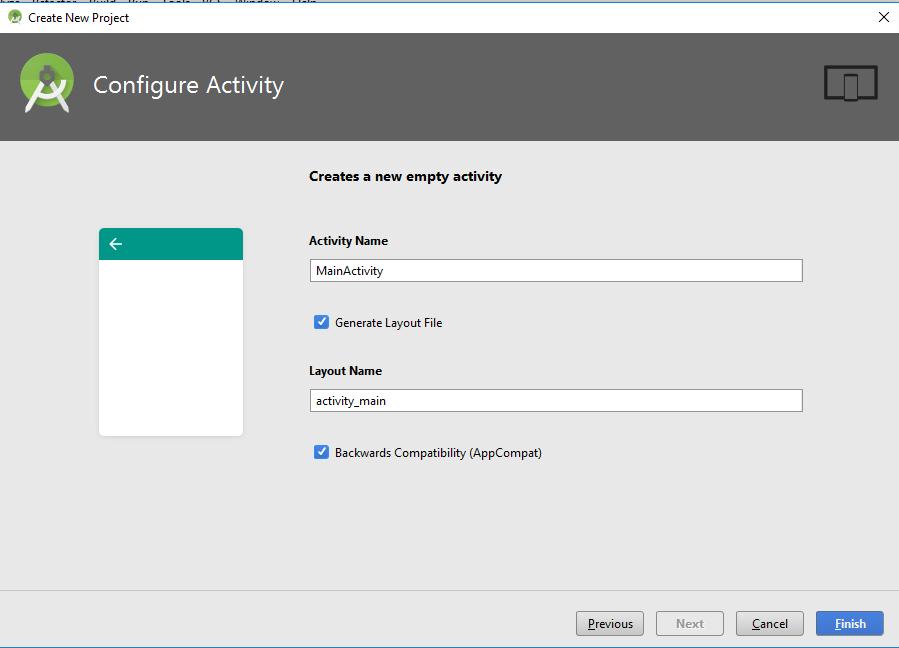
3

#Click on Finish button, you are all set with Project Creation. Now we have to move to the coding side.


2nd Step: Coding Implementation: We have to use some Fragments, class, adapter and XML for creation of TabLayout with ViewPager which are listed below.

  1. fragment_layout.xml
  2. FragmentOne
  3. FragmentTwo
  4. FragmentThree
  5. ViewPager Adapter
  6. activity_main.xml
  7. MainActivity
  8. AndroidManifest.xml

1.fragment_layout.xml: This xml will be associated with all three fragment. You can create different layout for different Fragment. Check below xml code.

  1. FragmentOne.kt: This Kotlin fragment will be use in First Tab of TabLayout. Check below code.

  1. FragmentTwo.kt: This Kotlin fragment will be use in Second Tab of TabLayout. Check below code.

  1. FragmentThree.kt: This Kotlin fragment will be use in Third Tab of TabLayout. Check below code.

5.ViewPagerAdapter: It extends FragmentPagerAdapter Which is implementation of PagerAdapter that represent each page as a Fragment. Check below code for understand how It was used.

  1. activity_main.xml: In this xml we kept our TabLayout and ViewPager. Check below XML code.

  1. MainActivity.kt: So this will be final class of Kotlin from here we will bind our pager adapter with ViewPager and ViewPager with TabLayout. Check below code.

8.AndroidManifest.xml: As we know that this is very important file for Android Project, From here you can give permission and declare your activities. Also you can change your App icon and Label of App. Check Below code.

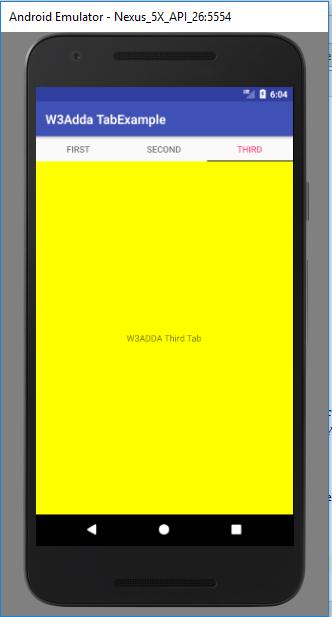
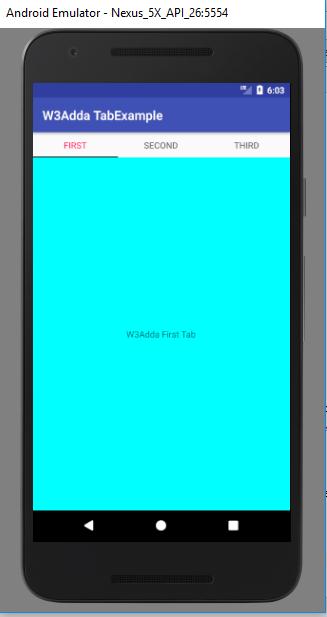
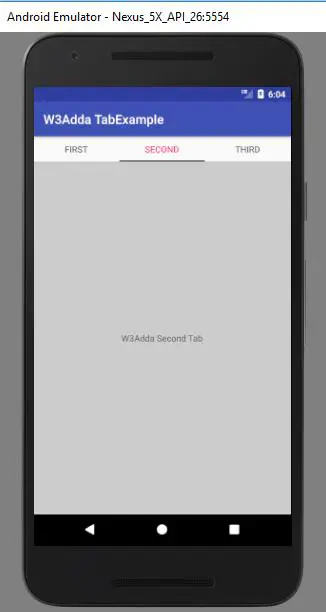
3rd Step: Run: Now you are all set with project so run this project on your device or Emulator. You will get output like below images.
4 5 6

Kotlin ViewPager & TabLayout

Kotlin ViewPager & TabLayout

ViewPager: This is a layout manager which allows users to swipe left and right through pages of data. In a sense, it is nice way to show the user multiple tabs. We can also add and remove pages(tabs) dynamically. Let’s get more understand about ViewPager.

Class Declaration : The ViewPager class is a subclass of ViewGroup. Below is the class declaration.

XML Declaration: We have to declare ViewPager in the XML then we can access this.

Constant Summary: There are some frequently used constant are listed below.

1.int SCROLL_STATE_DRAGGING: This constant indicates that the pager is being dragged by user.

2.int SCROLL_STATE_IDLE: This constant of ViewPager indicates that the pager is in idle state.

3.int SCROLL_STATE_SETTLING: This constant of ViewPager indicates that the state of ViewPager is in process of settling to a final position.


Method Summary: There are some commonly used methods are listed below.

1.PagerAdapter getAdapter(): This method is used to retrieve current adapter so that user can supply pages.

  1. void setAdapter(PagerAdapter adapter): This method is used to set a Pager Adapter that will supply views for this pager as needed.
  2. void setCurrentItem(int item): This method is used to set the currently selected pages.
  3. void setPagerMargin(int marginPixel): This method is used to set margin between pages.
  4. void setoffscreenPageLimit(int limit): This method is used to set number of pages.


TabLayout: The TabLayout provides a horizontal layout to display tabs. We can display more screens on a single screen using tabs. We can create sliding as well as non sliding tabs using TabLayout. Let’s get more understand about TabLayout.

Class Declaration:

Constant Summary: Some frequently used Constant are listed below.

1.int GRAVITY_CENTER: This constant is used to keep the tabs in the center of the TabLayout.

2.int GRAVITY_FILL: This constant is used to fill the TabLayout as much as possible.

3.int MODE_FIXED: This constant is used to fixed the tabs concurrently.

4.int MODE_SCROLLABLE: This constant is used to Scrollable tabs display a subset of tabs at any given moment and used to contain longer tabs labels and larger number of tabs.
Constructor Summary: Some public constructor are used in TabLayout which are listed below.

1.TabLayout(Context context).
2.TabLayout(Context context, AttributeSet attrs).
3.TabLayout(Context context, AttributeSet attrs, int defStyleAttr).

Method Summary: The most commonly methods are listed below, that will let you get more awareness about TabLayout.

1.void addTab(TabLayout.Tab tab, boolean setSelected): This method is used to add a tab to this Layout with the property of selection.

  1. void addTab(TabLayout.Tab tab, int position): This method also used to add a tab to this layout but at given position.
  2. void addTab(TabLayout.Tab tab): This method simply add a tab to this layout.
  3. void addTab(TabLayout.Tab tab, int position, boolean setSelected): This method is used to add a tab to this layout with given position and with selection status.

    5.void addOnTabSelectedListener(TabLayout.OnTabSelectedListener listener): This method is used to invoke TabLayout.OnTabSelectedListener when tab selection changed.

  4. void clearOnTabSelectedListener(): This method simply removes all TabLayot.OnTabSelectedListeners which were previously added.
  5. TabLayout.Tab getTabAt(int index): This method returns the tab at the specified position.
  6. int getTabCount(): This method is used to returns number of tabs which are currently registered with action bar.

9.TabLayout.Tab newTab(): This method is used to create and return a new tab in TabLayout.Tab.

  1. void removeAllTabs(): This method is used to remove all tabs from the layout.
  2. void removeTabAt(int position): This method is used to remove a tab from the layout at specified position.
  3. void setTabGravity(int gravity): This method is used to set the gravity to use when laying out the tabs.
  4. void setTabMode(int mode): This method is used to set the behavior mode for the Tabs in this layout.
  5. void setTabTextColors(int normalColor, int selectedColor): This method is used to set the color of Tab’s Text when normal and when selected.
  6. void setupWithViewPager(ViewPager pager): This method is used to set TabLayout with ViewPager.


So this was about ViewPager and TabLayout, Click on Next for Example of TabLayout with ViewPager.

Kotlin Navigation Drawer

The navigation drawer is a panel that displays the app’s Main Navigation options on the left edge of the screen. It is only show when any user swipe a finger from the left edge of the screen or tapping the app icon on the action bar, Most of the time it is in hidden condition.

Example: Now a days most of the applications have navigation drawer like Facebook, Youtube, Google+ .So let’s get understand it by this example. I have used Kotlin Language for this. Follow the steps for creation of navigation drawer.

Project Creation:

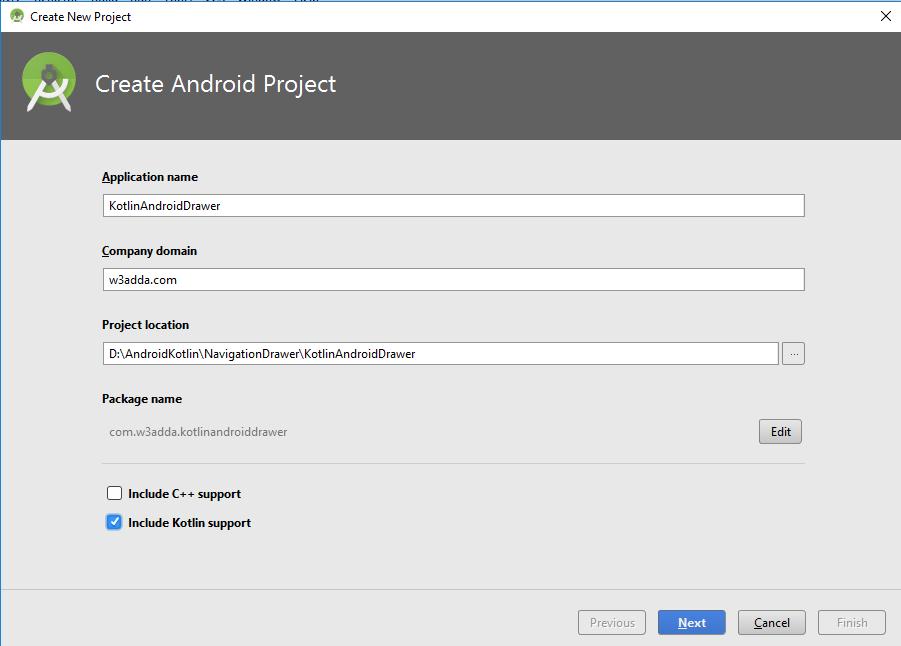
  1. Create New Project: Click on “File” and then go to “New” =>”New Project” in Android Studio. The below screen will appear, please fill all details and click on “Next”.


1

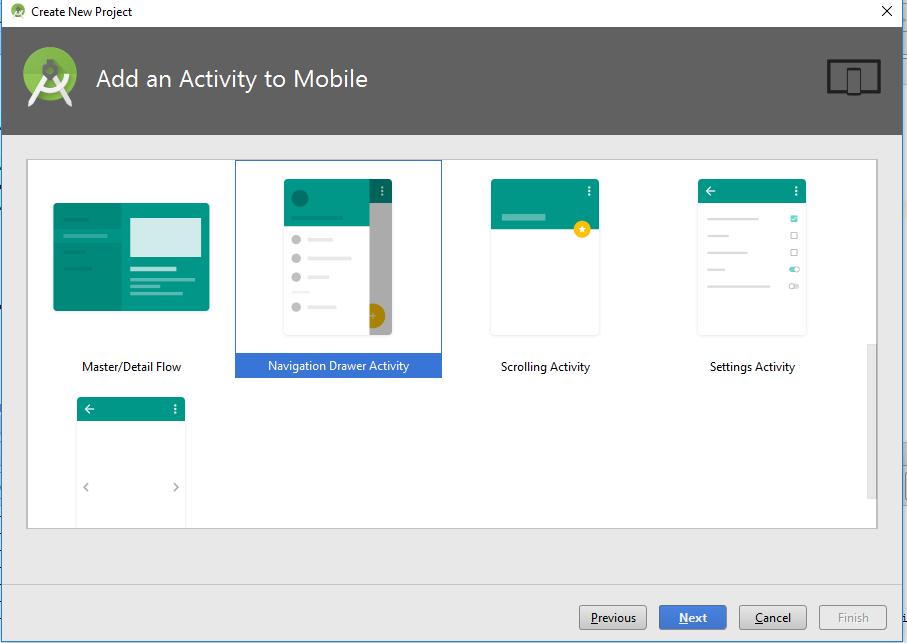
Activity Selection:Please select “Navigation Drawer Activity”, It will auto create navigation drawer in your application. You can use it as you want. After Selection click on “Next” like below image.

2

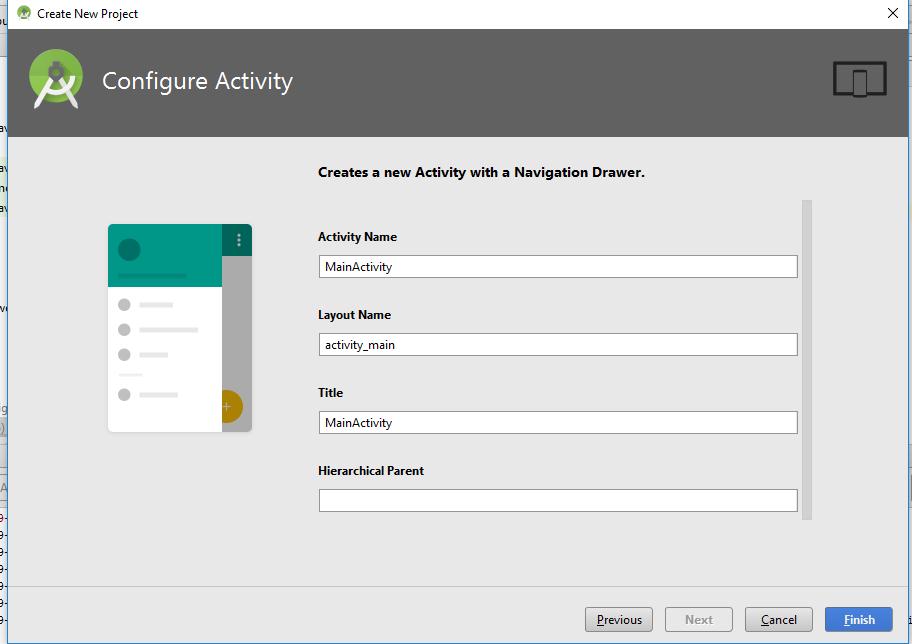
  1. Finish: Click on “Finish” and wait till configuration of your project. Like below image.

3

  1. Used Class and XML: There are some auto created xml which are used for creation of Navigation Drawer and bind with MainActivity. You can customize them according to your requirements. Let’s get understand one by one.

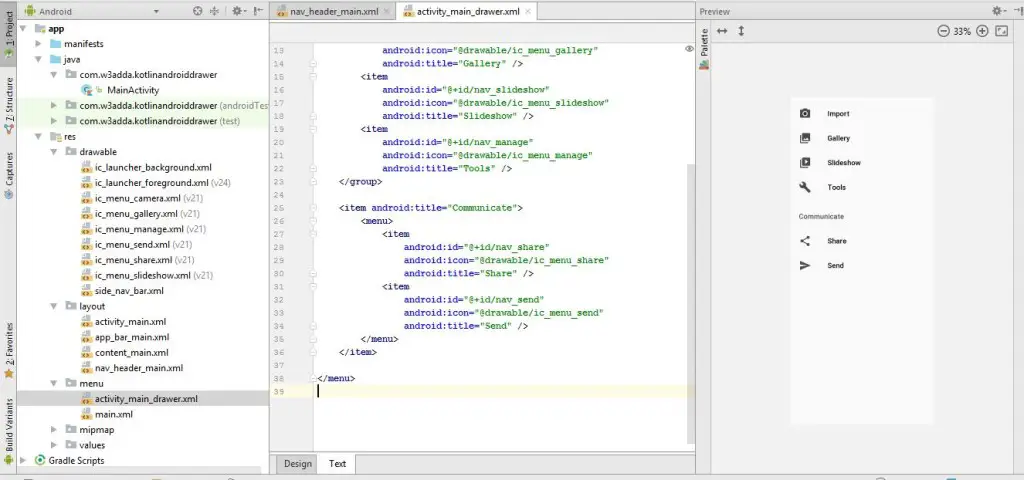
#1. Menu=>activity_main_drawer.xml: From here you can add new options in navigation drawer with icon and also you can change default options.

4

Item is used to add an option in navigation drawer.


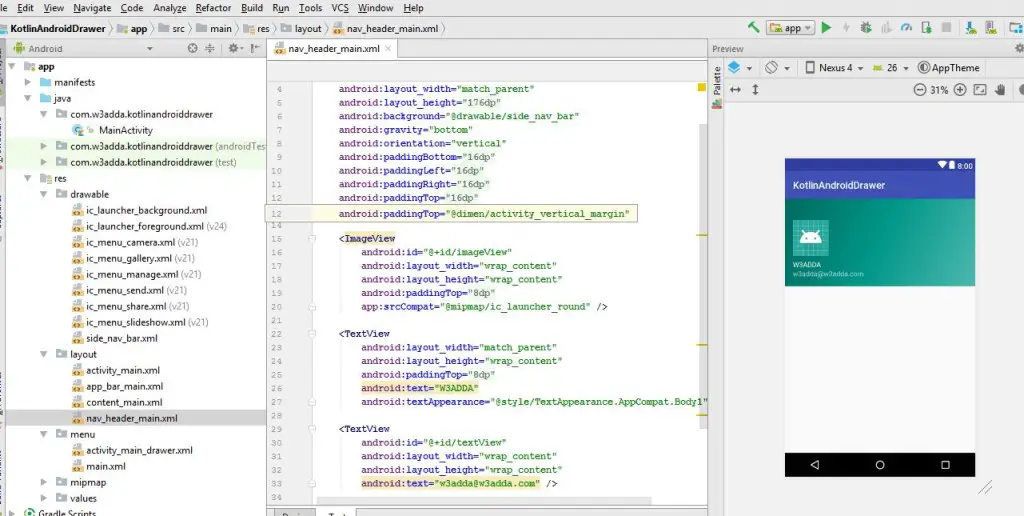
#2.Layout=>nav_header_main.xml:This is the header of Navigation Drawer. You can change it according to your requirements like you can add your Image, Email, Name etc. Check below image.

5

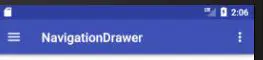
#3.layout=>app_bar_main.xml:The app bar is also known as the action bar. It is most important design elements in our app’s activities. It gives dedicated space for giving your app an identity and indicating the user’s location in the app. The app bar looks like below image

6

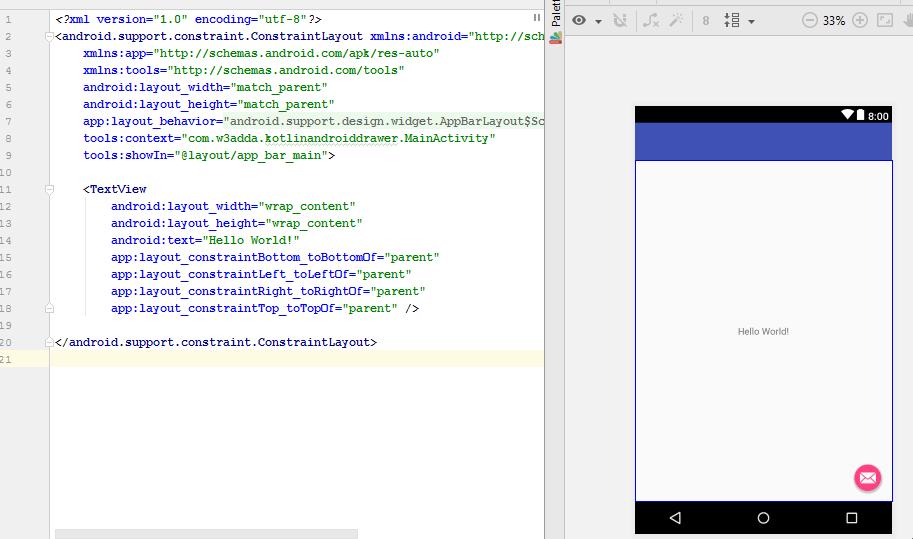
#4.layout=>content_main.xml:In this xml you can write code of main activity layout which will appear like below image.

7

#5.activity_main.xml: In this xml you have to add NavigationView(Represent a standard navigation menu for application) and include app_bar_main.xml in this XML. Like below code.

#6.MainActivity:An Activity is a class, Its represent single screen. Parent class for Any Activity is Activity, Means You need to implement an Activity as a subclass of Activity, like

If you created an activity so you must declare it Manifest.xml file. In MainActivity we have to write our code for navigation drawer. Default code will be there, you can simply run that code and check output for this.

From below method you can operate your navigation menu click. For an example if you want operate camera on click of Navigation item click so write your code under the “R.id.nav_camera” where nav_camera is the unique id of Camera option in navigation drawer.

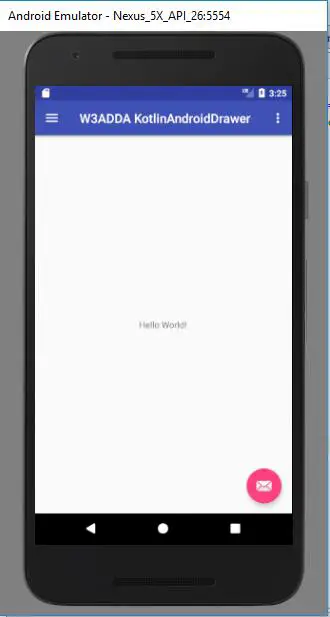
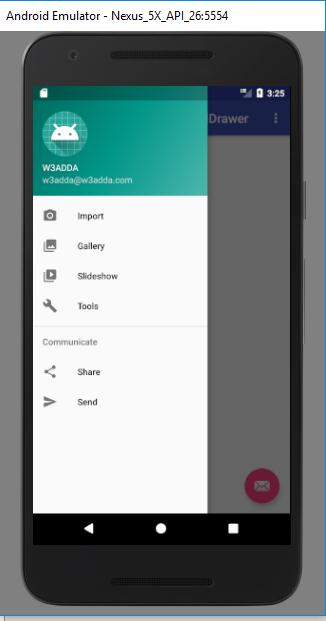
  1. Run: Simply run this project and you will get output like below image.
  2. 8
  3. 9

Kotlin ListView

ListView with Kotlin

ListView is a view from which we can display group of items in vertical scrollable list. List items are automatically inserted with the help of adapter.
Adapter is a bridge UI component and data source, It pulls data from database or an array.
It is briefly discussed in Android ListView Article . Please check that article.

Here we are going to discuss ListView with Kotlin in Android.


Example: Let’s create new project and do not forget check “Include Kotlin Support”. Used classes and Xml are listed below.

  1. MainActivity
  2. LangListAdapter
  3. Langauge(Model)
  4. activity_main.xml
  5. layout_adapter.xml
  6. header.xml
  7. colors.xml

Let’s understand each class one by one.

#Langauge(Model): In Kotlin we do not need to write getter and setter method in model. It is very simple to create model in Kotlin support. Just check below model, you will get understand what I am trying to say.

so it is pretty simple to create model just need to declare our variable.


#LangListAdapter: Below is the Adapter Code, code is reduced by Kotlin and it is very easy to get understand, methods are same as we already discussed in ListAdapter in Android Article. So Let’s write code of it. Here It extends Base Adapter which is clearly explained in Android Tutorial. BaseAdapter is very generic adapter which allows you to do pretty much whatever you want . Its custom Adapter from which you can do whatever you want to do with grid and list, But you need to do some coding for it.

# layout_adapter.xml : The below layout is associated with Above adapter class. Just check it.

#MainActivity: Now it is time to finish our last stage that is Activity which is associated with Model and Adapter. We have added data from here. The adding process is about same Like we used to use before, but some changes are there, Kotlin also reduced code here and did simple work for us. Checkout below code.

#activity_main.xml: The Associated XML file with Above activity is below you can simply use it.

#Header.xml: The Header file which I have used in activity_main.xml is below, you can modified it according to you.

#colors.xml: Some colors I have used so that it look good, you can use it.

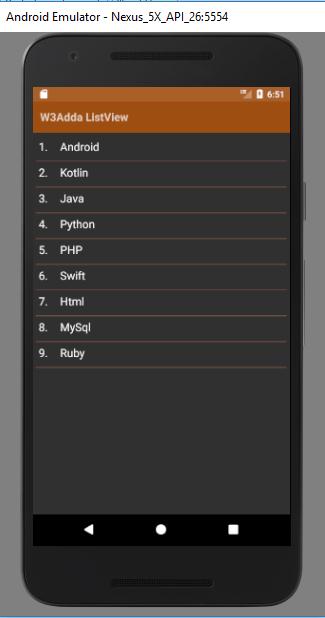
Run: We are all set from coding site. So its time to run this project on your device or Emulator. I have used Emulator. The result of above project will look like below image.

1

Kotlin GridView

It displays items in a two-dimensional , scrollable grid. The ListView and GridView are subclass of AdapterView . As we discussed in ListView that Adapter is a bridge between UI and Data source and it retrieves data from data source.

Lets understand it by an example , Create GridView in Xml Layout like below code

GridView Attributes

android:id : it used to identify GridView Uniquely.

android:numColumns : It used to define that how many columns will be shown on display. It may be integer value like “2” or auto_fit. auto_fitmeans as many as column possible to fit on display.

android:verticalSpacing :It defines vertical spacing between rows, It can be dp,px,sp,in or mm.

android:horizontalSpacing :It defines horizontal spacing between columns.

android:strechMode :It defines how columns should stretched to fill display.

Example: With the help of below example we will get understand about GridView with Kotlin. There are some classes and xml which is used in Grid View are listed below.

  1. MainActivity
  2. LangListAdapter
  3. Langauge(Model).
  4. Activity_main.xml
  5. Layout_adapter.xml
  6. Header.xml
  7. border_layout.xml

Let’s get understand each class one by one.


#Langauge(Model): In Kotlin we do not need to write getter and setter method in model. It is very simple to create model in Kotlin support. Just check below model, you will get understand what I am trying to say.

so it is pretty simple to create model just need to declare our variable.


#LangListAdapter:Below is the Adapter Code, code is reduced by Kotlin and it is very easy to get understand, methods are same as we already discussed in BaseAdapter in Android Article. So Let’s write code of it. Here It extends Base Adapter which is clearly explained in Android Tutorial. BaseAdapter is very generic adapter which allows you to do pretty much whatever you want . Its custom Adapter from which you can do whatever you want to do with grid and list, But you need to do some coding for it.

# layout_adapter.xml : The below layout is associated with Above adapter class. Just check it.

#MainActivity:Now it is time to finish our last stage that is Activity which is associated with Model and Adapter. We have added data from here. The adding process is about same Like we used to use before, but some changes are there, Kotlin also reduced code here and did simple work for us. Checkout below code.

#activity_main.xml:The Associated XML file with Above activity is below you can simply use it.

#Header.xml: The Header file which I have used in activity_main.xml is below, you can modified it according to you.

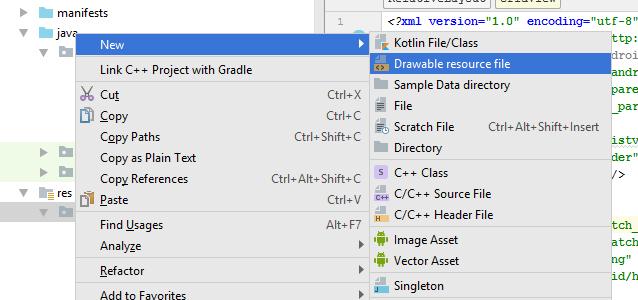
#border_layout.xml: Here I have used border layout for creation border of GridView’s item. Press right click of mouse on drawable and make drawable resource file like below image,

1

And paste this code in your resource file.

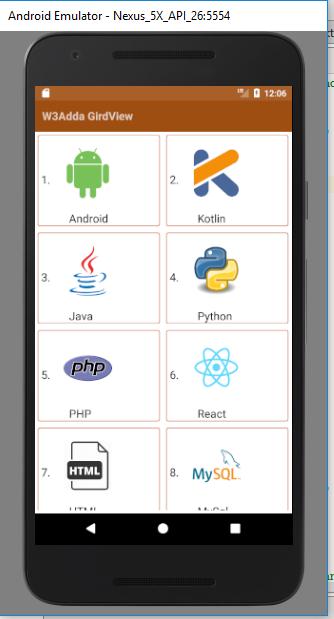
Run:We are all set from coding part. Soits time to run this project on your device or Emulator. I have used Emulator. The result of above project will look like below image.

2

Kotlin Fragment

Fragment is a part of Activity or also we can say sub activity. It represent multiple screen inside an activity.

The fragment’s lifecycle is affected by the host activity’s lifecycle, For example if host activity is in pause status so all fragment will be in pause status and if activity is destroyed so all fragment will be destroyed. It contains callback methods like an activity, like onCreate(), onStart(), onPause() and onStop().
It has been already discussed in Android Tutorial here we are going to create Fragment with Kotlin in Android.

So it was the way from which we can create fragment in Android with Kotlin And if you want more details about Fragment so please visit Android Fragment Article.

FindViewById & On Click Listener

In Kotlin we do not need to fetch our component using Id, It depends upon you If you want to fetch them so you can. You can directly Access your xml component without using “findViewById()”.In this article we get know about On-click Listener and set text into component.
#Use of component without using “findViewByID()” So Now say good by to findViewById() and just write your logic with less verbosity.

#On-Click Listener: The below code will show you that how can you use On-click Listener, In Kotlin and in Java.

Kotlin:

Java:

Example:Let get more understand it by this simple example.

#Main Activity:the below code I have used in MainActivity.

Xml: The below xml is associated with MainActivity.

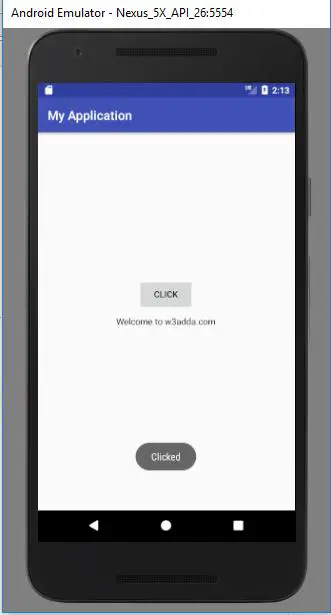
Output:So output of this code will look like below images. First Image when you will run this code and second when you will click on Button.

1

2

Conversion Java to Kotlin

Intent & Conversion from Java to Kotlin

Intent: As we know that intent is used to redirect one activity to another activity.Intent Facilitate communication between components, It is Used to invoke components. Uses of Intent are: Starting an Activity, Starting a Service ,Delivering a Broadcast etc.
Types of Intent : Explicit Intents, Implicit Intents .
It is briefly discussed in Android tutorial, Please check Android tutorial for more details.

Android studio version 3.0 provide us facilities to convert our Java class to Kotlin class by following some easy steps. Lets see these steps.


Example: With this given example we get understand about conversion and Also we will learn use of Intent in Android with Kotlin. Follow below steps for Conversion.

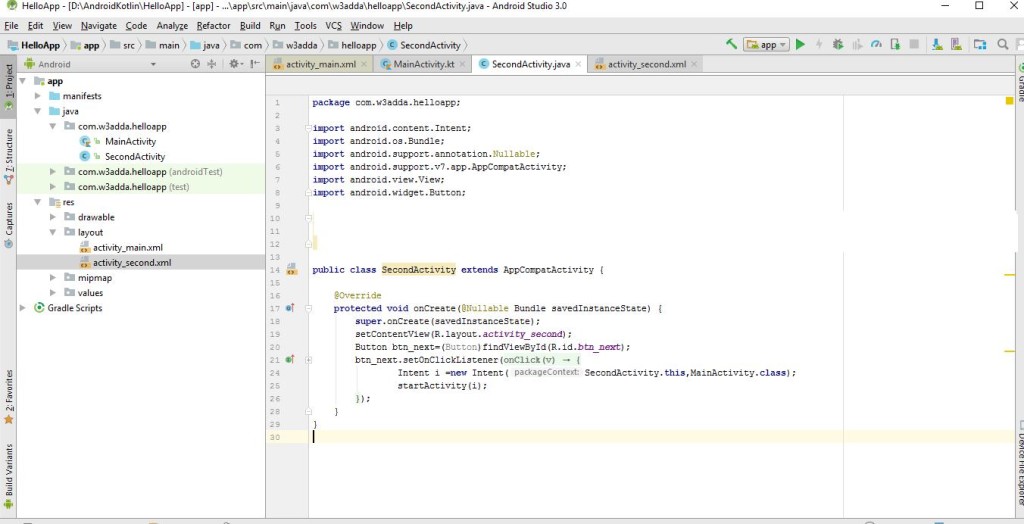
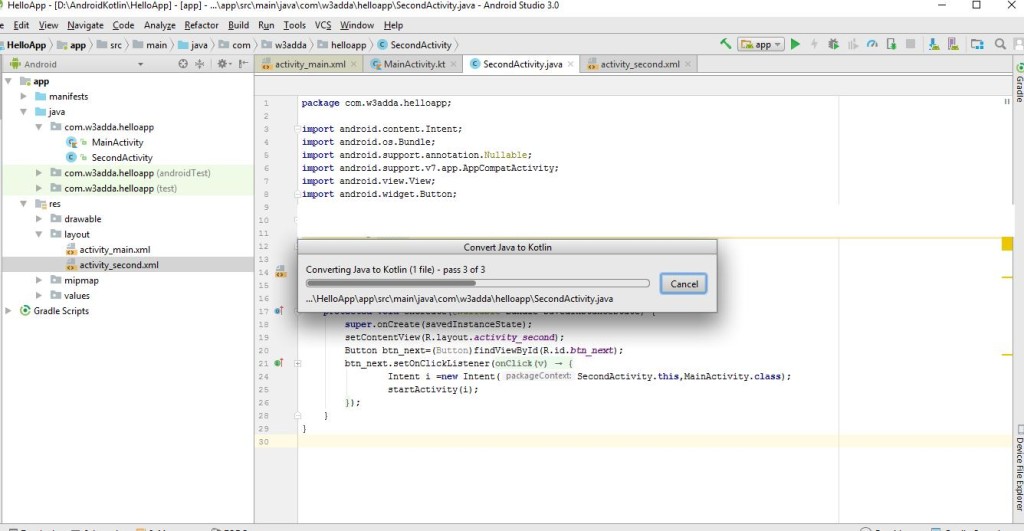
Step 1st: In below screen I wrote code of activity in java which we used to do before Kotlin.

1

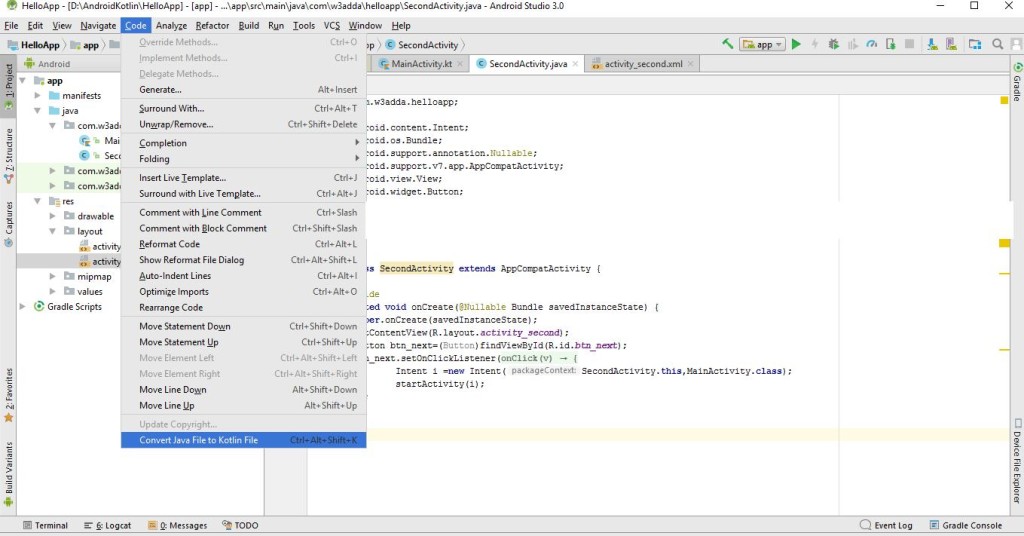
Step 2nd :Click on “Code” option in menu of Android Studio and go to “Convert Java File to Kotlin File” or simply use shortcut press “Ctrl+Alt+Shift+K” for converting Java file to Kotlin file. Like below Image.

2

# After Pressing this option it will be doing process for converting Java File to Kotlin.

3

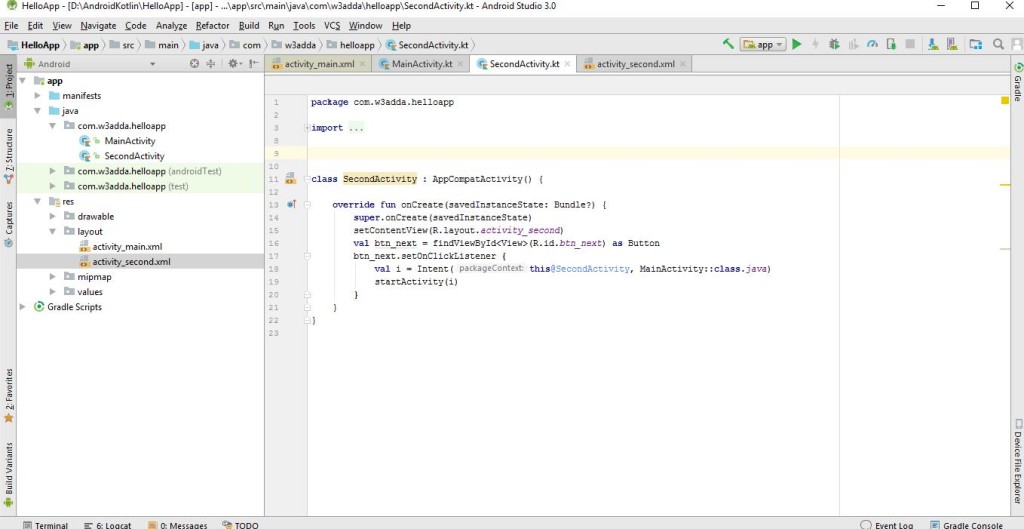
Step 3rd: In step third the Java file is converted to Kotlin File, Just check below image.

4

So this was Java file to Kotlin file conversion. I have used two Activities here , First One is MainActivity and Second one is SecondActivity (Converted file).

#MainActivity.kt: The below code is used for Main Activity.

#SecondActivity.java:The below code is used for Second Activity(Before Conversion).

SecondActivity.kt: After conversion of java file to Kotlin file will look like below code.

XML: There are three XML files are used in this project 1st is for Main Activity, 2nd is for Second Activity and 3rd is “Header” File which is used in both XML. Checkout all below.

#header.xml:

#activity_main:

#activity_second:

So we are all set for this code. Guys do not forget to declare Second Activity in “Manifest.xml” file.

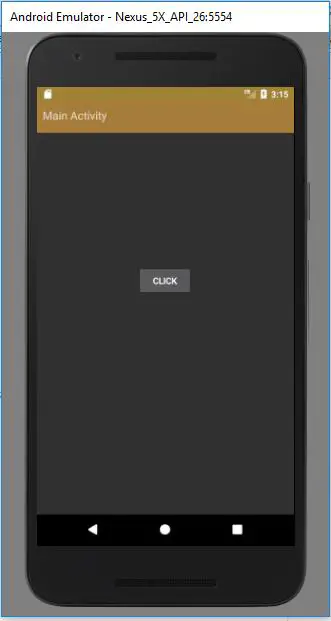
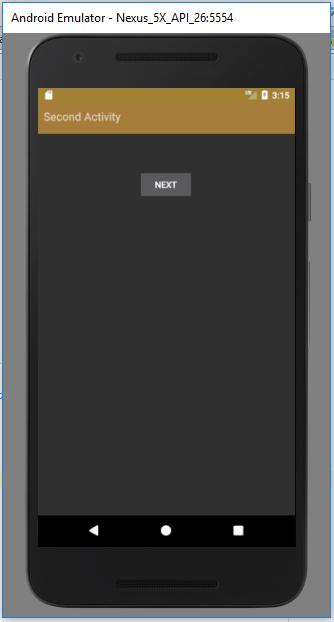
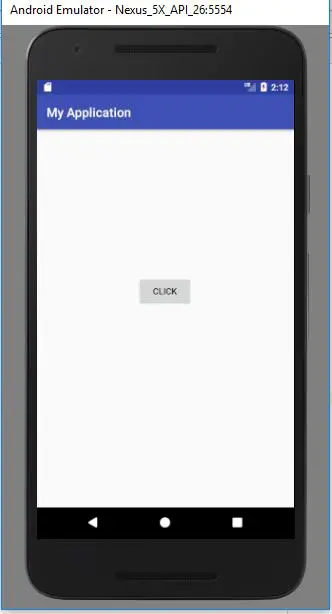
Run: Follow all steps and after completion Run your project, you will get Output like below images.
5

6


Hopefully this will help you to get conversion of Java file to Kotlin file and also Intent in Kotlin.

Kotlin Android Hello World

As we know that Google has announced that Kotlin is official language for android. It has briefly discussed in introduction article of Kotlin with Android. Let’s make our first “Hello World” Project with Kotlin. Please Update your Android Studio before start coding with Kotlin.
Create An Android Application With Kotlin:
For creation of new project with Kotlin Let’s Open your Android Studio and click on New Project. You will get screen like below image.

hello-world-1

Enter Application Name and company domain, Do not forget to check “Include Kotlin support”. Click on Next button, You will get new screen like below image.

hello-world-2

#Select your minimum sdk version and click on “Next”, You will get new screen like below image.

hello-world-3

# Again Click on Next Button and then finish it like below image.

hello-world-4

#So Below is your Android Activity with Kotlin. The Extension is with “.kt” .

hello-world-5

Declare Activity: Below is the code for declaration of an Activity in both language Java and Kotlin.

Declare Activity in Kotlin:

Declare Activity in Java:

So this was the way that how you declare Activity in both Language.

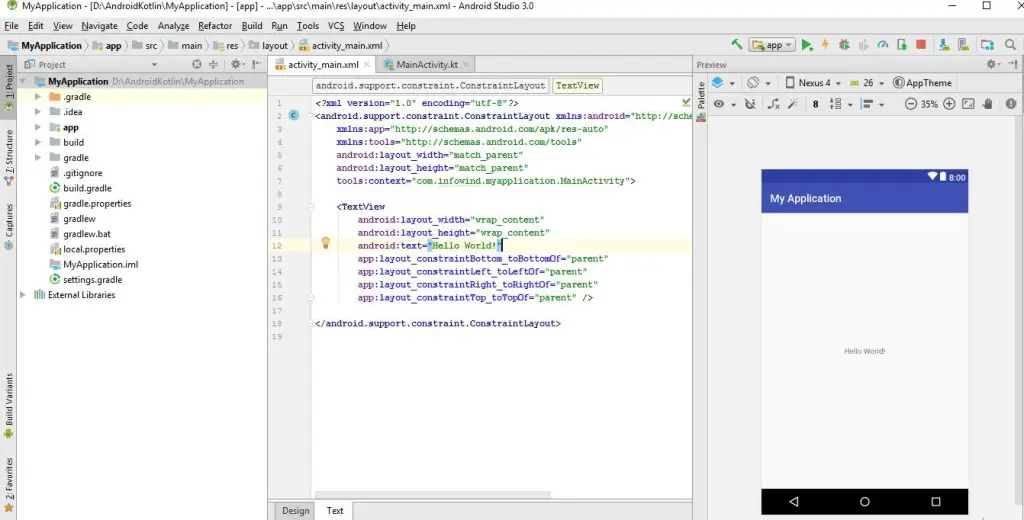
#XML: Default Xml when you first time create any project will look like below image.

hello-world-6

Run: You are all set with your “Hello World” project, just click on Run button and output will display like below image.

hello-world-7

So this was simple project of Android With Kotlin, Hopefully It will clear your basic with Kotlin.