Category Archives: Blog

Blog

Laravel 5.8 Dropzone Multiple Image Uploading

Laravel 5.8 Dropzone Multiple Image Uploading

In this Laravel 5.8 Dropzone Multiple Image Upload with preview example, I will show you how to upload files with drag and drop interface using dropzone.js in your Laravel 5 applications. Dropzone is an open source light weight JavaScript library that provides drag and drop features to upload images with preview images. In this example before uploading the image we will display preview of the image and then save it into directory. In order to use dropzone plugin we need to include the Dropzone javascript and CSS files in your laravel blade file. This tutorial we learn to :-

  • Uploading multiple images with dropzone
  • Saving images with unique file names to database

Install Laravel 5.8

First of all we need to create a fresh laravel project, download and install Laravel 5.8 using the below command

Configure Database In .env file

Now, lets create a MySQL database and connect it with laravel application. After creating database we need to set database credential in application’s .env file.

.env

Generate Migration

Now, we have to define table schema for photos table. Open terminal and let’s run the following command to generate a migration file to create photos table in our database.

Once this command is executed you will find a migration file created under “database/migrations”. lets open migration file and put following code in it –

Run Migration

Now, run following command to migrate database schema.

After, the migration executed successfully the photos table will be created in database along with migrations, password_resets and users table.

Create Model

Next, we need to create a model called Photo using below command.

Once, the above command is executed it will create a model file Photo.php in app directory.

Create Controller

Now, create a controller to upload image. Create a controller named ImageUploadController using command given below –

Once the above command executed, it will create a controller file ImageUploadController.php in app/Http/Controllers/dropzone_image_upload/ directory. Open the ImageUploadController.php file and put the following code in it.

app/Http/Controllers/dropzone_image_upload/ImageUploadController.php

Here In the controller, we have following methods –

index() :- It displays Drozone Multiple Image Upload Form

store() :- To Upload using Dropzone and Save Multiple Image in database.

Note:- Before uploading any file make sure you have created following two directory in the public folder called profile_images.

Create Blade / View Files

In this step, we will create view/blade file to display Image Upload Form. Lets create a blade file “index.blade.php” in “resources/views/dropzone_image_upload/” directory and put the following code in it respectively.

Include Dropzone Javascript and CSS files

In order to use dropzone plugin we need to include following Dropzone javascript and CSS files in your laravel blade file.

Dropzone CSS :-

In this file we will be adding dropzone.min.css along with the our bootstrap.min.css as following –

Dropzone Javascript :-

Here we will add dropzone.js file along with the jquery.js as following –

Configure Dropzone Plugin with Remove Image Link

Next, we will provide initial configurations for Dropzone plugin.We setup follwoing dropzone options –

maxFilesize:- Maximum Image size that can be uploaded.

renameFile:- It is used to rename the file before uploading.

acceptedFiles:- File types or extension that can be uploaded.

Now, our blade file will look something like this.

resources/views/dropzone_image_upload/index.blade.php

Create Routes

After this, we need to add following dropzone image upload routes in “routes/web.php” file along with a resource route. Lets open “routes/web.php” file and add following route.

routes/web.php

Now we are ready to run our example so lets start the development server using following artisan command –

Now, open the following URL in browser to see the output –

http://localhost:8000/dropzone-image-upload

Output:-
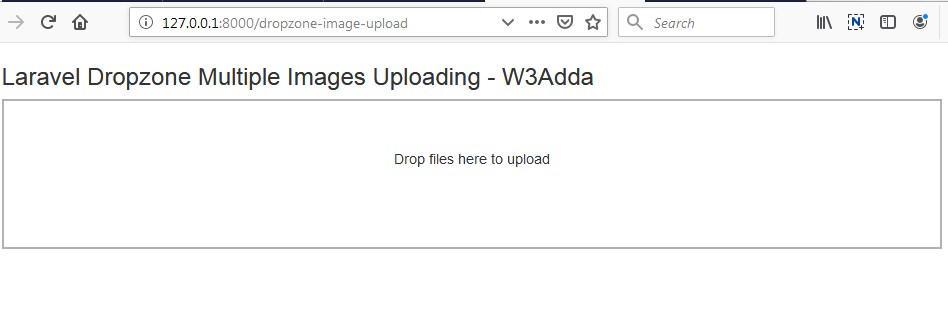
laravel-5-8-dropzone-multiple-image-upload-1

After Image Upload Screen Output:-

Select and Drop Multiple Image files to upload using dropzone.
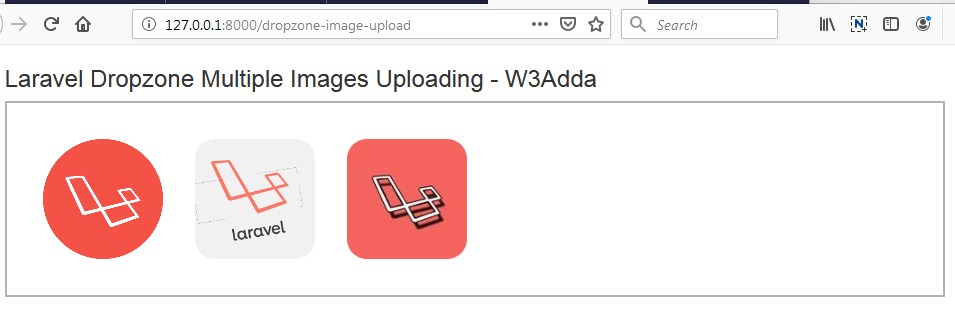
laravel-5-8-dropzone-multiple-image-upload-2

Laravel 5.8 Multiple Image Upload with Preview

Laravel 5.8 Multiple Image Upload with Preview

In this Laravel 5.8 Multiple Image Upload with Preview example, we will learn how to upload image along with preview before upload in laravel 5.8. In this laravel 5.8 multiple image upload example, I’ll show you how to validate upload image into folder and then save it into database. In this tutorial before saving image into database we will show preview of the images and then save it into directory. Before uploading the image we will display preview of the image. After successfully image upload into the database and folder we will display success message on the screen.

Install Laravel 5.8

First of all we need to create a fresh laravel project, download and install Laravel 5.8 using the below command

Configure Database In .env file

Now, lets create a MySQL database and connect it with laravel application. After creating database we need to set database credential in application’s .env file.

.env

Generate Migration

Now, we have to define table schema for photos table. Open terminal and let’s run the following command to generate a migration file to create photos table in our database.

Once this command is executed you will find a migration file created under “database/migrations”. lets open migration file and put following code in it –

Run Migration

Now, run following command to migrate database schema.

After, the migration executed successfully the photos table will be created in database along with migrations, password_resets and users table.

Create Model

Next, we need to create a model called Photo using below command.

Once, the above command is executed it will create a model file Photo.php in app directory.

Create Controller

Now, lets create a controller for multiple image uploading. Create a controller named ImageUploadController using command given below –

Once the above command executed, it will create a controller file ImageUploadController.php in app/Http/Controllers/multiple_image_upload/ directory. Open the ImageUploadController.php file and put the following code in it.

app/Http/Controllers/multiple_image_upload/ImageUploadController.php

Here In the controller, we have following methods –

index() :- It displays Image Upload Form along with Uploaded Image

store() :- To Upload and Save Multiple Image in database .

Note:- Before uploading any file make sure you have created following two directory in the public folder called profile_images.

Create Blade / View Files

In this step, we will create view/blade file to display Image Upload Form. Lets create a blade file “index.blade.php” in “resources/views/multiple_image_upload/” directory and put the following code in it respectively.

resources/views/multiple_image_upload/index.blade.php

Create Routes

After this, we need to add following routes in “routes/web.php” file along with a resource route. Lets open “routes/web.php” file and add following route.

routes/web.php

Now we are ready to run our example so lets start the development server using following artisan command –

Now, open the following URL in browser to see the output –

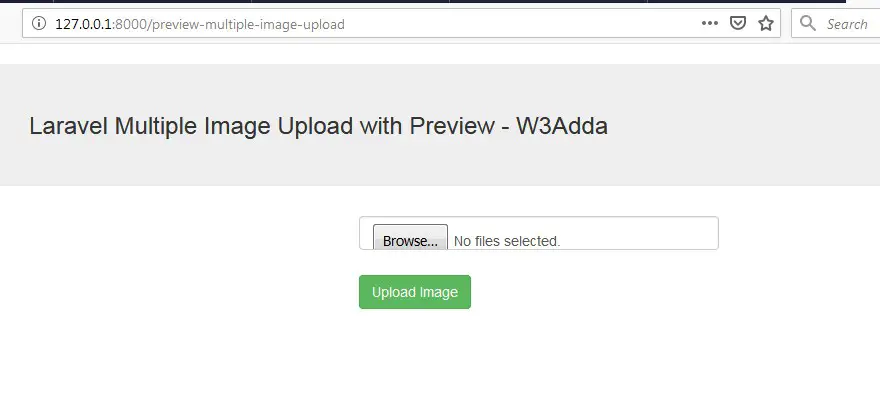
http://localhost:8000/preview-multiple-image-upload

Output:-

laravel-5-8-multiple-image-upload-with-preview-1

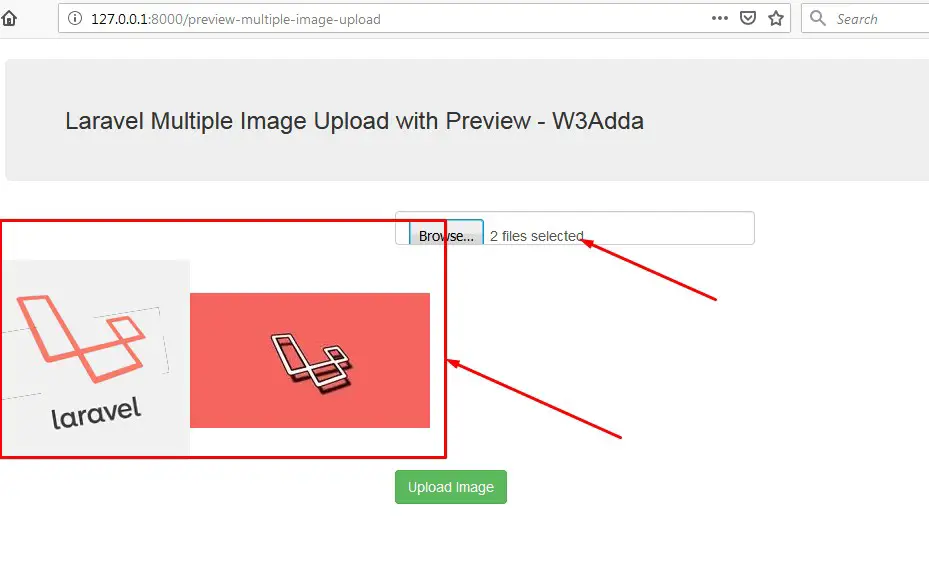
After Image Upload Screen Output:-

Select Multiple Image files to upload.

laravel-5-8-multiple-image-upload-with-preview-2
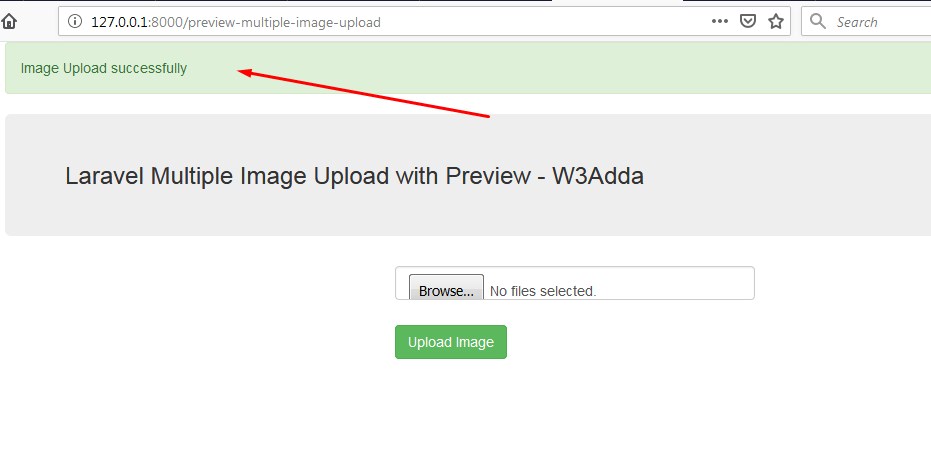
Now, upload image.

laravel-5-8-multiple-image-upload-with-preview-3

Laravel 5.8 Multiple Image Upload with jQuery Add More Button

Laravel 5.8 Multiple Image Upload with jQuery Add More Button

In this Laravel 5.8 Multiple Image Upload with jquery add more button example, we will learn how to upload multiple image using jquery add more button. In this laravel 5.8 multiple image upload example, I’ll show you how to validate and upload multiple image into folder and then save it into database. In this tutorial, we will use jquery to populate multiple image or file upload field. Before saving multiple image into database we will validate image and then save it into directory. After successfully uploading multiple images into the folder and saving it in database we will display success message on the screen.

Install Laravel 5.8

First of all we need to create a fresh laravel project, download and install Laravel 5.8 using the below command

Configure Database In .env file

Now, lets create a MySQL database and connect it with laravel application. After creating database we need to set database credential in application’s .env file.

.env

Generate Migration

Now, we have to define table schema for photos table. Open terminal and let’s run the following command to generate a migration file to create photos table in our database.

Once this command is executed you will find a migration file created under “database/migrations”. lets open migration file and put following code in it –

Run Migration

Now, run following command to migrate database schema.

After, the migration executed successfully the photos table will be created in database along with migrations, password_resets and users table.

Create Model

Next, we need to create a model called Photo using below command.

Once, the above command is executed it will create a model file Photo.php in app directory.

Create Controller

Now, lets create a controller for multiple image uploading. Create a controller named ImageUploadController using command given below –

Once the above command executed, it will create a controller file ImageUploadController.php in app/Http/Controllers/jquery_multiple_image_upload/ directory. Open the ImageUploadController.php file and put the following code in it.

app/Http/Controllers/jquery_multiple_image_upload/ImageUploadController.php

Here In the controller, we have following methods –

index() :- It displays Image Upload Form along with jQuery Add More Button.

store() :- To Upload and Save Multiple Image in database .

Note:- Before uploading any file make sure you have created following two directory in the public folder called profile_images.

Create Blade / View Files

In this step, we will create view/blade file to display Image Upload Form. Lets create a blade file “index.blade.php” in “resources/views/jquery_multiple_image_upload/” directory and put the following code in it respectively.

resources/views/jquery_multiple_image_upload/index.blade.php

jQuery Add More Button To File Upload Field Dynamically

Now, we will append a “Add” button to clone and append multiple file upload field to the form. Below is final view file code –

resources/views/jquery_multiple_image_upload/index.blade.php

Create Routes

After this, we need to add following routes in “routes/web.php” file along with a resource route. Lets open “routes/web.php” file and add following route.

routes/web.php

Now we are ready to run our example so lets start the development server using following artisan command –

Now, open the following URL in browser to see the output –

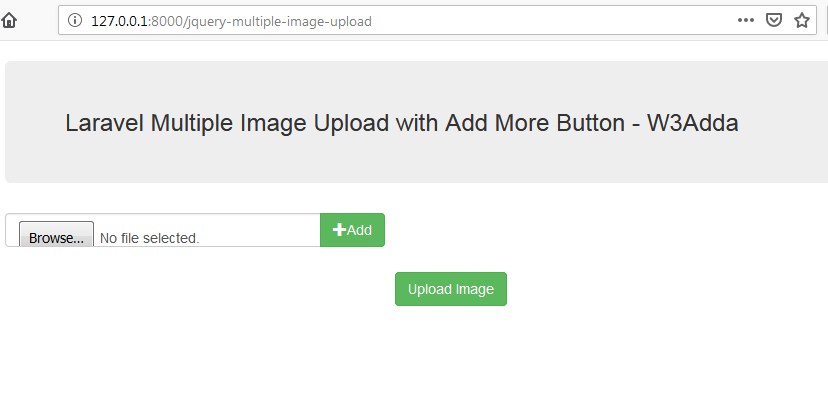
http://localhost:8000/jquery-multiple-image-upload

Output:-

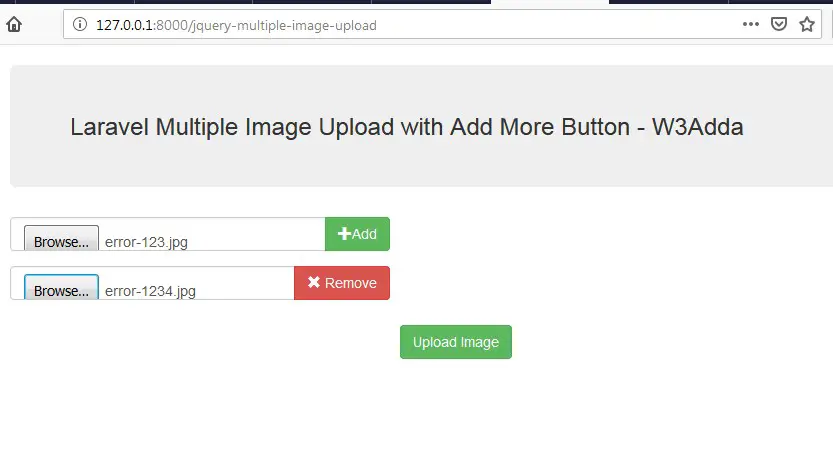
laravel-5-8-multiple-image-upload-add-more-button-1

After Image Upload Screen Output:-

Click “Add” button to add Multiple Image files to upload control.

laravel-5-8-multiple-image-upload-add-more-button-2
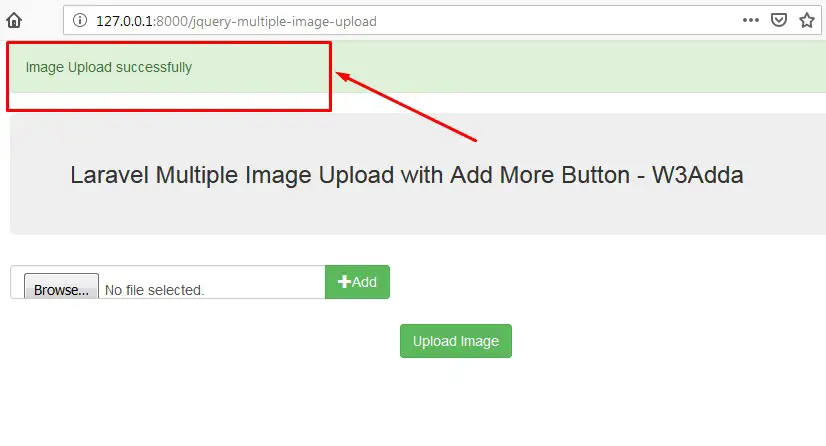
Now, upload image.

laravel-5-8-multiple-image-upload-add-more-button-3

Laravel 5.8 Multiple Image Upload Tutorial with Example

Laravel 5.8 Multiple Image Upload Tutorial with Example

In this Laravel 5.8 Multiple Image Upload example, we will learn how to upload multiple image along with validation in laravel 5.8. In this laravel 5.8 multiple image upload example, I’ll show you how to validate and upload multiple image into folder and then save it into database. In this tutorial before saving multiple image into database we will validate image and then save it into directory. Before uploading the image we will validate the image. After successfully uploading multiple images into the folder and saving it in database we will display success message on the screen.

Install Laravel 5.8

First of all we need to create a fresh laravel project, download and install Laravel 5.8 using the below command

Configure Database In .env file

Now, lets create a MySQL database and connect it with laravel application. After creating database we need to set database credential in application’s .env file.

.env

Generate Migration

Now, we have to define table schema for photos table. Open terminal and let’s run the following command to generate a migration file to create photos table in our database.

Once this command is executed you will find a migration file created under “database/migrations”. lets open migration file and put following code in it –

Run Migration

Now, run following command to migrate database schema.

After, the migration executed successfully the photos table will be created in database along with migrations, password_resets and users table.

Create Model

Next, we need to create a model called Photo using below command.

Once, the above command is executed it will create a model file Photo.php in app directory.

Create Controller

Now, lets create a controller for multiple image uploading. Create a controller named ImageUploadController using command given below –

Once the above command executed, it will create a controller file ImageUploadController.php in app/Http/Controllers/multiple_image_upload/ directory. Open the ImageUploadController.php file and put the following code in it.

app/Http/Controllers/multiple_image_upload/ImageUploadController.php

Here In the controller, we have following methods –

index() :- It displays Image Upload Form along with Uploaded Image

store() :- To Upload and Save Multiple Image in database .

Note:- Before uploading any file make sure you have created following two directory in the public folder called profile_images.

Create Blade / View Files

In this step, we will create view/blade file to display Image Upload Form. Lets create a blade file “index.blade.php” in “resources/views/multiple_image_upload/” directory and put the following code in it respectively.

resources/views/multiple_image_upload/index.blade.php

Create Routes

After this, we need to add following routes in “routes/web.php” file along with a resource route. Lets open “routes/web.php” file and add following route.

routes/web.php

Now we are ready to run our example so lets start the development server using following artisan command –

Now, open the following URL in browser to see the output –

http://localhost:8000/multiple-image-upload

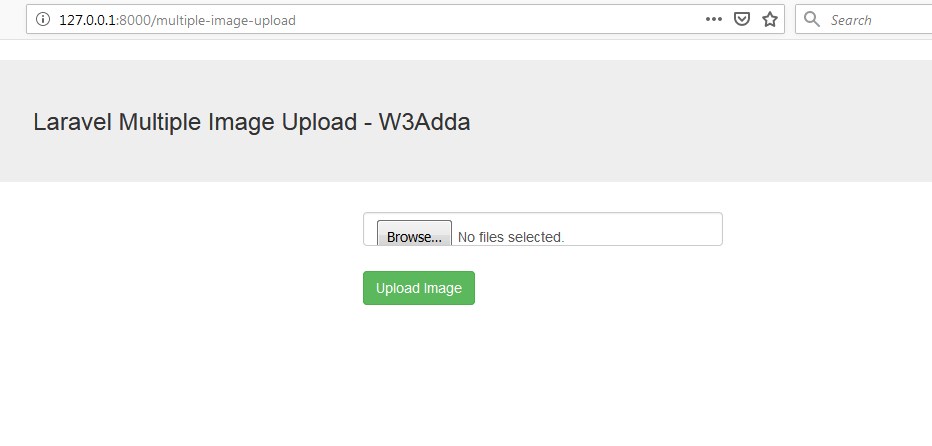
Output:-

laravel-5-8-multiple-image-upload-1

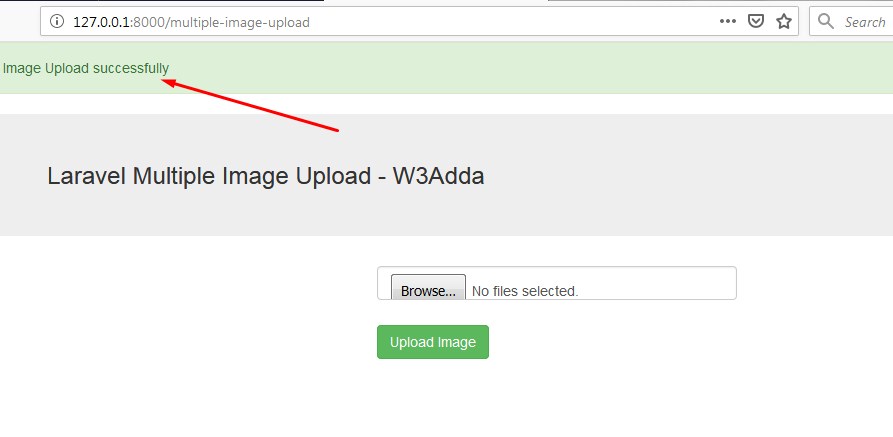
After Image Upload Screen Output:-

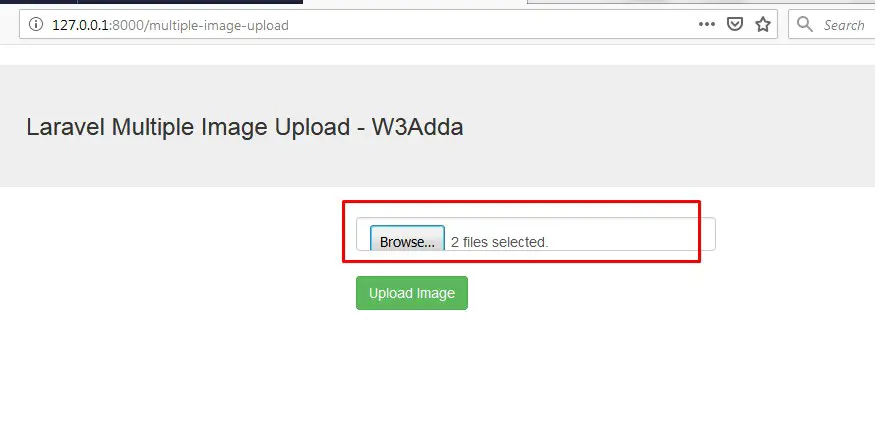
Select Multiple Image files to upload.

laravel-5-8-multiple-image-upload-2
Now, upload image.

laravel-5-8-multiple-image-upload-3

Laravel 6 Image Upload With Preview

Laravel 6 Image Upload With Preview

In this Laravel 6 Image Upload with Preview example, we will learn how to upload image along with preview before upload in laravel 6. In this laravel 6 simple image upload example, I’ll show you how to validate upload image into folder and then save it into database. In this tutorial before saving image into database we will show preview of the image and then save it into directory. Before uploading the image we will display preview of the image. After successfully image upload into the database and folder we will display success message on the screen.

Install Laravel 6

First of all we need to create a fresh laravel project, download and install Laravel 6 using the below command

Configure Database In .env file

Now, lets create a MySQL database and connect it with laravel application. After creating database we need to set database credential in application’s .env file.

.env

Generate Migration

Now, we have to define table schema for photos table. Open terminal and let’s run the following command to generate a migration file to create photos table in our database.

Once this command is executed you will find a migration file created under “database/migrations”. lets open migration file and put following code in it –

Run Migration

Now, run following command to migrate database schema.

After, the migration executed successfully the photos table will be created in database along with migrations, password_resets and users table.

Create Model

Next, we need to create a model called Photo using below command.

Once, the above command is executed it will create a model file Photo.php in app directory.

Create Controller

Now, lets create a controller for simple image uploading. Create a controller named ImageUploadController using command given below –

Once the above command executed, it will create a controller file ImageUploadController.php in app/Http/Controllers/simple_image_upload/ directory. Open the ImageUploadController.php file and put the following code in it.

app/Http/Controllers/simple_image_upload/ImageUploadController.php

Here In the controller, we have following methods –

index() :- It displays Image Upload Form along with Preview Image before uploading

store() :- To Upload and Save Image in database.

Note:- Before uploading any file make sure you have created following two directory in the public folder called profile_images.

Create Blade / View Files

In this step, we will create view/blade file to generate and display Image Upload Form. Lets create a blade file “index.blade.php” in “resources/views/simple_image_upload/” directory and put the following code in it respectively.

resources/views/simple_image_upload/index.blade.php

Create Routes

After this, we need to add following routes in “routes/web.php” file along with a resource route. Lets open “routes/web.php” file and add following route.

routes/web.php

Now we are ready to run our example so lets start the development server using following artisan command –

Now, open the following URL in browser to see the output –

http://localhost:8000/preview-image-upload

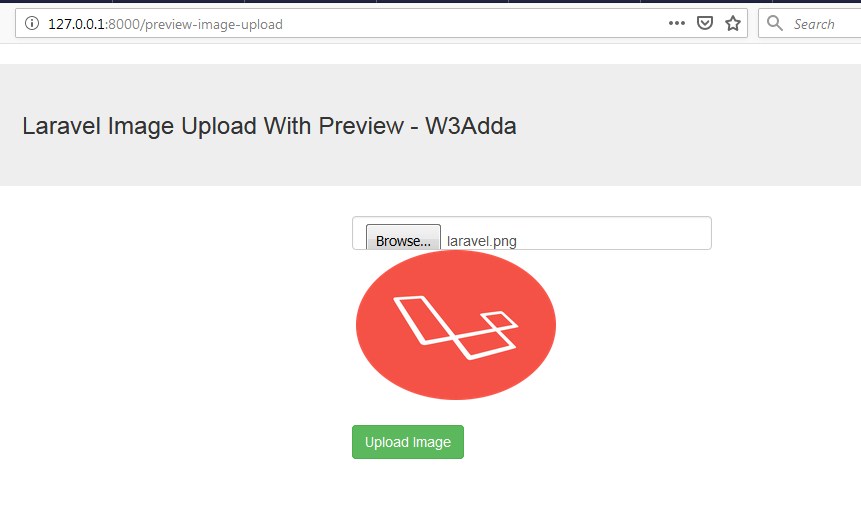
Output:-

laravel-6-image-upload-with-preview-1

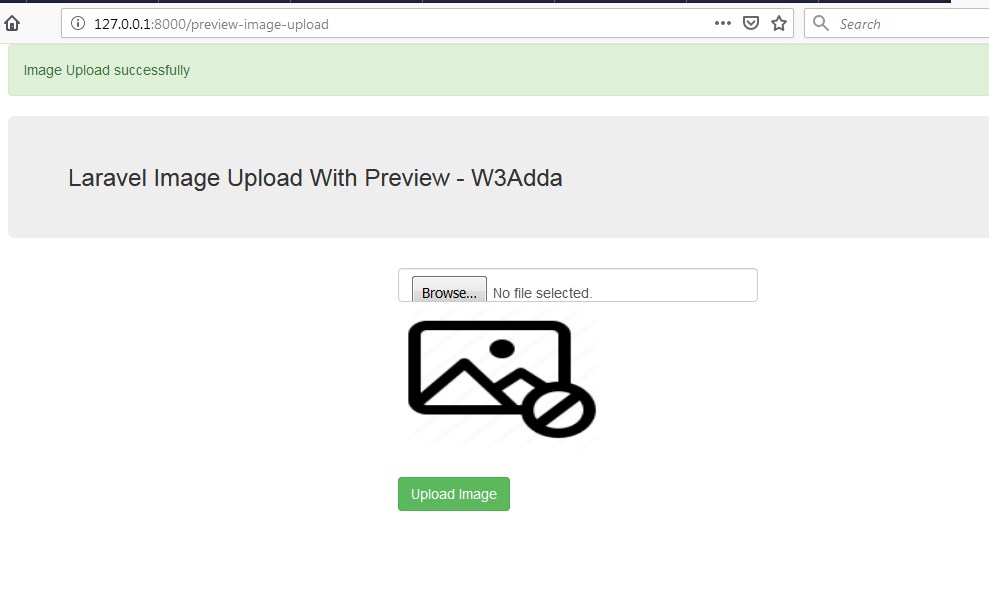
After Image Upload Screen Output:-

laravel-6-image-upload-with-preview-2

Laravel 6 Image Uploading using Ajax Tutorial with Example

Laravel 6 Image Uploading using Ajax Tutorial with Example

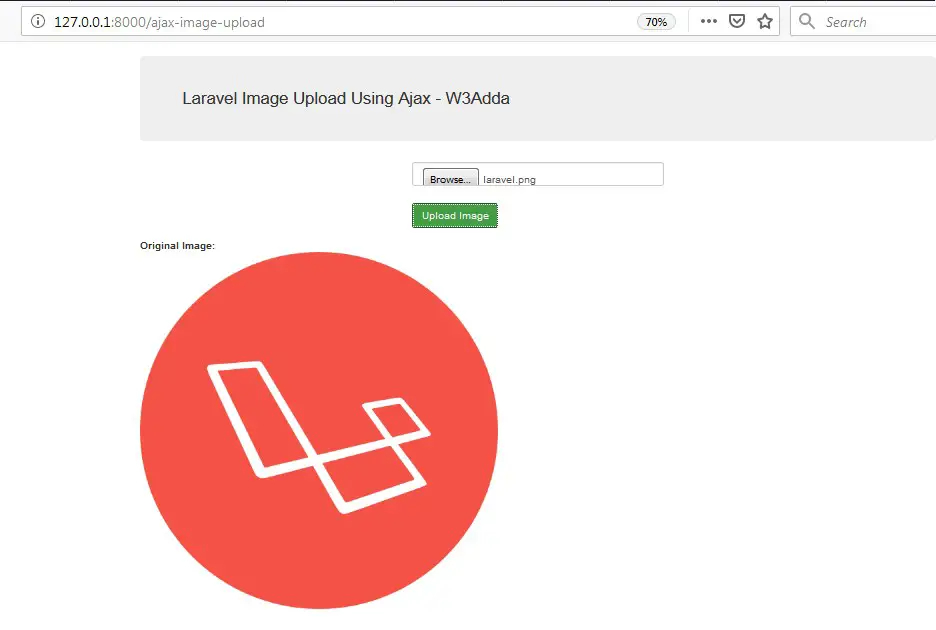
In this Laravel 6 Image Upload using Ajax example, we will learn how to upload and save image in laravel 6 using ajax. In this laravel ajax image upload example, I’ll show you how to validate upload image into folder and then save it into database using ajax. In this tutorial before saving image into database we will validate image and then save it into directory using. Before uploading the image we will perform server side validation. After successfully image upload into the database and folder we will display uploaded image on the screen.

Install Laravel 6

First of all we need to create a fresh laravel project, download and install Laravel 6 using the below command

Configure Database In .env file

Now, lets create a MySQL database and connect it with laravel application. After creating database we need to set database credential in application’s .env file.

.env

Generate Migration

Now, we have to define table schema for photos table. Open terminal and let’s run the following command to generate a migration file to create photos table in our database.

Once this command is executed you will find a migration file created under “database/migrations”. lets open migration file and put following code in it –

Run Migration

Now, run following command to migrate database schema.

After, the migration executed successfully the photos table will be created in database along with migrations, password_resets and users table.

Create Model

Next, we need to create a model called Photo using below command.

Once, the above command is executed it will create a model file Photo.php in app directory.

Create Controller

Now, lets create a controller for simple image uploading. Create a controller named ImageUploadController using command given below –

Once the above command executed, it will create a controller file ImageUploadController.php in app/Http/Controllers/ajax_image_upload/ directory. Open the ImageUploadController.php file and put the following code in it.

app/Http/Controllers/ajax_image_upload/ImageUploadController.php

Here In the controller, we have following methods –

index() :- It displays Image Upload Form along with Uploaded Image

store() :- To Upload and Save Image in database.

Note:- Before uploading any file make sure you have created following two directory in the public folder called profile_images.

Create Blade / View Files

In this step, we will create view/blade file to generate and display Image Upload Form. Lets create a blade file “index.blade.php” in “resources/views/ajax_image_upload/” directory and put the following code in it respectively.

resources/views/ajax_image_upload/index.blade.php

Create Routes

After this, we need to add following routes in “routes/web.php” file along with a resource route. Lets open “routes/web.php” file and add following route.

routes/web.php

Now we are ready to run our example so lets start the development server using following artisan command –

Now, open the following URL in browser to see the output –

http://localhost:8000/ajax-image-upload

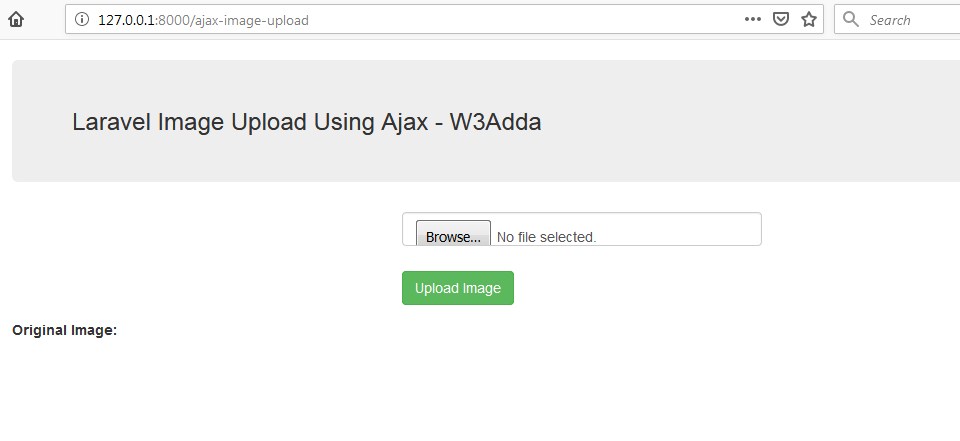
Output:-

laravel-image-uploading-using-ajax-1

After Image Upload Screen Output:-

laravel-image-uploading-using-ajax-2

Laravel 6 Image Upload With Validation

Laravel 6 Image Upload With Validation

In this Laravel 6 Simple Image Upload with validation example, we will learn how to upload and save image in laravel 6. In this laravel simple image upload example, I’ll show you how to validate upload image into folder and then save it into database. In this tutorial before saving image into database we will validate image and then save it into directory using. Before uploading the image we will perform server side validation. After successfully image upload into the database and folder we will display success message on the screen.

Install Laravel 6

First of all we need to create a fresh laravel project, download and install Laravel 6 using the below command

Configure Database In .env file

Now, lets create a MySQL database and connect it with laravel application. After creating database we need to set database credential in application’s .env file.

.env

Generate Migration

Now, we have to define table schema for photos table. Open terminal and let’s run the following command to generate a migration file to create photos table in our database.

Once this command is executed you will find a migration file created under “database/migrations”. lets open migration file and put following code in it –

Run Migration

Now, run following command to migrate database schema.

After, the migration executed successfully the photos table will be created in database along with migrations, password_resets and users table.

Create Model

Next, we need to create a model called Photo using below command.

Once, the above command is executed it will create a model file Photo.php in app directory.

Create Controller

Now, lets create a controller for simple image uploading. Create a controller named ImageUploadController using command given below –

Once the above command executed, it will create a controller file ImageUploadController.php in app/Http/Controllers/simple_image_upload/ directory. Open the ImageUploadController.php file and put the following code in it.

app/Http/Controllers/simple_image_upload/ImageUploadController.php

Here In the controller, we have following methods –

index() :- It displays Image Upload Form along with Uploaded Image

store() :- To Upload and Save Image in database .

Note:- Before uploading any file make sure you have created following two directory in the public folder called profile_images.

Create Blade / View Files

In this step, we will create view/blade file to generate and display Image Upload Form. Lets create a blade file “index.blade.php” in “resources/views/simple_image_upload/” directory and put the following code in it respectively.

resources/views/simple_image_upload/index.blade.php

Create Routes

After this, we need to add following routes in “routes/web.php” file along with a resource route. Lets open “routes/web.php” file and add following route.

routes/web.php

Now we are ready to run our example so lets start the development server using following artisan command –

Now, open the following URL in browser to see the output –

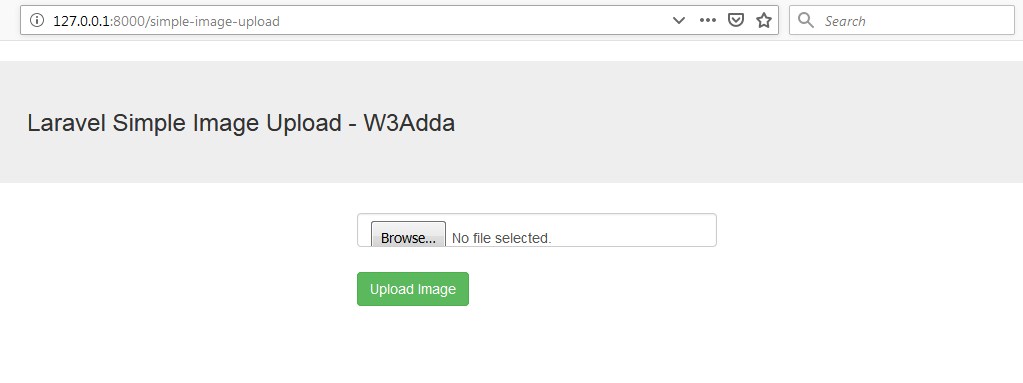
http://localhost:8000/simple-image-upload

Output:-

laravel-simple-image-upload-with-validation-1

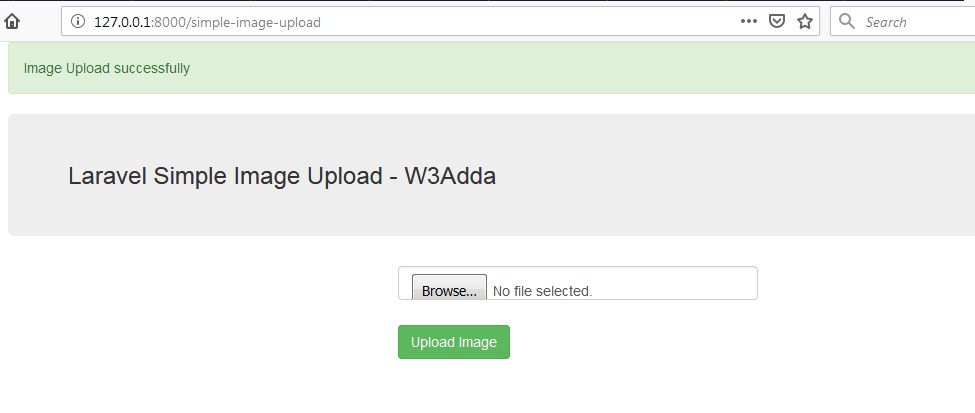
After Image Upload Screen Output:-

laravel-simple-image-upload-with-validation-2

Laravel 5.8 Simple Image Upload With Validation

Laravel 5.8 Simple Image Upload With Validation

In this Laravel Simple Image Upload with validation example, we will learn how to upload and save image in laravel. This laravel image upload example is works with laravel version 6, 5.8 & 5.7.

In this laravel simple image upload example, I’ll show you how to validate upload image into folder and then save it into database. In this tutorial before saving image into database we will validate image and then save it into directory using. Before uploading the image we will perform server side validation. After successfully image upload into the database and folder we will display success message on the screen.

Install Laravel 5.8

First of all we need to create a fresh laravel project, download and install Laravel 5.8 using the below command

Configure Database In .env file

Now, lets create a MySQL database and connect it with laravel application. After creating database we need to set database credential in application’s .env file.

.env

Generate Migration

Now, we have to define table schema for photos table. Open terminal and let’s run the following command to generate a migration file to create photos table in our database.

Once this command is executed you will find a migration file created under “database/migrations”. lets open migration file and put following code in it –

Run Migration

Now, run following command to migrate database schema.

After, the migration executed successfully the photos table will be created in database along with migrations, password_resets and users table.

Create Model

Next, we need to create a model called Photo using below command.

Once, the above command is executed it will create a model file Photo.php in app directory.

Create Controller

Now, lets create a controller for simple image uploading. Create a controller named ImageUploadController using command given below –

Once the above command executed, it will create a controller file ImageUploadController.php in app/Http/Controllers/simple_image_upload/ directory. Open the ImageUploadController.php file and put the following code in it.

app/Http/Controllers/simple_image_upload/ImageUploadController.php

Here In the controller, we have following methods –

index() :- It displays Image Upload Form along with Uploaded Image

store() :- To Upload and Save Image in database .

Note:- Before uploading any file make sure you have created following two directory in the public folder called profile_images.

Create Blade / View Files

In this step, we will create view/blade file to generate and display Image Upload Form. Lets create a blade file “index.blade.php” in “resources/views/simple_image_upload/” directory and put the following code in it respectively.

resources/views/simple_image_upload/index.blade.php

Create Routes

After this, we need to add following routes in “routes/web.php” file along with a resource route. Lets open “routes/web.php” file and add following route.

routes/web.php

Now we are ready to run our example so lets start the development server using following artisan command –

Now, open the following URL in browser to see the output –

http://localhost:8000/simple-image-upload

Output:-

laravel-simple-image-upload-with-validation-1

After Image Upload Screen Output:-

laravel-simple-image-upload-with-validation-2

Laravel 6 Multiple Authentication Using Middleware

Laravel 6 Multiple Authentication Using Middleware

Install Laravel 6

First of all we need to create a fresh laravel project, download and install Laravel 5.8 using the below command

Configure Database In .env file

Now, lets create a MySQL database and connect it with laravel application. After creating database we need to set database credential in application’s .env file.

Migrations and User Model

After installing laravel, you will see the some migration files created inside database/migrations directory for creating default create users table and password reset table. Open app/database/create_users_table.php migration file and add/update the following field for admin.

After you added a column “is_admin” to user table run the migration using following command.

After this, go to app/User.php and add is_admin to fillable attribute in the User Model.

Authentication Scaffolding

Laravel comes with in-built basic authentication system, use the below command to generate default authentication scaffolding –

This command will generate required Controller files, views and add routes in our web.php routes file that are required for basic authentication system.

Create Admin Middleware

Now, we will create a middleware that authenticate users. This middleware will help to make sure who can access the admin area or who can access the normal user area. Use the following command to generate a middleware for Admin.

Next, open app/Http/ Middleware/Admin.php file, and here in handle() method implement the logic to authenticate users like below.

Now, we need to register admin route in $routeMiddleware property in the app/Http/Kernel.php file. Lets open app/Http/Kernel.php file and update the $routeMiddleware property like below –

Set Admin Protected Route

Next, create the route for admin. Open the routes/web.php file and add the following code in it.

routes/web.php

Create Controller Methods

Open the app/Http/Controllers/HomeController.php controller file and create two separate methods to handle admin and normal users.

app/Http/Controllers/HomeController.php

Create Blade/View

Now we will have two separate view files, first is for home page and second is for after login admin page. Open the resources/views/home.blade.php file and update the following code.

resources/views/home.blade.php

Here, if(auth()->user()->is_admin == 1) is used to check user is a normal user or an admin user, it will navigate to the admin area. Otherwise, it will redirect to users area.

Now, create a view file called admin.blade.php in the root of the views folder, and add the following code to it.

resources/views/admin.blade.php

Start Development Server

Start the development server using following artisan command –

In order to test laravel multi auth system first register a user through laravel register and then change the is_admin=1; and try to login again.

User Home 1 :-

laravel-multi-auth-2

After Login Admin Page :-

laravel-multi-auth-1

User Home 2 :-

laravel-multi-auth-3

Laravel 6 Intervention Image Upload Using Ajax

Laravel 6 Intervention Image Upload Using Ajax

In this Laravel Intervention Image Upload Using Ajax example, we will learn how to upload and resize image using jquery ajax. In this tutorial I have used Intervention Image Package to upload and resize the image using jquery ajax and then save image into the database. This laravel image upload example is works with laravel version 6, 5.8 & 5.7 .

In this laravel image upload example, I’ll show you how to upload image into folder and then save it into database. In this tutorial before saving image into database we will resize the image and create it’s thumbnail image and then save it into thumbnail directory using the image intervention package.

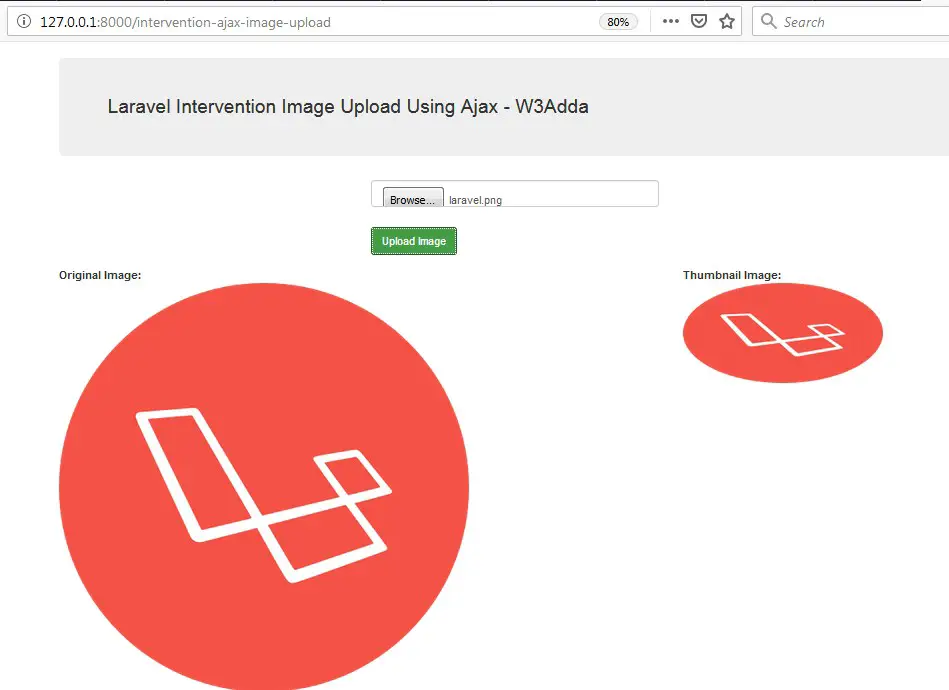
Before uploading the image we will validate it using server side validation. In this example we will be uploading the image using jquery ajax without page refresh and reload. After successfully image upload into the database and folder we will display original image along with its thumbnail image (resize image).

Basic Usage Of Intervention Image Package

Create Instance :-

Resize Image to Fixed Size :-

Resize Image Width:-

Resize Image Height:-

Resize Width with Aspect Ratio:-

Resize Height with Aspect Ratio:-

Prevent Possible Upsizing:-

Install Laravel 6

First of all we need to create a fresh laravel project, download and install Laravel 6 using the below command

Configure Database In .env file

Now, lets create a MySQL database and connect it with laravel application. After creating database we need to set database credential in application’s .env file.

.env

Install Image Intervention Package

In this step, we will install Image intervention Package via the composer dependency manager. Use the following command to install image intervention Package.

Register Package

After Installing Image intervention package, we need to add service provider and alias in config/app.php file as following.

config/app.php

Generate Migration

Now, we have to define table schema for photos table. Open terminal and let’s run the following command to generate a migration file to create photos table in our database.

Once this command is executed you will find a migration file created under “database/migrations”. lets open migration file and put following code in it –

Run Migration

Now, run following command to migrate database schema.

After, the migration executed successfully the photos table will be created in database along with migrations, password_resets and users table.

Create Model

Next, we need to create a model called Photo using below command.

Once, the above command is executed it will create a model file Photo.php in app directory.

Create Controller

Next, we have to create a controller for image uploading and resizing. Create a controller named ImageController using command given below –

Once the above command executed, it will create a controller file ImageController.php in app/Http/Controllers directory. Open the ImageController.php file and put the following code in it.

app/Http/Controllers/ImageController.php

Here In the controller, we have following methods –

AjaxIndex() :- It displays Image Upload Form along with Uploaded Image and its thumbnail

AjaxStore() :- To Upload and Resize Image with Intervention Package using Ajax.

Note:- Before uploading any file make sure you have created following two directory in the public folder called profile_images and /profile_images/thumbnail.

If you want to resize the image proportionally and maintain image aspect ratio then you can use add aspectRatio constraint like this –

Example :-

Example 1:-

and image will not cut off. We are passing width as 400 and height as 150. You can change these values as per your requirement.

If you are looking for hard crop then replace below lines

Create Blade / View Files

In this step, we will create view/blade file to generate and display Image Upload Form. Lets create a blade file “index.blade.php” in “resources/views/AjaxInterventionImageUpload/” directory and put the following code in it respectively.

resources/views/AjaxInterventionImageUpload/index.blade.php

Create Routes

After this, we need to add following routes in “routes/web.php” file along with a resource route. Lets open “routes/web.php” file and add following route.

routes/web.php

Now we are ready to run our example so lets start the development server using following artisan command –

Now, open the following URL in browser to see the output –

http://localhost:8000/intervention-ajax-image-upload

Output:-

laravel-5-intervention-image-upload-using-ajax-1

After Image Upload Screen Output:-

laravel-5-intervention-image-upload-using-ajax-2