Category Archives: Laravel

Laravel Tutorials

Laravel 9 Daily Monthly Weekly Automatic Database Backup

In this Laravel 9 Automatic Daily Database Backup Example tutorial, I’ll show you how to take daily, monthly, weekly automatic backup of database in laravel. In this tutorial you will learn to take daily, monthly, weekly Automatic Database Backup in laravel 9. In this article I will guide you through process how to take daily, monthly, weekly automatic database backup of your laravel application.

Laravel 9 daily, monthly, weekly Automatic Database Backup Example

In this step by step tutorial I’ll guide you through the process to take daily automatic database backup in laravel. Pleasae Follow the instruction given below and take daily automatic database backup in laravel using scheduler cron job:

  • Create Command
  • Register Command In Kernel.php
  • Edit the DbBackup.php
  • Backup Files

Create Command

In this step we will switch to project directory as following:

Then use the below command to create command:

This command creates one file named DbBackup.php.

Register Command In Kernel.php

Now go to app/console and open kernal.php file. And then update the following code into your file:

Edit the DbBackup.php

Now, go to app/Console/Commands/ folder and open DbBackup.php. And then update the following code into your

Backup Files

Finally the above Laravel scheduler command will take backup of database in zipped format and place file at “storage/app/backup”. So you can go to storage/app/backup folder and find daily database backup files here.

Laravel 9 Find Nearest Location By Latitude and Longitude

In this Laravel 9 Find Nearest Location By Latitude and Longitude tutorial I will show you How to find nearest location using latitude and longitude in laravel 9 application. In this tutorial you will learn How to find nearest location using latitude and longitude in laravel 9. In this article I will share example to find nearest location using latitude and longitude in laravel 9 application. When developing any web application we come to situations where we need to find the nearest location using latitude and longitude in laravel. In this tutorial I will help you find nearest location using your current latitude and longitude in laravel 9. In this example we will find neareby place using latitude and longitude query in laravel eloquent. You can get nearest geolocation by mysql radius query laravel 9.

Laravel 9 Find Nearest Location By Latitude and Longitude

In this step by step tutorial I will demonstrate you How to find nearest location using latitude and longitude in laravel 9. Please follow the instruction given below:

  • Install Laravel 9
  • Connecting App to Database
  • Add Route
  • Generate Controller by Command
  • Run Development Server
  • Test This App

Install Laravel 9

First of all we need to create a fresh laravel project, download and install Laravel 9 using the below command

Connecting App to Database

Now, lets create a MySQL database and connect it with laravel application. After creating database we need to set database credential in application’s .env file.

Add Route

After this, we need to define routes in “routes/web.php” file. Lets open “routes/web.php” file and add the following routes in it.

routes/web.php

Generate Controller by Command

Now, lets create a controller named LocationController using command given below –

After successfully create controller go to app/controllers/LocationController.php and update the following code :

Run Development Server

Now we are ready to run our example so lets start the development server using following artisan command –

Now, open the following URL in browser to see the output –

Laravel 9 Get Country City Name & Address From IP Address Example

In this Laravel 9 get country name, country code, city name, and address from user IP address example tutorial I will show you how to get country name, country code, city name, and address from user IP address in laravel 9. In this tutorial you will learn to get country name, country code, city name, and address from user IP address in laravel 9. When you working on web development project you come to situation where you may want to fetch user information such as country Name, country Code, region Code, region Name, city Name, zip Code, iso Code, postal Code, latitude, longitude, metro Code, metro Code from ip address in laravel 9. In this example I will help you to fetch user info from IP their ip address. We will be using stevebauman/location package in this example to fetch country name, country code, city name, and address from IP address.

Laravel 9 Get Country, City Name & Address From IP Address Example

In this step by step tutorial I will demonstrate you with example to fetch country name, country code, city name, and address from IP address. Please follow the instruction given below:

  • Install Laravel 9
  • Connecting App to Database
  • Install “stevebauman/location”
  • Add Routes
  • Create Controller By Command
  • Start Development Server

Install Laravel 9

First of all we need to create a fresh laravel project, download and install Laravel 9 using the below command

Connecting App to Database

Now, lets create a MySQL database and connect it with laravel application. After creating database we need to set database credential in application’s .env file.

Install “stevebauman/location”

In this step, we will install stevebauman/location Package via the composer dependency manager. Use the following command to install stevebauman/location Package.

Then, Go to config directory and open app.php file. And register this package into laravel 9 app by adding the following code into your app.php file:

Now you need to run the following command on terminal to publish config/location.php file:

Add Routes

After this, we need to define routes in “routes/web.php” file. Lets open “routes/web.php” file and add the following routes in it.

routes/web.php

Create Controller By Command

Now, lets create a controller named GeoLocationController using command given below –

Now, go to app\Http\Controllers and open GeoLocationController.php file. Then put the following code into your GeoLocationController.php file:

Start Development Server

Now we are ready to run our example so lets start the development server using following artisan command –

Now, open the following URL in browser to see the output –

Laravel 9 Multiple Image Upload with Preview

In this Laravel 9 Multiple Image Upload with Preview, I’ll show you how to upload image along with preview before upload in laravel 9. In this laravel 9 multiple image upload example, I’ll show you how to validate upload image into folder and then save it into database. In this tutorial before saving image into database we will show preview of the images and then save it into directory. Before uploading the image we will display preview of the image. After successfully image upload into the database and folder we will display success message on the screen.

Laravel 9 Multiple Image Upload with Preview

In this step by step Laravel 9 Multiple Image Upload with Preview tutorial I’ll demonstrate how to upload multiple image in laravel 9 with preview. I’ll also show you how to upload multiple image in laravel 9 with preview. Please follow the steps given below:

  • Install Laravel 9
  • Database Configuration
  • Build Photo Model & Migration
  • Create Routes
  • Generate Controller using Artisan Command
  • Create Blade View
  • Start Development Server
  • Start App on Browser

Install Laravel 9

First of all we need to create a fresh laravel project, download and install Laravel 9 using the below command

Configure Database

Now, lets create a MySQL database and connect it with laravel application. After creating database we need to set database credential in application’s .env file.

.env

Create Model & Migration

Now, we have to define table schema for photos table. Open terminal and let’s run the following command to generate a migration along with model file to create photos table in our database.

Once this command is executed you will find a migration file created under “database/migrations”. lets open migration file and put following code in it –

Now, run following command to migrate database schema.

After, the migration executed successfully the photos table will be created in database.

Create Routes

After this, we need to add following routes in “routes/web.php” file along with a resource route. Lets open “routes/web.php” file and add following route.

routes/web.php

Create Controller By Artisan Command

Now, lets create a controller for simple image uploading. Create a controller named UploadMultipleImageController using command given below –

Once the above command executed, it will create a controller file UploadMultipleImageController.php in app/Http/Controllers/ directory. Open the UploadMultipleImageController.php file and put the following code in it.

app/Http/Controllers/UploadMultipleImageController.php

Create Blade View

In this step, we will create view/blade file to generate and display multiple Image Upload Form. Lets create a blade file “images-upload-form.blade.php” in “resources/views/” directory and put the following code in it respectively.

resources/views/images-upload-form.blade.php

Run Development Server

Now we are ready to run our example so lets start the development server using following artisan command –

Now, open the following URL in browser to see the output –

Laravel 9 Upload Multiple Files Tutorial

In this Laravel 9 Multiple File Upload Example, I’ll show you how to upload multiple image along with validation in laravel 9. In this laravel 9 multiple image upload example, I’ll show you how to validate and upload multiple image into folder and then save it into database. In this tutorial before saving multiple image into database we will validate image and then save it into directory. Before uploading the image we will validate the image. After successfully uploading multiple images into the folder and saving it in database we will display success message on the screen.

Laravel 9 Multiple File Upload Example

In this step by step tutorial I’ll demonstrate how to upload multiple files in laravel 9 with validation. I’ll also show you how to upload multiple pdf, txt, csv, excel, doc files in laravel 9 application. Please follow the steps to upload multiple files in laravel 9 given below:

  • Install Laravel 9
  • Database Configuration
  • Build Model & Migration
  • Create Routes
  • Build Multi Upload Controller By Artisan Command
  • Create Multiple File Upload Form
  • Create Directory inside Storage/app/public
  • Run Development Server

Install Laravel 9

First of all we need to create a fresh laravel project, download and install Laravel 9 using the below command

Configure Database

Now, lets create a MySQL database and connect it with laravel application. After creating database we need to set database credential in application’s .env file.

.env

Create Model & Migration

Now, we have to define table schema for files table. Open terminal and let’s run the following command to generate a migration along with model file to create files table in our database.

Once this command is executed you will find a migration file created under “database/migrations”. lets open migration file and put following code in it –

Now, run following command to migrate database schema.

After, the migration executed successfully the files table will be created in database.

Create Routes

After this, we need to add following routes in “routes/web.php” file along with a resource route. Lets open “routes/web.php” file and add following route.

routes/web.php

Create Controller By Artisan Command

Now, lets create a controller for simple file uploading. Create a controller named MultiFileUploadController using command given below –

Once the above command executed, it will create a controller file MultiFileUploadController.php in app/Http/Controllers/ directory. Open the MultiFileUploadController.php file and put the following code in it.

app/Http/Controllers/MultiFileUploadController.php

Note:- Before uploading any file make sure you have created following directory in the storage/app/public folder called files.

Create Multiple File Upload Form

In this step, we will create view/blade file to generate and display multiple file Upload Form. Lets create a blade file “multiple-files-upload.blade.php” in “resources/views/” directory and put the following code in it respectively.

resources/views/multiple-files-upload.blade.php

Create Directory inside Storage/app/public

Before uploading any file make sure you have created following directory in the storage/app/public folder called files.

Run Development Server

Now we are ready to run our example so lets start the development server using following artisan command –

Now, open the following URL in browser to see the output –

Laravel 9 Send Email with PDF Attachment Tutorial

In this Laravel 9 Send Email with PDF Attachment Tutorial I will show you how to send email with pdf attachment in laravel 9 application. In this tutorial you will learn to send email with pdf attachment in laravel 9. In this example we will be using niklasravnsborg/laravel-pdf package to generate pdf file to send as email attachment in laravel 9. We will also learn to generate pdf file using generate pdf library in laravel 9. In laravel mail class is used to send email. So, we would like to show you send an email in laravel 9. As well as we will also learn to send email in laravel 9 application using a mailable.

Laravel 9 Send Email with PDF Attachment Tutorial

In this step by step tutorial I will demonstrate you with example to send email with pdf attachment in laravel. Please follow the instruction given below:

  • Install Laravel 9
  • Configuration SMTP in .env
  • Install PDF Library
  • Add Email Send Route
  • Create Directory And Blade View
  • Create Email Controller
  • Run Development Server

Install Laravel 9

First of all we need to create a fresh laravel project, download and install Laravel 9 using the below command

Configuration SMTP in .env

In this step we will be setting smtp detail for mail configuration in Laravel, We will be using following Gmail SMTP details such as username, password inside the .env file.

Install PDF Library

In this step we will install a pdf library in laravel to send pdf file as email attahcment. we will install niklasravnsborg/laravel-pdf Package via the composer dependency manager. Use the following command to install niklasravnsborg/laravel-pdf Package.

After Installing, we need to add service provider and alias in config/app.php file as following.

config/app.php

Now, execute the following command to publish package’s config file to your config directory by using following command:

Add Send Email Route

After this, we need to define routes in “routes/web.php” file. Lets open “routes/web.php” file and add the following routes in it.

routes/web.php

Create Directory And Blade View

In this step, we will create a directory name test inside resources/views directory. Then create an test.blade.php blade view file inside resources/views/ directory. And put the following code into it:

test.blade.php

Create Send Email Controller

Now, lets create a controller named SendEmailController using command given below –

Then go to app/Http/Controllers directory and open SendEmailController.php. Then put the following code into it:

Step 7 – Run Development Server

Now we are ready to run our example so lets start the development server using following artisan command –

Now, open the following URL in browser to see the output –

Laravel 9 Send Email Example Tutorial

In this Laravel 9 Send Email Example Tutorial I will show you how to send email in laravel 9 using mailable and mailtrap. We will use Laravel 9 builtin mailable markdown class to send emails. In order to send email using mailtrap we will implement laravel 9 builtin mailable markdown class. In this post I’ll show you how to integrate mailtrap to send email in laravel 9 application.

Laravel 9 Send Email Example Tutorial

In this step by step tutorial you will understand how to send emails in Laravel 9 with the help of using mailable and mailtrap. I will also demonstrate you how to use Laravel 9 builtin mailable markdown class to send emails using Mailtrap. Please follow the instruction given below:

  • Install Laravel 9 App
  • Setup Database Credentials
  • Configuration SMTP in .env
  • Create Mailable Class
  • Create Email Controller
  • Add Email Send Route
  • Create Directory And Blade View
  • Run Development Server

Install Laravel 9

First of all we need to create a fresh laravel project, download and install Laravel 9 using the below command

Make sure you have composer installed.

Setup Database Credentials

Now, lets create a MySQL database and connect it with laravel application. After creating database we need to set database credential in application’s .env file.

Setting Up Mailtrap Mail Configuration

In this step we will be setting smtp detail for mail configuration in Laravel, We will be using following Gmail SMTP details such as username, password inside the .env file.

If we are sending email from localhost using Gmail SMTP, then it requires you to turn on the “Allow less secure apps” on?. Go to the link provided:

Now, You need to turn on the option “Allow less secure apps”

Create Laravel Markdown Mailable Class

The mailable class in Laravel used for sending emails. Now, lets create a new laravel mailable class using following artisan command:

Once the above command executed, it will create a new laravel mailable class DemoEmail.php in app/Mail/ directory. Open the DemoEmail.php file and put the following code in it.

Create Controller to Send and Email

Now, we will create a controller that will handle the logic to send email. Let’s create DemoEmailController Controller using following command:

Once the above command executed, it will create a controller file DemoEmailController.php in app/Http/Controllers/ directory. Open the DemoEmailController.php file and put the following code in it.

Controllers/DemoEmailController.php

In the DemoEmailController.php we have included DemoEmail Mailable class along with the Mail Facade and Http Response service. Later we have created controller method to send demo email from our laravel 8 application.

Create Route to Send Mail

After this, we need to add following route in “routes/web.php” to send email. Lets open “routes/web.php” file and add following route.

routes/web.php

Create Email Template

In this step, we will create view/blade file to setup email template. Open resources/views/Email/demoEmail.blade.php file, put the following code.

resources/views/Email/demoEmail.blade.php

Start Development Server

Now we are ready to run our example so lets start the development server using following artisan command:

Send Email in Laravel

Now, open the following URL in browser to send email:

Output:-

How to Send Email in Laravel 9 using Mailtrap

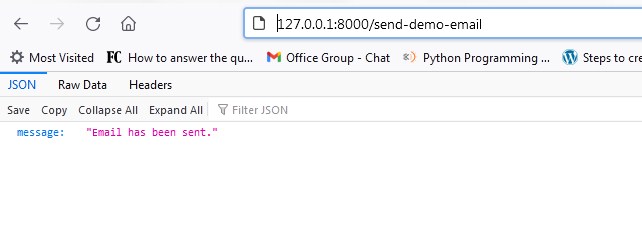
When you visit the link, you will receive the example email in your inbox.

Laravel 9 Crud Rest Api with Passport Auth

In this Laravel 9 CRUD Api with Passport Auth Tutorial I will show you how to create CRUD REST API with passport authentication In laravel 9. In this tutorial you will learn to create crud and authentication rest api using passport authentication In laravel 9 application. In this article I will share example to create rest api for crud operations and user authentication in laravel 9. We will be creating simple crud operation application with user authentication. We will be using passport authentication package in this example. In this example you will learn how to install passport authentication package in laravel 9. After installing and configure passport authentication in laravel.

Laravel 9 User Authentication API

In this example we will be creating user authentication api means we will be creating rest api for user registration, login and to get user info. We will be using passport authentication for creating rest api for user authentication.

Laravel 9 CRUD REST API

We will be creating simple product crud operation application with user authentication. In this article, you will learn how to create fully functional CRUD (Create, Read, Update and Delete) REST API in laravel 9.

Laravel 9 Crud Rest Api with Passport Auth

In this step by step tutorial I will guide you through create a fully functional CRUD API with passport authentication in Laravel 9. Please follow the instruction given below:

  1. Install Laravel 9
  2. Set Up Database
  3. Install Passport Package
  4. Configure Passport Module
  5. Create Post Model & Run Migration
  6. Create a New Controller
  7. Define API Routes
  8. Test Laravel Passport API

Install Laravel 9

First of all we need to create a fresh laravel project, download and install Laravel using the below command

Configure Database

Now, lets create a MySQL database and connect it with laravel application. After creating database we need to set database credential in application’s .env file.

Install Passport Package

In this step, we need to install Laravel Passport package via the composer dependency manager. Use the following command to install passport package.

After successfully install laravel passport, register providers. Open config/app.php . Put the bellow code in it:

config/app.php

Now, it is mandatory to install passport using the command below. This command will generate encryption keys required to generate secret access tokens.

Passport Configuration

Open User.php model file and add ‘Laravel\Passport\HasApiTokens’ trait in it.

app/Models/User.php

go to  app/Providers/AuthServiceProvider.php file and register the registerPolicies() method inside the boot() function.

config/auth.php

Create Product Table and Model

Now, in this step we will create model and migration file. Please run the following command:

Once above command is executed there will be a migration file created inside database/migrations/ directory, just open create_products_table.php migration file and update the function up() method as following:

Next, go to app/Models/Product.php file and add the $fillable property in the Product model as following.

Run Migration

Now, run the migration to create database table using following artisan command:

Create Passport Auth API Controller

Now, lets create a controller named PassportAuthController using command given below –

Once the above command executed, it will create a controller file PassportAuthController.php in app/Http/Controllers/Api/ directory. Open the PassportAuthController.php file and put the following code in it.

app/Http/Controllers/Api/PassportAuthController.php

Create Product CRUD API Controller

Next we will create product crud api controller named ProductController using command given below –

Once the above command executed, it will create a controller file ProductController.php in app/Http/Controllers/Api/ directory. Open the ProductController.php file and put the following code in it.

app/Http/Controllers/Api/ProductController.php

Define API Routes

Now we will define authentication and crud rest API routes. Go to the routes directory and open api.php. Then put the following routes into api.php file:

routes/api.php

Start Development Server

Now we are ready to run our example so lets start the development server using following artisan command –

Laravel 9 User Registration API:

Laravel 9 User Login API:

Laravel 9 Get User Info. API:


You need to set this access token as a Bearer Token in the Authorization header.

Product List API

Product Create API

Method:- POST

Product Fetch API

Method:- GET

Product Update API

Method:- PUT

Product Delete API

Method:- DELETE

Laravel 9 Simple CRUD REST API Using Passport Authentication

In this Laravel 9 Simple CRUD REST API Using Passport Authentication Tutorial I will show you how to create CRUD REST API with passport authentication In laravel 9. In this tutorial you will learn to create rest api for crud operation with passport authentication In laravel 9. In this article I will share example to create crud rest api with passport authentication in laravel. I will also show you how to install passport auth package in laravel. After installing and configure passport authentication in laravel we will create simple crud operation rest api. In this article we will be creating a simple post management crud operation rest api with passport authentication in laravel.

Laravel 9 REST API with Passport Authentication

In this step by step tutorial I will guide you through create a fully functional restful API with passport authentication in Laravel 9. We will be creating fully functional REST API along with passport Authentication. Please follow the instruction given below:

  1. Install New Laravel Project
  2. Set Up Database
  3. Install Passport Package
  4. Configure Passport Module
  5. Create Post Model & Run Migration
  6. Create a New Controller
  7. Define API Routes
  8. Test Laravel Passport API

Install Laravel 9

First of all we need to create a fresh laravel project, download and install Laravel using the below command

Set Up Database

Now, lets create a MySQL database and connect it with laravel application. After creating database we need to set database credential in application’s .env file.

Install Passport Package

In this step, we need to install Laravel Passport package via the composer dependency manager. Use the following command to install passport package.

Now, run following command to migrate database schema.

Now, it is mandatory to install passport using the command below. This command will generate encryption keys required to generate secret access tokens.

Configure Passport Module

Open App/User.php model file and add ‘Laravel\Passport\HasApiTokens’ trait in it.

Next, open app/Providers/AuthServiceProvider.php file and register the registerPolicies() method inside the boot() function, It will evoke the required routes.

Register the PassportServiceProvider class in providers array inside the config/app.php file:

Configure driver for the Passport, get inside the config/auth.php file and make the changes as shown below.

Create Posts Model & Run Migration

Now, in this step we will create model and migration file. Please run the following command:

Once above command is executed there will be a migration file created inside database/migrations/ directory, just open timestamp_create_posts_table.php migration file and update the function up() method as following:

Next, go to app/Models/Post.php file and add the $fillable property in the Post model as following.

Now, run the migration to create database table using following artisan command:

Create a New Controller

Now, lets create a controller named PassportAuthController using command given below –

Once the above command executed, it will create a controller file PassportAuthController.php in app/Http/Controllers/ directory. Open the PassportAuthController.php file and put the following code in it.

app/Http/Controllers/PassportAuthController.php

Now open app/Models/User.php file and put the following code in it:

Now, lets create a controller named PostController using command given below –


Add the following code in PostController.php file.

Define API Routes

Now we will create rest API auth and crud operation routes. Go to the routes directory and open api.php. Then put the following routes into api.php file:

routes/api.php

Test Laravel 9 Passport API

Now we are ready to run our example so lets start the development server using following artisan command –

Now, we will call above create crud and auth apis in postman app:

Register API:

Login Passport API:

Passport Post Create API:


You need to set this access token as a Bearer Token in the Authorization header.

Post List API:

Post Update API:

Post Delete API:

Laravel 9 User Registration Login Api with Passport Authentication

In this Laravel 9 User Registration Login Api with Passport Authentication Tutorial I will show you how to create user authentication(registration and login) REST API with passport authentication In laravel. In this tutorial you will learn to create authentication rest api with passport authentication In laravel 9 application. In this article I will share example to create rest api for user authentication using passport authentication in laravel 9. I will also show you how to install passport authentication package in laravel 9. After installing and configure passport authentication in laravel we will create simple user authentication rest api.

Laravel 9 User Authentication API

By user authentication means to validation and authentication valid application users. User authentication allows to register new user into application and to login existing application users. In this tutorial we will be creating user authentication api means we will be creating rest api for user registration, login and to get user info. We will be using passport authentication for creating rest api for user authentication in this example laravel 9 application.

Laravel 9 User Registration Login Api with Passport Authentication

In this step by step tutorial I will guide you through create a fully functional restful API with passport authentication in Laravel 9. Please follow the instruction given below:

  1. Install Laravel 9
  2. Set Up Database
  3. Install Passport Package
  4. Configure Passport Module
  5. Create Post Model & Run Migration
  6. Create a New Controller
  7. Define API Routes
  8. Test Laravel Passport API

Install Laravel 9

First of all we need to create a fresh laravel project, download and install Laravel using the below command

Configure Database

Now, lets create a MySQL database and connect it with laravel application. After creating database we need to set database credential in application’s .env file.

Install Passport Package

In this step, we need to install Laravel Passport package via the composer dependency manager. Use the following command to install passport package.

After successfully install laravel passport, register providers. Open config/app.php . Put the bellow code in it:

config/app.php

Now, it is mandatory to install passport using the command below. This command will generate encryption keys required to generate secret access tokens.

Passport Configuration

Open User.php model file and add ‘Laravel\Passport\HasApiTokens’ trait in it.

app/Models/User.php

go to  app/Providers/AuthServiceProvider.php file and register the registerPolicies() method inside the boot() function.

config/auth.php

Run Migration

Now, run the migration to create database table using following artisan command:

Create Passport Auth Controller

Now, lets create a controller named PassportAuthController using command given below –

Once the above command executed, it will create a controller file PassportAuthController.php in app/Http/Controllers/Api/ directory. Open the PassportAuthController.php file and put the following code in it.

app/Http/Controllers/Api/PassportAuthController.php

Define API Routes

Now we will define authentication rest API routes. Go to the routes directory and open api.php. Then put the following routes into api.php file:

routes/api.php

Start Development Server

Now we are ready to run our example so lets start the development server using following artisan command –

Laravel 9 User Registration API:

Laravel 9 User Login API:

Laravel 9 Get User Info. API:


You need to set this access token as a Bearer Token in the Authorization header.

Laravel 9 Ajax CRUD with Image Upload Tutorial

In this Laravel 9 Ajax Crud with Image Upload Example tutorial, I’ll show you how to create basic CRUD application with Image upload using DataTables in laravel 9. In this tutorial you learn to create simple CRUD application with image upload using DataTables. In this step by step tutorial we will be creating simple crud application with image upload using DataTables in laravel.

Laravel 9 Ajax CRUD with Image Upload Tutorial

In this step by step guide, we will be creating a simple laravel 9 application to demonstrate you how to install yajra datatable package and implement ajax based CRUD operations with datatable js.

  • Step 1 – Install laravel 9
  • Step 2 – Connecting App to Database
  • Step 3 – Create Migration And Model
  • Step 4 – Install Yajra DataTables In App
  • Step 5 – Add Routes
  • Step 6 – Create Controller
  • Step 7 – Create Blade View
  • Step 8 – Run Development Server

Step 1 – Install Fresh Laravel Setup

First of all we need to create a fresh laravel project, download and install Laravel 9 using the below command

Step 2 – Connecting App to Database

Now, lets create a MySQL database and connect it with laravel application. After creating database we need to set database credential in application’s .env file.

Step 3 – Create Migration And Model

Now, in this step we will create model and migration file. Please run the following command:

Now, go to database/migrations/ and open create_products_table.php file. Then put the following code into this file:

Now, run following command to migrate database schema.

Now, go to App directory and open Product.php file and then put the following code to into Product.php file as follow:

Step 4 – Install Yajra Datatables Package in Laravel

In this step, we will install Yajra Datatables Package via the composer dependency manager. Use the following command to install Yajra Datatables.

After installing Yajra Datatables Packages in your laravel application. Open config/app.php file and add service provider and alias

After set providers and aliases then publish vendor run by following command.

Step 5 – Add Routes

After this, we need to define routes in “routes/web.php” file. Lets open “routes/web.php” file and add the following routes in it.

routes/web.php

Step 6 – Create Controller

Now, lets create a controller named ProductController using command given below –

Next navigate to app/Http/Controllers and open ProductController.php file. Then update the following methods for add products, edit product and delete the product into this controller file:

The Product Controller, will include following methods:
Index() :-  The index method will be used to display list of all products.
Store() :- The store method will be used to save and update the product into a database.
Edit() :- The edit method will be used to edit product detail.
Destroy() :- The delete method will be used to delete product from list and database as well.

Now, update all methods into your ProductController.php file as follow:

Step 7 – Create Blade View

Create the directory and create blade view file for CRUD operations as following: Now, Navigate to resources/views directory and create action.blade.php file.

Next, create a list.blade.php file inside resources/views/ folder and update the below code in your product list file.

Next, you will create a script code for performing create, store, update and delete products from the database table products using jQuery ajax request in laravel. So update this code in your list.blade.php file:

Next, navigate to resources/views and create image.blade.php file. Then update the following code into your image.blade.php file:

Step 8 – Run Development Server

Now we are ready to run our example so lets start the development server using following artisan command –

Now, open the following URL in browser to see the output –

Laravel 9 Ajax CRUD Example Tutorial

In this Laravel 9 Ajax CRUD Example Tutorial I’ll show you how to create a simple ajax crud application using Datatables in laravel 9. In this example we will learn how to create a simple ajax crud operation application using Datatables in laravel 9. In this article I will share example to implement ajax based CRUD (Create, Read, Update and Delete) operations using datatable js. In this tutorial, we will be using yajra datatable package for listing of records with pagination, sorting and filter (search) feature.

Laravel 9 Ajax CRUD Example Tutorial

In this step by step guide, we will be creating a simple laravel 9 ajax crud application to demonstrate you how to install yajra datatable package and implement ajax based CRUD operations with datatable js. Please follow the instruction given below:

  • Install laravel 9
  • Configure Database
  • Create Migration And Model
  • Install Yajra DataTables
  • Make Route
  • Create Controller
  • Create Blade View
  • Start Development Server

Install laravel 9

First of all we need to create a fresh laravel project, download and install Laravel 9 using the below command

Configure Database

Now, lets create a MySQL database and connect it with laravel application. After creating database we need to set database credential in application’s .env file.

.env

Create Migration And Model

Now, in this step we will create model and migration file. Please run the following command:

Now go to database/migrations/ and open create_employees_table.php file. Then update the up() method as following:

Now, run following command to migrate database schema.

Next, go to app/Models/Employee.php file and add the $fillable property in the Employee model as following.

Install Yajra DataTables

In this step, we will install Yajra Datatables Package via the composer dependency manager. Use the following command to install Yajra Datatables Package.

After Installing Yajra Datatables package, we need to add service provider and alias in config/app.php file as following.

config/app.php

Now, we need to publish laravel datatables vendor package by using the following command:

Make Route

After this, we need to define routes in “routes/web.php” file. Lets open “routes/web.php” file and add the following routes in it.

routes/web.php

Create Controller

Next, we have to create a controller for laravel ajax crud operations. Lets Create a controller named EmployeeAjaxCRUDController using command given below –

Open the EmployeeAjaxCRUDController.php file and put the following code in it.

app/Http/Controllers/EmployeeAjaxCRUDController.php

Create Blade View

In this step we will create a directory and create blade view file for CRUD operations in it. Lets create a folder name employee_dt_ajax_crud inside resources/views directory. Next, create following blade view files in it and put the given code in view file.

employees.blade.php

employee-action.blade.php

Start Development Server

Now we are ready to run our example so lets start the development server using following artisan command –

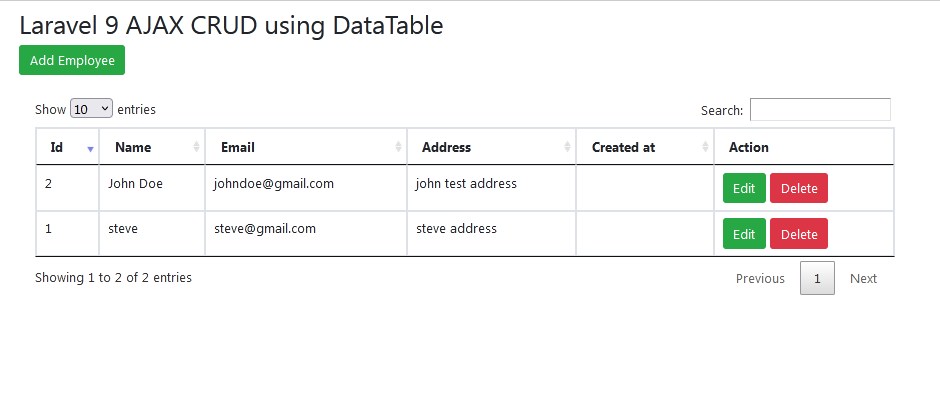
Now, open the following URL in browser to see the output –

Output:-

Laravel_9_Ajax_CRUD_Example_Tutorial_1