Category Archives: Laravel

Laravel Tutorials

Laravel 8 Multiple File Upload Example

In this Laravel 8 Multiple File Upload Example, I’ll show you how to upload multiple image along with validation in laravel 8. In this laravel 8 multiple image upload example, I’ll show you how to validate and upload multiple image into folder and then save it into database. In this tutorial before saving multiple image into database we will validate image and then save it into directory. Before uploading the image we will validate the image. After successfully uploading multiple images into the folder and saving it in database we will display success message on the screen.

Laravel 8 Multiple File Upload Example

In this step by step tutorial I’ll demonstrate how to upload multiple files in laravel 8 with validation. I’ll also show you how to upload multiple pdf, txt, csv, excel, doc files in laravel 8 application. Please follow the steps to upload multiple files in laravel 8 given below:

  • Download Laravel 8 Application
  • Database Configuration
  • Build Model & Migration
  • Create Routes
  • Build Multi Upload Controller By Artisan Command
  • Create Multiple File Upload Form
  • Create Directory inside Storage/app/public
  • Run Development Server

Install Laravel 8

First of all we need to create a fresh laravel project, download and install Laravel 8 using the below command

Configure Database

Now, lets create a MySQL database and connect it with laravel application. After creating database we need to set database credential in application’s .env file.

.env

Create Model & Migration

Now, we have to define table schema for files table. Open terminal and let’s run the following command to generate a migration along with model file to create files table in our database.

Once this command is executed you will find a migration file created under “database/migrations”. lets open migration file and put following code in it –

Now, run following command to migrate database schema.

After, the migration executed successfully the files table will be created in database.

Create Routes

After this, we need to add following routes in “routes/web.php” file along with a resource route. Lets open “routes/web.php” file and add following route.

routes/web.php

Create Controller By Artisan Command

Now, lets create a controller for simple file uploading. Create a controller named MultiFileUploadController using command given below –

Once the above command executed, it will create a controller file MultiFileUploadController.php in app/Http/Controllers/ directory. Open the MultiFileUploadController.php file and put the following code in it.

app/Http/Controllers/MultiFileUploadController.php

Note:- Before uploading any file make sure you have created following directory in the storage/app/public folder called files.

Create Multiple File Upload Form

In this step, we will create view/blade file to generate and display multiple file Upload Form. Lets create a blade file “multiple-files-upload.blade.php” in “resources/views/” directory and put the following code in it respectively.

resources/views/multiple-files-upload.blade.php

Create Directory inside Storage/app/public

Before uploading any file make sure you have created following directory in the storage/app/public folder called files.

Run Development Server

Now we are ready to run our example so lets start the development server using following artisan command –

Now, open the following URL in browser to see the output –

Laravel 8 Ajax Image Upload with Preview Tutorial

In this Laravel 8 Ajax Image Upload with Preview Tutorial I’ll show you how to upload image using ajax with preview in laravel 8. I will also show you how to upload image using jQuery and ajax and display preview without reloading of page.

Laravel 8 Ajax Image Upload with Preview Tutorial

In this step by step ajax image upload with preview in laravel 8 tutorial you will learn to upload image with preview using jQuery and ajax in laravel 8. In this example I’ll share the process to upload image with preview using ajax in laravel 8. Please following steps given below:

  • Download Laravel 8 Application
  • Database Configuration
  • Build Model & Migration
  • Create Routes
  • Generate Controller By Artisan Command
  • Create Ajax Image Upload Form
  • Create Images Directory inside Storage/app/public
  • Run Development Server

Install Laravel 8

First of all we need to create a fresh laravel project, download and install Laravel 8 using the below command

Configure Database In .env file

Now, lets create a MySQL database and connect it with laravel application. After creating database we need to set database credential in application’s .env file.

.env

Create Model & Migration

Now, we have to define table schema for photos table. Open terminal and let’s run the following command to generate a migration along with model file to create photos table in our database.

Once this command is executed you will find a migration file created under “database/migrations”. lets open migration file and put following code in it –

Now, run following command to migrate database schema.

After, the migration executed successfully the photos table will be created in database.

Create Routes

After this, we need to add following routes in “routes/web.php” file along with a resource route. Lets open “routes/web.php” file and add following route.

routes/web.php

Create Controller By Artisan Command

Now, lets create a controller for simple image uploading. Create a controller named AjaxUploadController using command given below –

Once the above command executed, it will create a controller file AjaxUploadController.php in app/Http/Controllers/ directory. Open the AjaxUploadController.php file and put the following code in it.

app/Http/Controllers/AjaxUploadController.php

Note:- Before uploading any file make sure you have created following directory in the storage/app/public folder called images.

Create Ajax Image Upload Form

In this step, we will create view/blade file to generate and display Image Upload Form. Lets create a blade file “image-upload-preview-form.blade.php” in “resources/views/” directory and put the following code in it respectively.

resources/views/image-upload-preview-form.blade.php

Create Images Directory inside Storage/app/public

Before uploading any file make sure you have created following directory in the storage/app/public folder called images.

Run Development Server

Now we are ready to run our example so lets start the development server using following artisan command –

Now, open the following URL in browser to see the output –

Laravel 8 Image Upload with Preview

In this Laravel 8 Image Upload with Preview example, we will learn how to upload image along with preview before upload in laravel 8. In this laravel 8 image upload example I’ll show you how to validate upload image into folder and then save it into database. In this tutorial before saving image into database we will show preview of the images and then save it into directory. Before uploading the image we will display preview of the image. After successfully image upload into the database and folder we will display success message on the screen.

Laravel 8 Image Upload with Preview

In this step by step Laravel 8 Image Upload with Preview tutorial I’ll demonstrate how to upload image in laravel 8 with preview. I’ll also show you how to upload image in laravel 8 with preview. Please follow the steps given below:

  • Download Laravel 8 Application
  • Setup Database with App
  • Create Model & Migration
  • Create Routes
  • Generate Controller By Artisan Command
  • Create Blade View
  • Implement javascript Code to Show Image Preview
  • Create Images Directory inside Storage/app/public
  • Run Development Server

Install Laravel 8

First of all we need to create a fresh laravel project, download and install Laravel 8 using the below command

Configure Database In .env file

Now, lets create a MySQL database and connect it with laravel application. After creating database we need to set database credential in application’s .env file.

.env

Create Model & Migration

Now, we have to define table schema for photos table. Open terminal and let’s run the following command to generate a migration along with model file to create photos table in our database.

Once this command is executed you will find a migration file created under “database/migrations”. lets open migration file and put following code in it –

Now, run following command to migrate database schema.

After, the migration executed successfully the photos table will be created in database.

Create Routes

After this, we need to add following routes in “routes/web.php” file along with a resource route. Lets open “routes/web.php” file and add following route.

routes/web.php

Create Controller By Artisan Command

Now, lets create a controller for simple image uploading. Create a controller named ImageUploadController using command given below –

Once the above command executed, it will create a controller file ImageUploadController.php in app/Http/Controllers/ directory. Open the ImageUploadController.php file and put the following code in it.

app/Http/Controllers/ImageUploadController.php

Note:- Before uploading any file make sure you have created following directory in the storage/app/public folder called images.

Create Blade View

In this step, we will create view/blade file to generate and display Image Upload Form. Lets create a blade file “image-upload.blade.php” in “resources/views/” directory and put the following code in it respectively.

resources/views/image-upload.blade.php

Create Images Directory inside Storage/app/public

Before uploading any file make sure you have created following directory in the storage/app/public folder called images.

Run Development Server

Now we are ready to run our example so lets start the development server using following artisan command –

Now, open the following URL in browser to see the output –

Laravel 8 File Upload Tutorial Example

In this Laravel 8 file upload example tutorial, I’ll show you how to upload files in laravel 8 application with validation. I’ll show you how to validate upload file into folder and then save it into database. In this tutorial before saving file into database we will validate file and then save it into directory using.

Laravel 8 File Upload Tutorial Example

In this step by step tutorial I’ll demonstrate how to upload file in laravel 8 with validation. I’ll also show you how to upload pdf, txt, csv, excel, doc files in laravel 8 application. Please follow the steps given below:

  • Download Laravel 8 Application
  • Database Configuration
  • Build File Model & Migration
  • Create Routes
  • Build Upload Controller By Artisan Command
  • Create File Upload Form
  • Create Directory inside Storage/app/public
  • Run Development Server

Install Laravel 8

First of all we need to create a fresh laravel project, download and install Laravel 8 using the below command

Configure Database In .env file

Now, lets create a MySQL database and connect it with laravel application. After creating database we need to set database credential in application’s .env file.

.env

Create Model & Migration

Now, we have to define table schema for files table. Open terminal and let’s run the following command to generate a migration along with model file to create files table in our database.

Once this command is executed you will find a migration file created under “database/migrations”. lets open migration file and put following code in it –

Now, run following command to migrate database schema.

After, the migration executed successfully the files table will be created in database.

Create Routes

After this, we need to add following routes in “routes/web.php” file along with a resource route. Lets open “routes/web.php” file and add following route.

routes/web.php

Create Controller By Artisan Command

Now, lets create a controller for simple file uploading. Create a controller named FileUploadController using command given below –

Once the above command executed, it will create a controller file FileUploadController.php in app/Http/Controllers/ directory. Open the FileUploadController.php file and put the following code in it.

app/Http/Controllers/FileUploadController.php

Note:- Before uploading any file make sure you have created following directory in the storage/app/public folder called files.

Create File Upload Form

In this step, we will create view/blade file to generate and display file Upload Form. Lets create a blade file “file-upload.blade.php” in “resources/views/” directory and put the following code in it respectively.

resources/views/file-upload.blade.php

Create Directory inside Storage/app/public

Before uploading any file make sure you have created following directory in the storage/app/public folder called files.

Run Development Server

Now we are ready to run our example so lets start the development server using following artisan command –

Now, open the following URL in browser to see the output –

Laravel 8 Ajax CRUD Using Datatable Tutorial

In this Laravel 8 Datatables CRUD operation example tutorial I’ll show you how to create a simple crud application using yajra Datatables in laravel 8. In this example we will learn how to create a simple crud operation application using Datatables in laravel 8. In this laravel 8 crud application we will be using jQuery and ajax to delete data from datatable crud app and MySQL database in laravel 8 app.

Laravel 8 Ajax CRUD Using Datatable Tutorial

In this tutorial, you will learn to implement ajax based CRUD (Create, Read, Update and Delete) operations using datatable js. In this tutorial, we will be using yajra datatable package for listing of records with pagination, sorting and filter (search) feature.

In this step by step guide, we will be creating a simple laravel 8 application to demonstrate you how to install yajra datatable package and implement ajax based CRUD operations with datatable js.

  • Download Laravel 8 App
  • Database Configuration
  • Installing Yajra Datatables
  • Build Model & Migration
  • Create Routes
  • Generate CRUD Controller By Artisan Command
  • Create Blade Views File
  • Run Development Server

Install Laravel 8

First of all we need to create a fresh laravel project, download and install Laravel 8 using the below command

Configure Database In .env file

Now, lets create a MySQL database and connect it with laravel application. After creating database we need to set database credential in application’s .env file.

.env

Install Yajra Datatable Package

In this step, we will install Yajra Datatables Package via the composer dependency manager. Use the following command to install Yajra Datatables Package.

After Installing Yajra Datatables package, we need to add service provider and alias in config/app.php file as following.

config/app.php

Now, we need to publish laravel datatables vendor package by using the following command:

Build Model & Migration

Now, in this step we will create model and migration file for form. Please run the following command:

Once above command is executed there will be a migration file created inside database/migrations/ directory, just open create_companies_table.php migration file and update the function up() method as following:

Now, run the migration to create database table using following artisan command:

Create Routes

After this, we need to define routes in “routes/web.php” file. Lets open “routes/web.php” file and add the following routes in it.

routes/web.php

Generate CRUD Controller By Artisan Command

Next, we have to create a controller to for laravel crud operations. Lets Create a controller named CompanyCRUDController using command given below –

Open the CompanyCRUDController.php file and put the following code in it.

app/Http/Controllers/CompanyCRUDController.php

Create Blade Views File

Create the directory and create blade view file for CRUD operations as following:

  • Make Directory Name Companies
  • index.blade.php
  • create.blade.php
  • edit.blade.php
  • action.blade.php

Create directory name companies inside resources/views directory.

index.blade.php:

create.blade.php:

edit.blade.php:

action.blade.php

In the above code following jQuery ajax code is used to delete from datatable and database without refresh or reload page in laravel 8 app:

Start Development Server

Now we are ready to run our example so lets start the development server using following artisan command –

Now, open the following URL in browser to see the output –

http://localhost:8000/companies

Laravel 8 Ajax Post Form Data With Validation

In this Laravel 8 Ajax Post Form Data With Validation tutorial you’ll learn to validate and submit form data without reloading or refreshing of page using ajax.

In this tutorial I’ll show you step by step how to submit and validate form data without reloading or refreshing of page using ajax. Generally Form validation is performed at server side, but can be performed at both the server and client side. In this laravel form validation tutorial we will be learning about laravel server side validations. In this tutorial, I’ll show you how to define laravel validation rules, how to validate form input and to display validation errors using ajax. In Laravel, to submit form data using ajax we must have to incorporate csrf token with form data and set X-CSRF-TOKEN request header with ajax form submit request.

Laravel 8 Ajax Post Form Data With Validation

In this laravel 8 ajax form validation example we will create  a contact us form and submit form data on controller using jQuery ajax. We will also validate form data before submit to controller using jQuery validation in laravel. In this step by step tutorial I’ll guide you through the process to submit form using ajax with validation laravel 8. Please follow the steps given below:

  • Download Laravel 8 Application
  • Setup Database with App
  • Create Contact us Model & Migration
  • Create Contact us Routes
  • Create Contact us Controller By Artisan Command
  • Create Contact us form in Blade File
  • Run Development Server

Install Laravel 8

First of all we need to create a fresh laravel project, download and install Laravel 8 using the below command

Configure Database In .env file

Now, lets create a MySQL database and connect it with laravel application. After creating database we need to set database credential in application’s .env file.

Create Model & Migration

Now, in this step we will create model and migration file for form. Please run the following command:

Once above command is executed there will be a migration file created inside database/migrations/ directory, just open create_contacts_table.php migration file and update the function up() method as following:

Now, run the migration to create database table using following artisan command:

Create Routes

After this, we need to define routes in “routes/web.php” file. Lets open “routes/web.php” file and add the following routes in it.

routes/web.php

Create Contact us Controller

Next, we have to create a controller to display form and to handle form validation and submit operations. Lets Create a controller named AjaxContactController using command given below –

Open the AjaxContactController.php file and put the following code in it.

app/Http/Controllers//AjaxContactController.php

Create Form Blade File

Now, create form blade view file to display form and submit to database. So, Go to resources/views and create ajax-contact-us-form.blade.php and update the following code into it:

Start Development Server

Now we are ready to run our example so lets start the development server using following artisan command –

Now, open the following URL in browser to see the output –

http://localhost:8000/ajax-form

Laravel 8 Google ReCAPTCHA v2 Example Tutorial

In this Laravel 8 google ReCAPTCHA v2 form validation tutorial I’ll show you how to integrate  google v2 ReCAPTCHA with laravel 8 forms. In this tutorial, we will implement google v2 recaptcha with form in laravel 8. We will be using google v2 Recaptcha in laravel to secure laravel forms against spam.

Laravel 8 Google ReCAPTCHA v2 Example Tutorial

In this step by step Laravel 8 Google ReCAPTCHA v2 Example Tutorial I’ll guide you through the process to integrate google recaptcha v2 in laravel 8.

  • Install Laravel 8 Application
  • Configure Database Details
  • Install Google Recaptcha Package (anhskohbo/no-captcha)
  • Create Controller
  • Create Routes
  • Create Blade File
  • Start Development Server
  • Run This App On Browser

Install Laravel 8

First of all we need to create a fresh laravel project, download and install Laravel 8 using the below command

Configure Database In .env file

Now, lets create a MySQL database and connect it with laravel application. After creating database we need to set database credential in application’s .env file.

Install Google reCaptcha v2 Package

We will be using ‘anhskohbo/no-captcha’ package for google recaptcha integration in laravel 5.8 application. In this step we will be installing “anhskohbo/no-captcha” via following composer command, lets open your terminal and switch to the project directory and enter the following command –

This package is supports the auto-discovery feature so we need to only publish config file

Add Google Site Key and Secret Key

Now, we need to set Google Site Key and Secret Key in .env file. Let’s start by getting Google key & secret required to make ReCaptcha authorize with the Google servers. Visit the following link to register your site –

Let’s open .env file and add this credential as following –

.env

Create Controller

Now, lets create UserController using following command

Once the above command executed, it will create a controller file UserController.php in app/Http/Controllers/ directory. Open the UserController.php file and put the following code in it.

Controllers/UserController.php

Create Route

After this, we need to add following routes in “routes/web.php” to display form. Lets open “routes/web.php” file and add following route.

routes/web.php

Create Blade File

In this step, we will create view/blade file to render a register form with recaptcha field. Lets create a “create.blade.php” file in “resources/views/” directory and put the following code in it.

resources/views/create.blade.php

Start Development Server

Now we are ready to run our example so lets start the development server using following artisan command –

Now, open the following URL in browser to see the output –

http://localhost:8000/users

Laravel 8 Image Upload Example Tutorial

In this Laravel 8 Image Upload Example Tutorial, we will learn how to upload and save image in laravel 8. In this Laravel 8 Image Upload Example Tutorial, I’ll show you how to validate upload image into folder and then save it into database. In this tutorial before saving image into database we will validate image and then save it into directory using. Before uploading the image we will perform server side validation. You will also learn how to validate image mime type, size, dimension, etc on laravel controller by using laravel validation rules. After successfully image upload into the database and folder we will display success message on the screen.

Image Upload In Laravel 8

In this step by step tutorial I’ll guide you through the process to upload image on public storage and directory in laravel 8:

  • Download Laravel 8 Application
  • Setup Database with App
  • Create Model & Migration
  • Create Routes
  • Create Controller By Artisan Command
  • Create Blade View
  • Create Images Directory inside Storage/app/public
  • Run Development Server

Install Laravel 8

First of all we need to create a fresh laravel project, download and install Laravel 8 using the below command

Configure Database In .env file

Now, lets create a MySQL database and connect it with laravel application. After creating database we need to set database credential in application’s .env file.

.env

Create Model & Migration

Now, we have to define table schema for photos table. Open terminal and let’s run the following command to generate a migration along with model file to create photos table in our database.

Once this command is executed you will find a migration file created under “database/migrations”. lets open migration file and put following code in it –

Now, run following command to migrate database schema.

After, the migration executed successfully the photos table will be created in database.

Create Routes

After this, we need to add following routes in “routes/web.php” file along with a resource route. Lets open “routes/web.php” file and add following route.

routes/web.php

Create Controller By Artisan Command

Now, lets create a controller for simple image uploading. Create a controller named UploadImageController using command given below –

Once the above command executed, it will create a controller file UploadImageController.php in app/Http/Controllers/ directory. Open the UploadImageController.php file and put the following code in it.

app/Http/Controllers/UploadImageController.php

Note:- Before uploading any file make sure you have created following directory in the storage/app/public folder called images.

Create Blade View

In this step, we will create view/blade file to generate and display Image Upload Form. Lets create a blade file “image.blade.php” in “resources/views/” directory and put the following code in it respectively.

resources/views/image.blade.php

Create Images Directory inside Storage/app/public

Before uploading any file make sure you have created following directory in the storage/app/public folder called images.

Run Development Server

Now we are ready to run our example so lets start the development server using following artisan command –

Now, open the following URL in browser to see the output –

Laravel 8 Form Validation Tutorial Example

In this Laravel 8 form validation example tutorial I’ll show you how to validate form data in laravel 8 application. In this laravel form validation tutorial you will learn to validate laravel form with built in laravel validation available in laravel. In this Laravel 8 form validation tutorial I’ll share various validation implementation and use case.

Laravel 8 Form Validation

Generally Form validation is performed at server side, but can be performed at both the server and client side. In this laravel form validation tutorial we will be learning about laravel server side validations. In this tutorial, I’ll show you how to define laravel validation rules, how to validate form input and to display validation errors.

Laravel 8 comes many built-in validation rules that can be easily implemented. In this example, we have used some of following validation rules –

required:- It set input field is required.
min:- Validate minimum character length.
max:- Validate maximum character length.
email: It set input must be a valid email address.
unique: It checks for unique value against a database column.
numeric: Input value must numeric.
same:- It validates two input fields value must be same.

Laravel 8 Form Validation Example

In this step by step tutorial I’ll show you how to implement validations in laravel form.

  • Download Laravel 8 Application
  • Setup Database with App
  • Create Model & Migration
  • Create Form Routes
  • Create Form Controller By Artisan Command
  • Create Form Blade File
  • Run Development Server

Install Laravel 8

First of all we need to create a fresh laravel project, download and install Laravel 8 using the below command

Configure Database In .env file

Now, lets create a MySQL database and connect it with laravel application. After creating database we need to set database credential in application’s .env file.

Create Model & Migration

Now, in this step we will create model and migration file for form. Please run the following command:

Once above command is executed there will be a migration file created inside database/migrations/ directory, just open create_employees_table.php migration file and update the function up() method as following:

Now, run the migration to create database table using following artisan command:

Create Form Routes

After this, we need to define routes in “routes/web.php” file. Lets open “routes/web.php” file and add the following routes in it.

routes/web.php

Create Form Controller By Artisan Command

Next, we have to create a controller to display form and to handle form validation and submit operations. Lets Create a controller named FormController using command given below –

Open the FormValidationController.php file and put the following code in it.

app/Http/Controllers//FormController.php

Create Form Blade File

Now, create form blade view file to display form and submit to database. So, Go to resources/views and create form.blade.php and update the following code into it:

The following below code will display validation error message on blade view file:

Start Development Server

Now we are ready to run our example so lets start the development server using following artisan command –

Now, open the following URL in browser to see the output –

http://localhost:8000/form

Laravel 8 Rest API CRUD with Passport Auth Tutorial

In this Laravel 8 Rest API CRUD with Passport Auth Tutorial tutorial, I will show you how to create rest api in laravel 8 application with passport authentication. In this tutorial we will be using passport for api authentication. we will create register and login api with simple retrieve user details.

Laravel 8 Rest CRUD APIs Tutorial With Example

  • Download Laravel 8 App
  • Database Configuration
  • Install Passport Auth
  • Passport Configuration
  • Create Product Table and Model
  • Run Migration
  • Create Auth and CRUD APIs Route
  • Create Passport Auth and CRUD Controller
  • Test Laravel 8 REST CRUD API with Passport Auth in Postman

Install Laravel 8

First of all we need to create a fresh laravel project, download and install Laravel 8 using the below command

Configure Database In .env file

Now, lets create a MySQL database and connect it with laravel application. After creating database we need to set database credential in application’s .env file.

Install Passport Package

In this step, we need to install Laravel Passport package via the composer dependency manager. Use the following command to install passport package.

After Installing ‘laravel/passport’ package, we need to add service provider in config/app.php file as following.

config/app.php

Run Migration and Install Laravel Passport

After successfully installing ‘laravel/passport’ package, we require to create default passport tables in our database. so let’s run the following command to migrate Laravel Passport tables to your database.

Now, it is mandatory to install passport using the command below. This command will generate encryption keys required to generate secret access tokens.

Laravel Passport Configuration

Now, we need to make following changes in our model, service provider and auth config file to complete passport configuration. Open App/User.php model file and add ‘Laravel\Passport\HasApiTokens’ trait in it.

Next Register passport routes in App/Providers/AuthServiceProvider.php, open App/Providers/AuthServiceProvider.php and put “Passport::routes()” inside the boot method like below.

Now open config/auth.php file and set api driver to passport instead of session.

Create Product Table and Model

Now we will create product model and migration file, open terminal and run the following command:

After that, navigate to database/migrations directory and open create_products_table.php file. Then put the following code in it:

Now, add fillable property in product.php file, so go to app/models directory and open product.php file and put the following code into it:

Run Migration

Now you need to run the migration using the following command. This command will create tables in the database :

Create Auth and CRUD APIs Route

Now we will create rest API auth and crud operation routes. Go to the routes directory and open api.php. Then put the following routes into api.php file:

routes/api.php

Create Passport Auth and CRUD Controller

In this step, we will create a controllers name PassportAuthController and ProductController. Use the following command to create a controller :

After that, Create some authentication methods in PassportAuthController.php. So navigate to app/http/controllers/API directory and open PassportAuthController.php file. And, update the following methods into your PassportAuthController.php file:

Now we will create rest api crud methods in ProductController.php. So navigate to app/http/controllers/API directory and open ProductController.php file. And, update the following methods into your ProductController.php file:

Then open command prompt and run the following command to start developement server:

Test Laravel 8 REST CRUD API with Passport Auth in Postman

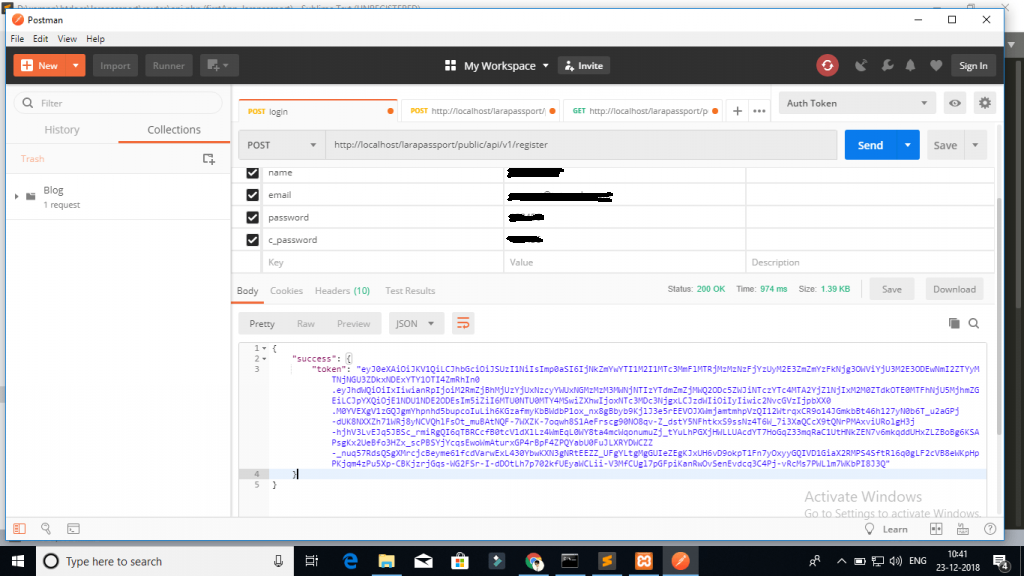
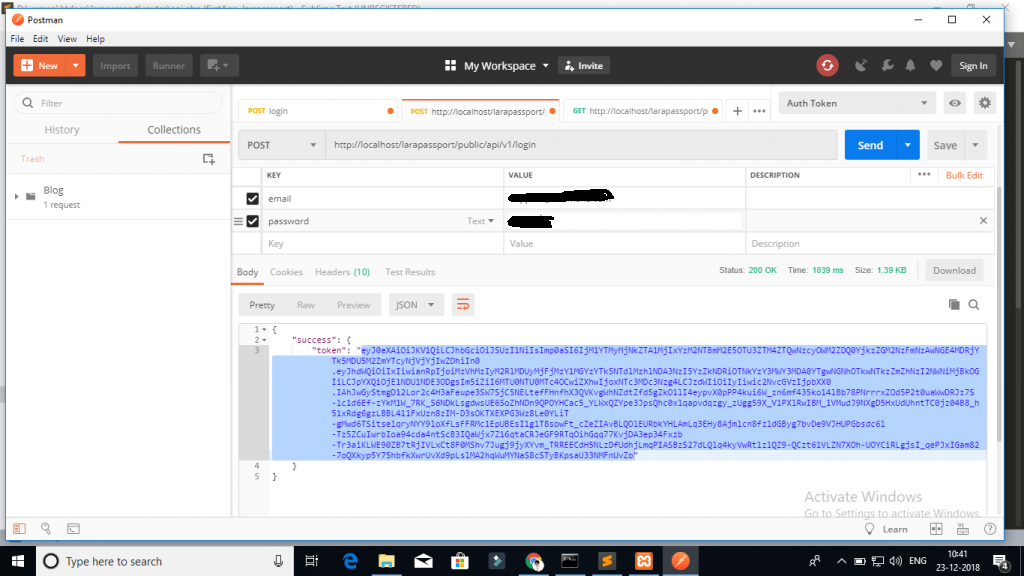
Now, we will call above create crud and auth apis in postman app:

1 – Laravel Register Rest API :

Laravel 8 REST CRUD API with Passport Auth 1

2 – Login API :

Laravel 8 REST CRUD API with Passport Auth 2

Next Step, you will call getUser, create product, list product, edit product, and delete product APIs, In this apis need to pass the access token as headers:

3 – Product List API

  • Method:- GET
  • URL:- http://127.0.0.1:8000/api/products

4 – Product Create API

  • Method:- POST
  • URL:- http://127.0.0.1:8000/api/products

5 – Product Fetch API

  • Method:- GET
  • URL :- http://127.0.0.1:8000/api/products/{id}

6 – Product Update API

  • Method:- PUT
  • URL :- http://127.0.0.1:8000/api/products/{id}

7 – Product Delete API

  • Method:- DELETE
  • URL :- http://127.0.0.1:8000/api/products/{id}

Laravel Arr add() function Example

Laravel Arr add() function Example

In this article, we will learn about laravel array add() function. In this tutorial we will learn about the Laravel Arr add() method’s syntax and use with example. I’ll show you how to use Laravel Arr add() function with Example.

Laravel Arr::add method

Laravel Arr::add method adds the given $key and $value to an $array if the $key doesn’t already exist within the given $array. If the $key already exists then it will replaces the given $value in a array.

Syntax:-

How to use Laravel Arr::add method

Here, I will give you full example for simply Arr add() method in laravel as bellow.

Example:-

Output:-

Laravel 8 Database Seeder Example

Laravel 8 Database Seeder Example

In this tutorial, we will learn how to create database seeder in laravel 8 and what is command to create seeder and how to run that seeder in laravel 8. In this tutorial we will insert data using Database Seeder in Laravel. I’ll show you how to create database seeder class for a table, seed data in seeder, call database seeder and run database seeder. In this example, we assume that we already have admins table created and wants to seed some test data into it.

Laravel 8 Database Seeder

There are many instances where we need a populated database with test data in order to test the working of various operation. Populating Test data manually is time consuming, but Laravel provides a simple method of seeding test data in your database automatically instead doing it manually. In laravel you are required to created seeder classed per table, all these classes are stored in the database/seeds directory.

Create Seeder Using Artisan Command

Seeder class file can be generated using following artisan command:

Syntax:-

Example:-

Once the above command is executed, this will generate a seeder class file in the database/seeds directory. This class has a default run() method.

Add Data In Seeder Class file

Lets open seeder class file and within default run() method, we can populate single or multiple records as following:

database/seeds/AdminSeeder.php

Laravel Run Single Seeder

Use the bellow command to run specific seeder class:

Laravel Run Single Seeder

In this method you have to declare all your seeder in DatabaseSeeder class file. Now you have to run single command to run all listed seeder class.

database/seeds/DatabaseSeeder.php

Now, use the following artisan command to run all your seeders.