Category Archives: Laravel

Laravel Tutorials

Laravel 7/6 Ajax Form Submit Validation Tutorial

In this Laravel 7/6 Ajax Form Submit Validation Tutorial I’ll show you how to submit form using ajax with validation in laravel 7 and 6. In this tutorial you will learn to submit form using ajax and to implement form validation in laravel.

Laravel 7/6 Ajax Form Submit Validation Tutorial

  • Install Laravel Fresh Setup
  • Configure .env file
  • Create One Model and Migration
  • Make Route
  • Generate Controller by Command
  • Create Blade View
  • Start Development Server

Install Laravel Fresh Setup

Configure .env file

Create Model and Migration

Now, in this step we will create model and migration file for form. Please run the following command:

Once above command is executed there will be a migration file created inside database/migrations/ directory. Now, open contact migration file and put the below code here :

Now, run the migration to create database table using following artisan command:

Make Route

After this, we need to define routes in “routes/web.php” file. Lets open “routes/web.php” file and add the following routes in it.

routes/web.php

Generate Controller by Command

Now, lets create a form controller. Create a controller named FormController using command given below –

Now, we will create two methods in controller file. The first is index method to display contact form and second method to store data in the mysql database :

Step 6: Create a blade view

In this step, we will create one blade file name ajax-form.blade.php.

Step 7: Start Development Server

Now we are ready to run our example so lets start the development server using following artisan command –

Now, open the following URL in browser to see the output –

Laravel 8 Login with Facebook Account Example

In this Login with facebook in Laravel 8 example tutorial I’ll show you how to integrate facebook login in laravel 8 using socialite package. Integrating Facebook login in Laravel 8 using socialite package is much easier. Allowing users to login with their social media accounts makes registration/login process much easier, it also encourages more users to register for your application.

Laravel 8 Login with Facebook Account Example

In this step by step tutorial, you will learn to integrate Facebook login with your laravel 8 application. Please follow the steps give below:

  • Install Laravel 8 App
  • Configure Database With App
  • Configure Facebook App
  • Install Socialite & Configure
  • Add Field In Table Using Migration
  • Install Jetstream Auth
  • Build Routes
  • Create Facebook Login Controller By Command
  • Integrate FB Login Button In Login Page
  • Start Development Server

Install Laravel 8

First of all we need to create a fresh laravel project, download and install Laravel 8 using the below command

Configure Database In .env file

Now, lets create a MySQL database and connect it with laravel application. After creating database we need to set database credential in application’s .env file.

.env

Configure Facebook App

Step 1:-

Go to Facebook’s developers site https://developers.facebook.com/ and log in with your Facebook account. There in Facebook developers Dashboard you have option to Create App. Lets create a Facebook Login App simply providing App Name and Contact Email.

Step 2:-

After creating the facebook app, go to setting->advanced and set redirect url

Step 3:-

Then, go to Facebook Login -> Settings and scroll down to “Valid OAuth Redirect URL” and set your callback URL

Step 4:-

After creating app, go to Settings -> Basic and get your newly created App ID and App Secret.

Now, go to config directory and open service.php file and add the client id, secret and callback url:

Install Socialite Package via Composer

After Installing ‘socialite’ package, we need to add service provider and alias in config/app.php file as following.

config/app.php

Add Field In Table Using Migration

Now, use the following command to create a migration file to add a column in database table:

Once this command is executed you will find a migration file created under “database/migrations”. lets open migration file and put following code in it –

After successfully add field in database table. Then add fillable property in User.php model, which is found inside app/Models/ directory:

Now, run following command to migrate database schema.

Install Jetstream Auth

In this step, install jetstream laravel auth scaffolding package with livewire. We have provided a complete guide in this Laravel 8 Auth Scaffolding using Jetstream Tutorial.

Build Routes

After this, we need to add following routes in “routes/web.php” file along with a resource route. Lets open “routes/web.php” file and add following route.

routes/web.php

Create Facebook Login Controller

Now, lets create a controller for facebook login. Create a controller named FacebookSocialiteController using command given below –

Once the above command executed, it will create a controller file FacebookSocialiteController.php in app/Http/Controllers/ directory. Open the FacebookSocialiteController.php file and put the following code in it.

app/Http/Controllers/FacebookSocialiteController.php

Integrate FB Login Button In Login Page

Now, we will add facebook login button into login.blade.php file. So, open login.blade.php, which is found inside resources/views/auth/ directory:

Run Development Server

Now we are ready to run our example so lets start the development server using following artisan command –

Now, open the following URL in browser to see the output –

Laravel 8 JWT Rest API Authentication Example Tutorial

In this Laravel 8 JWT Rest API Authentication Example Tutorial I’ll show you how to build the rest APIs with jwt (JSON web token) authentication in laravel 8. In this example I’ll also show you how to install jwt auth and configure jwt auth in laravel 8.

In one of my previous articles, we have learn How to Create REST API With Passport Authentication In Laravel 8 using Laravel passport for REST API authentication. In this article, we will learn to create fully functional restful API with JWT Authentication in Laravel 8. In this tutorial, we will be creating fully functional REST API along with JWT Authentication.

Laravel 8 JWT Rest API Authentication Example Tutorial

In this laravel step by step tutorial you will learn how to create REST API with Laravel 8 using JWT Token (JSON Web Token). Please follow the step given bellow:

  • Download Laravel 8 App
  • Database Configuration
  • Install JWT Auth
  • Registering Middleware
  • Run Migration
  • Create APIs Route
  • Create JWT Auth Controller
  • Now Test Laravel REST API in Postman

Install Laravel 8

First of all we need to create a fresh laravel project, download and install Laravel 8 using the below command

Configure Database

Now, lets create a MySQL database and connect it with laravel application. After creating database we need to set database credential in application’s .env file.

.env

Install JWT Auth

In this step, we will install tymon jwt auth package via the composer dependency manager. Use the following command to install laravel jwt authentication package.

After Installing tymon/jwt-auth package, we need to add service provider and alias in config/app.php file as following.

config/app.php

Now, you need to generate jwt encryption keys. Use the following command to generate encryption keys needed to generate secure access tokens:

Now, open JWTGenerateCommand.php file and put the following code,

vendor/tymon/src/Commands/JWTGenerateCommand.php

Registering Middleware

Register auth.jwt middleware in app/Http/Kernel.php

app/Http/Kernel.php

Run Migration

Now, you need to run migration using the following command to create tables in the database :

Create APIs Route

Now we will create rest API auth routes. Go to the routes directory and open api.php. Then put the following routes into api.php file:

routes/api.php

Create JWT Auth Controller

In this step, we will create a controllers name JWTAuthController. Use the following command to create a controller :

After that, Create some authentication methods in JWTAuthController.php. So navigate to app/http/controllers/API directory and open JWTAuthController.php file. And, update the following methods into your JWTAuthController.php file:

Then open command prompt and run the following command to start developement server:

Test Laravel 8 REST API with JWT Auth in Postman

Now, we will call above create crud and auth apis in postman app:

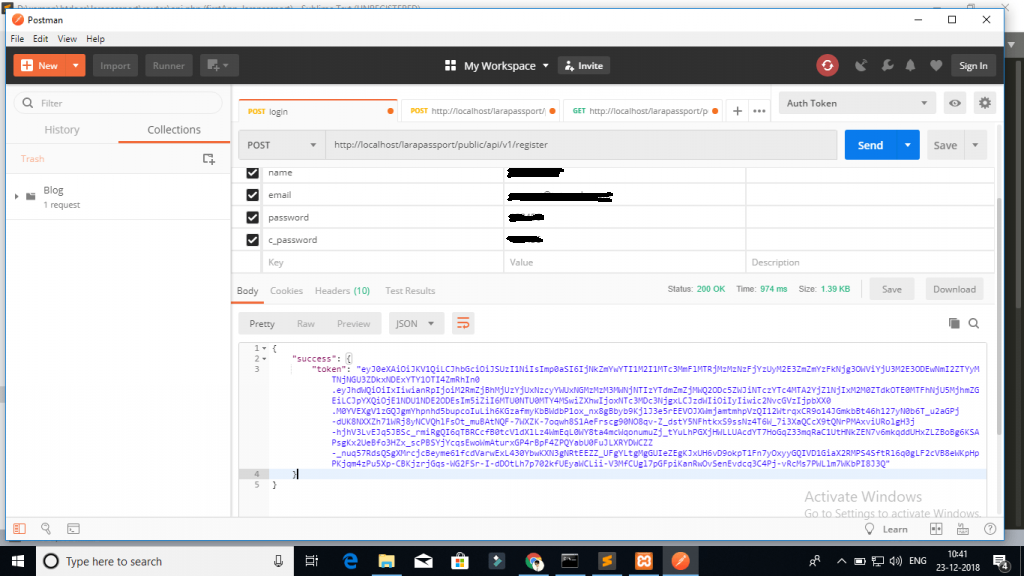
1 – Laravel Register Rest API :

Laravel 8 REST API with JWT Auth 1

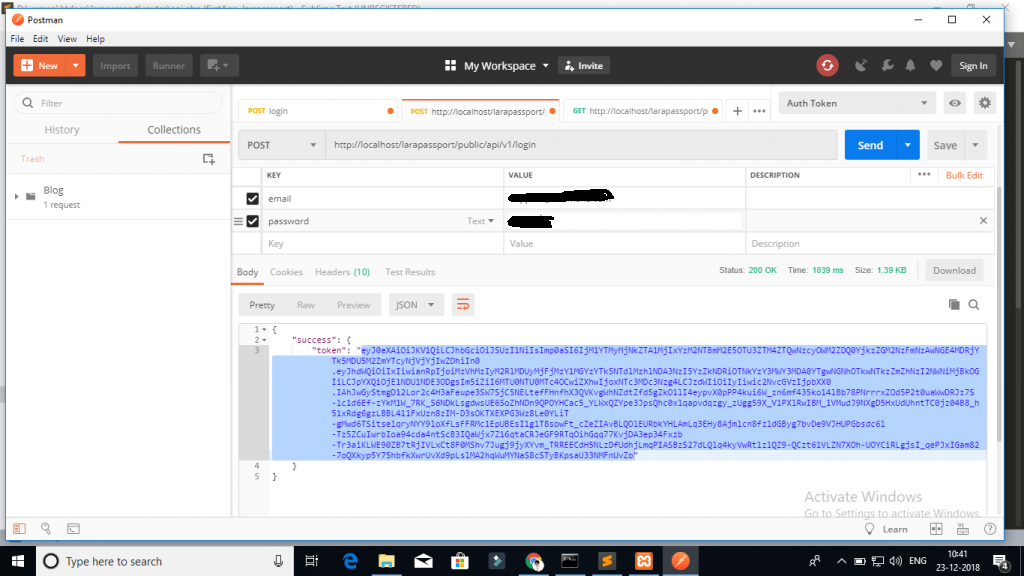
2 – Login API :

Laravel 8 REST API with JWT Auth 2

Next Step, you will call getUser, create product, list product, edit product, and delete product APIs, In this apis need to pass the access token as headers:

Laravel 8 Razorpay Payment Gateway Integration Example

In this Laravel 8 Razorpay Payment Gateway Integration Example tutorial, I’ll show you how to integrate Razorpay payment gateway in laravel 8. In this tutorial you will learn to integrate Razorpay in laravel 8. In this step by step tutorial I’ll share laravel 8 Razorpay integration example.

Razorpay Payment Gateway

Razorpay is one of the popular payment gateway, that allows us to accept payment from your customer. Razorpay is very simple, hassle free and easy to integrate payment gateway. Integrating Razorpay payment gateway in laravel 8 is a breeze.

Laravel 8 Razorpay Payment Gateway Integration Example

In this tutorial, you will learn to integrate Razorpay payment gateway in your laravel 8 project. Follow this step by step tutorial to learn Razorpay payment gateway integration in laravel 8.

  • SInstall Laravel 8 App
  • Connecting App to Database
  • Create Model & Migration
  • Make Routes
  • Create Controller & Methods
  • Create Blade View
  • Start Development Server
  • Run This App

Install Laravel 8

First of all we need to create a fresh laravel project, download and install Laravel 8 using the below command

Make sure you have composer installed.

Setup Database Credentials

Now, lets create a MySQL database and connect it with laravel application. After creating database we need to set database credential in application’s .env file.

Create Model & Migration

Now, we have to define table schema for payments table. Open terminal and let’s run the following command to generate a migration along with model file to create payments table in our database.

Once this command is executed you will find a migration file created under “database/migrations”. lets open migration file and put following code in it –

Now, run following command to migrate database schema.

After, the migration executed successfully the payments table will be created in database.

Create Routes

After this, we need to add following routes in “routes/web.php” file along with a resource route. Lets open “routes/web.php” file and add following route.

routes/web.php

Create Controller By Artisan Command

Now, lets create a controller for Razorpay Payments. Create a controller named RazorpayController using command given below –

Once the above command executed, it will create a controller file RazorpayController.php in app/Http/Controllers/ directory. Open the RazorpayController.php file and put the following code in it.

app/Http/Controllers/RazorpayController.php

Create Blade Views

In this step, we will create view/blade file razorpay payment processing. Lets create a blade file “razorpay.blade.php” in “resources/views/” directory and put the following code in it respectively.

resources/views/razorpay.blade.php

Get your secret key from razorpay payment gateway dashboard and put the key in script tag section like this => “key”: “rzp_test_ddgdfgdfgdg”,

Then visit resources/views and Create a new blade view file name thankyou.blade.php. Then put the following code into it:

Run Development Server

Now we are ready to run our example so lets start the development server using following artisan command –

Now, open the following URL in browser to see the output –

Laravel 8 Stripe Payment Gateway Integration Example

In this Laravel 8 stripe payment gateway integration tutorial, I’ll show you how to integrate stripe payment gateway in laravel 8. In this tutorial you will learn to integrate stripe in laravel 8. In this step by step tutorial I’ll share laravel 8 stripe integration example.

Stripe Payment Gateway

Stripe is one of the most popular payment gateway, that allows us to accept payment worldwide. Stripe is very simple, hassle free and easy to integrate payment gateway. Integrating stripe payment gateway with laravel is a breeze. After integrating stripe in laravel you will be able to collect payment via simple payment form which allow customer to provide card information like card number, expiry date and a CVC code.

Laravel 8 Stripe Payment Gateway Integration Example

In this tutorial, you will learn to integrate stripe payment gateway in your laravel 8 project. Follow this step by step tutorial to learn stripe payment gateway integration in laravel 8.

Laravel 8 Stripe Integration Example

  • Install Laravel 8 App
  • Install stripe Package
  • Stripe Configuration
  • Make Route
  • Create Controller
  • Create Blade View file
  • Run Development Server

Install Laravel 8

First of all we need to create a fresh laravel project, download and install Laravel 8 using the below command

Make sure you have composer installed.

Setup Database Credentials

Now, lets create a MySQL database and connect it with laravel application. After creating database we need to set database credential in application’s .env file.

Install Stripe package

Now, we need to install stripe-php package in our project. Open your terminal and switch to project directory and use the following composer command to install stripe-php package.

Stripe Configuration

Create Stripe account and generate key and secret key. Go to the official Stripe website and signup with basic details. Now, we need to set stripe key and secret key in our project’s .env file. In stripe dashboard switch to the test mode and get the stripe key and secret. Now, open .env file located in project’s root folder and set the stripe key and secret as following –

.env file

You will also need to set up the Stripe API key, Let’s open or create the config/services.php file, and add or update the 'stripe' array as following:

Create Route

After this, we need to add following two routes in “routes/web.php” to display barcode. Lets open “routes/web.php” file and add following route.

routes/web.php

Create Controller and Methods

Now, lets create a payment controller using following command

Once the above command executed, it will create a controller file StripeController.php in app/Http/Controllers/ directory. Open the StripeController.php file and put the following code in it.

Controllers/StripeController.php

Create View/Blade File

In this step, we will create view/blade file to accept stripe payment. Lets create astripe.blade.php” file in “resources/views/” directory and put the following code in it.

resources/views/stripe.blade.php

Start Development Server

Now we are ready to run our example so lets start the development server using following artisan command –

Now, open the following URL in browser to see the output –

http://localhost:8000/stripe

Laravel 8 Simple CRUD Application Example Tutorial

In this Laravel 8 Simple CRUD Application Example Tutorial, you will learn to create a simple CRUD (Create, Read, Update and Delete) application in Laravel 8. In this Laravel 8 CRUD operation example tutorial I’ll show you how to create a simple crud application in laravel 8. In this example we will learn how to create a simple crud operation application in laravel 8.

Laravel 8 Simple CRUD Application Example Tutorial

In this step by step guide, we will be creating a simple company crud operation application with validation in laravel 8. In this example you will learn how to insert, read, update and delete data from database in laravel 8.

  • Download Laravel 8 App
  • Setup Database with App
  • Create Company Model & Migration For CRUD App
  • Create Routes
  • Create Company CRUD Controller By Artisan Command
  • Create Blade Views File
  • Run Laravel CRUD App on Development Server

Install Laravel 8

First of all we need to create a fresh laravel project, download and install Laravel 8 using the below command

Configure Database In .env file

Now, lets create a MySQL database and connect it with laravel application. After creating database we need to set database credential in application’s .env file.

.env

Create Model & Migration

Now, in this step we will create model and migration file for form. Please run the following command:

Once above command is executed there will be a migration file created inside database/migrations/ directory, just open create_companies_table.php migration file and update the function up() method as following:

Now, run following command to migrate database schema.

Create Routes

After this, we need to define routes in “routes/web.php” file. Lets open “routes/web.php” file and add the following routes in it.

routes/web.php

Create Company CRUD Controller By Artisan Command

Next, we have to create a controller company crud application. Lets Create a controller named CompanyCRUDController using command given below –

Open the CompanyCRUDController.php file and put the following code in it.

app/Http/Controllers/CompanyCRUDController.php

Create Blade File

Now, create blade file for CRUD Operations accordingly. Let’s directory and some blade view, as following:

  • Make Directory Name Companies
  • index.blade.php
  • create.blade.php
  • edit.blade.php

Create directory name companies inside resources/views directory.

index.blade.php

create.blade.php

edit.blade.php

Start Development Server

Now we are ready to run our example so lets start the development server using following artisan command –

Now, open the following URL in browser to see the output –

http://localhost:8000/companies

Laravel 8 Import Export Excel & CSV File

In this Laravel 8 Import Export Excel & CSV File tutorial, I’ll show you how to import and export excel/csv file into and from database in laravel 8 using maatwebsite version 3 package with example. I’ll guide you through step by step with example of importing and exporting a csv or excel file using maatwebsite/excel version 3 composer package.

Laravel 8 Import Export Excel & CSV File

When we are developing laravel applications, there may situations where we require to import or export large amount of data into and from the application database. Importing and exporting data through excel or csv files seems a good solution here.

In laravel, maatwebsite/excel composer package made it easy to import or export excel or csv files. The maatwebsite/excel is a composer package used to import and export excel or csv files. The maatwebsite/excel provide number of features for excel or csv file import and exort in laravel.

Import and Export CSV and Excel File in Laravel 8

In this step by step Laravel 8 Import Export Excel & CSV File example I’ll demonstrate the import and export of csv file in laravel 8. Please follow the steps given below:

  • Download Laravel 8 Application
  • Database Configuration
  • Install maatwebsite/excel Package
  • Configure maatwebsite/excel
  • Create Routes
  • Compose Import Export Class
  • Create ExcelCSV Controller By Artisan Command
  • Create Import Export Form
  • Run Development Server

Install Laravel 8

First of all we need to create a fresh laravel project, download and install Laravel 8 using the below command

Configure Database In .env file

Now, lets create a MySQL database and connect it with laravel application. After creating database we need to set database credential in application’s .env file.

.env

Install maatwebsite/excel Package

In this step we will install maatwebsite/excel Package. Use the following compose command to install maatwebsite/excel Package:

Configure Maatwebsite Package

After Installing Maatwebsite package, we need to add service provider and alias in config/app.php file as following.

config/app.php

Now, use following command to publish Maatwesite Package configuration file:

Create Routes

After this, we need to add following routes in “routes/web.php” file along with a resource route. Lets open “routes/web.php” file and add following route.

routes/web.php

Compose Import Export Class

Now, we need to create import and export excel csv class using the following commands:

Import class:-

Now, we have to update the UsersImport.php class file located at app/Imports directory. Let’s open UsersImport.php file and put the following code in it:

export class:-

Now, we have to update UsersExport.php class file located at app/Exports directory. Let’s open UsersExport.php file and put the following code in it:

Create Import Excel Controller

Next, we have to create a controller to display a form to upload excel file records. Lets Create a controller named ExcelCSVController using command given below –

Once the above command executed, it will create a controller file ExcelCSVController.php in app/Http/Controllers/ directory. Open the ExcelCSVController.php file and put the following code in it.

app/Http/Controllers/ExcelCSVController.php

Create Blade / View Files

In this step, we will create view/blade file to import export excel and csv file. Lets create a blade file “excel-csv-import.blade.php” in “resources/views/” directory and put the following code in it respectively.

resources/views/excel-csv-import.blade.php

Run Development Server

Now we are ready to run our example so lets start the development server using following artisan command –

Now, open the following URL in browser to see the output –

Laravel orderByRaw() Query Example

In this Laravel orderByRaw() query example tutorial I’ll show you how to create orderByRaw query in laravel. In this article you will also learn to implement and orderByRaw with joined table data. In this Laravel orderByRaw() query example I’ll demonstrate different use case of the laravel orderByRaw() query.

Laravel orderByRaw() Query Example

In step by step tutorial I’ll demonstrate following different examples of Laravel orderByRaw() Query.This will help you to understand the use of orderByRaw() eloquent query in laravel:

  • Laravel OrderByRaw Query using Model
  • orderByRaw Query using Query Builder
  • Laravel orderByDesc() Example

Laravel OrderByRaw Query using Model

In this example I’ll show you the example of OrderByRaw Query with model.

Example:-

The above given OrderByRaw Query you will get the following SQL query:

orderByRaw Query using Query Builder

In this example I’ll show you the example of OrderByRaw Query with Query Builder.

Example:-

The above given OrderByRaw Query you will get the following SQL query:

Laravel orderByDesc() Example

In this example I’ll show you the example of orderByDesc() Query.

The above given orderByDesc() Query you will get the following SQL query:

Laravel Eloquent withSum() and withCount() Tutorial

In this Laravel Eloquent withSum() and withCount() tutorial, I’ll show you how to use laravel eloquent withcount and withsum() method. In this article you also learn about the use case of laravel withSum() and withCount() methods.

Laravel Eloquent withSum() and withCount() Tutorial

In this step by step tutorial you lean about the laravel withcount and withsum() with different example.

Category Model:

Let’s create a category model and put the following code in it:

Product Model:

Now, we will create a product model and put the following code in it:

Laravel relationship with withSum() Example:

In this example we will use laravel relationship with withSum() method as following:

Example:-

Result:-

Laravel relationship with withCount() Example:

In this example we will use laravel relationship with laravel withCount() method as following:

Example:-

Result:-

Laravel 8 Multiple Image Upload Validation Tutorial

In this Laravel 8 Multiple Image Upload validation Tutorial, we will learn how to upload multiple image with validation in laravel 8. In this Multiple Image Upload validation Tutorial, I’ll show you how to upload multiple image in laravel with validation and save into folder and then save it into database. In this tutorial before saving multiple image into database we will validate image and then save it into directory. Before uploading the image we will validate the image. After successfully uploading multiple images into the folder and saving it in database we will display success message on the screen.

Laravel 8 Multiple Image Upload Validation Tutorial

In this I’ll show you how to upload multiple image in laravel 8. While uploading image in laravel. In this step by step tutorial I’ll demonstrate example of multiple image upload with Validation in laravel 8. Please follow the step given below:

  • Install Laravel 8 Application
  • Configure Database In .env File
  • Create Photo Model & Migration
  • Create Routes
  • Create Controller using Artisan Command
  • Create Blade View
  • Start Development Server
  • Start App on Browser

Install Laravel 8

First of all we need to create a fresh laravel project, download and install Laravel 8 using the below command

Configure Database In .env file

Now, lets create a MySQL database and connect it with laravel application. After creating database we need to set database credential in application’s .env file.

.env

Create Model & Migration

Now, we have to define table schema for photos table. Open terminal and let’s run the following command to generate a migration along with model file to create photos table in our database.

Once this command is executed you will find a migration file created under “database/migrations”. lets open migration file and put following code in it –

Now, run following command to migrate database schema.

After, the migration executed successfully the photos table will be created in database.

Create Routes

After this, we need to add following routes in “routes/web.php” file along with a resource route. Lets open “routes/web.php” file and add following route.

routes/web.php

Create Controller By Artisan Command

Now, lets create a controller for multiple image uploading with validation. Create a controller named UploadMultipleImageController using command given below –

Once the above command executed, it will create a controller file UploadMultipleImageController.php in app/Http/Controllers/ directory. Open the UploadMultipleImageController.php file and put the following code in it.

app/Http/Controllers/UploadMultipleImageController.php

Create Blade Views

In this step, we will create view/blade file to generate and display multiple Image Upload Form. Lets create a blade file “multiple-image-upload.blade.php” in “resources/views/” directory and put the following code in it respectively.

resources/views/multiple-image-upload.blade.php

Run Development Server

Now we are ready to run our example so lets start the development server using following artisan command –

Now, open the following URL in browser to see the output –

Laravel 8 Multiple Image Upload with Preview

In this Laravel 8 Multiple Image Upload with Preview, I’ll show you how to upload image along with preview before upload in laravel 8. In this laravel 8 multiple image upload example, I’ll show you how to validate upload image into folder and then save it into database. In this tutorial before saving image into database we will show preview of the images and then save it into directory. Before uploading the image we will display preview of the image. After successfully image upload into the database and folder we will display success message on the screen.

Laravel 8 Multiple Image Upload with Preview

In this step by step Laravel 8 Multiple Image Upload with Preview tutorial I’ll demonstrate how to upload multiple image in laravel 8 with preview. I’ll also show you how to upload multiple image in laravel 8 with preview. Please follow the steps given below:

  • Install Laravel 8 Application
  • Database Configuration
  • Build Photo Model & Migration
  • Create Routes
  • Generate Controller using Artisan Command
  • Create Blade View
  • Start Development Server
  • Start App on Browser

Install Laravel 8

First of all we need to create a fresh laravel project, download and install Laravel 8 using the below command

Configure Database

Now, lets create a MySQL database and connect it with laravel application. After creating database we need to set database credential in application’s .env file.

.env

Create Model & Migration

Now, we have to define table schema for photos table. Open terminal and let’s run the following command to generate a migration along with model file to create photos table in our database.

Once this command is executed you will find a migration file created under “database/migrations”. lets open migration file and put following code in it –

Now, run following command to migrate database schema.

After, the migration executed successfully the photos table will be created in database.

Create Routes

After this, we need to add following routes in “routes/web.php” file along with a resource route. Lets open “routes/web.php” file and add following route.

routes/web.php

Create Controller By Artisan Command

Now, lets create a controller for simple image uploading. Create a controller named UploadMultipleImageController using command given below –

Once the above command executed, it will create a controller file UploadMultipleImageController.php in app/Http/Controllers/ directory. Open the UploadMultipleImageController.php file and put the following code in it.

app/Http/Controllers/UploadMultipleImageController.php

Create Blade View

In this step, we will create view/blade file to generate and display multiple Image Upload Form. Lets create a blade file “images-upload-form.blade.php” in “resources/views/” directory and put the following code in it respectively.

resources/views/images-upload-form.blade.php

Run Development Server

Now we are ready to run our example so lets start the development server using following artisan command –

Now, open the following URL in browser to see the output –

Laravel 8 Ajax Multiple Image Upload Tutorial

In this Laravel 8 Ajax Multiple Image Upload Tutorial, we will learn how to upload multiple image using ajax along with validation in laravel 8. In this Ajax Multiple Image Upload Tutorial, I’ll show you how to upload multiple image using ajax in laravel and save into folder and then save it into database. In this tutorial before saving multiple image into database we will validate image and then save it into directory. Before uploading the image we will validate the image. After successfully uploading multiple images into the folder and saving it in database we will display success message on the screen.

Laravel 8 Ajax Multiple Image Upload with Preview Tutorial

In this I’ll show you how to upload multiple image using jQuery and ajax in laravel 8. While uploading image using ajax we will display with preview. In this step by step tutorial I’ll demonstrate example of multiple image using ajax in laravel 8. Please follow the step given below:

  • Install Laravel 8 Application
  • Database Configuration
  • Build Photo Model & Migration
  • Create Routes
  • Generate Controller using Artisan Command
  • Create an Ajax Form to Upload Multiple Image
  • jQuery Code To Show Multiple Image Preview
  • Write Ajax Code to Upload Multiple Image
  • Start Development Server

Install Laravel 8

First of all we need to create a fresh laravel project, download and install Laravel 8 using the below command

Configure Database In .env file

Now, lets create a MySQL database and connect it with laravel application. After creating database we need to set database credential in application’s .env file.

.env

Create Model & Migration

Now, we have to define table schema for photos table. Open terminal and let’s run the following command to generate a migration along with model file to create photos table in our database.

Once this command is executed you will find a migration file created under “database/migrations”. lets open migration file and put following code in it –

Now, run following command to migrate database schema.

After, the migration executed successfully the photos table will be created in database.

Create Routes

After this, we need to add following routes in “routes/web.php” file along with a resource route. Lets open “routes/web.php” file and add following route.

routes/web.php

Create Controller By Artisan Command

Now, lets create a controller for ajax multiple image uploading. Create a controller named AjaxUploadMultipleImageController using command given below –

Once the above command executed, it will create a controller file AjaxUploadMultipleImageController.php in app/Http/Controllers/ directory. Open the AjaxUploadMultipleImageController.php file and put the following code in it.

app/Http/Controllers/AjaxUploadMultipleImageController.php

Create an Ajax Form to Upload Multiple Image

In this step, we will create view/blade file to generate and display ajax multiple Image Upload Form. Lets create a blade file “multiple-image-upload-preview-ajax.blade.php” in “resources/views/” directory and put the following code in it respectively.

resources/views/multiple-image-upload-preview-ajax.blade.php

Create Images Directory inside Storage/app/public

Before uploading any file make sure you have created following directory in the storage/app/public folder called images.

Run Development Server

Now we are ready to run our example so lets start the development server using following artisan command –

Now, open the following URL in browser to see the output –