Category Archives: Laravel

Laravel Tutorials

Laravel Pluck Method Example

In this laravel pluck method tutorial, I’ll show you how to use laravel eloquent pluck() method. In this tutorial I’ll demonstrate the use of laravel pluck method.

Laravel Pluck Method Example

The laravel eloquent pluck() method is used to extract specified values from array or given collection.

Example:-

In this laravel pluck method tutorial we will use following collection for example:

Let suppose now we want to extract only the cities of the users. This can be achieved using  laravel pluck method as following:

Extract Single Value From Collection Using Pluck()

Let suppose now we want to extract only the single value from the collection using pluck() method. This can be achieved using  laravel pluck method as following:

Extract Multiple Value From Collection Using Pluck() in Laravel

Let suppose now we want to extract only the multiple value from the collection using pluck() method. This can be achieved using  laravel pluck method as following:

Laravel Pluck Relationship

Let suppose now we want to extract values from the collection with relationship objects using pluck() method. This can be achieved using  laravel pluck method as following:

Laravel Cookies Get, Set, Delete Cookies

In this tutorial, I’ll show you how to use cookies in laravel application. You will learn to Set, Get, and Delete Cookies in laravel.You will also learn how to check cookies exist or not.

what is cookies?

Cookies are a small data file, which is stored in the browser. Cookies are used for tracking/identifying user’s interaction with application. Cookies are mainly used to store user specific data.

Laravel Cookies Get, Set, Delete Cookies

In this tutorial, I’ll demonstrate you how to Get, Set, Delete Cookies in laravel.

Laravel Set Cookies

The cookies::make() method to create or set cookies in laravel:

Using the cookies::forever method(), you can set cookies forever:

Laravel Get Cookies

The cookie::get() method is used to get cookies in laravel:

If you want to get all cookies in laravel, you can use cookie::get() method as following:

Laravel Delete Cookies

The cookie::forget() method is used to delete cookies in laravel:

The Cookie::has() method is used to check cookie exists or not. If you want to check if cookie exists or not.

Add Cookies With Response

Sometime, you may want to add cookies in laravel response. So you can add cookies with response in laravel as following:

Laravel 7/6 Import Export Excel, Csv to Database

Laravel 7/6 Import Export Excel, Csv to Database

In this tutorial, I’ll show you how to import and export excel/csv file into and from database in laravel 6 using maatwebsite version 3 package with example. I’ll guide you through step by step with example of importing and exporting a csv or excel file using maatwebsite/excel version 3 composer package.

When we are developing laravel applications, there may situations where we require to import or export large amount of data into and from the application database. Importing and exporting data through excel or csv files seems a good solution here.

In laravel, maatwebsite/excel composer package made it easy to import or export excel or csv files. The maatwebsite/excel is a composer package used to import and export excel or csv files. The maatwebsite/excel provide number of features for excel or csv file import and exort in laravel.

  • Install Laravel Fresh Project
  • Set database Credentials In .env File
  • Install Maatwebsite Package
  • Add Fake Records In Database
  • Create Controller
  • Add Routes
  • Create Import Export Classes
  • Create Blade View
  • Start Development Server

Create Laravel 7/6 Application

First of all we need to create a fresh laravel project, download and install Laravel 7/6 using the below command

Configure Database In .env file

Now, lets create a MySQL database and connect it with laravel application. After creating database we need to set database credential in application’s .env file.

.env

Create Model and Migration

Now, we have to define table schema for contact table. Open terminal and let’s run the following command to generate a Contact model along with a migration file to create contact table in our database.

Once this command is executed you will find a migration file created under “database/migrations”. Lets open migration file created and put following code in it –

Run Laravel Migration

Now, run following command to migrate database schema.

After, the migration executed successfully the contact table will be created in database along with a model file Contact.php in app directory.

app/Contact.php

Install Maatwebsite Package

In this step, we will install Maatwebsite Package via the composer dependency manager. Use the following command to install Maatwebsite Package.

Configure Maatwebsite Package

After Installing Maatwebsite package, we need to add service provider and alias in config/app.php file as following.

config/app.php

Now, use following command to publish Maatwesite Package configuration file:

This will create Maatwesite Package configuration file named “config/excel.php”.

Create Import Class

Now we will create a import class for Contact model to use in our ImportExportExcelController. Use the following command to create import class.

After, the above command executed successfully it will create ImportContacts.php file in Imports directory.

Imports/ImportContacts.php

Create Export Class

Now we will create a export class for Contact model to use in our ImportExportExcelController. Use the following command to create import class.

After, the above command executed successfully it will create ExportContacts.php file in Exports directory.

Exports/ExportContacts.php

Create Import Excel Controller

Next, we have to create a controller to display a form to upload excel file records. Lets Create a controller named ImportExportExcelController using command given below –

Once the above command executed, it will create a controller file ImportExportExcelController.php in app/Http/Controllers/ImportExportExcel directory.

Open the ImportExportExcel/ImportExportExcelController.php file and put the following code in it.

app/Http/Controllers/ImportExportExcel/ImportExportExcelController.php

Here In the controller, we have following methods –

index() :- It displays File Upload Form and Contact data.

import() :- To Upload excel file and Save records in database .

export() :- To export and download excel file for records in database .

Create Blade / View Files

In this step, we will create view/blade file to upload excel file. Lets create a blade file “index.blade.php” in “resources/views/import_export_excel/” directory and put the following code in it respectively.

resources/views/import_export_excel/index.blade.php

Create Import Export Excel Routes

After this, we need to add following routes in “routes/web.php” file along with a resource route. Lets open “routes/web.php” file and add following route.

routes/web.php

Now we are ready to run our example so lets start the development server using following artisan command –

Now, open the following URL in browser to see the output –

http://127.0.0.1:8000/import-export-excel

Output:-
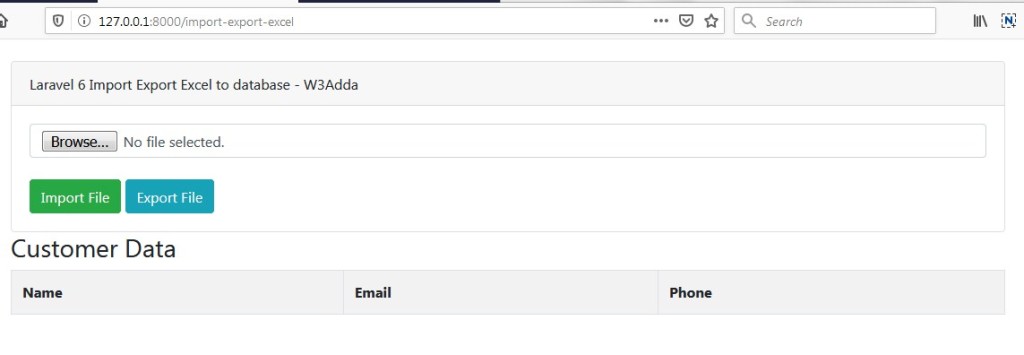
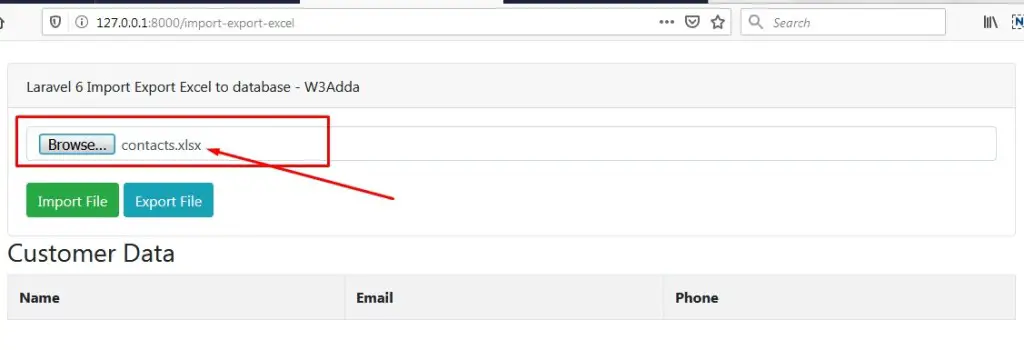
laravel-6-import-export-excel-file-in-database-1

Select excel file to upload, before uploading you must have created an excel file as following:
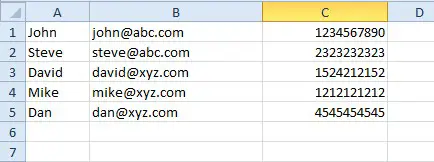
laravel-6-import-excel-csv-file-in-database-1

laravel-6-import-export-excel-file-in-database-2

Now, import file.

After Upload Screen Output:-
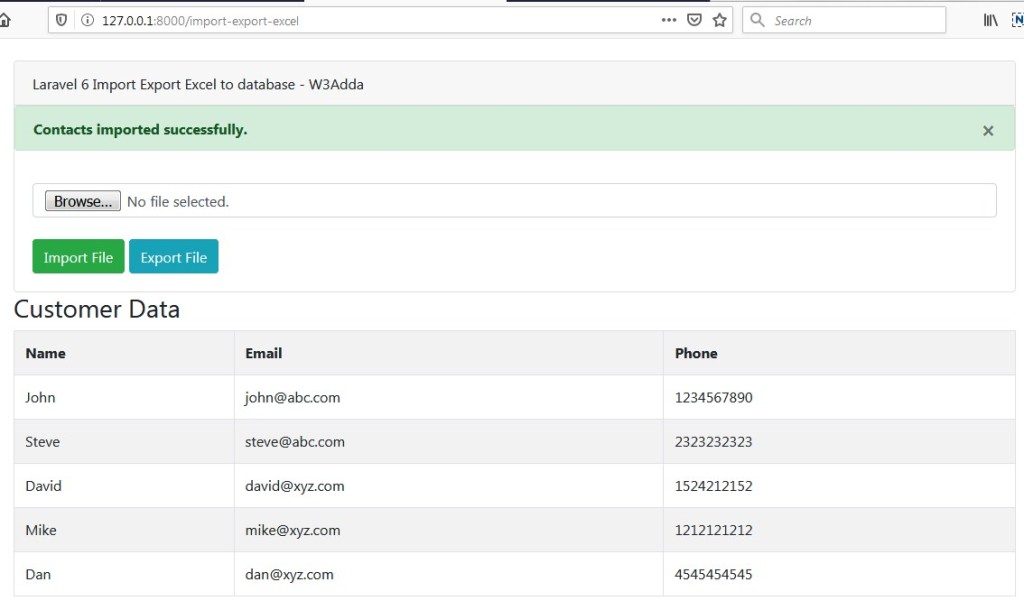
laravel-6-import-export-excel-file-in-database-3

Now, click “Export File” to export data into csv file.

laravel-6-import-export-excel-file-in-database-4

I hope you like this laravel 6 Import Export Excel CSV File to Database tutorial.

Laravel 7/6 Intervention Upload Image Using Ajax

Laravel 7/6 Intervention Upload Image Using Ajax

In this Laravel Intervention Image Upload Using Ajax example, we will learn how to upload and resize image using jquery ajax. In this tutorial I have used Intervention Image Package to upload and resize the image using jquery ajax and then save image into the database. This laravel image upload example is works with laravel version7, 6, 5.8 & 5.7 .

In this laravel image upload example, I’ll show you how to upload image into folder and then save it into database. In this tutorial before saving image into database we will resize the image and create it’s thumbnail image and then save it into thumbnail directory using the image intervention package.

Before uploading the image we will validate it using server side validation. In this example we will be uploading the image using jquery ajax without page refresh and reload. After successfully image upload into the database and folder we will display original image along with its thumbnail image (resize image).

  • Install Laravel Fresh Setup
  • Setup Database
  • Install Image Intervention Package
  • Generate migration file and model
  • Make Route
  • Create Controller & Methods
  • Create Blade View
  • Make Folder
  • Run Development Server
  • Conclusion

1). Install Laravel Fresh Setup

First of all we need to create a fresh laravel project, download and install Laravel 6 using the below command

2). Setup Database

Now, lets create a MySQL database and connect it with laravel application. After creating database we need to set database credential in application’s .env file.

.env

3). Install Image Intervention Package

In this step, we will install Image intervention Package via the composer dependency manager. Use the following command to install image intervention Package.

After Installing Image intervention package, we need to add service provider and alias in config/app.php file as following.

config/app.php

4). Generate Migration & Model

It command will create one model name Photo and also create one migration file for the Photo table. After successfully run the command go to database/migrations file and replace function, below here :

Before we run PHP artisan migrate command go to app/providers/AppServiceProvider.php and put the below code :

Next, migrate the table using the below command :

5). Make Route

now, create two routes in the web.php file.

web.php

6). Create Controller

Next, we have to create a controller for image uploading and resizing. Create a controller named ImageController using command given below –

Once the above command executed, it will create a controller file ImageController.php in app/Http/Controllers directory. Open the ImageController.php file and put the following code in it.

app/Http/Controllers/ImageController.php

7). Create Blade view

In this step, we need to create a blade view file. Go to app/resources/views and create one file name image.blade.php :

Now we will implement a laravel ajax image upload script, put the below script after the closing of the body tag.

8). Make Folder

9). Run Development Server

Now we are ready to run our example so run bellow command to quick run.

Laravel 7/6 Yajra DataTables Example Tutorial

In this Laravel 7, 6 Yajra DataTables Example tutorial, I’ll show you how to install and use yajra DataTables in your laravel projects with example. In this tutorial, we will be using yajra datatable package for listing of records with pagination, sorting and filter (search) feature. Laravel Yajra datatables package comes with many built-in features for searching and sorting functionality.

Laravel 7/6 Yajra DataTables Example Tutorial

In this step by step tutorial I’ll guide you through the steps to install and use yajra DataTables with your laravel project:

  • Install Laravel
  • Configuration .env file
  • Run Migration
  • Install Yajra DataTables
  • Add Fake Data
  • Create Route, Controller & Blade View
  • Start Development Server

Install Laravel 7/6

First of all we need to create a fresh laravel project, download and install Laravel 7/6 using the below command

Configure Database In .env file

Now, lets create a MySQL database and connect it with laravel application. After creating database we need to set database credential in application’s .env file.

.env

Run Migration

Now, we need to create migration of tables using following command:

Install Yajra Datatable Package

In this step, we will install Yajra Datatables Package via the composer dependency manager. Use the following command to install Yajra Datatables Package.

After Installing Yajra Datatables package, we need to add service provider and alias in config/app.php file as following.

config/app.php

After set providers and aliases then publish vendor run by the following command.

Add Fake Records

Now, we need to add some fake records in the database.

Running this command will add some fake records in your database table.

Add Route

Now add routes in web.php file as following:

routes/web.php

Create Controller

Now, create a new controller UsersController using following artisan command:

Once the above command executed, it will create a controller file UsersController.php in app/Http/Controllers/directory. Open the UsersController.php file and put the following code in it.

app/Http/Controllers/UsersController.php

Create Blade / View Files

In this step, we will create view/blade file. Lets create a blade file “users.blade.php” in “resources/views/” directory and put the following code in it respectively.

resources/views/users.blade.php

Start Development Server

Let’s start the development server using following artisan command:

Now, visit the following link in browser to see the output:

Laravel 7/6 Yajra DataTables Custom Search Example Tutorial

Laravel 7/6 Yajra DataTables Custom Search Example Tutorial

In this Laravel 7/6 Yajra DataTables Custom Search Example Tutorial, I’ll show you how to add custom search or data filter to datatables. In this tutorial, we will be using yajra datatable package for listing of records with pagination, sorting and filter (search) feature. Laravel Yajra datatables package comes with many built-in features for searching and sorting functionality. In this article you will learn to add custom field for searching data without reloading or refreshing of page.

Install Laravel 7/6

First of all we need to create a fresh laravel project, download and install Laravel 7/6 using the below command

Configure Database In .env file

Now, lets create a MySQL database and connect it with laravel application. After creating database we need to set database credential in application’s .env file.

.env

Generate Application Key

Open terminal and switch to the project directory and run the following command to generate application key and configure cache.

Set Default String Length

Locate the file “app/Providers/AppServiceProvider”, and add following line of code to the top of the file

and inside the boot method set a default string length as given below –

So this is how “app/Providers/AppServiceProvider” file looks like –

Create Database Table

Now, we have to define table schema for posts table. Open terminal and let’s run the following command to generate a migration file to create posts table in our database.

Once this command is executed you will find a migration file created under “database/migrations”. lets open migration file and put following code in it –

Run Migration

Now, run following command to migrate database schema.

After, the migration executed successfully the posts table will be created in database along with migrations, password_resets and users table.

Create Model

Next, we need to create a model called Post using below command.

Once, the above command is executed it will create a model file Post.php in app directory. Next, we have to assign fillable fields using fillable property inside Post.php file. Open app/Post.php file and put the following code in it –

app/Post.php

Install Yajra Datatable Package

In this step, we will install Yajra Datatables Package via the composer dependency manager. Use the following command to install Yajra Datatables Package.

After Installing Yajra Datatables package, we need to add service provider and alias in config/app.php file as following.

config/app.php

Create Controller

Next, we have to create a controller to handle Ajax CRUD Operations. Create a controller named AjaxCrudController using command given below –

Once the above command executed, it will create a controller file AjaxCrudController.php in app/Http/Controllers/dtable directory. Open the dtable/AjaxCrudController.php file and put the following code in it.

app/Http/Controllers/dtable/AjaxCrudController.php

Create Blade / View Files

In this step, we will create view/blade file to perform CRUD Operations. Lets create a blade file “custom_filter.blade.php” in “resources/views/dtable/” directory and put the following code in it respectively.

resources/views/dtable/custom_filter.blade.php

Create Routes

After this, we need to add following routes in “routes/web.php” file along with a resource route. Lets open “routes/web.php” file and add following route.

routes/web.php

Now we are ready to run our example so lets start the development server using following artisan command –

Now, open the following URL in browser to see the output –

http://localhost:8000/dtable-posts-lists

Laravel 7/6 Send Email Using Mailable Class Tutorial

In this Laravel 7 send email example using mailable tutorial I’ll show you how to send email in laravel using a mailable class with example. In this step by step tutorial I’ll guide you through how to send email in laravel using SMTP driver. Laravel provides an API with driver support for SMTP, SendMail, Mailgun, Sendgrid, Mandrill, Amazon SES, SpartPost, etc. In this tutorial we will use simple example of mailable class to send email in laravel application.

Laravel Send Email Using Mailable Class Example

  • Install laravel Fresh Setup
  • Configuration SMTP in .env
  • Mailable Class
  • Create Route & Blade View
  • Create Controller & Method
  • Run Development Server

Install Laravel 8

First of all we need to create a fresh laravel project, download and install Laravel 8 using the below command

Configure Database In .env file

Now, lets create a MySQL database and connect it with laravel application. After creating database we need to set database credential in application’s .env file.

Configuration SMTP in .env

Now we will configure SMTP credentials in the .env file. Let’s open .env file.

.env

Mailable Class

Now, create a mailable class for sending emails, use the following command :

Create Route & Blade View

Now, we need to create a route to send email, open your routes/web.php input the below route :

Next, we will create an email blade view file in views folder of view. Go to the resources/views/emails and create a view file name email.blade.php. Put bellow code:

Create Controller & Method

In this step we will create a new controller EmailController with one method to send email. Open your terminal and run following command to create controller:

Now open the controller file and put the following code in it:

Run Development Server

In this step, we will start the development server using following command:

Now, visit the following link to send email:

Laravel 7/6 Multi Auth( Authentication) Example Tutorial

In this Laravel multi (auth) authentication tutorial I’ll show you how to create multi auth system in laravel 7/6. In Laravel Multiple authentication multiple users can log in in one application according to roles.

Laravel 7/6 Multi Auth( Authentication) Example Tutorial

While developing a laravel application there comes situations where we want create separate user login or separate user/admin panel for users having different privileges or access rights in same application. In this laravel multi auth system, we will create a middleware for checking the user’s role. It is an admin or normal user. We will create middleware name admin and configuration in the kernal.php file and also in the route file.

Install Laravel 6

First of all we need to create a fresh laravel project, download and install Laravel 5.8 using the below command

Configure Database In .env file

Now, lets create a MySQL database and connect it with laravel application. After creating database we need to set database credential in application’s .env file.

Migrations and User Model

After installing laravel, you will see the some migration files created inside database/migrations directory for creating default create users table and password reset table. Open app/database/create_users_table.php migration file and add/update the following field for admin.

After you added a column “is_admin” to user table run the migration using following command.

After this, go to app/User.php and add is_admin to fillable attribute in the User Model.

Authentication Scaffolding

Laravel comes with in-built basic authentication system, use the below command to generate default authentication scaffolding –

This command will generate required Controller files, views and add routes in our web.php routes file that are required for basic authentication system.

Create Admin Middleware

Now, we will create a middleware that authenticate users. This middleware will help to make sure who can access the admin area or who can access the normal user area. Use the following command to generate a middleware for Admin.

Next, open app/Http/ Middleware/Admin.php file, and here in handle() method implement the logic to authenticate users like below.

Now, we need to register admin route in $routeMiddleware property in the app/Http/Kernel.php file. Lets open app/Http/Kernel.php file and update the $routeMiddleware property like below –

Set Admin Protected Route

Next, create the route for admin. Open the routes/web.php file and add the following code in it.

routes/web.php

Create Controller Methods

Open the app/Http/Controllers/HomeController.php controller file and create two separate methods to handle admin and normal users.

app/Http/Controllers/HomeController.php

Create Blade/View

Now we will have two separate view files, first is for home page and second is for after login admin page. Open the resources/views/home.blade.php file and update the following code.

resources/views/home.blade.php

Here, if(auth()->user()->is_admin == 1) is used to check user is a normal user or an admin user, it will navigate to the admin area. Otherwise, it will redirect to users area.

Now, create a view file called admin.blade.php in the root of the views folder, and add the following code to it.

resources/views/admin.blade.php

Start Development Server

Start the development server using following artisan command –

In order to test laravel multi auth system first register a user through laravel register and then change the is_admin=1; and try to login again.

User Home 1 :-

laravel-multi-auth-2

After Login Admin Page :-

laravel-multi-auth-1

User Home 2 :-

laravel-multi-auth-3

Laravel 7/6 QR Code Generator Example

In this Laravel 7/6 QR Code Generator Example article, I’ll show you how to generate qr codes with any text, size, color, background color, format like png, eps, svg. In this laravel qr code example, we will be using simple-qrcode package to generate QR codes.The simple-qrcode package is used to generate qr code in your laravel application. The simple-qrcode package has many options for creating qr codes. You can also create qr code for geo, phone number, text message using simple qrcode package. The simple-qrcode package is very easy to install and use.

Install Laravel 7/6

First of all we need to create a fresh laravel project, download and install Laravel 7/6 using the below command

Install simple-qrcode Package

In this step, we will install simple-qrcode Package via the composer dependency manager. Use the following command to install simple-qrcode Package.

Register Package

After Installing simple-qrcode package, we need to add service provider and alias in config/app.php file as following.

config/app.php

Basic Usage Of simple-qrcode Package

Qr code with specified string can be generated as follows –

Syntax:-

Simple QR Code :-

Simple Qr code with specified string can be generated using generate() method. Add a simple-qr-code route to your routes/web.php file to return simple QR code as follows –

Here, size() function is used to specify the size of the QR Code. Visit (http://localhost:8000/simple-qr-code) to see the QR code. Scan the QR code and you will see the text. You can also display the QR code in Blade file as follows –

QR Code with Color :-

You can also set color for QR code pattern and the background using color(R, G, B) and backgroundColor(R, G, B) methods.

Add a color-qr-code route to your routes/web.php file to return colored QR code as follows –

Visit (http://localhost:8000/color-qr-code) to see the colored QR code. Or you can simply display the colored QR code in Blade file as follows –

QR Code with Image :-

You can also place an image in QR code using the merge(“file_name.png”) method, this method only accept png files and you also need to format the response back to png.

Add a qr-code-with-image route to your routes/web.php file to return QR code with image as follows –

Visit (http://localhost:8000/qr-code-with-image) to see the QR code with Image merged. Or you can simply display the QR code with Image in Blade file using <img> tag as follows –

Email QR code :-

You can encode QR codes that automatically fill-in email address, subject and body of the email.

Syntax:-

Example:-

QR Code Phone Number :-

You can encode QR codes such that it automatically open up the phone dialer and dial the phone number.

Syntax:-

Example:-

QR Code Text Message :-

You can encode QR codes such that it automatically open up the phone messenger and fill-in phone number or the message body.

Syntax:-

Example:-

QR Code Geo co-ordinates :-

You can encode QR codes such that it automatically open up map application with the specified location.

Syntax:-

Example:-

Create Blade / View Files

In this step, we will create view/blade file to generate and display QR Codes. Lets create a blade file “index.blade.php” in “resources/views/qrcode/” directory and put the following code in it respectively.

resources/views/qrcode/index.blade.php

Create Routes

After this, we need to add following routes in “routes/web.php” file along with a resource route. Lets open “routes/web.php” file and add following route.

routes/web.php

Now we are ready to run our example so lets start the development server using following artisan command –

Now, open the following URL in browser to see the output –

http://localhost:8000/generate-qr-code

http://localhost:8000/simple-qr-code

http://localhost:8000/color-qr-code

http://localhost:8000/qr-code-with-image

Laravel Eloquent ORM Cheat Sheet

Laravel Eloquent ORM Cheat Sheet

Laravel Select Query

Laravel From Clause


Where


Joins

Eager Loading

Grouping

Cache

Offset & Limit

Order

Create

Update

Delete

Getters

Paginated results

Aggregate

Others

Object methods

Debugging

Laravel Relationships Cheat Sheet

In this Laravel Eloquent Relationships with example tutorial, I’ll show you how to create and use eloquent relationships in your laravel database model. In laravel , you can define Eloquent Relationships model classes. In eloquent model you can create custom relationship methods along with methods example hasOne(), hasMany(), belongsTo(), belongsToMany(), hasOneThrough() etc.

Eloquent Relationships in Laravel

In laravel eloquent model you are allowed to create following type for relationships.

Types of Eloquent Relationships in Laravel

  • One To One
  • One To Many
  • Many To Many
  • HasMany Through
  • Many To Many Polymorphic Relation

Laravel One to One Relationship with Example

In Laravel, one to one relationship is one of basic relationship. Suppose,  Post model would be associated with a content model using one to one relationship. This one to one relationship means every post can have one one content associated with it. To demonstrate this relationship, we will create a post_content() method within the Post model and call the hasOne() method to relate the Content model.

It is important to note that Eloquent establishes a foreign key based on the model name and should have a matching value id. Here post_id is the foreign_key of Content.

Laravel inverse of One to One Relationship Example

For now you are allowed to access the content from the post model. Now create an inverse relationship on the content model so that the post can accessed the content model . This can be achieved using laravel belongsTo method to get the post data from the content model.

you can access the post content using the relation method as following:

Laravel One to Many Relationship Example

In One of many relationships one single model can associated with multiple number of the other model. For example, an author may have many post.

you can now access the collection of post article by using the post() method as.Using this, we get all the posts of a single author. Here we need to get the author details of a single post,for each post there a single author, within the Post model includes belongsTo relation.

Inverse One to Many Relationship Example

The inverse of the one to many relationship is defined using laravel  belongsTo  method. Since we have access to post articles of an author, now we need to allow a post article to access its parent Author model or access author details by using the post model. This inverse relationship can be established using belongsTo method as following:

Now we can get the author details by using posts as following:

Laravel Many to Many Relationship Example

Let suppose now each of the post have multiple tags and each tags can belongs to multiple posts then this type of relationship is defined as many to many relationship. In laravel many to many relationship can be defined using belongsToMany() method.

Now you can access the tags in post model as following:

The inverse of Many to Many Relationship Example

The inverse of a many to many relationships can also be defined using belongsToMany method on the associated model as following:

you can now access the post in tag model as following:

Laravel HasMany Through Relationship

The “has-many-through” relationship allows you accessing distant relations via an intermediate model. For example, a Country model might have many Post models through an intermediate User model. In this example, you could easily gather all blog posts for a given country. Let’s look at the tables required to define this relationship:

How to Remove Public From URL in Laravel

In this Remove public from URL in laravel tutorial we will learn how to remove the public from URL in laravel.

Remove Public From URL Laravel

In this step by step tutorial I’ll show you how to remove public from URL in your laravel application. In this article I’ll show you two different method to remove public from URL in laravel

  • Remove public from url using .htaccess
  • Raname server.php and move .htaccess file

Remove public from url using .htaccess

In this method we will rewrite url using .htaccess file of your laravel project. The .htaccess file  can be found in root directory of your laravel application. Before you update your .htacces file you must have mod_rewrite enabled on your Apache server. The rewrite module is required to apply these settings.

Let’s open .htaccess file and put the following code in it.

Rename server.php and move .htaccess file

In this method you need to follow the below steps to remove public from url in laravel

Step 1:-

Rename server.php to index.php. The server.php file is located at your project’s root directory.

Step 2:-

Copy the .htaccess file from /public directory to your Laravel project’s root directory.